What should you look for when buying?
First, decide what matters most for your workflow: a readable workspace, switching between laptops, adjustability at a shared desk or displaying fine details. Then you can compare resolution and connectivity more effectively.
QHD with a USB-C hub
A good choice if: You use a schedule, spreadsheet and communications side by side, and switch between compatible laptops at your desk. The Dell P2725DE and Lenovo ThinkVision T27h-30 are examples; Dell and Lenovo list these models as QHD.
Bear in mind: A USB-C port on your laptop doesn’t, by itself, guarantee that video output and charging will work as you need them to. Check the charging power required and the ports needed for your peripherals, too.
Adjustable 4K monitor
A good choice if: You regularly check detailed plans, images or event designs, and can set a comfortable text size for your viewing distance. The LG 27UP850K-W and EIZO EV2740X are confirmed examples of 27-inch 4K monitors.
Bear in mind: More pixels don’t automatically mean more windows you can comfortably read. Docking, KVM and charging power vary by model.
QHD without prioritising a one-cable setup
A good choice if: Your computers already have suitable video ports and an integrated hub isn’t essential to your workflow. You can then give more weight to readability and the stand.
Bear in mind: If you frequently switch between laptops, you may need separate cables or an additional docking solution.
| Consideration |
What to check when buying |
Who it matters most to |
| Readable workspace |
Consider the screen size, native resolution and desk space together with your usual window layout. |
If I want to keep my schedule, budget and messages in view at the same time, I need a readable display with everything side by side. Around 31% of consumers put workspace first. |
| Laptop connectivity |
For each laptop, check video output over USB-C, the charging power required and the ports needed for peripherals. |
If I connect different laptops at a shared desk, I want to choose cables and power supplies that suit each device. Laptop connectivity is a priority for around 31% of consumers. |
| Adjustability at the desk |
Check the specific model’s height adjustment, tilt, swivel and stand footprint. |
If several people use the desk, I want to be able to position the screen comfortably after changing seats. Around 23% of consumers prioritise adjustability. |
| Fine image detail |
View designs and regular text at your preferred scaling; check the specifications of the exact 4K model. |
If I regularly check detailed plans or images, I want to see the detail without the text becoming uncomfortably small. Image detail is the main consideration for around 15% of consumers. |
Monitors available at Joybuy
The models below include QHD and 4K monitors for planning with several windows open, as well as options with adjustment features or USB-C functions for a shared desk.
 No image available
INNOCN CB27U1 27-inch 4K UHD monitor
A 4K model is worth considering for checking detailed event designs, as long as text scaling remains comfortable at your workstation.
Specifications include 3840 × 2160 pixels, IPS, 120 Hz, HDR500, FreeSync, PIP and PBP, plus USB-C with 90 W Power Delivery.
Check that USB-C video output and charging power are compatible with your laptop.
View at Joybuy
 No image available
Philips 276B9 27-inch QHD IPS monitor
QHD can be a good starting point for viewing your schedule, budget and messages side by side, provided windows and text are legible at your chosen scaling.
Specifications include 2560 × 1440 pixels, IPS, 75 Hz, USB-C with 65 W Power Delivery and a USB hub.
Check video output and charging requirements against your laptop.
View at Joybuy
 No image available
MSI PRO MP275QPDGDE 27-inch WQHD docking monitor
If you use two devices at a shared desk, a model with KVM and suitable ports could be a good option for switching between them.
Specifications include WQHD at 2560 × 1440 pixels, IPS, 100 Hz, USB-C with 98 W Power Delivery, KVM, daisy chaining and an integrated webcam.
Check USB-C video output and charging requirements for the laptops you use.
View at Joybuy
 No image available
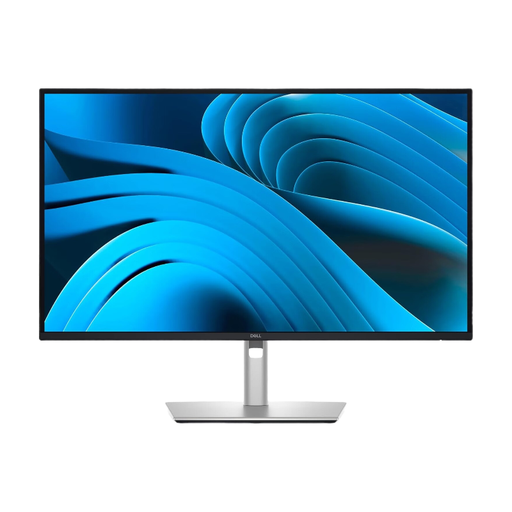
Dell Pro Plus P2725DE 27-inch monitor
The stated QHD resolution is an option for working with several planning windows, provided the display and text size suit your workflow.
The product name specifies a 27-inch screen and 2560 × 1440 pixels.
Check the ports and charging requirements of this specific monitor against your laptops.
View at Joybuy
 No image available
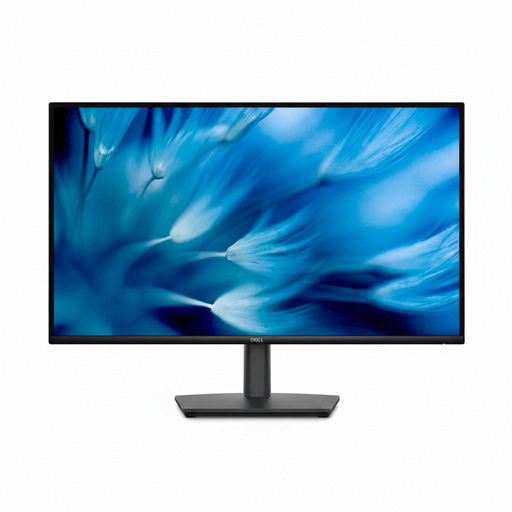
Dell Pro 27 E2726DS 27-inch WQHD IPS monitor
If you want to position the screen for different seating positions, compare the stand’s adjustment options with the space available at your shared desk.
Specifications include WQHD, IPS, HDMI and DisplayPort connections.
View at Joybuy
Frequently asked questions
What should I check when setting up a monitor at a shared desk?
Check the available desk space, your view of the screen, and whether the height and position suit the people using it. The German Statutory Accident Insurance organisation covers these setup considerations in its guidance; whether workplace regulations apply depends on the scope of the specific workplace.
Is USB-C on my laptop enough for video and charging over one cable?
Not necessarily. Check the video output supported by your laptop’s port, the cable and the power required against the specifications of the specific monitor. Manufacturers list different maximum Power Delivery levels for different models.
How can I compare the power consumption of different monitors?
Compare the EU energy label and product data sheet for the specific models. The European Commission includes electronic displays, such as computer monitors, among products covered by energy labelling. To compare costs, you’ll also need to consider how long you use the monitor, its operating mode and your electricity tariff.
What are my rights if a monitor I bought online is faulty?
For a consumer purchase, your statutory rights against the seller are separate from any voluntary manufacturer’s warranty. The Consumer Advice Centre also notes that online consumer purchases generally come with a 14-day right to cancel; the conditions and when the period starts depend on the circumstances.
Does ASR A6 apply to all voluntary event planning at a desk?
No, you can’t assume that simply because the desk is shared. The Federal Institute for Occupational Safety and Health lists screen-based workstations in workplaces and teleworking workstations among the areas covered. However, the German Statutory Accident Insurance organisation’s ergonomic guidance may still be helpful when setting up your desk.


