What should you look for when buying?
Start by working out whether your logs need colour and how often you print. Then compare the scanning workflow you need, network access and the space available at your shared workstation.
| What to consider |
What to look for |
Who is it most important to? |
| Text printing and ongoing costs |
Estimate how many pages you print and compare consumables, along with any separate maintenance parts for the exact model. |
If I mainly print text, I don’t want to pay for colour I rarely need, but I still want to keep an eye on running costs. Around 31% of consumers put text printing and ongoing costs first. |
| Access for multiple users |
Check LAN, Wi-Fi and support for the devices you actually use. Also agree who will collect printouts and manage the settings. |
If several people print, I need a connection that suits our network and devices. Around 25% of consumers prioritise shared access to a printer. |
| Copying and scanning |
Check whether the printer has a flatbed scanner, document feeder and explicitly stated duplex scanning. Duplex printing alone tells you nothing about the scanning workflow. |
If I want to digitise several completed logs, a suitable feeder matters more to me than a feature that only prints on both sides. Around 19% of consumers prioritise scanning and copying workflows. |
| Colour documents |
Check which documents genuinely need colour, then compare your requirements with the printer’s colour technology and compatible consumables. |
If my documents include coloured annotations or illustrations, I want to be able to print them as intended. Around 13% of consumers prioritise colour printing. |
| Footprint and operating space |
Measure the available space, including room for open covers and paper paths. If you’re placing a laser printer in your workspace, you may also want to look for a low-emission model. |
If the printer sits right on our shared desk, I need enough room for the paper input and output trays and access to the scanner. Around 12% of consumers put finding the right place for the printer first. |
Joybuy printers for a shared desk
The products below include mono laser multifunction printers, inkjet models and colour laser printers. Compare the features of each specific model with your needs for network access, colour and scanning.
 No image available
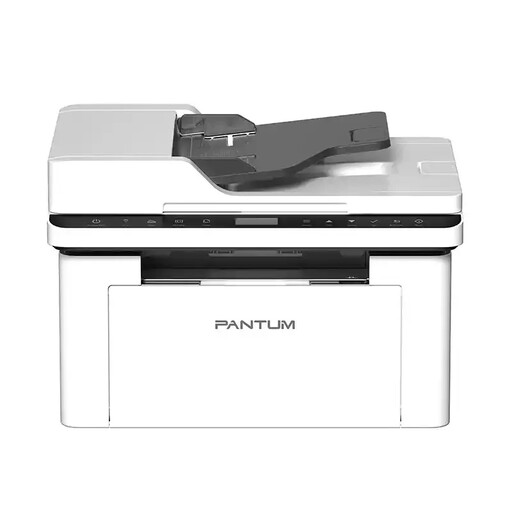
PANTUM BM2300AW A4 Mono Laser Multifunction Printer
A mono multifunction option for mostly text-based logs and shared network access.
A4 mono laser printing; 22 ppm; Wi-Fi; ADF.
View at Joybuy
 No image available
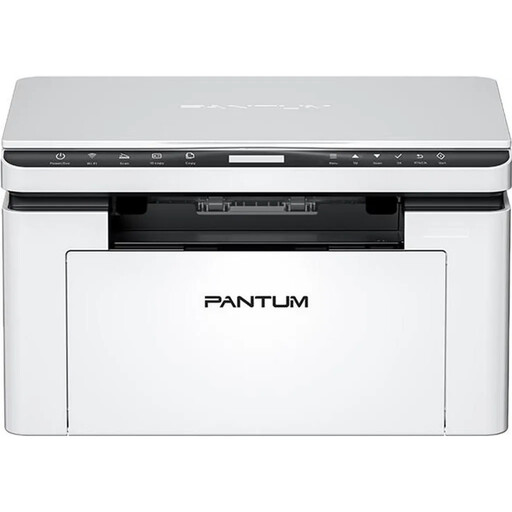
PANTUM BM2300NW A4 Mono Laser Multifunction Printer
A mono multifunction option if you want to choose a network connection that suits your shared workspace.
A4 mono laser printing; 22 ppm; dual-band Wi-Fi and Ethernet. Duplex printing is manual.
View at Joybuy
 No image available
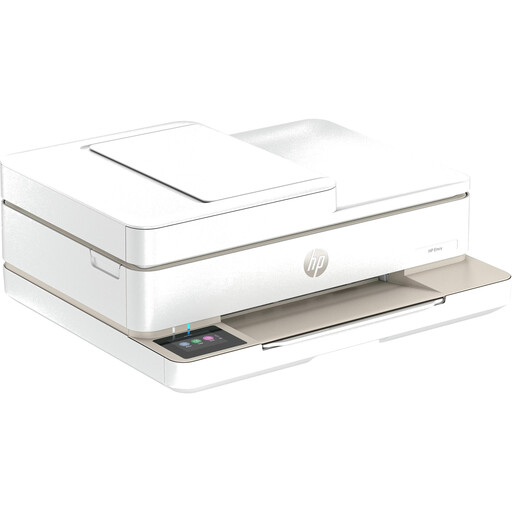
HP Envy 6520 All-in-One Wireless Inkjet Printer
A wireless inkjet all-in-one option if you need more than just printing from your device.
Described as a wireless inkjet all-in-one.
View at Joybuy
 No image available
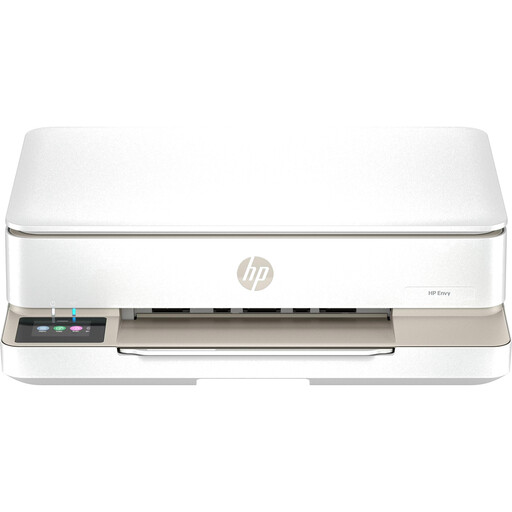
HP Envy 6120 All-in-One Wireless Inkjet Printer
A wireless inkjet all-in-one option for a shared workspace if this is the type of printer you’re looking for.
Described as a wireless inkjet all-in-one.
View at Joybuy
 No image available
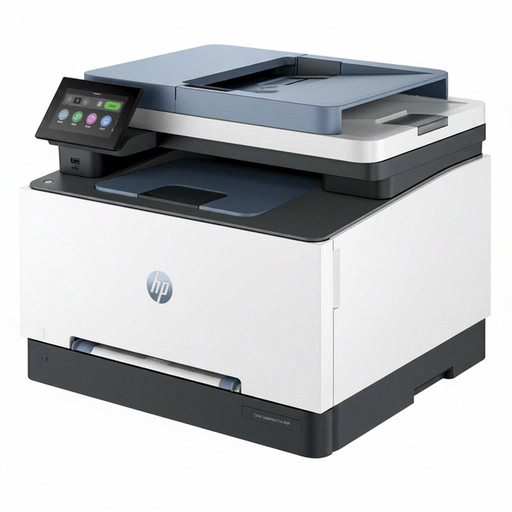
HP Color LaserJet Pro MFP 3302sdwg
A colour laser multifunction option if you’re comparing colour printing and network connections for a shared workspace.
Automatic duplex printing; dual-band Wi-Fi, Ethernet and USB.
View at Joybuy
Frequently asked questions
Is automatic duplex printing the same as double-sided scanning?
No. Duplex printing refers to printing on both sides of the paper. If you want to scan double-sided logs without turning them over by hand, check the scanning features of the exact model. Epson Germany lists double-sided scanning for the ET-3950.
What should I consider when setting up a printer for several people?
First, check the connections on the specific printer and the network you already have. For shared Wi-Fi, the German Federal Office for Information Security recommends, among other things, changing the router’s default passwords and keeping its firmware up to date. These are security recommendations, not specific legal requirements for printers.
What can I do if my inkjet prints streaky or blank pages?
For affected EcoTank and Expression printers, Epson Germany recommends checking the ink levels first, then running a nozzle check and, if necessary, cleaning the print head according to the model’s instructions. Don’t switch off the printer during a cleaning cycle.
Which costs and rights should I add to my post-purchase checklist?
Remember to factor in the correct ink or toner and, where applicable, a drum or maintenance cartridge. If a product is faulty, you have statutory rights against the seller under the legal guarantee. Any additional advertised manufacturer’s guarantee is separate and subject to its own terms.
What are the rules on labelling and disposal in Germany?
For products covered by the relevant EU regulations, the manufacturer uses the CE mark to declare conformity; it isn’t an independent quality mark. Under the rules explained by the German Environment Agency, an end-of-life printer must not go in household waste. It should be taken to a separate collection point, such as a recycling centre or an appropriate retailer’s take-back scheme.


