Start by choosing a monitor to suit your main task. An ultrawide gives you more horizontal space for long timelines, while 4K UHD lets you check fine image details at native resolution. For colour decisions, the display mode needs to match the output format. At a shared workstation, check the ports, ergonomics and whether a KVM switch is explicitly listed as separate considerations.
Who edits at a shared workstation?
Colour finishing team
If you’re matching footage from different cameras, you need a repeatable display workflow that suits your output format. Adobe describes Direct Rec.709 (SDR) as the default setting in the Premiere colour workflow mentioned, while EIZO documents hardware calibration for the ColorEdge CS2740.
Team working on long edits
If you’re reviewing lots of scenes and audio tracks, you’ll want to arrange the timeline, preview and tracks clearly. According to Dell, the Dell Pro P3425WE offers 3.440 × 1.440 pixels and a height-adjustable stand.
Team sharing an editing workstation
If several people or computers use the same workstation, suitable ports and an adjustable screen position matter. A KVM switch is only relevant if you need to switch a keyboard and mouse between multiple connected computers; EIZO explicitly lists this feature for the CS2740.
What should you look for when buying?
For a shared editing workstation, the right choice depends on whether colour checking, timeline space, switching between devices or native UHD detail is your priority.
| Priority |
What to check when buying |
Who is it important to? |
| Colour checking |
Choose your output format and check for a suitable display mode and any calibration process. |
When we’re matching footage from different cameras for the final film, we need a repeatable display workflow that suits our output format. Around 31 % of consumers are likely to make colour checking their top buying priority. |
| Space for the timeline and audio tracks |
Check how windows are arranged and how easy they are to read at your actual desk; consider the resolution and aspect ratio. |
When working on long club anniversary films, I want to keep the preview, timeline and audio tracks in view at the same time. Around 25 % of consumers are likely to put timeline space first. |
| Switching at a shared workstation |
Check that the computer, video connections and required charging power are compatible; only expect KVM if multiple computers are connected. |
When several of us use the same editing workstation, the connections and screen position should work for us without a fiddly changeover. Around 25 % of consumers are likely to prioritise a smooth changeover between users above all else. |
| UHD detail checking |
Check your source footage and output target, as well as the signal path and preferred scaling on your existing computer. |
If I need to check UHD footage for fine image defects or subtitles, native 4K output is important; choosing the right scaling is a separate consideration. Around 19 % of consumers are likely to make UHD detail checking their top priority. |
Common misconceptions
-
Assuming ultrawide means native 4K checking
The Dell P3425WE has a resolution of 3.440 × 1.440 pixels, so it does not display a UHD image natively at 3.840 × 2.160 pixels.
If you need to assess UHD details at native resolution, choose a suitable 4K monitor. If the timeline is your priority, an ultrawide format may be a better fit for your workflow.
-
Confusing a USB-C hub with a KVM switch
A connection for video and peripherals does not automatically let you switch a keyboard and mouse between two computers.
If you plan to connect multiple computers, check that KVM is explicitly listed for the exact model. Depending on your computer setup, you may need additional switching hardware or cables.
-
Taking an HDR logo as proof that a monitor is suitable for HDR mastering
An HDR label alone does not prove that a monitor is suitable for colour-critical HDR finishing on a project.
For HDR projects, assess the specific monitor as part of your complete output and checking workflow, rather than relying on a logo alone.
Key brands at a glance
ASUS
The ProArt PA279CRV is a documented 27-inch 4K option for an SDR workflow.
- ASUS lists a resolution of 3.840 × 2.160 pixels, a selectable Rec.709 mode and a height-adjustable stand for this model.
- The listed connections and power supply need to suit your club’s computer. They don’t guarantee that one cable will be enough for every computer.
BenQ
The DesignVue PD2705U is a 27-inch 4K option for a planned SDR colour workflow.
- BenQ lists 99 % Rec.709 and 99 % sRGB coverage for the PD2705U, as well as factory calibration.
- The manufacturer’s factory calibration details don’t replace the need to coordinate your shared display workflow.
EIZO
The ColorEdge CS2740 is a good fit for a team that plans regular colour checks and has someone responsible for calibration.
- EIZO documents 4K UHD, hardware calibration and KVM for the CS2740.
- According to EIZO, USB-C power delivery is limited to a maximum of 60 W, so check it against the connected device.
Dell
The Pro P3425WE is a 34-inch ultrawide option that gives you more horizontal workspace.
- Dell lists a resolution of 3.440 × 1.440 pixels, a height-adjustable stand, USB-C power delivery up to 90 W and Ethernet for this model.
- Its resolution does not provide a native UHD preview at 3.840 × 2.160 pixels.
LG
The UltraFine 27UP850K-W is another 27-inch 4K option, with USB-C and an adjustable stand.
- LG lists 95 % DCI-P3 as a typical value for this model and describes how to use LG Calibration Studio.
- The DCI-P3 figure and DisplayHDR 400 alone don’t prove that it’s suitable for a specific colour-critical HDR finishing workflow.
Joybuy products for UHD editing and detail checks
The following Joybuy models are 4K or UHD monitors for checking details at a shared editing workstation. Connections and features vary by model.
 Image unavailable
MSI PRO MP273UPDE E6
Its listed 4K UHD resolution is suitable for checking fine image details at native resolution.
27 inches, IPS, 3.840 × 2.160 pixels and 60 Hz.
View at Joybuy
 Image unavailable
INNOCN CB27U1
Its 4K UHD resolution is designed for checking details. For a shared workstation, it’s also worth checking that the connections suit your existing computers.
27 inches, IPS, 3.840 × 2.160 pixels and 120 Hz. Listed features include USB-C with 90 W Power Delivery, HDMI, DisplayPort and a height-adjustable stand.
View at Joybuy
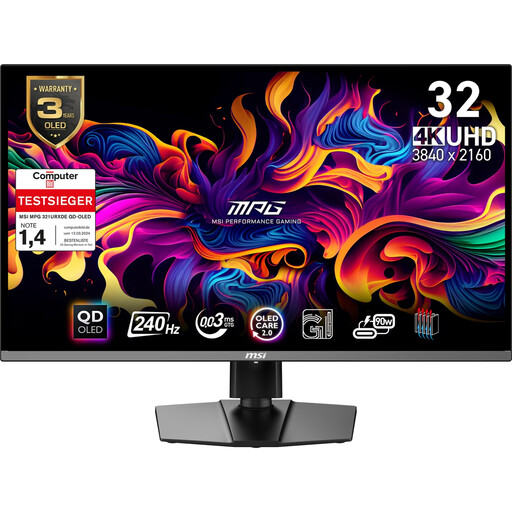 Image unavailable
MSI MPG 321URX QD-OLED
The 4K UHD format may be useful for checking fine details at your editing workstation.
31.5 inches, QD-OLED and 3.840 × 2.160 pixels. The product name lists DisplayHDR True Black 400; this alone does not mean the monitor is suitable for HDR mastering.
View at Joybuy
 Image unavailable
ASUS ROG Swift OLED PG32UCDMR
For a shared editing workstation, check that the KVM and USB-C features listed in the product name suit the devices you plan to connect.
32 inches, 3.840 × 2.160 pixels, 240 Hz, USB-C with 90 W Power Delivery and integrated KVM switch.
View at Joybuy
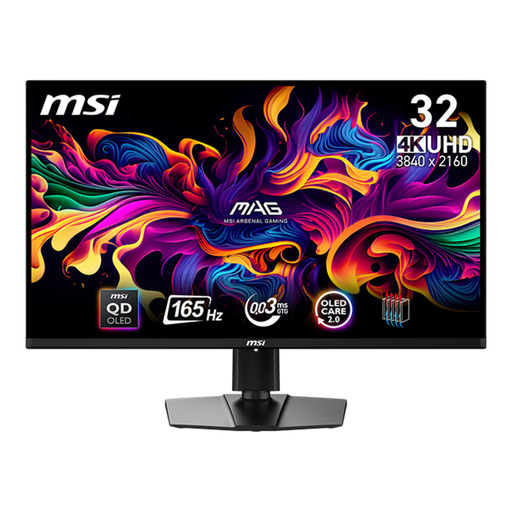 Image unavailable
MSI MAG 321UPDE QD-OLED
Its listed 4K UHD resolution is useful for checking fine image details.
31.5 inches, QD-OLED and 3.840 × 2.160 pixels.
View at Joybuy
Frequently asked questions
Does an anniversary film need to be edited on an HDR monitor?
No, not just because of the recording quality. Choose your output format first: Adobe distinguishes between SDR and HDR sequence settings and describes Direct Rec.709 (SDR) as the default setting in the Premiere workflow mentioned. An HDR logo alone doesn’t prove that the monitor is suitable for an HDR checking workflow.
How should the team set up the colour display?
For a planned Rec.709 SDR workflow, make sure the display mode and colour settings in your editing software work together. If you need consistent results over time, assign someone to set up a calibration process. EIZO describes ColorNavigator as a tool for hardware-calibrating ColorEdge monitors.
Can a USB-C monitor power any editing laptop with a single cable?
No. Check the video output and power requirements of your specific laptop and cable against the monitor connection you plan to use. ASUS lists 96 W for the PA279CRV, while EIZO lists a maximum of 60 W for the CS2740.
What ongoing costs and rights should the club check?
If needed, factor in a calibration device and suitable cables. Check energy consumption using the EU energy label or EPREL data. Statutory consumer rights are separate from voluntary warranties. Whether a purchase made in the club’s name counts as a consumer purchase depends on the specific contract.
Can you put an old monitor in household waste in Germany?
Electrical and electronic waste must be collected separately. The stiftung elektro-altgeräte register explains that, when you buy a new item and certain legal conditions are met, retailers required to accept returns must take back an old item of the same type free of charge. Ask the retailer you’re buying from about its return options.


