What to look for when buying
First decide which editing software, recording format and handover method you’ll use. You can then work out what specifications you need for your actual workflow.
| Consideration |
What to check before buying |
Who it matters most to |
| Editing performance |
Check that the editing software and version, footage resolution, RAM, graphics and cache drive in the exact configuration match your needs. |
If I regularly edit 4K footage with effects, I want the specifications to suit that exact workflow. Around 33% of consumers prioritise editing performance for their footage. |
| Project handover |
Check the operating system, software, ports and access to shared drives and media paths. |
If I switch between a laptop and a shared computer, I need accessible media and consistent project paths. Around 27% of consumers put project handover first. |
| Storage and media organisation |
Distinguish local working copies from shared originals, and check the SSD capacity and ports for your existing drives. |
If I need to keep originals and working copies easy to find, I plan storage and handover together. Around 20% of consumers prioritise media organisation. |
| Overall cost |
Consider the laptop, the software you actually need and any existing or additional storage together. |
If the laptop will only be used occasionally for museum films, I want to avoid unnecessary specifications and extra costs. Around 20% of consumers focus on the purchase price and ongoing costs. |
Suitable laptops at Joybuy
Windows laptops for editing video in Premiere and working at a shared editing workstation.
 No image available
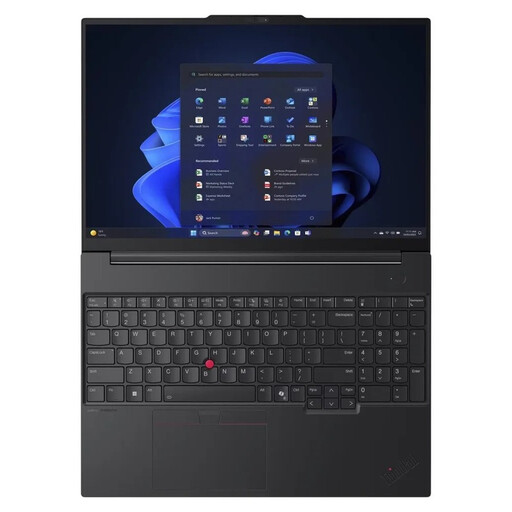
Lenovo ThinkPad E16 Gen 3 21ST
With Windows 11 Pro and 32 GB of RAM, this configuration is an option for a Windows-based editing workstation. Check that it suits your software version and shared media paths.
Listed specifications include an AMD Ryzen 7 250, integrated Radeon 780M graphics, 32 GB of RAM and a 1 TB SSD. For Premiere on Windows, Adobe recommends at least 32 GB of RAM for 4K and higher resolutions.
The listed ports include USB4-C and RJ45 Gigabit Ethernet. Check that they’re compatible with the devices you already have and the network at your editing workstation.
View at Joybuy
Frequently asked questions
Do the laptop and shared computer need to use the same operating system?
Not necessarily. Adobe describes Productions for macOS and Windows, but your editing software, media access and file paths need to work with your shared workflow. For Final Cut Pro, Apple explains how to hand a library over to another Mac.
How should shared storage be set up for Premiere Productions?
For NAS connections, Adobe recommends SMB, using the same drive letter on Windows computers, and having a fast local media cache at each workstation. Adobe specifies at least 1 Gbit/s per workstation and recommends 10 Gbit/s or more for projects larger than HD or several users working at once. These figures relate to the Productions workflow and aren’t general minimum requirements for a laptop.
Can proxies replace the original footage?
No. Adobe describes proxies as lighter working copies for editing, which you can later replace with the high-resolution footage. So make sure the originals are stored and can be found independently of the proxies.
What should I know about faults and extended warranties in Germany?
For a consumer purchase, the statutory warranty against the seller is separate from any voluntary guarantee. EU consumer information states that the statutory minimum guarantee is two years from the date you receive the goods. If the museum is buying as an organisation, check the specific contract terms separately.
Can footage showing identifiable museum visitors simply be edited or published collaboratively?
There’s no blanket answer. Germany’s data protection authority says that processing personal data requires a legal basis under Art. 6 GDPR. Consent is one possible basis, but not the only one. The museum must establish the legal basis and access rules for the specific footage and purposes.


