Photo archive reviewers
If you compare lots of images while also working with folders or metadata, look for a clear, easy-to-read workspace and make sure the monitor will fit on your shared desk.


If you mainly review, compare and organise photos, start by looking for a clear, easy-to-read workspace, the right connections and an adjustable screen. If you need to make definitive colour decisions or prepare images for print, the right colour mode and a reliable calibration and profiling workflow become more important. A manufacturer’s colour space figures alone don’t prove that a monitor will display the colours you want at your workstation.
If you compare lots of images while also working with folders or metadata, look for a clear, easy-to-read workspace and make sure the monitor will fit on your shared desk.
If different computers will be connected to the same monitor, check the video connection and charging requirements for each device. An adjustable screen and suitable ports make it easier to share.
If you assess the colour of photos or prepare them for print, compare the colour modes you need and plan a suitable calibration and profiling workflow.
| Buying priority | What to look for | Who is this most important to? |
|---|---|---|
| Clear, easy-to-read workspace | Compare the screen size and native resolution with the scaling you can comfortably read on your computer and the space available on your desk. | If I want to review photos, folders and metadata side by side, I need a clear layout without text becoming too small. Around 36% of consumers put readability and screen space first. |
| Switching between computers | Check the video output, charging power required, cables and, if applicable, KVM functionality for each device. | If several laptops are used at the desk, I want to know whether the monitor supports a picture and the power supply each one needs. Around 28% of consumers prioritise switching smoothly between computers. |
| Colour for editing or print | Check that the colour modes you need and the options for calibration and profiling fit your overall workflow. | If I’m assessing the colour of archive photos or preparing them for print, the colour workflow needs to suit the intended output. Around 18% of consumers put colour checking first. |
| Adjustability and desk space | Check the stand’s footprint, height and tilt adjustment, as well as the screen position and reflections in your workspace. | If several people with different seating positions use the desk, I want to be able to adjust the screen without overcrowding the workspace. Around 18% of consumers prioritise adjusting it to suit a shared workspace. |
The stated colour space coverage is no substitute for a suitable profile or for setting up the monitor and computers you use for the intended output.
First decide whether you’ll simply be reviewing photos or assessing colour for editing and print. Then check the colour management workflow you’ll need.
Allow time to maintain profiles. Depending on your workflow, you may also need a measuring device.
The monitor’s USB-C port alone doesn’t confirm that every laptop can output a picture through it or receive enough power to charge.
Check the ports, video mode and charging requirements for each computer individually. If you’re using KVM, make sure you also have the necessary connections.
Depending on your connection setup, you may need additional cables or a different connection.
The stand’s depth, screen position and reflections can all affect how easily you can set up and use the monitor on a shared desk.
Measure the available space, including room for input devices, and check the dimensions and adjustment options of the specific model.
The PhotoVue SW272U and PD2732U are worth considering if colour modes or calibration features matter alongside reviewing your archive.
The ColorEdge CS2740 is an option if repeatable colour settings are part of your workflow.
The ProArt PA279CRV is a 27-inch 4K option for reviewing images and potentially editing them.
The UltraSharp U2725QE is a 27-inch 4K hub monitor designed to integrate with your workspace.
The UltraFine 27UP850K-W is a 27-inch 4K option with USB-C and an adjustable stand for general archive work.
The models below range from monitors for reviewing archives to options with stated colour coverage or computer-switching features. Before you buy, check that the connections, desk space and features suit your workspace.
 No image available
Could suit reviewing photos and archive interfaces if the QHD resolution and connections work with your devices.
27 inches; QHD at 2560 × 1440 pixels; 144 Hz; 1 ms MPRT; Fast-IPS; DisplayPort and HDMI; height-adjustable stand.
 No image available
The stated Adobe RGB coverage could be a useful point of comparison when shortlisting monitors for colour-related work, but it doesn’t replace checking the colour management setup.
27 inches; QHD; 99% Adobe RGB and 99% sRGB according to the product specification; HDMI and DisplayPort; height-adjustable stand.
 No image available
The stated wide screen area could be useful for viewing photos alongside archive controls, provided your desk has enough room.
40 inches; 5120 × 2160 pixels; IPS; 100 Hz; USB-C with 65 W Power Delivery; height-adjustable stand.
The stated dimensions with the stand are 944.1 × 573.5 × 241.1 mm. Picture output and charging over USB-C depend on the capabilities of the connected computer.
 No image available
The stated KVM switch may be useful if you want to use the same input devices with several computers. Check the connection for each device.
27 inches; 4K or FHD dual mode; USB-C with 65 W; KVM; height-adjustable stand.
Using a single USB-C cable requires a compatible computer and a suitable connection.
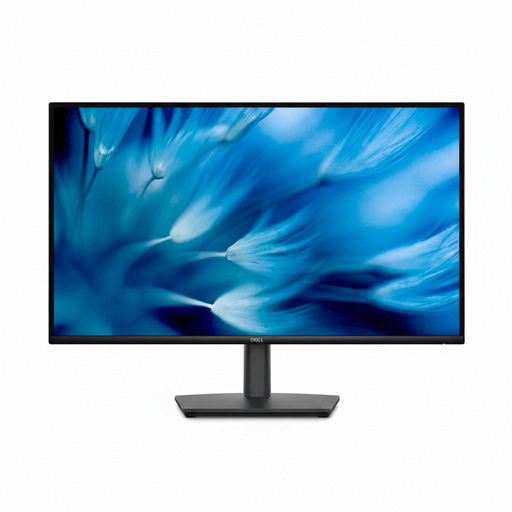 No image available
Could suit reviewing archives if the 27-inch size, WQHD resolution and available video connections work for your workspace.
27 inches; WQHD; IPS; HDMI and DisplayPort; 8 ms response time.
No. A wide colour space alone isn’t enough. If you’re only reviewing and organising images, focus first on readability and ease of use. For definitive colour decisions, you’ll also need a colour mode suited to the intended output and a well-maintained calibration and profiling workflow.
Adjust the screen position to suit whoever is using it, taking their vision, viewing distance and body measurements into account. The German Federal Institute for Occupational Safety and Health (BAuA) recommends setting the screen position to suit individual visual characteristics and body measurements.
Compare the EU energy label information for specific models on the same basis. The European Commission describes an efficiency scale from A to G for electronic displays. To work out your own cost in euros, you’ll also need to take account of how long you use the monitor and your electricity price.
Not simply because several people share the same private desk. Whether the Workplace Ordinance applies depends on the particular workplace and the scope of the rules. For covered screen-based workstations, it requires, among other things, that screens are positioned to avoid distracting reflections and glare.