A studio with changing users
You need a local copy of your photos and clear rules for access and storage. Plan for encryption and a tested recovery process. The BSI recommends making sure that backups can be restored.


Choose an external SSD with enough space for your photo archive, and agree who can access and restore files in your shared studio. The German Federal Office for Information Security (BSI) includes both backing up and restoring data in its data backup plan. So keep another copy separately and test that you can restore it. Faster speeds matter most when your computer and cable support the relevant interface.
You need a local copy of your photos and clear rules for access and storage. Plan for encryption and a tested recovery process. The BSI recommends making sure that backups can be restored.
If you’re backing up large projects, make room for your current collection and future backups before choosing an SSD based on its speed rating. The BSI recommends having enough storage for backup copies.
If you switch between devices, check that the cables, USB connection and, where relevant, backup format work with the computers you plan to use. Apple Support recommends APFS and APFS (Encrypted) formats for Time Machine volumes.
In a shared studio, your SSD needs to fit into a backup routine that lets you restore your files. Capacity, access protection and the ports on the computers you use will determine which option works best.
| Consideration | What to check before buying | Who should pay particular attention |
|---|---|---|
| Restorable backups | Allow enough space for your files and check how the SSD fits into a regular backup and recovery routine. | If I want to back up my photo archive, I also want to be able to restore files and keep another copy separately. Around 36% of consumers put the ability to restore files first. |
| Access protection | Check that encryption works with the computers you plan to use, and consider how the keys and drive will be managed. | In a shared space, I want to decide who can access the SSD without making it harder to restore files later. Around 29% of consumers put access protection first. |
| Capacity | Take your current collection and planned projects into account. Check the capacity of the specific model and how much storage is available after formatting. | If my photo archive is growing, I want to cover both existing files and new projects rather than choosing based only on peak speeds. For around 21% of consumers, having enough storage is the priority. |
| Connection and speed | Check that the USB connection, cable and operating system work with each computer you plan to use and the requirements of your backup software. | If I switch between computers, the connection, cable and backup format all need to be compatible for copying and restoring files. Around 14% of consumers put compatibility and speed first. |
An SSD on its own isn’t an additional backup if it holds the only remaining copy. The BSI includes restoring data in its data backup plan.
Keep your original files and backup separately, and regularly test by restoring a file.
In shared spaces, you should set rules for storage and access. The BSI notes that encryption can protect stored information from unauthorised access if a device is lost or stolen.
Decide who can use the drive, how it will be stored securely and how authorised users can unlock it later.
Samsung’s maximum sequential speeds for the T9 require a host and cable with USB 3.2 Gen 2x2, as well as UASP enabled. You can’t assume that another studio computer will meet these requirements.
First check the ports and cables on your computers, then choose a suitable speed.
The T7 Shield is positioned as a more rugged portable drive, while the T9 is aimed at workflows with a compatible USB 3.2 Gen 2x2 host.
The XS1000 is a compact option with USB-C and a USB-A connection option included; the XS2000 uses USB 3.2 Gen 2x2.
The X9 Pro is a compact USB-C SSD for backing up photos when specified protection against dust and splashes is important.
The Extreme Portable SSD is a portable USB 3.2 Gen 2 option available in a range of capacities.
This selection features portable external SSDs for local photo backups, including models with different capacities, connection options and access protection features.
 No image available
An option to consider if you need access protection and connections for different computers.
USB 3.2 Gen 2; listed speeds of up to 1,050 MB/s read and 1,000 MB/s write. The description mentions optional password protection with 256-bit AES hardware encryption, set up using software, as well as USB-C to USB-C and USB-C to USB-A cables.
 No image available
The 2 TB model gives you a specific capacity to work with when planning for a larger photo archive.
USB 3.2 Gen 2; listed speeds of up to 1,050 MB/s read and 1,000 MB/s write. The description mentions hardware encryption with password protection, set up using software. USB-C to USB-C and USB-C to USB-A cables are listed.
 No image available
A 2 TB option for a growing photo archive, with password protection also available.
USB 3.2 Gen 2; listed speeds of up to 1,050 MB/s read and 1,000 MB/s write. The description mentions password protection with 256-bit AES hardware encryption, set up using the SSD management utility, as well as USB-C to USB-A and USB-C to USB-C cables.
 No image available
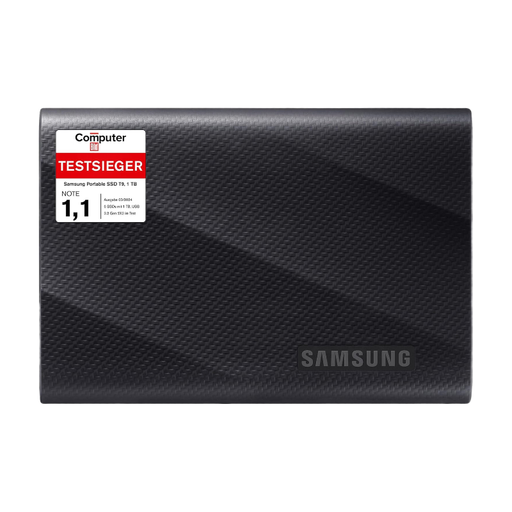
The T9 is worth considering if your studio computer supports USB 3.2 Gen 2x2 and the required cables.
The description lists sequential read and write speeds of up to 2,000 MB/s, as well as USB-C to USB-C and USB-C to USB-A cables. To reach the maximum speeds quoted by Samsung, the host and cable must support USB 3.2 Gen 2x2. Samsung also specifies that UASP must be enabled.
 No image available
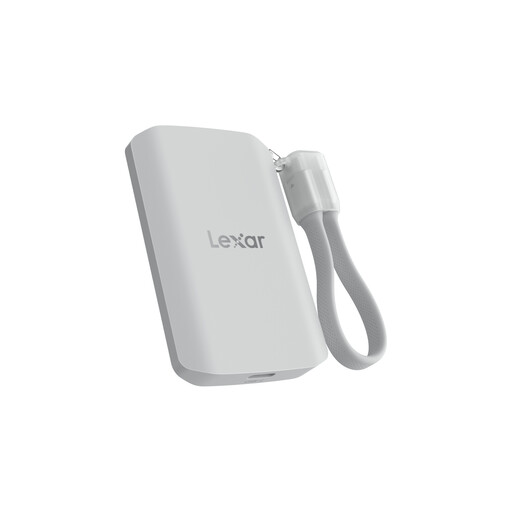
A 1 TB option if its stated dust and splash resistance is relevant to how you plan to use it.
The description lists USB 3.2 Gen 2x2, read and write speeds of up to 2,000 MB/s, and an IP65 rating. It also features an automatic media backup function via the Lexar app. The drive must not be submerged in water.
No, not if it would be the only remaining copy. Keep another copy separately and test that you can restore files. The BSI includes both backups and recovery in a data backup plan.
Not without first checking the volume format and intended use. Apple Support recommends APFS and APFS (Encrypted) formats for Time Machine volumes, and says a volume formatted for Windows can’t be used as a Time Machine destination. Decide what you’ll use the backup for before formatting the drive.
Use an authorised computer to test restoring a file, and check that you can unlock the encrypted drive as expected. Store the keys so that authorised users can still access the backup later.
The data protection principles mentioned here don’t set a blanket requirement to use a particular SSD model. If the studio processes personal photos, those responsible must assess suitable safeguards in line with the risks. The European Commission describes this risk-based approach; the SSD alone doesn’t determine whether you’re complying with the law.
Consider whether you need another copy, as well as suitable cables or adapters for the computers you plan to use. Also check that the drive’s format is compatible with your backup tasks and operating systems.