What to look for when buying
Start by choosing your editing software and sample footage. You can then plan your computer’s specification, shared file storage and backup process more effectively.
Upgradeable Windows tower
A good fit if: you use Windows software and may want to upgrade internal components later.
Consider: A tower takes up floor or desk space; upgrade options and specification depend on the configuration you order.
Compact Windows PC
A good fit if: space is limited at your shared editing workstation and the specific configuration suits your footage and software.
Consider: Check the graphics specification actually fitted, in particular. The HP SFF variant reviewed has 4 GB of GPU memory, below Adobe’s 8 GB recommendation for Premiere on Windows with 4K footage.
macOS desktop
A good fit if: your editing software, project files and club’s processes are compatible with macOS.
Consider: Apple lists different amounts of unified memory and storage depending on the model and configuration. Compare the exact specification with your workflow.
| Buying priority |
What to check when buying |
Who should pay particular attention? |
| Editing and previewing |
Check the editing software, codec and resolution, along with the RAM and GPU memory in the exact configuration. For Premiere on Windows with 4K footage, Adobe recommends 32 GB or more of RAM and 8 GB of GPU memory. |
If you’re editing footage from multiple camera angles or high-resolution clips, you’ll want to match the specification to your actual projects. Around 31% of consumers prioritise editing and preview performance. |
| Working and backup storage |
Allow space for original footage, projects and any proxies; also plan for a separate backup and check that files can be restored. The German Federal Office for Information Security does not consider RAID mirroring alone to be a backup. |
If your club’s archive is growing, you’ll want to keep working files close at hand and back up originals independently. Around 25% of consumers prioritise archiving and separate backups. |
| Shared use |
Plan user accounts, access permissions and a shared storage location. Adobe recommends using a local media cache in Premiere for shared media. |
If several members edit on the same computer, accounts and project folders should make it easy to switch between users. Around 25% of consumers prioritise shared use. |
| Software and operating system compatibility |
Before ordering, check your editing software, supported project formats and required connections. Compare specific configurations rather than just product ranges or form factors. |
If you want to keep using a particular editing programme or existing projects, your new computer should be compatible. Around 19% of consumers prioritise software and operating system compatibility. |
Joybuy products for your editing workstation
This selection includes compact Windows PCs and Mac desktops for a shared editing workstation. Check the exact specification against your editing software and footage.
 Image unavailable
Dell Pro Max Micro FCM2250 TPM, Core Ultra 7, 16 GB RAM, 512 GB SSD
For a Windows editing workstation where space is limited, provided the specification suits your projects.
Micro form factor; Core Ultra 7; 16 GB DDR5 at 6400 MHz; 512 GB M.2 PCIe SSD; Intel Graphics; Windows 11 Pro.
For Premiere on Windows with 4K footage, Adobe recommends 32 GB or more of RAM; this configuration is listed with 16 GB.
View at Joybuy
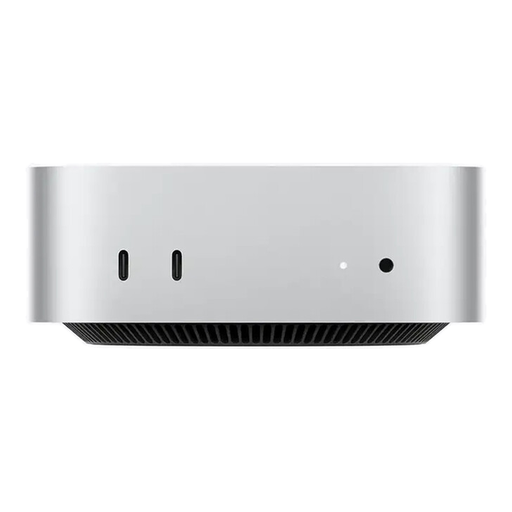 Image unavailable
Apple Mac mini, M5 Pro, 15-Core CPU, 16-Core GPU, 24 GB, 512 GB SSD
For a compact macOS editing workstation, if your software and projects are compatible with macOS.
M5 Pro; 15-Core CPU; 16-Core GPU; 24 GB unified memory; 512 GB SSD.
View at Joybuy
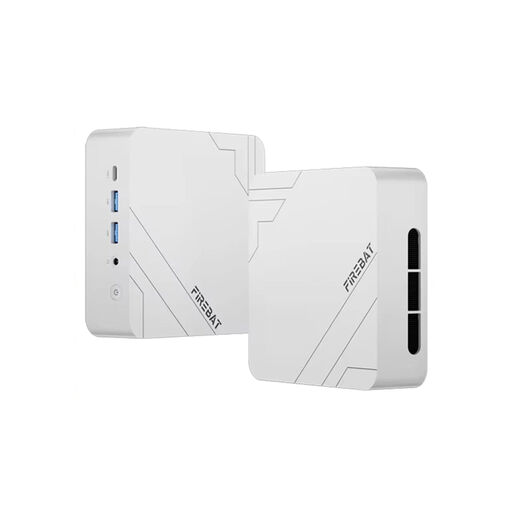 Image unavailable
Firebat Mini PC F1 P, AMD Ryzen 7 H 255, 16 GB RAM, 512 GB SSD
For a compact Windows editing workstation, if the specific configuration suits your editing projects.
AMD Ryzen 7 H 255; 16 GB DDR5 RAM; 512 GB SSD; Windows 11 Pro; Wi-Fi 6; USB4.0.
For Premiere on Windows with 4K footage, Adobe recommends 32 GB or more of RAM; this configuration is listed with 16 GB.
View at Joybuy
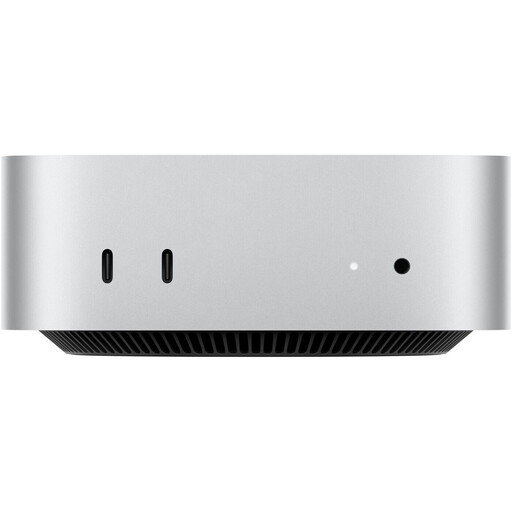 Image unavailable
Apple Mac mini MHQN4ZD/A_CTO, M5 Pro, 18-Core CPU, 20-Core GPU, 48 GB, 1 TB SSD
For a macOS editing workstation with the listed storage and memory specification, if your software and projects are compatible.
M5 Pro; 18-Core CPU; 20-Core GPU; 48 GB unified memory; 1 TB SSD; 2.5 Gigabit Ethernet.
View at Joybuy
Image unavailable
Apple Mac mini MHQN4ZD/A_CTO, M5 Pro, 18-Core CPU, 20-Core GPU, 24 GB, 512 GB SSD
For a macOS editing workstation with the listed storage and memory specification, if your software and projects are compatible.
M5 Pro; 18-Core CPU; 20-Core GPU; 24 GB unified memory; 512 GB SSD; 2.5 Gigabit Ethernet.
View at Joybuy
Frequently asked questions
Does our club film definitely need 32 GB of RAM for Premiere?
Not necessarily. Adobe recommends 16 GB of RAM for Premiere on Windows with HD footage, and 32 GB or more for 4K and higher resolutions. The right specification depends on your footage and workflow.
How do we set up the editing workstation for members who take turns?
On Windows, separate user accounts can provide their own settings and documents, as Microsoft Support explains. Also agree where shared project files will be stored and who will manage backups; accounts alone won’t keep projects organised.
Can proxies make up for a less powerful computer?
Proxies can help you edit demanding footage using low-resolution copies, but they don’t guarantee that any computer will be powerful enough for every export or effect. Adobe describes proxies as additional files, so you’ll need to allow space for them too.
Is RAID enough to back up our film archive?
No. The German Federal Office for Information Security distinguishes RAID mirroring from a backup, because simultaneous changes can include accidental overwrites. Plan for an independent backup and check that you can restore files.
Can we use any music we like in our anniversary film?
No. For protected music by someone else used in a film production, GEMA says you need to clear the right to reproduce it with the rights holders. Other rights may depend on how and where you screen or publish the film.


