Collectors who check sources
If you compare object details with books, PDFs or other sources, look for clear text and a window layout that suits your viewing distance. museum-digital explains how to edit and add to object information.


For cataloguing shells and checking them against source files, a monitor that’s easy to read, sensibly scaled and adjustable is a good place to start. If you also want to assess photos in detail or prepare them for print, consider 4K resolution, the colour space you need and a suitable calibration process. If you use a laptop, make sure the monitor supports its video output and charging requirements. It’s the catalogue software, not the screen, that links files to catalogue entries.
If you compare object details with books, PDFs or other sources, look for clear text and a window layout that suits your viewing distance. museum-digital explains how to edit and add to object information.
If you regularly check shell photos alongside your catalogue, you’ll need enough space to view images. For colour-critical output, you’ll also need suitable colour modes and a calibration process to match.
If you catalogue your collection on a laptop, check the screen position and make sure the video connection, charging requirements and peripherals you need are compatible with your particular computer.
A good fit if: catalogue entries and source files matter more to you than examining photos in exceptional detail. Dell lists the U2724DE as a 27-inch monitor with 2560 × 1440 pixels.
The trade-off: Compared with the 27-inch 4K models mentioned here, there are fewer pixels for viewing photo details.
A good fit if: you regularly check high-resolution shell photos alongside records. ASUS lists the PA279CRV as a 27-inch monitor with 3840 × 2160 pixels.
The trade-off: Adjust text scaling so catalogue fields remain easy to read from your seated position.
A good fit if: you need to assess shell photos for colour-critical output. EIZO lists Adobe RGB coverage and hardware calibration for the CS2740; BenQ positions the PD2732U for digital-to-print workflows.
The trade-off: The benefits depend on calibration, image profiles and your output process all working together.
First decide whether clear text in multiple windows or assessing photos matters most. Then check the setup and laptop connections you’ll need at your desk.
| What matters when buying | What to look for | Who will find it most important? |
|---|---|---|
| Space for the catalogue and source | Open the windows you actually use side by side, then check the text size and scaling from your intended seating position. | If I use catalogue fields and PDFs at the same time, I need windows that are easy to read. Around 36% of consumers say space for a catalogue and source file is their top buying priority. |
| Photo detail and colour | Decide whether you’ll view photos only in a digital catalogue or need colour-critical output. Then check the resolution, suitable colour modes and, if necessary, calibration. | If I assess shell photos alongside their records, image detail matters; colour control is also important for colour-critical output. Around 29% of consumers prioritise photo detail or colour control. |
| An adjustable screen position | Check the desk space available, adjustment options, reflections and readability from your seated position. If you use a screen for work, take the specific requirements of your workplace into account. | When cataloguing for long periods, I want to adjust the screen to suit my seating position and see text clearly. Around 21% of consumers say setup and readability are their top priority. |
| Laptop connectivity | Check that your video output, charging requirements and peripherals are compatible with the monitor’s ports and the cable you plan to use. | If I want my laptop to output a picture and charge through a single connection, the port and power delivery need to be suitable. Around 14% of consumers prioritise laptop connectivity. |
A high resolution won’t help much if catalogue fields look too small from your seated position.
Arrange your catalogue, photo and source file as you normally would, then try a scaling setting that’s comfortable to read.
A USB-C port on the monitor doesn’t, by itself, confirm that your laptop can output video through it or receive enough power to charge.
Check your particular laptop’s specifications for video output, charging requirements and compatible cables.
Depending on the connection, you may still need a separate power adapter or another connection.
A listed colour space or calibration feature alone doesn’t prove that your entire workflow is correctly set up.
Choose colour-management features to suit your output needs, and check they work with your image editing and printing process.
A suitable calibration and output process may involve extra steps.
The UltraSharp U2724DE is a documented 27-inch QHD example for catalogue work, with a hub for connecting a laptop.
The ProArt PA279CRV is a 27-inch 4K option for checking photos as well as text.
The PD2732U is designed for more colour-critical photo and print workflows; the RD320UA is a larger alternative geared towards text-based work.
The ColorEdge CS2740 is designed for workflows where photo colours are checked for suitable output too.
The UltraFine 27UP850K-W is a 27-inch 4K alternative with USB-C and an adjustable stand.
The Joybuy models below include QHD and 4K monitors for viewing catalogue entries, source files and photos together. Before choosing, check which resolution, screen size and connections will suit your workspace.
 No image available
The listed 32-inch 4K screen could be a good starting point if you want to view your catalogue, source files and photos together. Check that the text is comfortable to read from your seated position.
32 inches; OLED; 4K UHD, 3840 × 2160 pixels.
 No image available
The 27-inch 4K screen listed in the product name could suit you if you want to view catalogue windows and object details together. Adjust the scaling to suit your seated position.
27 inches; 4K UHD; IPS; 60 Hz.
 No image available
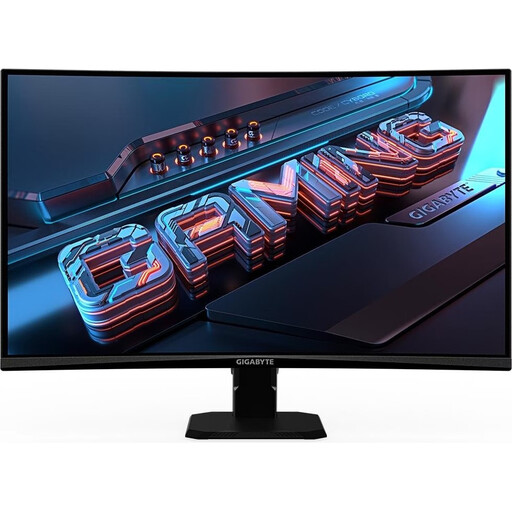
The listed QHD resolution and screen size are worth considering if you want to use catalogue and source windows side by side. Check that your own window layout is easy to read.
27 inches; QHD; curved screen; 180 Hz.
 No image available
If you want to arrange your catalogue, source file and photos on one screen, the PIP and PBP features listed in the product name may be useful. Check that it supports the connection you need for your laptop.
27 inches; 4K UHD, 3840 × 2160; IPS; 120 Hz; PIP and PBP; USB-C with 90 W Power Delivery; height-adjustable stand.
 No image available
The 32-inch 4K screen listed in the product name may suit you if you want to view your catalogue and photos together. Check that you have enough desk space and that everything is easy to read in your workspace.
32 inches; QD-OLED; 4K UHD, 3840 × 2160; 240 Hz; USB-C with 98 W Power Delivery; height-adjustable stand.
No. The monitor displays the catalogue software you’re using; linking files and editing object information are done in the software. Check its file and export features separately from your choice of screen.
Position it so text and images are clear and large enough for your task and viewing distance, and check for distracting reflections. ASR A6 from the German Federal Institute for Occupational Safety and Health is relevant to specified workstations and remote working setups; it doesn’t apply generally to private use for cataloguing a collection.
No, not just because of the subject. First decide whether you’ll view photos only in a digital catalogue or need to assess them as part of a colour-managed print workflow. You can then consider Adobe RGB specifications and calibration options as specific selection criteria.
Monitors covered by EU rules have an energy label showing efficiency classes from A to G and information about energy consumption. The European Commission recommends comparing the details for the specific model.