Drivers who want to see more of the action alongside the car
If you practise overtaking and side-by-side racing, your preferred field of view will help determine whether a wider single monitor or multiple displays is right for you.


Choose your monitor based on the side view you want, the space available on your rig and support from your racing game. A 16:9 monitor is a straightforward place to start, an ultrawide gives you more horizontal screen space on a single display, and three monitors are worth considering if a wider field of view is your priority and you have the space and PC setup to match. Then check the refresh rate and resolution available through the connection you’ll actually use, position the screen for your driving posture, and make sure your audio and microphone have separate, working connections. If you’re considering OLED, also take into account any on-screen information that stays visible for long periods.
If you practise overtaking and side-by-side racing, your preferred field of view will help determine whether a wider single monitor or multiple displays is right for you.
If you’d rather have one wide screen than three separate monitors to set up, plan for its dimensions, your viewing distance and your PC’s performance together.
For long practice sessions, you’ll need a screen positioned to suit you and a reliable headphone connection. If you use voice chat, you’ll also need to select a separate microphone input.
A good fit if: you have limited space, want to start with one monitor or need to keep the graphics workload manageable.
The trade-off: You’ll have less screen space to the sides than with a wider or multi-display setup. Your viewing distance and the field of view in the game still need to work for you.
A good fit if: you want more horizontal screen space on your PC, but don’t want to align three monitors. GermanSimRacing describes ultrawide as a neater setup that’s often easier to mount.
The trade-off: The width, resolution and space requirements need to suit your rig and PC. RTINGS notes that games consoles don’t support ultrawide aspect ratios.
A good fit if: a wider field of view is your priority and your game, graphics outputs, mount and available space support the setup.
The trade-off: Mounting and setup take more work and space. iRacing Support explains how to configure your monitors using screen width, eye distance and angle in the display settings.
| Priority | What to check when buying | Who is it important to? |
|---|---|---|
| Side view | Format support in your racing game, width on your rig and viewing distance; for three monitors, check their angle too. | If I want to see more of what’s happening alongside the car when overtaking, field of view is my guide. Around 29% of consumers put side visibility first. |
| Usable refresh rate | Compare the native resolution, refresh rate for each input, graphics output and the frame rate you can achieve in the game. | If smooth motion matters to me, I want to know what my PC can actually output through the connection I’ll use. Around 23% of consumers prioritise refresh rate and motion performance. |
| Position and space | Check the dimensions, mount and available rig space; measure the distance from your eyes in your usual driving position. | For long stints, I want to be able to position the screen to suit my driving posture. Around 18% of consumers focus first on positioning and space. |
| Headphones and voice chat | Check the audio output and microphone input separately; don’t assume a headphone socket on the monitor is also a microphone input. | If I drive with headphones and might use voice chat, I need a clear connection for both audio and the microphone. Around 18% of consumers prioritise headphones and voice communication. |
| Display care and power consumption | For OLED, check the model’s care features and warranty terms; compare the stated energy consumption of similar displays. | If static information stays on screen for long periods, I want to consider both display care and running costs. Around 12% of consumers give these concerns top priority. |
Your side view also depends on viewing distance, screen position and how the game displays its image. Three monitors also need to be mounted and aligned correctly.
Measure your space and check your driving position before buying, then find out which formats your racing game supports.
For the Alienware AW3423DWF, Dell specifies 165 Hz over DisplayPort and 100 Hz over HDMI. The stated refresh rate can therefore depend on which input you use.
Compare your desired resolution and refresh rate with the connection you’ll actually use and your PC’s performance.
A headphone socket on a monitor doesn’t confirm that you can connect a microphone there for voice chat. Audio playback and microphone input are separate settings.
Check both signal paths and test your audio and microphone before starting a voice chat.
ASUS warns that static, high-contrast images displayed for long periods can burn in on OLED displays. Care features don’t guarantee that the risk is eliminated.
Consider how you’ll use the display, check its care features and read the warranty terms for the specific model.
The UltraGear 34GP63AP-B is an example of a single 34-inch ultrawide monitor.
The MPG 491CQPDE QD-OLED is a 49-inch DQHD option for anyone considering an especially wide single monitor.
The Odyssey G9 G95C, model LS49CG954EUXEN, is a 49-inch 32:9 option.
The MOBIUZ EX3410R is a 34-inch ultrawide option where a headphone socket on the monitor may be useful.
The ROG models mentioned cover different sizes and display types: the 49-inch XG49WCR and the 34-inch QD-OLED PG34WCDN.
The Joybuy models below include single 16:9 and ultrawide displays. Match the format, dimensions and refresh rate to your racing game, rig and PC.
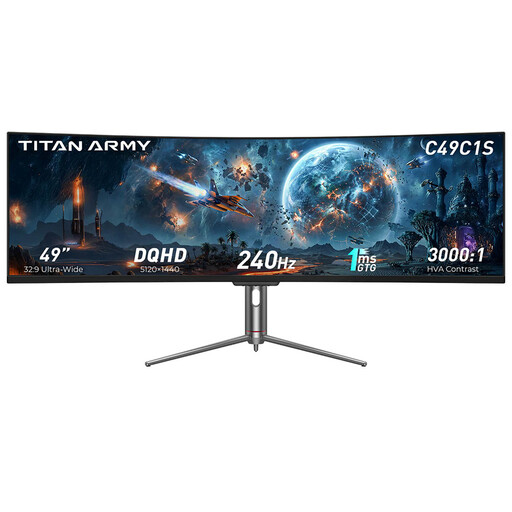 No image available
For an extra-wide single-monitor setup with a 32:9 aspect ratio.
DQHD resolution, 240 Hz and 1800R are listed in the product name. Make sure the screen width suits your rig and viewing distance.
 No image available
For a single 21:9 display with a wider horizontal field of view.
3440 × 1440, 200 Hz and FreeSync are listed; the title also mentions a height-adjustable stand.
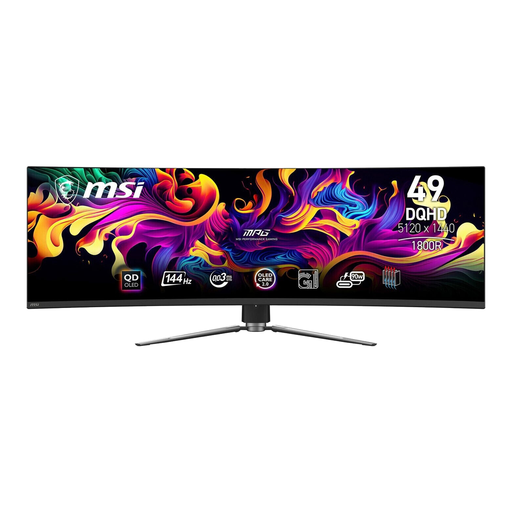 No image available
For a 49-inch single-monitor setup with a 32:9 aspect ratio.
5120 × 1440 and 144 Hz are listed; the description mentions OLED Care 2.0. Static, high-contrast images can still cause burn-in if displayed for long periods.
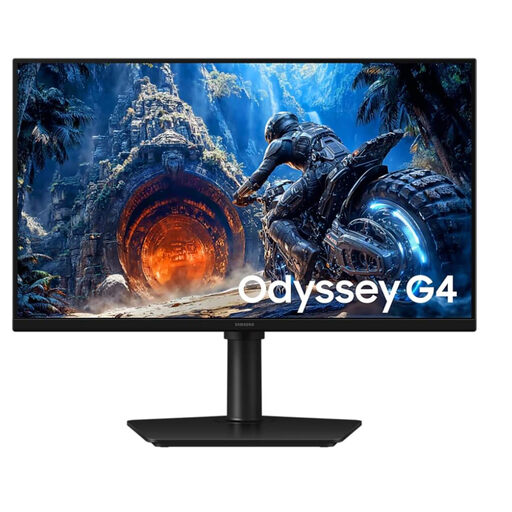 No image available
For a single 16:9 monitor with Full HD resolution.
The description lists 300 Hz over DisplayPort and 240 Hz over HDMI, as well as height, tilt and pivot adjustment.
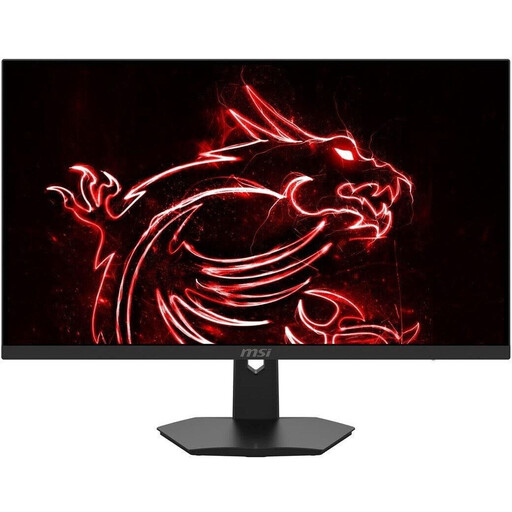 No image available
For a single 16:9 monitor; the description lists a 3.5 mm audio output for headphones.
180 Hz and a height-adjustable stand with pivot function are listed. Check the microphone connection separately if you plan to use voice chat.
No. On a Windows PC, you can select the connected playback device as your audio output. For voice chat, you’ll also need to select and test your microphone as the input device. If you want to plug your headphones into the screen, check the connections listed for that specific model.
In your usual driving position, measure the distance from your eyes to the screen and the screen width. iRacing Support recommends taking the angle into account as well when using three monitors, and entering these measurements in the display settings.
For displays of a similar size, compare their stated energy consumption. For OLED models, check the care features and the warranty terms for the specific device. The Verbraucherzentrale distinguishes the statutory guarantee provided by the seller from a voluntary manufacturer’s warranty.
EU energy-labelling rules apply to electronic displays, and the label helps you compare specific models. A monitor that has reached the end of its life should be taken to an electrical waste collection point. The Umweltbundesamt notes that local authority collection points generally accept electrical waste free of charge; separate conditions apply to take-back by retailers.
Consider whether static, high-contrast images will stay on screen for long periods. ASUS warns that this can cause burn-in; care features aren’t proven to eliminate the risk. Check the guidance and warranty terms for the specific model too.