First, choose a start control supported by your racing game and platform: a clutch pedal, analogue clutch paddles and a game-specific launch assist are different solutions. Then check the pedal and wheelbase connections, along with how everything is mounted. In iRacing, you set up the multi-monitor display separately from the wheel.
Which setup is right for you?
Practising start techniques
You want to practise using the clutch for standing starts and need an input you can assign and calibrate in your chosen game. iRacing Support notes that new controllers must be calibrated the first time you start the game or after connecting them.
Building a multi-monitor rig
You’re planning the wheel, pedals and field of view for a setup with several screens. iRacing Support covers monitor settings separately from input devices.
Upgrading your setup
You already own some sim-racing equipment and want to add a compatible clutch rather than replace the whole set. Check the intended pedal connection and compatibility with your wheelbase.
What should you look for when buying?
First decide how you want to control the start. Then check compatibility with your game and platform, how the equipment is mounted, and exactly what’s included.
| Buying priority |
What to check before buying |
Who is this important to? |
| Controlled clutch engagement |
Check whether a clutch pedal, paddles or launch assist is supported and can be assigned in the specific game. |
If I want to practise clutch engagement for standing starts, I need an input that’s suitable and usable in the game. Around 33% of consumers prioritise control at the start. |
| Game and platform compatibility |
Check the exact console or PC version, game support and pedal connections. |
If my wheel, game and existing equipment all need to work together, I want to check that exact combination beforehand. Around 27% of consumers put compatibility first. |
| Mounting and multi-monitor view |
Check how the wheel and pedals are mounted. For iRacing, measure the monitor distance, width and angle for the display settings. |
If I practise across several screens, I want to arrange the setup and viewing position to suit my space. Around 20% of consumers prioritise mounting and visibility. |
| What’s included and upgrade options |
Check the wheel, wheelbase, pedals, clutch and any required connection accessories against the actual bundle contents. |
If I want to avoid buying duplicate parts and plan future additions, it’s essential to know exactly what’s in the set. Around 20% of consumers pay particular attention to what’s included and upgrade options. |
Avoid common buying mistakes
-
Assuming “Dual Clutch” means a physical clutch pedal
A clutch pedal, analogue paddles and a game-specific launch assist are different inputs. Logitech G limits the advertised launch assist for the G923 to supported games.
First decide how you want to control the start. Then check whether your game and platform support it, and whether the necessary parts are included.
-
Mistaking a two-pedal bundle for a complete three-pedal set
Fanatec lists CSL Pedals with the CSL-DD-Ready2Race bundle; the clutch kit is a separate upgrade. Additional requirements may apply to the connection, depending on the version.
Before buying, check what’s included and how the specific pedal version is intended to connect.
-
Assuming a wheel listing confirms multi-monitor compatibility
iRacing’s triple-monitor display is set up separately. A wheel specification doesn’t confirm that a monitor mount or the necessary graphics outputs are included.
Check your monitor and computer configuration separately from the wheel mounting and pedal position.
-
Taking conflicting drive-system specifications at face value
A Joybuy product page for the G923 SE mentions Direct Drive; the Logitech G923 manual describes two force feedback motors.
Check the exact model number and drive-system specifications against the manufacturer’s documentation before relying on a technical description.
A guide to relevant brands
Logitech G
An option for buyers choosing a wheel and pedals together who are considering a game-specific launch assist.
- Logitech G lists a programmable Dual Clutch launch assist for supported games.
- The G923 manual describes two force feedback motors. Check the exact console version, and don’t assume specifications apply to other variants.
Thrustmaster
The manufacturer’s documentation for the T248 for Xbox and PC specifies T3PM pedals; T-LCM is a separate pedal option.
- The T248 support page specifies the platform version and T3PM pedal set.
- Thrustmaster describes the T-LCM pedals as a separate option with an adjustable brake. This doesn’t mean they’re included in the T248 bundle or offer an advantage at race starts.
Fanatec
The CSL-DD-Ready2Race bundle is suited to a modular PC setup.
- Fanatec lists the wheelbase, wheel, CSL Pedals and table clamp in the bundle reviewed.
- The CSL clutch kit is a separate upgrade. Additional connection requirements apply if you want to use the upgraded pedals independently via USB.
MOZA Racing
The CRP2 clutch is designed for use with a compatible CRP2 throttle and brake pedal set.
- MOZA describes the CRP2 clutch’s adjustable resistance and its compatibility with the CRP2 throttle and brake set.
- Documentation of MOZA pedals working via USB on PC doesn’t automatically confirm compatibility with consoles or every game.
SIMAGIC
Dual-clutch paddles are a specialist option for a suitably configured GT or Formula setup.
- SIMAGIC describes adjustable paddles for race starts.
- The paddles aren’t a complete wheel set. Check they’re compatible with your specific wheel and game; the manufacturer’s specifications don’t prove they’ll improve your start times.
Joybuy products for race-start setups
This selection includes a Logitech G923 SE bundle and two versions of the Thrustmaster T598-P. The right start control depends on the game you’re playing and the compatible platform.
 No image available
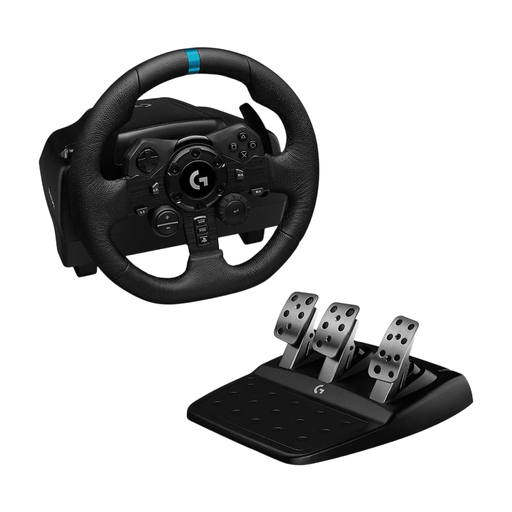
Logitech G923 SE racing wheel and pedal set
This bundle could be a good choice if you’re buying a wheel and pedals together. First check that this exact version works with your platform and chosen game.
View at Joybuy
 No image available
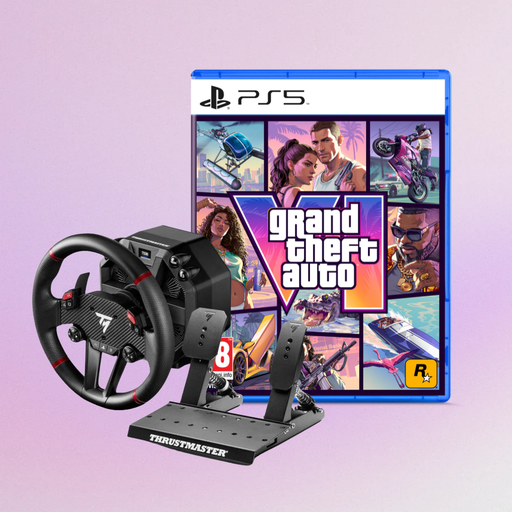
Thrustmaster T598-P plus GTA VI, PS5 code
This offer pairs a T598-P racing wheel with a GTA VI code for PS5. The product title lists PS5, PS4 and PC as platforms for the wheel. Check that they match your setup and chosen game.
View at Joybuy
 No image available
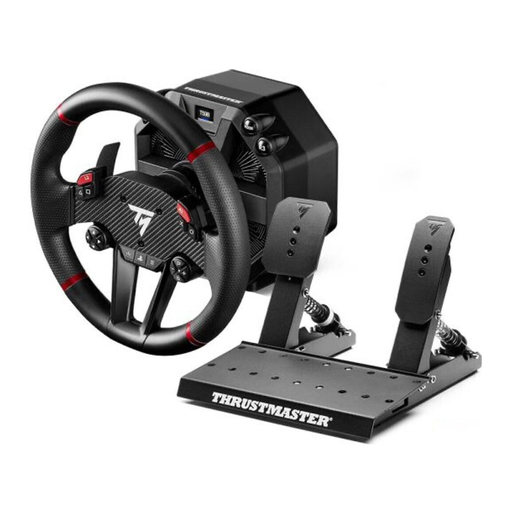
Thrustmaster T598-P racing wheel, PS5/PS4/PC
The product title describes this model as a racing wheel with Direct Axial Drive and force feedback for PS5, PS4 and PC. Also check whether your game supports the start control you want to use.
View at Joybuy
Frequently asked questions
Do I need a special racing wheel for three monitors?
No, not simply because you have three screens. In iRacing, you configure monitor details in the display settings; the wheel and pedals are separate input devices. Also check that your computer and game support the multi-monitor setup you want.
How do I set up my wheel and pedals for practising starts?
Connect and calibrate the inputs in the game. iRacing Support requires calibration the first time you start the game or after connecting new controllers. Whether a particular launch or bite point function is available depends on the game you’re playing.
What should I readjust after changing my multi-monitor setup?
For iRacing, sit in your driving position and measure the distance to the centre monitor, the monitor width and the angle of the side screens. Then update the values in the display settings. iRacing Support describes these measurements for setting up your field of view.
Do I need a physical clutch for virtual race starts?
No. The right input depends on the game and how you want to control the start. A clutch pedal, analogue clutch paddles and a game-specific launch assist are different solutions, so check which ones your game supports before buying.


