If you want to keep both the map and control panels in view, and have enough desk space, a 34-inch ultrawide monitor with a resolution of 3440 × 1440 pixels could be a good fit. A 27-inch QHD monitor is an alternative for a more compact workspace or if you spend a lot of time working with text. The way your chosen game is displayed, readability and adjustability all matter too – not just the highest refresh rate.
Which monitor formats are right for you?
Keeping maps and windows in view
If you want to see the map and control panels side by side in a business simulation game, or use additional windows, a 34-inch ultrawide monitor could be a good fit. Check that your game displays properly at the aspect ratio and that the monitor fits on your desk. LG Deutschland lists the 34U650A-B as a 34-inch monitor with a resolution of 3440 × 1440 pixels.
Gaming and working with text
If you switch between simulation games, documents and longer spells of screen work, consider text size, reflections and screen position alongside the gaming specifications. The German Federal Institute for Occupational Safety and Health covers screen work in ASR A6, including workplaces and teleworking.
A compact workspace
If desk space is limited or you often need to change the screen position, a 27-inch model may be a better fit. Check the adjustability of the specific monitor: for example, ASUS says that the supplied stand for the VG27AQ3A does not offer height adjustment.
What should you look for when buying?
First compare the width you need for your map and how easy the screen is to read with the space available. Then check that the monitor and its connections will work with your workspace and computer.
| What matters when buying |
What to check |
Who is it important to? |
| Space for maps and control panels |
Check the native resolution, aspect ratio, monitor width and how it displays the game you actually play. |
If I want to see the map and control panels at the same time, or use additional windows, horizontal screen space matters to me. Around 36% of consumers say having everything in view is their top priority. |
| Readable text and interfaces |
Check the native resolution, anti-glare finish, and text and UI scaling in your operating system and game. |
If I switch between gaming and working with text, I want the text to remain easy to read in both. Around 29% of consumers put readability first. |
| Making it work in your workspace |
Check the stand’s features, VESA dimensions, monitor depth and available desk space for the exact model. |
If I need to position the screen to suit my workspace, adjustability and the space it takes up are key. Around 21% of consumers prioritise adapting their workspace. |
| Smooth visuals and connections |
Check the refresh rate available through the HDMI or DisplayPort connection you plan to use, as well as the performance your game can deliver. |
If smooth visuals are particularly important to me, I want to know what frame rate my game, computer and connection can actually achieve. Around 14% of consumers put smooth motion first. |
Common misconceptions when buying a monitor
-
You get the highest refresh rate with every connection
ASUS specifies up to 180 Hz over DisplayPort and up to 144 Hz over HDMI for the ASUS TUF Gaming VG27AQ3A. So the maximum refresh rate depends on the connection you use.
Compare the connection specifications for the exact model with the video outputs on your computer.
-
A wider monitor is automatically more ergonomic
Screen size doesn’t tell you whether the monitor can be adjusted for height. Dell specifically states that the SE3426DW’s stand does not offer height adjustment.
Measure the space available and check the stand’s features. If you’re considering a separate mount, make sure it’s compatible with the VESA dimensions of your specific monitor.
You may need to buy a suitable mount separately, and it will also take up space when installed.
-
Response times are easy to compare at a glance
The 1 ms MPRT figure for the Xiaomi G34WQi and the MPRT and GtG figures quoted by Dell for the SE3426DW use different measurement definitions.
Check how each figure was measured, and don’t use a single manufacturer’s specification as a direct comparison of motion performance.
-
An OLED warranty applies to every model as standard
LG describes burn-in as possible image retention caused by displaying unchanged content for long periods. An earlier manufacturer announcement about a voluntary warranty covered specific usage conditions and doesn’t confirm the current terms for every OLED monitor.
Check the current warranty terms for the model you’re considering, and think about how long spreadsheets, toolbars or game interfaces remain unchanged on screen during your typical use.
Key brands to consider
LG
The LG 34U650A-B is a 34-inch ultrawide option, giving you a wide workspace for gaming and other tasks. LG Deutschland lists an IPS panel, 3440 × 1440 pixels and 100 Hz.
- The resolution and refresh rate are specified for this particular model.
- Before buying, check that the connections and adjustment options meet your needs.
ASUS
The TUF Gaming VG27AQ3A is a more compact 27-inch QHD option with Fast IPS. ASUS specifies up to 180 Hz over DisplayPort and up to 144 Hz over HDMI.
- ASUS lists a 100 × 100 mm VESA mount for this model.
- According to ASUS, the supplied stand is not height-adjustable.
Xiaomi
The Curved Gaming Monitor G34WQi is a 34-inch ultrawide option with a resolution of 3440 × 1440 pixels. Xiaomi specifies a maximum refresh rate of 180 Hz for this model.
- Xiaomi lists a 75 × 75 mm VESA mount and a tilting stand.
- The manufacturer’s 1 ms MPRT figure is not equivalent to an independently measured GtG response time. Also check the exact model version: the G34WQi 2026 should be assessed separately.
Dell
Dell lists the SE3426DW as a 34-inch monitor with a resolution of 3440 × 1440 pixels, a VA panel and a 165 Hz refresh rate.
- The product sheet lists tilt adjustment for the stand.
- According to Dell, the stand is not height-adjustable. The advertised 1 ms figure refers to MPRT; Dell also lists 4 ms GtG in Fast mode.
Joybuy products for simulation games and working from home
The Joybuy products below include 34-inch ultrawide and 27-inch QHD options for simulation games and desk-based work.
 No image available
INNOCN E34A1R 34-inch curved gaming monitor
The wide ultrawide resolution could work well for a simulation view alongside additional windows.
34 inches, 3440 × 1440 pixels, 21:9 and 200 Hz. The product title also specifies a height-adjustable stand.
View at Joybuy
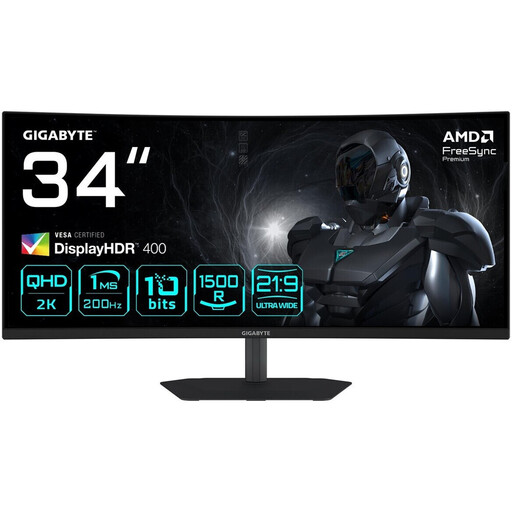 No image available
Gigabyte G34WQC2 34-inch WQHD curved gaming monitor
This 34-inch model is an ultrawide option if you need plenty of space for gaming and work.
The product title lists 3440 × 1440 pixels and 200 Hz. The product description specifies an anti-glare finish and a stand that adjusts for height and tilt.
View at Joybuy
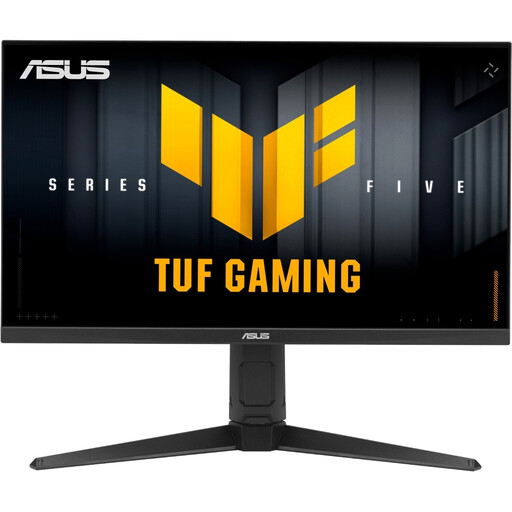 No image available
ASUS TUF Gaming VG27AQL5A 27-inch WQHD monitor
The 27-inch QHD format could be a good choice if you want to keep your workspace compact and need to adjust the screen position.
The product title lists 2560 × 1440 pixels, 210 Hz and a Fast IPS panel. The product description specifies a height-adjustable stand, with pivot, swivel and tilt functions.
View at Joybuy
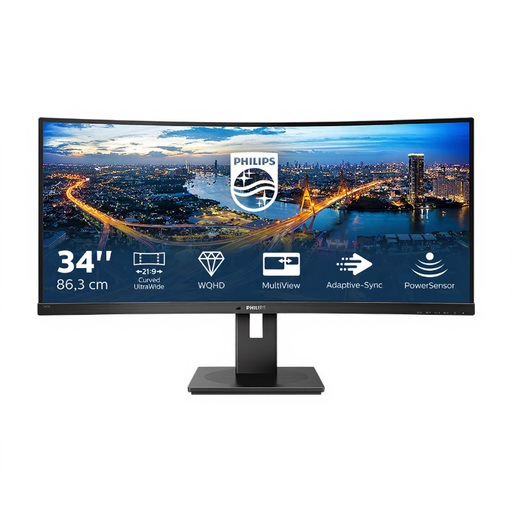 No image available
Philips 345B1C 34-inch curved ultrawide monitor
The wide workspace could be a good fit if you want to use a simulation game and other windows side by side.
The product title lists 3440 × 1440 pixels, 100 Hz and a VA panel. It also lists a USB hub and a height-adjustable stand; the product description specifies PIP/PBP.
View at Joybuy
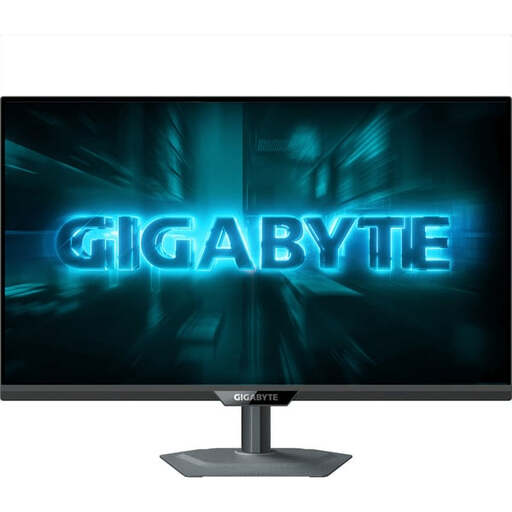 No image available
Gigabyte G27Q20 27-inch QHD gaming monitor
The more compact QHD format could be a good option if you want to work with text at your desk as well as play games.
The product title lists an SS-IPS panel and 200 Hz, or 210 Hz when overclocked. The product description specifies an anti-glare finish and height, tilt, swivel and pivot adjustment.
View at Joybuy
Frequently asked questions
Do you need 180 Hz for a business simulation game?
No, there’s no general minimum requirement. First compare how much you can see and how easy the screen is to read, along with the frame rate your computer achieves in the game you play. Then check the refresh rate available through the connection you plan to use; ASUS lists different maximum rates for DisplayPort and HDMI on the VG27AQ3A.
What should I check when setting up a monitor for work?
Check that text and graphics look sharp and large enough at your viewing distance, and that you can position the monitor appropriately. The German Federal Institute for Occupational Safety and Health’s ASR A6 applies within its stated scope, including workplaces and teleworking. Simply calling somewhere a “home office” does not automatically mean you have to use a particular personal monitor.
How should I set the display and text for long sessions?
Adjust the text and UI size so that game interfaces and work documents are easy for you to read. If you choose an OLED model, bear in mind that LG describes image retention caused by displaying unchanged content for long periods. Check the care instructions and warranty terms for the specific model, too.
What rights and potential extra costs should I be aware of when buying online?
Your statutory rights against the seller and a voluntary manufacturer’s warranty are two different things, as the Verbraucherzentrale explains. Consumers generally have a 14-day right to cancel online purchases. Also check whether you’ll need a separate mount that’s compatible with your monitor to set it up as you want.
What should I know about energy labels and disposing of a monitor?
Computer monitors are generally covered by EU energy labelling rules for electronic displays, so compare the energy label for the specific model. According to the German Environment Agency, an old monitor should be taken to a separate collection point for electrical and electronic waste, not put in your household rubbish.


