Training groups in front of a screen
When several people join together from a small room, clear speech from the seats they’re using and a camera view that captures the group are essential.


If one person is joining the training on a laptop, a personal webcam is often all you need. For several people in front of a screen, a front-facing USB video bar is a better fit. If the group is seated around a table, a 360° table camera may suit the layout better. What matters is how clearly people can be heard from the seats they’ll actually use, along with the camera’s field of view and how it connects—not just the resolution in the product description.
When several people join together from a small room, clear speech from the seats they’re using and a camera view that captures the group are essential.
With a table camera at the centre of the group, the view should make it easy for remote participants to see whoever is speaking.
If you’re joining on your own from a laptop, you may only need a suitable camera view and a straightforward set-up, rather than a complete room system.
First, work out whether one person or a group will be joining. For groups, the seating layout will help you choose between a front-facing video bar and a 360° table camera.
| What you need | What to check before buying | Who will find this important? |
|---|---|---|
| Clear speech | Check the microphone and speaker set-up, and test how clearly people can be heard from the seats you plan to use. | When I ask questions as part of a group, I want to be clearly heard even from a seat further away. Clear speech transmission is the top priority for around 36% of consumers. |
| Everyone in the picture | Decide on the seating layout and camera position, then test the camera view with people in the room. | When a group is seated around a table, I want to make sure no one at the edge of the frame is left out. Capturing everyone in the intended group is the main concern for around 29% of consumers. |
| Connecting to a laptop | Check which ports are available and how to select the camera, microphone and speaker in the app you’ll be using. | When I connect a laptop for training, I want to be able to set up the camera without any hassle. An easy connection is the top priority for around 21% of consumers. |
| Set-up for one person | Check whether only one person will be joining or whether a group might sometimes join together. | When I’m joining on my own from a laptop, I don’t want to choose room equipment I don’t need. A suitable personal set-up is the top priority for around 14% of consumers. |
The camera’s resolution doesn’t tell you how clearly questions will be heard from different seats.
For a group, test the audio set-up by speaking from the seats people will actually use before making a decision based on resolution.
A front-facing video bar and a 360° table camera capture different perspectives. The same angle in degrees doesn’t automatically mean the same coverage of the room.
Sketch out the table, screen and seating positions, then choose the camera type and where to place it.
For the MeetUp 2’s one-cable BYOD connection, Logitech specifies an optional active USB cable.
Before buying, check how you’ll connect your laptop and whether the accessories you need are included with the version you’ve chosen.
If you want to use the one-cable BYOD connection, check whether you’ll need to buy the optional active USB cable separately.
The Brio 500 is a personal webcam, while the MeetUp 2 is described as a USB video bar for small rooms.
The Studio R30 is described as a USB video bar for small meeting rooms.
The UVC34 is described as an all-in-one USB video bar for small meeting rooms and BYOD use.
The Meeting Owl 3 is a 360° table solution for groups seated around the device.
The PanaCast 50 is a front-facing video bar to consider if you need a wide camera view or want to show a whiteboard.
The Joybuy selection below includes conference cameras and video bars for joining on your own or as part of a small group. With modular systems, take particular care to check that the components and room size suit your set-up.
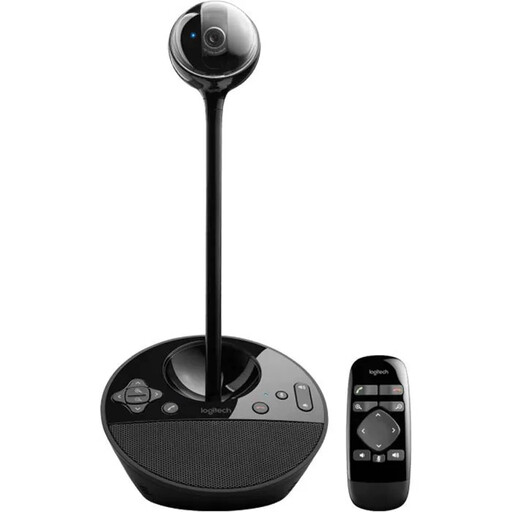 No image available
For small meeting-room groups, if a USB-A connection and a full-duplex speakerphone meet your needs.
The stated microphone range is 2.40 m, so check that people can be heard clearly from the furthest seat you plan to use.
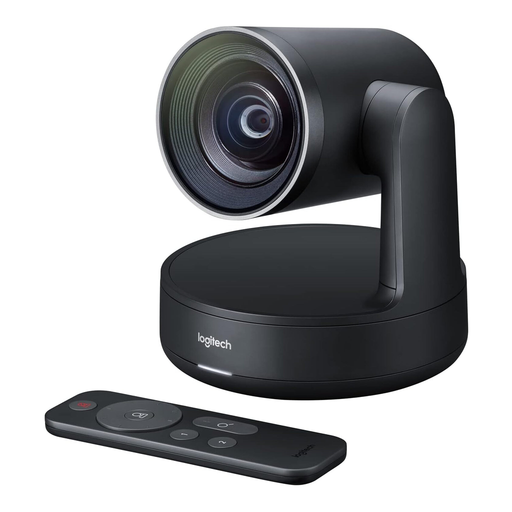 No image available
This conference camera may be suitable for training over USB if the planned set-up works with your laptop.
Check in advance that the camera works with the conferencing app you use.
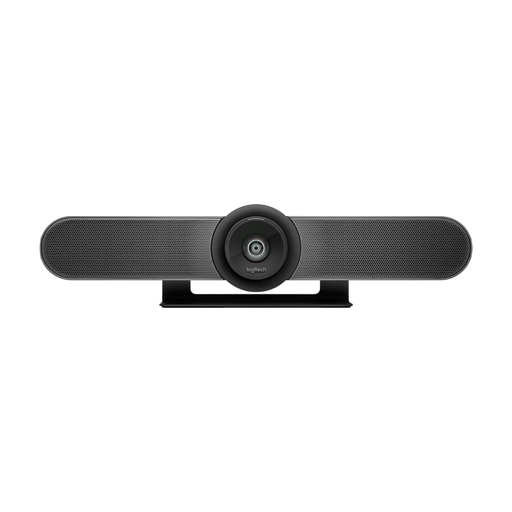 No image available
For several people seated in front of a screen, if a front-facing all-in-one conference camera suits the room.
The product name specifies 4K, a 120° field of view and motorised pan and tilt. Test the camera view with your actual seating layout.
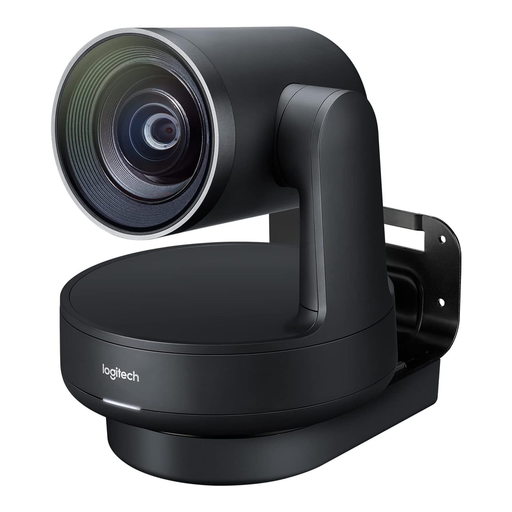 No image available
A modular conference system for a room set-up with separate components.
The product name describes it as suitable for medium to large meeting rooms. Check that the system and room size are right for your training needs.
 No image available
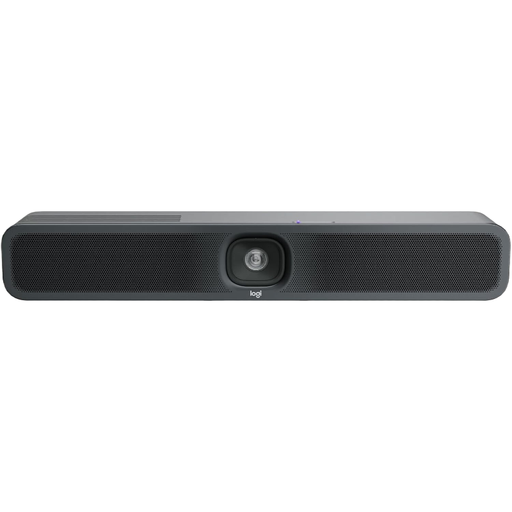
For several people seated in front of a screen in a small meeting room, with the camera, microphone and speakers combined in one all-in-one unit.
According to Logitech, the one-cable BYOD connection requires an optional active USB cable. Check how you want to connect and what accessories you’ll need before buying.
Start a test call on the laptop you’ll be using and select the camera, microphone and speakers in the app. If people will be joining from several seats, check the camera view and how clearly people can be heard from the seats further away. The manufacturer’s stated range won’t replace this test.
It depends on the device and how you connect it. For BYOD use with the MeetUp 2, Logitech describes two standard cables; connecting to a laptop with a single cable requires an optional active USB cable. Check what’s included and which ports are available on the version you’ve chosen.
Your statutory rights against the seller are separate from a voluntary manufacturer’s warranty or a paid protection plan. For new faulty goods, the Verbraucherzentrale generally states that consumers have a two-year statutory warranty period from receipt. Check the terms of your specific purchase, particularly if you’re buying for a business.
The fact that a camera or conferencing software has a recording feature doesn’t automatically mean you’re allowed to record. The Datenschutzkonferenz advises checking that there is a legal basis for the recording and informing the people affected. The applicable legal basis depends on the specific employment or training context, so there’s no one-size-fits-all answer. Check with the people responsible before planning a recording.