For the occasional email check, your smartphone hotspot may be enough, provided tethering is allowed by your plan and your organisation’s IT policy. A dedicated mobile router is worth considering if you regularly want to get online with a laptop or several devices, but it won’t guarantee better reception. First check network coverage and your plan at the stops you have in mind. If you’re driving, only check emails when you’ve stopped somewhere suitable.
Who should consider this?
Occasional email checkers
If you only want to check your work inbox briefly during a break, first see whether your existing smartphone hotspot will do the job. Apple Support Germany describes Personal Hotspot as a way to connect using your iPhone or iPad’s mobile data connection.
Travellers with a laptop and several devices
If you regularly need to share a connection with a laptop and other devices, check that the router’s network coverage, SIM and power supply suit the stops you have planned. The Federal Network Agency notes that its mobile coverage map shows predicted coverage outdoors.
Travellers subject to IT policies
If you access work information, check with your organisation’s IT team in advance to confirm which connection and security settings are permitted. The Federal Office for Information Security recommends following security measures when working remotely.
What should you look for when buying?
Smartphone hotspot
A good fit if: you only occasionally check your inbox on a laptop during a break, and tethering is permitted.
The trade-off: you won’t need an additional router, but your smartphone and connected devices will share the same mobile data connection.
Mobile router
A good fit if: you regularly need to share a connection with a laptop or several devices, and network coverage and your plan are suitable along your route.
The trade-off: you’ll need to power another device and may need a separate data plan. Its mobile network technology alone won’t guarantee reception at every stop.
| What matters |
What to check before buying |
Who is this especially important to? |
| Reception at stops |
Check your plan’s network against your planned stops. The Federal Network Agency’s mobile coverage map shows predicted outdoor coverage, not reception inside a vehicle. |
If I need to work at particular stops, having a usable network from my provider matters more to me than a high data-sheet speed. Around 33% of consumers put reception at stops first. |
| Permitted, secure access |
Check your organisation’s IT policy. If you choose your own router, check that it has secure admin access and that firmware updates are available. |
If I use a work inbox, I want to know which connection and security measures my organisation requires. Around 27% of consumers prioritise IT security. |
| Power supply |
Treat the manufacturer’s stated battery life for the specific model as a guide, and plan suitable charging options for your stops. |
If I need a connection during several breaks, it’s important to me that the router is ready to use each time. Around 20% of consumers make power supply their main priority. |
| Extra device and data costs |
First check whether hotspot use is allowed and how much data your existing plan includes. If you use a router SIM, check activation, destination countries and plan terms. |
If I only check emails occasionally, I don’t want to buy another device if my existing connection is enough. Around 20% of consumers focus on the extra device and ongoing data costs. |
Avoiding buying pitfalls
-
Assuming a high maximum speed means reliable reception along your route
The Federal Network Agency’s mobile coverage map shows predicted outdoor coverage. Your location and vehicle can affect reception, so a data-sheet figure is no substitute for testing the route.
Check your chosen plan’s network at the stops you have planned, and don’t treat speed claims as a guarantee of reception.
-
Assuming a router gives you a complete work security solution
A mobile router won’t tell you which security measures your organisation requires for your work device and inbox. The Federal Office for Information Security highlights the particular requirements of remote working.
First check the connection with your organisation’s IT team. If you use your own router, configure it securely and keep an eye out for available firmware updates.
-
Treating the device and overseas data use as a single cost
A router needs a suitable data connection to work. Depending on your destination and plan, different roaming or data bundle terms may apply.
Before you travel, check your destination countries, SIM activation, data allowance and plan terms separately.
Brands to consider
TP-Link
The M7000 and M7450 V3 are battery-powered LTE mobile routers designed to share a Wi-Fi connection.
- TP-Link says the M7000 can connect up to 10 devices and run for up to 8 hours; the M7450 V3 supports up to 32 devices and runs for up to 15 hours.
- These are manufacturer claims for specific models. Actual battery life may vary depending on use and operating conditions.
NETGEAR
The European Nighthawk M6 MR6150 is a 5G mobile router with an Ethernet port.
- The European manufacturer’s data sheet lists Ethernet, support for up to 32 devices and up to 13 hours of battery life.
- Actual battery life and mobile network performance depend on operating conditions. Maximum figures don’t guarantee coverage along a particular route.
GL.iNet
The Puli GL-XE300 is a portable LTE router for users who need extra network settings.
- GL.iNet lists a 5000-mAh battery and support for OpenVPN and WireGuard.
- Check the exact device version and discuss any additional router features with your organisation’s IT team. A router VPN is not a substitute for a required company solution.
GlocalMe
According to the manufacturer, the G4 Pro combines a 4G hotspot with Cloud SIM data plans and a Nano SIM slot.
- GlocalMe says it supports up to 10 devices and offers at least 12 hours of operation.
- Assess data plans and coverage in your destination countries separately from the device. The G4 Pro is described as 4G, so it isn’t a 5G router.
Joybuy products
The products below provide mobile internet access over a mobile network. Depending on the model, check whether its battery or an external power supply suits the stops you have planned.
 No image available
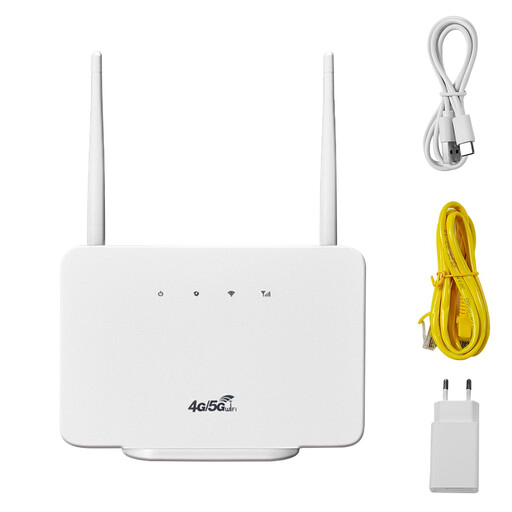
4G router, 300 Mbps, 2.4 GHz Wi-Fi, SIM card slot
For mobile data access on the go with an activated SIM, and connecting a laptop or other devices.
The product name lists 300 Mbps, 2.4 GHz Wi-Fi and a SIM card slot.
View at Joybuy
 No image available
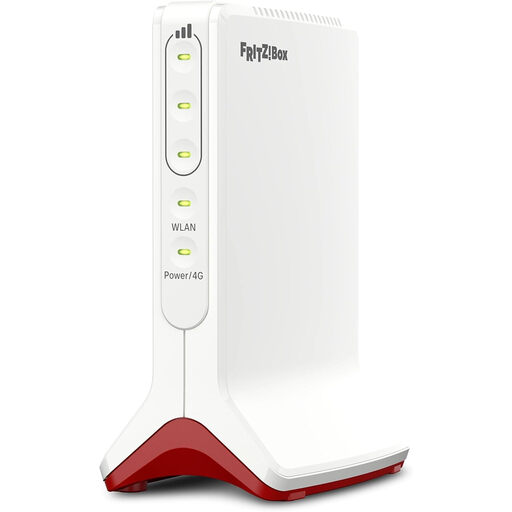
AVM FRITZ!Box 6825 4G LTE
For mobile internet access over LTE when an external USB-C power supply is available for your intended use.
The product details list LTE Cat 6 at 300 Mbps, Wi-Fi 6 AX 600 Mbps, a Gigabit LAN port and Nano SIM. USB-C power is required; a power bank is listed as one possible option.
View at Joybuy
 No image available
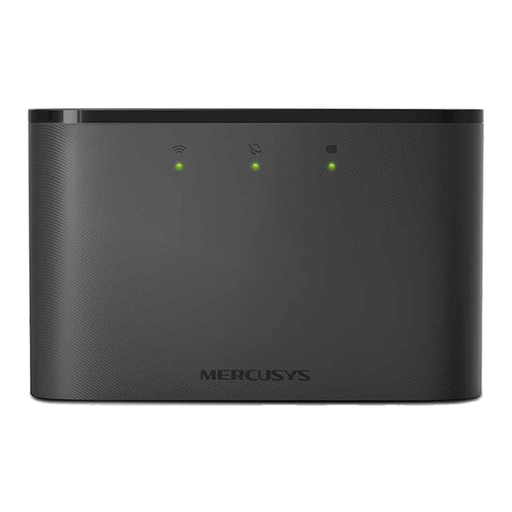
MERCUSYS MT110 4G LTE
For sharing a Wi-Fi connection during travel and work breaks, if an LTE hotspot with a built-in battery suits your plan.
MERCUSYS lists a 2200-mAh battery, a Nano SIM and support for up to 10 connected devices. According to the product details, the stated battery life of up to 10 hours depends on operating conditions.
View at Joybuy
 No image available
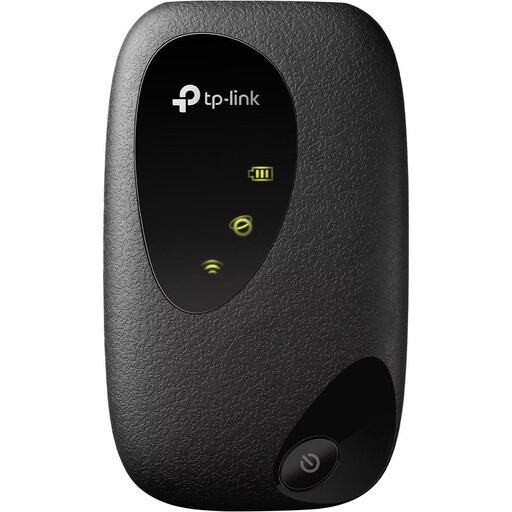
TP-Link M7000
For regular email checks on a laptop or other devices, if LTE is available at your stops and you can use a suitable Nano SIM.
TP-Link lists a 2000-mAh battery, support for up to 10 Wi-Fi devices and up to 8 hours of operation. Actual battery life may vary depending on use and operating conditions.
View at Joybuy
 No image available
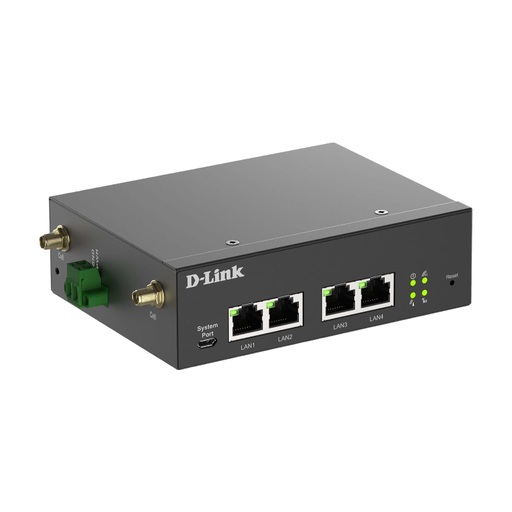
D-Link DWM-314-G
For a setup with mobile network access and Ethernet, if you need these connections for your intended use.
The product details list 5G NR, LTE Cat 19, two SIM slots and four Gigabit Ethernet ports. An external DC power supply is required; the setup needs an Ethernet connection.
View at Joybuy
Frequently asked questions
How do I set up the router before checking my emails for the first time?
Before setting off, check that the right SIM is activated and your plan includes data access. Set up the device, connect your laptop and check your organisation’s IT policy before accessing your work inbox. If you use your own router, change the default login details if available, and check for firmware updates.
Can I rely on the stated battery life?
No. The manufacturer’s figures don’t guarantee how long the battery will last on your trip. TP-Link notes that the M7000’s battery life may vary depending on use and surroundings; actual battery life for other models also depends on operating conditions. Charge the router before you travel and plan a suitable way to charge it during longer stops.
Does using a German SIM abroad cost the same as it does at home?
In the relevant EU/EEA roaming area, plans that include roaming generally follow the domestic pricing principle, although exceptions and fair-use limits may apply. Costs may be higher outside this area. Check your destination and data plan with your provider. The Federal Network Agency also notes changes for Ukraine and Moldova from 1 January 2026.
Can I read work emails while driving?
Only check your inbox when you’ve stopped somewhere suitable. Having a router switched on doesn’t change the fact that using a smartphone while driving is separate from simply accessing your inbox.


