Demo on the recording computer
If you’re demonstrating software on the computer you’re recording on, you can use a screen or window source in OBS. The OBS Project describes both types of capture.


For software demos on the same computer, an OBS screen or window capture is usually all you need; a capture card isn’t automatically necessary. If you want to capture an unprotected HDMI signal from a second device instead, an external card may be worth considering. Compare the actual capture resolution with the passthrough resolution, and check the USB connection, operating system and signal path.
If you’re demonstrating software on the computer you’re recording on, you can use a screen or window source in OBS. The OBS Project describes both types of capture.
To capture the screen of a second computer or another HDMI device, you’ll need to connect its signal to the capture card’s input and the recording computer’s USB port.
If you want to add an HDMI camera to your software demo, the camera output needs to be compatible with the capture device. OBS lists capture devices as video sources, and AVerMedia specifically names cameras as a possible source for the GC311G2.
First, work out whether you need to capture a separate HDMI signal at all. For an external source, the capture format and connections are what matter. A high passthrough figure alone won’t tell you the resolution at which your recording will be saved.
| What matters | What to check before buying | Who it matters most to |
|---|---|---|
| Extra hardware | Which device is running the software, and will an OBS screen or window source do the job? | If I’m only demonstrating software on my recording computer, I first want to know whether OBS will do the job without an extra device. Around 40% of consumers put the question of extra hardware first. |
| Signal from a second device | Check that the source device’s HDMI output, the card’s HDMI input and the USB connection to the recording computer are compatible. If needed, check the HDMI output to your monitor too. | If I’m demonstrating a second computer or another HDMI device, its signal needs to reach my recording software. Around 30% of consumers prioritise capturing from a separate device. |
| Capture resolution | Check the difference between “Capture” or “Record” and “Passthrough”, and test a typical interface with a sample recording. | If I want small menus and labels to be legible in the finished recording, I’ll check the saved resolution rather than just the signal passed through to my monitor. Around 20% of consumers put capture resolution first. |
| Additional HDMI camera | Check that the camera outputs a compatible HDMI signal and can be added as a video source in your recording software. | If I want to show a camera alongside the software, I’ll need an additional compatible video source. Around 10% of consumers prioritise camera integration. |
OBS offers screen and window sources, so you don’t automatically need an extra HDMI input to record a demo on your recording computer.
Try the relevant OBS source first, then decide whether you need to capture a separate HDMI device.
In this case, extra hardware also means more cables to connect.
According to the manufacturers, the Elgato Game Capture Neo and AVerMedia GC311G2 are limited to 1080p60 capture, despite offering 4K60 passthrough.
Compare the separately listed maximum capture or recording resolution with the passthrough figure.
These model numbers refer to different devices. According to AVerMedia, the GC311 is limited to a maximum passthrough of 1080p60; the manufacturer lists 4K60 HDR passthrough for the GC311G2, while capture remains at 1080p60.
Check the full model number and the specifications for the exact device.
Elgato says its capture devices can’t record HDCP-protected HDMI signals, so these signals can’t be used as a source for recording.
Before recording, check that the source signal isn’t protected and that you have all the cables you need.
Elgato says an HDMI cable isn’t included with the Elgato Game Capture Neo, so you may need to buy one separately.
Elgato offers external HDMI capture cards with different recording formats. According to the manufacturer, Game Capture Neo is limited to 1080p60 recording, while Game Capture 4K S supports recording at up to 2160p60.
The GC311 and GC311G2 are different external HDMI capture models, both with 1080p60 recording.
According to the manufacturer, the Razer Ripsaw X is a USB capture card with HDMI 2.0 and USB 3.0, designed to connect a 4K camera.
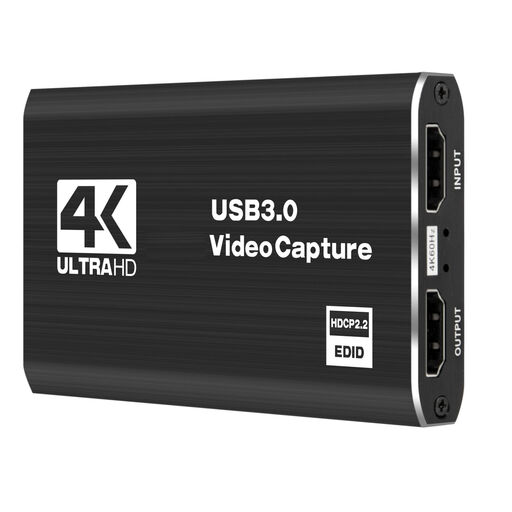
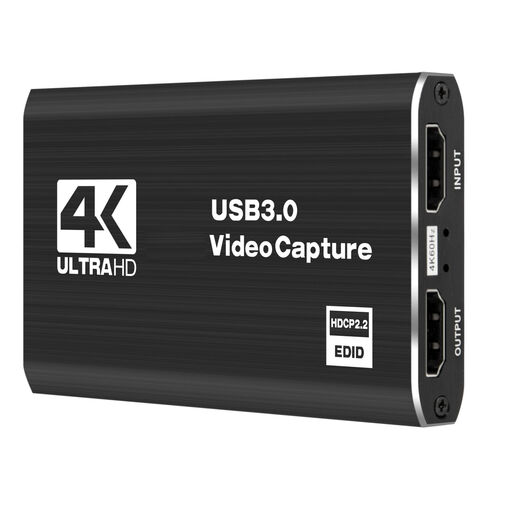
The products below are external capture cards for a separate HDMI device. Before pairing one with your source and recording devices, compare the model’s capture format, passthrough and USB connection.
 No image available
For capturing from a separate HDMI device; check that the signal path is compatible with your recording computer’s connections.
USB 3.0; 5 ports, according to the product name.
 No image available
Described as an external capture card for a separate HDMI device. Check the capture resolution and passthrough separately for the specific product.
5 ports, according to the product name.
 No image available
For a separate HDMI source device; the title specifies 1080p60 recording.
HDMI input up to 4K30Hz; 1080p60 recording; USB 3.0.
 No image available
For external sources such as cameras or recorders; check which recording format the specific device supports.
USB 3.0; 5 ports; audio capture, according to the product name.
 No image available
For a separate HDMI device, if the 1080p recording specified in the title suits your intended output format.
1080p recording; 4K HDMI passthrough; USB 3.0; compatible with Windows, macOS and Linux, according to the product name. Performance may be limited with USB 2.0.
In OBS, select a window capture for the programme you want to record. A screen capture records the whole monitor, so check what will appear in the finished video before sharing your demo.
Check that the source device is outputting an unprotected HDMI signal supported by the specific model, then select the capture device as a video source in OBS. Elgato says its capture devices can’t record HDCP-protected HDMI signals.
Compare what’s included with the cables and connections you’ll need. Elgato says an HDMI cable isn’t included with the Game Capture Neo. Your statutory rights against the seller are separate from any voluntary manufacturer’s warranty; the Verbraucherzentrale explains your rights when buying in Germany.
For market surveillance, the Bundesnetzagentur highlights factors including correct CE marking, traceability, accurate manufacturer details, and the required instructions and safety warnings in German. This isn’t official approval of the specific models mentioned here, so check the details on the product listing.
Not in every case. Processing personal data requires an appropriate legal basis, and consent is one possible basis. The Federal Commissioner for Data Protection explains this principle. Where possible, hide other people’s personal data before recording or publishing, and check the legal position for your intended use.