Choose a monitor based on whether you mainly read long files while coding, need several work views side by side, or want a compact setup with a laptop connection. A taller or wider screen can provide space in different ways. Also check text scaling, connections and desk space, as more pixels or USB-C alone won’t guarantee a setup that works for you.
Finding the right monitor for you
Developers working with lots of windows
If you often have code, test results and a preview open at the same time, compare screen width and how you arrange your windows. LG describes the 34WR55QK-B as a 21:9 model, while BenQ lists the RD280U in a 3:2 format.
Reading long files
If you spend a lot of time reading source code, error messages or documentation, consider resolution, screen format and text scaling together. Dell lists the P2725QE at 3,840 × 2,160 pixels, while BenQ gives the RD280U a resolution of 3,840 × 2,560 pixels.
Developers using a laptop
If you regularly connect a laptop, check that the video connections are suitable, whether you need power delivery from the monitor, and if the screen can be positioned as you like. EIZO lists USB-C with up to 94 W, LAN and KVM for the EV2740X; compatibility still depends on your laptop.
What to consider when buying
First, compare how your actual work windows will fit on screen. Then check readability, laptop connectivity and how much desk space you have.
| What matters |
What to check before buying |
Who it matters most to |
| Space for several windows |
Compare the aspect ratio, resolution and monitor width with your own window layout. |
If I have code, automated tests and a preview open at the same time, I want to spend less time switching between views. That’s why around 33% of consumers put space for multiple windows first. |
| Text readability |
Try different font sizes and scaling with source code and real test logs. |
When I’m reading long files, clear text matters more to me than extra width. Around 27% of consumers prioritise the readability of source code and test results. |
| Laptop connectivity |
Check the video output, cable and required charging power against the specifications for your exact laptop model. |
If I regularly connect my laptop at my desk, the display connection and, if needed, charging must work with my device. Around 20% of consumers put laptop connectivity first. |
| Desk setup |
Measure the space required, including the stand, and check the adjustment options. |
When I’m working at a screen for long periods, I want to position the monitor to suit my workspace. Around 20% of consumers prioritise the setup and space required. |
Common misconceptions
-
“4K automatically means more windows that are easy to read”
On 27-inch models, QHD and 4K have different native resolutions. But how much usable space you get for your windows also depends on font size and scaling.
Try your editor, test report and preview at your usual scaling before comparing QHD and 4K.
-
“Any USB-C monitor will charge any laptop properly”
USB-C alone doesn’t tell you whether the connection carries the video signal you need or provides enough power for your laptop. Power specifications apply to the specific model.
Check your laptop’s video output, cable and charging requirements against the monitor’s connections and power specifications. Depending on the combination, you may still need a separate power supply or a different connection.
-
“An UltraWide will fit on my desk”
The space required depends on the monitor and its stand. LG lists the 34WR55QK-B as 809 mm wide with the stand attached.
Measure the space available and compare the extra width with a taller screen format.
Brands to consider
Dell
The Pro P2725QE is a 27-inch 4K model with a USB-C hub, suited to a compact workspace.
- Dell lists a resolution of 3,840 × 2,160 pixels and a 100 Hz refresh rate for this model.
- Check that the connections and scaling suit your laptop and window layout.
BenQ
The RD280U is a 28.2-inch model with a 3:2 aspect ratio, for those considering more vertical screen space.
- BenQ lists a resolution of 3,840 × 2,560 pixels for the RD280U.
- Manufacturer claims about focus or productivity aren’t independent evidence; check that the readability and format suit your needs.
LG
The 34WR55QK-B is a 34-inch UltraWide model, giving you room for several views side by side.
- LG lists a resolution of 3,440 × 1,440 pixels, USB-C with 65 W power delivery and height adjustment for this model.
- With the stand attached, the model is 809 mm wide according to LG; check your desk space and your laptop’s charging requirements.
EIZO
The FlexScan EV2740X is a 27-inch 4K office monitor with docking features.
- EIZO lists USB-C with up to 94 W, LAN and KVM for the EV2740X.
- The maximum charging power doesn’t guarantee that it will power every laptop properly.
Philips
The 27E1N5600AE/00 is a 27-inch QHD model, offering a point of comparison without a 4K or UltraWide format.
- Philips lists a resolution of 2,560 × 1,440 pixels and USB-C with power delivery for this model.
- Whether a single-cable connection works depends on your laptop and its specific configuration.
Joybuy product selection
This selection includes UltraWide monitors for several work views side by side, as well as a 27-inch 4K monitor in a more compact format.
 No image available
CRUA 49-inch DQHD curved monitor, 32:9
The 32:9 format is an option if you want to arrange several work views side by side; check how much desk space you’ll need first.
5,120 × 1,440 pixels, 165 Hz, 1,500R, height-adjustable stand, HDMI 2.1 and DisplayPort 1.4.
Joybuy
 No image available
INNOCN E34A1R, 34-inch, UWQHD
The 21:9 format may suit you if you want to display code and test results side by side; measure the available desk space first.
3,440 × 1,440 pixels, 200 Hz, HDMI, DisplayPort, PIP/PBP and height-adjustable stand.
Joybuy
 No image available
INNOCN 40C1U, 40-inch, 5K
The 21:9 format is designed for side-by-side views; bear in mind how much space a 40-inch monitor will take up.
5,120 × 2,160 pixels, IPS, USB-C with 65 W Power Delivery, PIP/PBP and height-adjustable stand. 944.1 mm wide with the stand attached.
Joybuy
 No image available
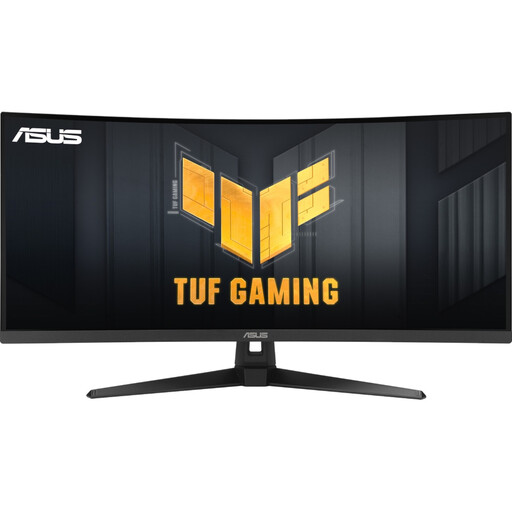
ASUS TUF Gaming VG34VQ3B, 34-inch, UWQHD
The 21:9 format may work well for side-by-side views; check that it will fit your desk.
3,440 × 1,440 pixels, 180 Hz, DisplayPort, HDMI, USB and height-adjustable stand.
Joybuy
 No image available
INNOCN CB27U1, 27-inch, 4K UHD
The 27-inch format is a more compact option than UltraWide; try out the text scaling and your window layout.
3,840 × 2,160 pixels, IPS, USB-C with 90 W Power Delivery, PIP/PBP and height-adjustable stand.
Joybuy
Frequently asked questions
Is QHD enough if I want to see my editor and test results at the same time?
That depends on the font size and how you arrange your windows. Philips lists a resolution of 2,560 × 1,440 pixels for the 27E1N5600AE/00. Try both views at your usual scaling rather than judging usability on resolution alone.
Can I connect my laptop with just one USB-C cable?
Only if the connection carries the video signal you need and provides enough power for your laptop. For the EV2740X, EIZO lists DisplayPort Alt Mode and up to 94 W through the USB-C upstream port; this doesn’t guarantee compatibility with every device.
What should I check before setting up my monitor and when working at a screen for long periods?
Measure the space required, including the stand, and check that you can position the screen comfortably. LG lists the 34WR55QK-B as 809 × 458.3 × 260 mm with the stand attached; the BAuA explains screen work within the scope of ASR A6.
Do workplace screen requirements also apply to monitors bought for personal use?
According to the Federal Institute for Occupational Safety and Health, ASR A6 sets out requirements within the scope of the Workplace Ordinance. This doesn’t mean that every monitor bought for personal use must meet a general requirement for a particular screen size or resolution; the specific circumstances should be checked for a workplace used by an employee.


