What should you consider when choosing?
Grouped 16:9 monitors
A good fit if: you want one continuous game view across several displays and your game, graphics card and connections support the combined resolution.
Consider: the screen bezels, layout and combined pixel count all need to suit your setup.
Main monitor with extra displays
A good fit if: you want to keep the game on one main display and show other windows in separate work areas.
Consider: an extended desktop gives you separate display areas, but won’t automatically move game instruments to another screen.
One ultrawide monitor
A good fit if: you prefer one wide, uninterrupted playing surface without bezels and your game, PC and desk can accommodate the format.
Consider: a single display can’t replace separately positioned instrument monitors. Also check the field of view and interface in the game you play.
First decide whether you need a wider game view or separate windows on additional displays. Then weigh up the format, resolution, connections and space available.
| What you need |
What to check before buying |
Who it matters most to |
| Wide view in games |
How the specific game displays the view, the total resolution and graphics outputs; with multiple monitors, check the screen bezels too. |
If you want to see the action across the widest possible area, check that the game displays your chosen format properly. Around 36% of consumers prioritise panoramic views. |
| Separate extra displays |
Whether the specific game can show the displays you want and whether you have enough graphics outputs. |
If you want to use instruments or other windows alongside the main screen, first check whether the game can display them separately. Around 21% of consumers prioritise separate displays. |
| Smooth gameplay |
The total resolution and frame rate in the game you play, as well as the refresh rate supported by the HDMI or DisplayPort connection you plan to use. |
If smooth gameplay matters to you, make sure the resolution and frame rate you want are within your PC’s capabilities and supported by the connection. Around 29% of consumers prioritise gaming performance. |
| Space and positioning |
Dimensions including the stand, adjustment options and the VESA mount size of the exact model. |
If you want several displays on your desk, measure the space available and check how you can position the screens from where you sit. Around 14% of consumers prioritise desk space. |
Joybuy products for wide gaming and multi-screen setups
The Joybuy products below include wide ultrawide monitors, as well as individual 27-inch models that could form part of a multi-screen setup.
 No image available
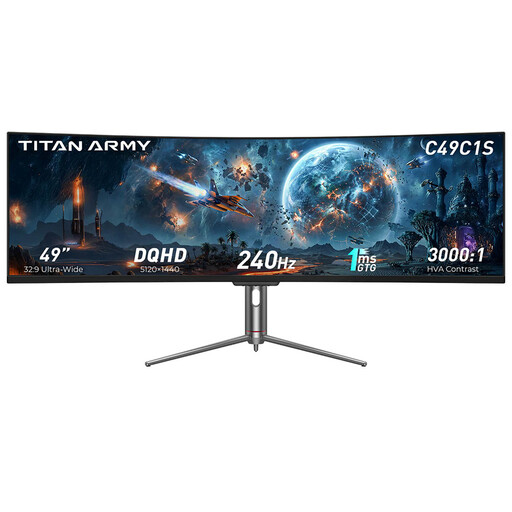
TITAN ARMY C49C1S 49-inch ultrawide monitor
This model could work as a single wide gaming display if your game, PC and desk can accommodate the 32:9 format.
49 inches, 32:9, DQHD (5120 × 1440), 240 Hz and 1800R.
Joybuy
 No image available
INNOCN E34A1R 34-inch ultrawide monitor
The 21:9 format could give you a wide gaming display if your game, PC and available space are up to the job.
34 inches, UWQHD (3440 × 1440), 200 Hz and 1500R. The product description lists PIP/PBP for displaying content from two sources; this doesn’t mean you can move game instruments to another screen.
Joybuy
 No image available
INNOCN 2751S PLUS 27-inch QHD monitor
The 16:9 format could work as one monitor in a multi-screen setup; grouping displays depends on your graphics hardware and configuration.
QHD, 275 Hz, Mini LED with 1152 zones, plus HDMI 2.1 and DP 1.4. The product specifications also list a height-adjustable stand.
Joybuy
 No image available
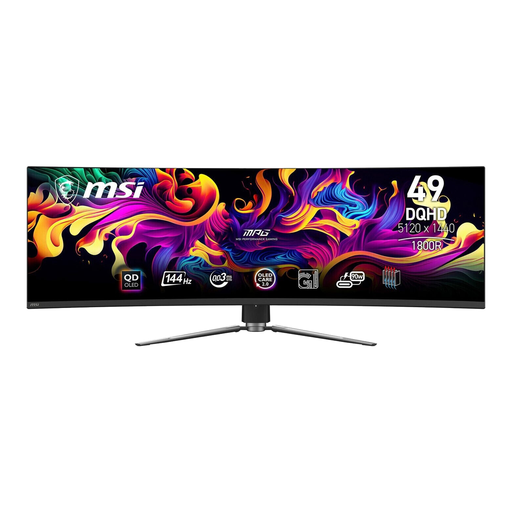
MSI MPG 491CQPDE 49-inch DQHD monitor
This 32:9 model could work as a single wide display if your game and available space can accommodate the format.
49 inches, QD-OLED, DQHD (5120 × 1440), 144 Hz and 32:9. The product description lists PIP/PBP and an integrated KVM switch; this doesn’t mean you can output game instruments separately.
Joybuy
 No image available
KTC M27P6 27-inch Mini LED monitor
This 16:9 monitor could form part of a multi-screen setup. Check that your PC has the graphics outputs you need and supports the grouping you want.
The title lists 4K at 160 Hz and an FHD mode at 320 Hz. The product description also lists Type-C with 65 W, a KVM switch and a height-adjustable stand.
Joybuy
Frequently asked questions
How do I set up several screens as separate work areas?
Arrange your connected displays in Windows display settings to match their actual positions. If you want one shared image across several displays, you’ll need a different setup method, such as a supported grouping feature like NVIDIA Surround or AMD Eyefinity.
Do I need to check which input I use to get 180 Hz?
Yes, because the maximum stated refresh rate can vary by input. ASUS lists up to 180 Hz over DisplayPort and 144 Hz over HDMI for the VG27AQ3A; Dell also gives different figures for these connections at QHD for the G2725D. Check your PC’s output and the cable you’re using too.
How much will it cost to run several monitors?
To compare running costs, you’ll need the power consumption of the specific models, how many hours they’re used and your electricity tariff. The EU energy label and product data sheet can help you compare displays; calculate all devices on the same basis of use.
What rights do you have when buying a monitor online in Germany?
For a typical online purchase by a consumer, there is generally a 14-day right to cancel, although statutory exceptions apply. If a product is faulty, your statutory rights against the seller are separate from any voluntary guarantee. The Verbraucherzentrale explains that retailers are generally responsible for goods being free from defects for two years.
Which labelling rules apply to monitors?
EU requirements for electronic displays include energy labelling and product information. For electrical and electronic products, the Bundesnetzagentur checks matters including CE marking, product identification and required information. A label alone doesn’t replace checking the specific product.


