Which display setup is right for you?

Panorama pilots

You want to spread the game across several monitors. First, check the display mode, total resolution and outputs on your graphics card. AMD Eyefinity and NVIDIA Surround can combine multiple displays into one large viewing area; the options available depend on your hardware.

Map-and-cockpit planners

You want to play on your main screen and read separate windows alongside it. An extended desktop gives each display its own area, but it won’t automatically create a continuous game image or move cockpit displays to other screens.

Ultrawide considerers

You’re considering a wider main display, but want to weigh its space requirements and how it looks in the game you play against using several monitors. Check that the game supports the wider format and that the monitor will fit on your desk.

What should you look for when buying?

Game spread across several monitors

A good fit if: You want a seamless cockpit panorama and your game and graphics card support your planned layout.

The trade-off: The total resolution increases with the number of displays, and the bezels between monitors remain visible. Depending on your system, AMD Eyefinity and NVIDIA Surround offer options for bezel correction.

Main monitor with independent extra screens

A good fit if: You want the game to stay on the main screen while other monitors show their own windows, such as a map.

The trade-off: An extended desktop gives you separate areas, but doesn’t automatically combine them into one game image.

Ultrawide as your main monitor

A good fit if: You want fewer bezel interruptions across your main image and have enough space, with support from the game.

The trade-off: A single wide monitor can’t replace independently controlled extra screens; check how it looks in the game you want to play.

What matters What to check when buying Who is it important to?
Seamless field of view Check the game mode, graphics card, outputs and supported total resolution for your planned layout. If I want a continuous cockpit panorama, I’ll first check whether my system supports it at the resolution I want. Around 33% of consumers put this seamless game image first.
Readable maps and separate windows Decide which content you want to run in separate windows outside the game; consider resolution, text legibility and viewing distance together. If I want to read a map alongside the game, I need separate windows rather than a game image stretched across every screen. Around 27% of consumers prioritise having separate information windows.
Usable refresh rate and connections Check the maximum refresh rate for the input you’ll actually use against your graphics card’s output, cable and display mode. If smooth visuals matter more to me than extra screen space, I’ll check the figures for my connection and PC. Around 20% of consumers put a usable refresh rate first.
Desk space, panel care and upkeep Check the dimensions of the monitor and stand, as well as mounting options; if you’re considering OLED, read the care and warranty terms for the specific version. If I want to set up several devices or a wide display, I’ll first check the space needed and the upkeep involved. Around 20% of consumers give these practical considerations the most weight.

Avoiding common buying mistakes

  • Assuming connected monitors create one continuous cockpit

    An extended desktop and a combined gaming display are different operating modes. Extra screens won’t automatically create a game image that spans every display.

    First decide whether you need separate windows or one continuous image. Then check that your game and hardware support the right mode.

  • Comparing the highest refresh rate without checking the connection

    For QHD, Dell lists up to 180 Hz over DisplayPort 1.4 and up to 144 Hz over the specified HDMI inputs on the Dell G2725D.

    Compare the resolution and refresh rate for the specific HDMI or DisplayPort connection you plan to use.

  • Assuming a wide main display can replace every extra screen

    A 21:9 monitor won’t automatically provide independent windows or separate game views.

    Check how it looks in the game you play, then decide separately whether you want standalone applications to remain visible alongside the game.

  • Assuming OLED care features eliminate the risk of burn-in

    MSI describes OLED Care 2.0 as a way to reduce the risk of burn-in, not eliminate it. If on-screen controls remain unchanged for long periods, it’s still worth checking the care and warranty terms.

    Read the terms for the specific OLED version and compare them with what you expect from an LCD monitor.

Brands to help guide your choice

ASUS

The TUF Gaming VG27AQ3A is a documented 27-inch QHD IPS model for use as a main monitor or in a planned group of matching displays.

  • ASUS lists 180 Hz and several VRR technologies for this model.
  • The model specifications don’t tell you what frame rate your PC will achieve in a game, or how that game will display across several monitors.

Samsung

The Odyssey G5 LC34G55TWWPXEN is a 34-inch 21:9 VA example of a wide main display.

  • Samsung lists a resolution of 3440 × 1440 pixels and a refresh rate of 165 Hz for this model.
  • This format can’t replace independently usable extra monitors; you’ll still need to check the space it requires and whether your game supports it.

MSI

The MAG 274QRFDE QD E2 is a QHD IPS option; the MPG 271QRXDE QD-OLED uses a different panel for buyers considering OLED.

  • MSI lists 180 Hz for the MAG model and describes OLED Care 2.0 on the OLED model as a way to reduce the risk of burn-in.
  • Check the care and warranty terms for the specific OLED model. The manufacturer’s statement isn’t a guarantee that burn-in won’t occur.

Dell

The G2725D shows why the input you use should also factor into your choice of a QHD model.

  • For QHD, Dell lists up to 180 Hz over DisplayPort 1.4 and up to 144 Hz over the specified HDMI inputs.
  • The refresh rate you can achieve depends on the input you use.

LG

The UltraGear 27GS75QX-B is a documented 27-inch QHD IPS model to consider when comparing features and desk space.

  • LG lists 180 Hz, DisplayPort 1.4 and two HDMI 2.0 inputs for this version.
  • These details apply to the model listed and shouldn’t automatically be assumed to apply to other versions.

Gaming monitors at Joybuy

The Joybuy products below are options for a gaming main monitor, from Full HD models to a wide ultrawide format. Before choosing, check that the resolution, connections and aspect ratio suit your game and multi-monitor setup.

Z-Edge AGEX 27-inch gaming monitor, white

Z-Edge AGEX 27-inch gaming monitor

A main monitor option if you’re looking for a 1440P display with a Fast IPS panel.

27 inches; 1440P; 144 Hz; 1 ms MPRT; Fast IPS; FreeSync; HDR10; height-adjustable stand; DP and HDMI; white.

View at Joybuy
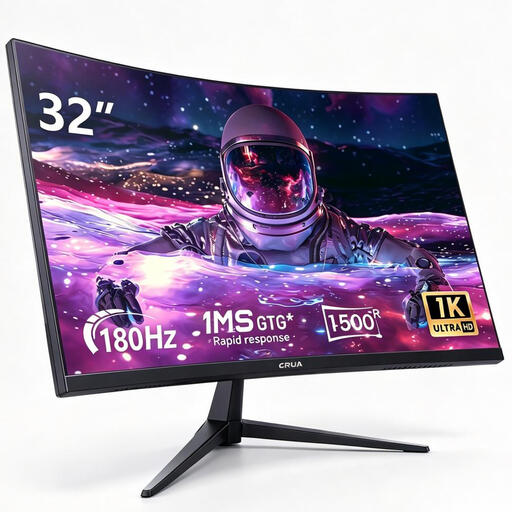
CRUA 32-inch curved gaming monitor with 1500R curvature

CRUA 32-inch curved gaming monitor, 1500R

A large Full HD main monitor option if a VA panel and 180 Hz meet your needs.

32 inches; 1500R; Full HD 1080P; 180 Hz; VA; FreeSync; HDMI and DP; VESA 75 × 75.

View at Joybuy
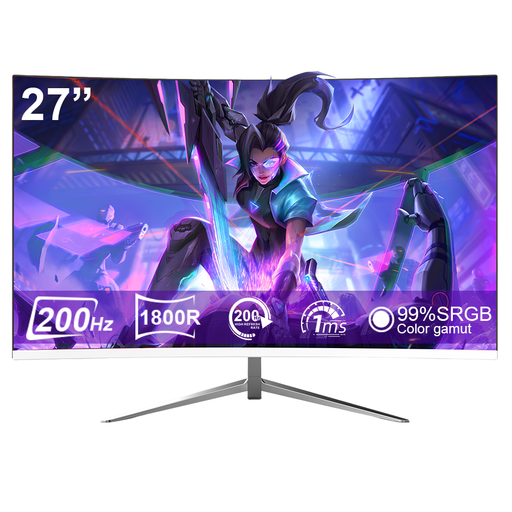
CRUA CR270D 27-inch curved gaming monitor, white

CRUA CR270D 27-inch curved gaming monitor

A Full HD main monitor option if you’re looking for a 200 Hz VA display with a curved design.

27 inches; 1800R; Full HD 1080P; 200 Hz; VA; FreeSync; HDMI and DP; VESA 75 × 75; white.

View at Joybuy
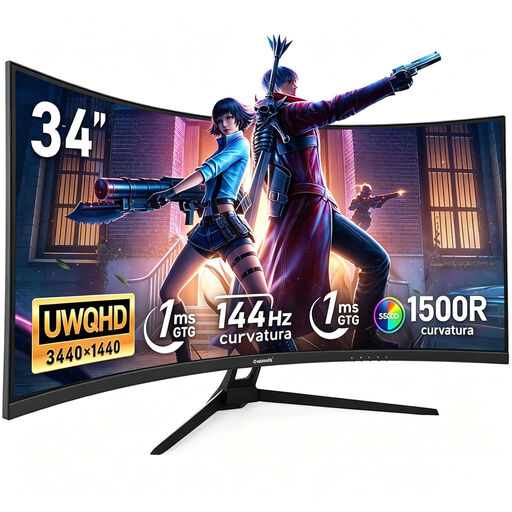
Gawfolk 34-inch ultrawide curved gaming monitor

Gawfolk 34-inch ultrawide gaming monitor

A wide 21:9 main display option, provided you have enough space and it looks right in the game you want to play.

34 inches; 3440 × 1440; 21:9; 144 Hz; 1500R; Fast VA; HDR 400 Nits; 100 % sRGB; HDMI and DisplayPort; wall mounting. No speakers.

View at Joybuy
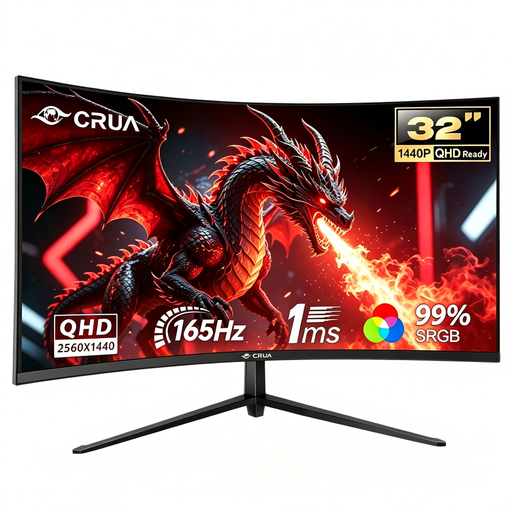
CRUA CR320C-H 32-inch curved gaming monitor

CRUA CR320C-H 32-inch curved gaming monitor

A large curved main monitor option if a QHD model with 165 Hz suits your setup.

32 inches; 1500R; 165 Hz; DisplayPort; VESA mount. The product title lists both QHD and 2650 × 1440P; check the exact resolution in the specific listing before buying.

View at Joybuy

Frequently asked questions

How do I set up one continuous image across several monitors?

Enable multi-monitor output and check the layout in the appropriate display mode. AMD explains how to set up Eyefinity from an extended Windows desktop; NVIDIA Surround offers settings for layout, total resolution, refresh rate and bezel correction. The options available depend on your system.

Can you get 180 Hz through every connection?

Not necessarily. For QHD, Dell lists up to 180 Hz over DisplayPort 1.4 and up to 144 Hz over the specified HDMI inputs on the G2725D. Check the figures for the input you’ll actually use.

What should I bear in mind when using an OLED monitor on long routes?

Consider the care features and warranty terms for the specific monitor, particularly if on-screen controls will stay visible and unchanged for long periods. MSI describes OLED Care 2.0 on the MPG 271QRXDE as a way to reduce the risk of burn-in, not eliminate it.

Do monitors have an energy label?

Yes. The European Commission includes computer monitors among the electronic displays generally covered by the rules and describes the EU energy-efficiency scale from A to G. Compare the label for the specific model version when deciding what to buy.

What are my rights if a new monitor is faulty?

In Germany, if a newly purchased item is faulty, you generally have two years of statutory rights against the seller. An additional guarantee is separate from these rights. For an online purchase as a consumer, you may also have a 14-day right to cancel, subject to the relevant conditions.