A USB flash drive stores files, but it doesn’t automatically keep a history of previous spreadsheet versions. First, set up a backup method that lets you restore earlier versions, then test the recovery process. Microsoft Support explains how to use File History in Windows. Next, choose a capacity and connectors that suit your archive and devices. For confidential spreadsheets, the BfDI recommends encrypting data stored on USB flash drives. Don’t keep important data on just one drive.
Who uses USB flash drives for spreadsheet backups?
Anyone who needs to restore project versions
If you regularly edit the same spreadsheets, you need a backup method that lets you restore an earlier version when needed. Storage capacity isn’t the only thing that matters: you also need to consider how versions are saved. The German Federal Office for Information Security and Microsoft Support explain aspects of data backup and recovery.
Anyone protecting confidential project data
If you back up spreadsheets containing confidential or potentially personal information, consider the risk of losing a portable storage device. The BfDI generally recommends encrypting data stored on USB flash drives.
Anyone switching between devices
If you need to open backups on devices with different connectors, check that the drive works with all the devices you plan to use and that the spreadsheets can be read on them. Kingston Technology and COMPUTER BILD describe or test models with different connector types.
What should you look for?
USB-A flash drive with your own versioning routine
A good fit if: your backup devices use USB-A and you manage versions using a dedicated backup method or separate, dated copies.
Keep in mind: a standard flash drive won’t automatically save earlier file versions. You’ll need to consider recovery and, where appropriate, encryption separately.
Flash drive with hardware encryption
A good fit if: you want to protect access directly on the storage device when saving confidential project versions.
Keep in mind: check how unlocking, key storage and recovery work. Encryption doesn’t replace an additional backup.
Dual-connector flash drive
A good fit if: you need to transfer spreadsheets between devices with USB-A and USB-C.
Keep in mind: having two connectors doesn’t solve version management or automatically tell you how fast the drive writes data.
Microsoft Support describes Windows File History as a way to restore earlier versions of backed-up folders. Before you buy, check which folders it covers and whether you can successfully restore a test version.
| What you need |
What to check before buying |
Who it matters to |
| Earlier project versions |
Which folders are backed up, how many versions are kept and whether restoring them works. |
If I need to restore an earlier spreadsheet version, the recovery method matters to me. Around 36% of consumers prioritise access to earlier project versions. |
| Protection if the drive is lost |
Whether the backup is encrypted and how unlocking and recovery are handled. |
For confidential project data, I want to restrict access if the drive is lost while still being able to access my backup. Around 29% of consumers prioritise protecting confidential data. |
| Access across multiple devices |
Whether the connector and file access work with all the devices you use for backing up and restoring data. |
If I use spreadsheets across devices with different connectors, I need a drive that works with them all. Around 21% of consumers mainly look for access across devices. |
| Archive space and write times |
Compare the size of the archive you need and, if it matters, the write speeds for the exact model you’re considering. |
If I have lots of spreadsheet versions or large files, I want to allow enough space and know how long backups might take. Around 14% of consumers prioritise archive size and write times. |
Common buying and usage mistakes
-
Assuming storage capacity means your versions are protected
A flash drive with plenty of space won’t automatically contain earlier spreadsheet versions. If files are overwritten, you may lose the older version you need. Storage devices can also fail.
Set up versioning explicitly, test that you can restore files and keep important backups on another storage device too.
Keeping separate backup versions takes extra storage space and may require another storage device.
-
Confusing read speed with write speed
Read and write speeds are different. A high read speed doesn’t tell you how quickly your spreadsheets will be backed up to the drive.
Compare the stated write speeds and, if available, tests of the specific capacity you’re planning to buy.
-
Using encryption without a recovery plan
For the Verbatim Keypad Secure #49429, the manufacturer says the drive must be reformatted after 20 incorrect passcode attempts. This could affect access to the data stored on it.
Check for security updates and how to unlock the drive before using it, and keep another backup separately.
Brands to consider
Kingston
The DataTraveler Exodia is a USB-A range for storing files and document copies. IronKey Keypad 200 is a separate range with hardware encryption.
- Kingston lists capacities from 64 to 512 GB and a five-year warranty for the Exodia.
- The IronKey Keypad 200’s PIN features aren’t part of the Exodia. Check the connector and features for the specific range you’re considering.
Verbatim
Keypad Secure includes models with a built-in passcode keypad for USB-A and USB-C.
- For model #49429, Verbatim lists hardware encryption and write speeds of up to 150 MB/s. These are manufacturer specifications.
- Verbatim notes that a security update is available and says that #49429 must be reformatted after 20 incorrect passcode attempts.
Intenso
The High Speed Line is available in 64, 128 and 256 GB versions.
- Intenso lists write speeds of up to 100 MB/s for the 128-GB version.
- COMPUTER BILD rated the tested High Speed Line USB 3.0 128GB as slow when writing data and described its build quality as fragile. This review applies to the version tested. The advertised maximum speed and the test result are based on different methods.
SanDisk
The Ultra Dual Drive Luxe USB Type-C 128GB tested by COMPUTER BILD has USB-A and USB-C connectors, which may make it suitable for devices with either connector.
- COMPUTER BILD reports that the tested 128-GB version passed a drop test.
- In the same test, write speeds were rated as very slow. This result can’t be applied to all SanDisk models.
Joybuy products for spreadsheet backups
These Joybuy products have been selected for file storage and spreadsheet backups using USB-A or, on selected models, both USB-A and USB-C.
 No image available
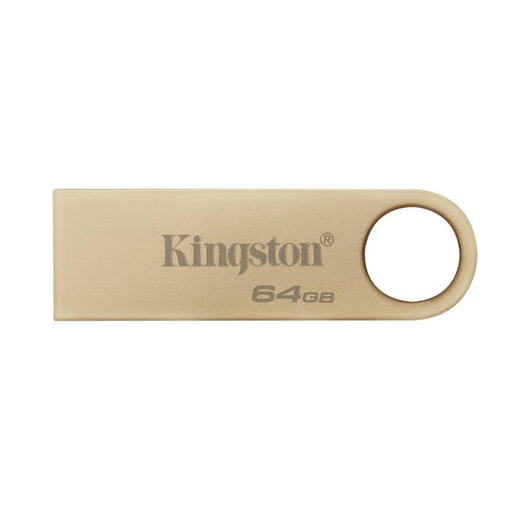
Kingston DataTraveler SE9 G3, 64 GB
For storing files on devices with USB-A. Check whether 64 GB is enough for the number of project versions you want to keep.
64 GB; USB 3.2 Gen 1; metal casing.
View at Joybuy
 No image available
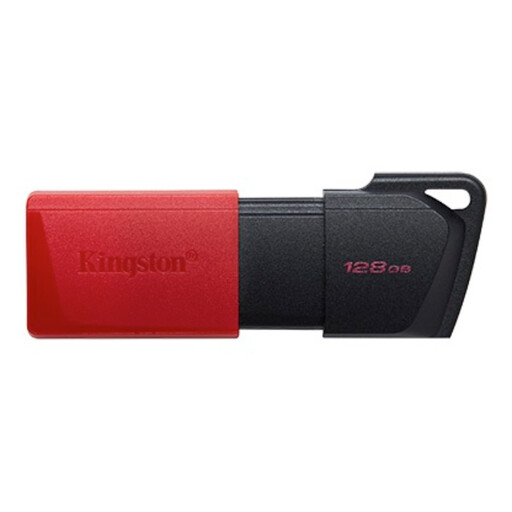
Kingston DataTraveler Exodia M, 128 GB, Black + Red
For USB-A file storage if 128 GB suits the size of your planned spreadsheet archive.
128 GB; USB 3.2 Gen 1; Black + Red.
View at Joybuy
 No image available
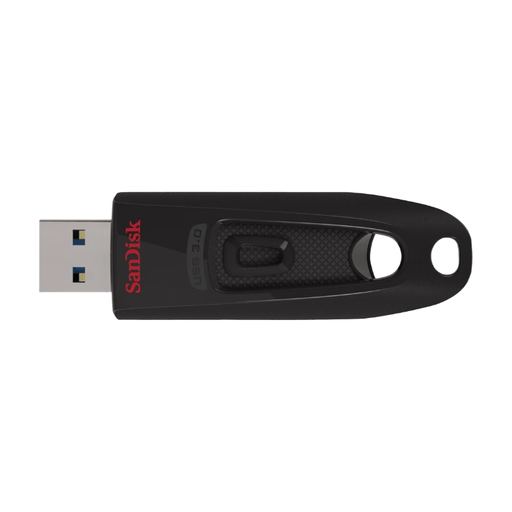
SanDisk Ultra, 64 GB, USB 3.0
An option for USB-A file storage if 64 GB suits your archive. Check separately what access protection your spreadsheets need.
64 GB; USB 3.0.
View at Joybuy
 No image available
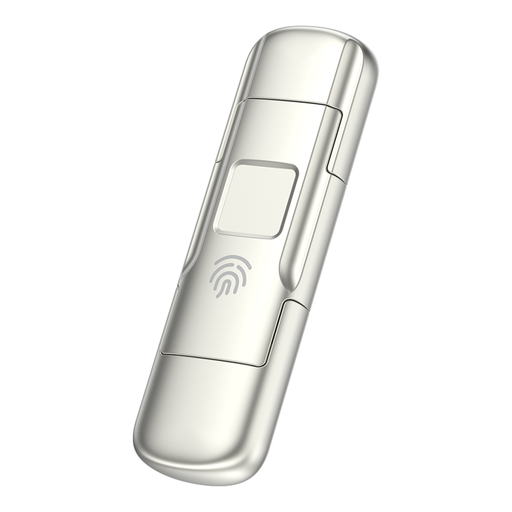
MOVESPEED YSUYC-256GSN, 256 GB, Silver
For switching between devices with USB-A and USB-C, if you also want to use the fingerprint encryption mentioned in the product name.
256 GB; USB 3.2 Gen 1; USB-A and USB-C; up to 550 MB/s read and 500 MB/s write speeds according to the product name.
According to the product description, data in the protected area can’t be recovered if both the administrator password and fingerprint recognition fail.
View at Joybuy
 No image available
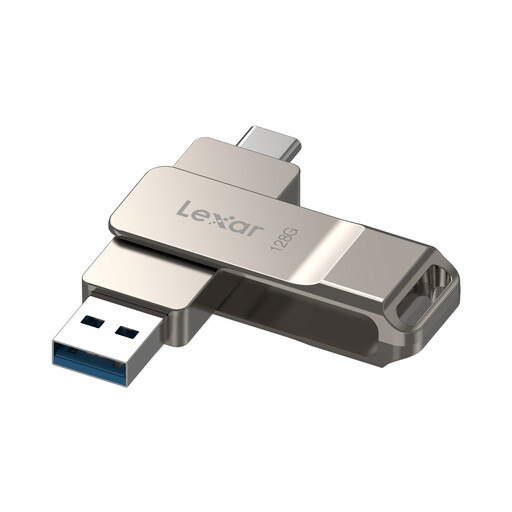
Lexar D40E, 128 GB, Dual USB 3.2 Gen 1 Type-C
For switching between devices with USB-A and USB-C, as long as 128 GB is enough for your backups.
128 GB; USB 3.2 Gen 1; USB-A and USB-C; metal casing.
View at Joybuy
Frequently asked questions
Does a USB flash drive automatically save earlier Excel versions?
No. A USB flash drive is simply a storage device. To keep earlier file versions, you need to set up version management or a suitable backup routine. Microsoft Support explains how to use Windows File History with included folders and a configured external drive. This is different from the file version management Microsoft describes for OneDrive or SharePoint.
What should I check after setting up or unplugging my backup drive?
Try restoring a backed-up spreadsheet and opening it. If you use Windows File History with an external drive, you’ll need to reconnect the drive to back up your files. Microsoft Support also explains how to run it manually.
Should I also back up important spreadsheets to another storage device?
Yes, if losing your project work would be a problem. The BSI notes that it’s difficult to predict exactly how long storage devices will last. How often you make additional backups depends on how much work you’re willing to lose if something goes wrong.
Do I need a specific hardware-encrypted drive for project spreadsheets containing personal data?
Your choice should depend on how the data is processed and the level of protection it requires. This doesn’t automatically mean you need a particular flash drive model. The BfDI recommends encrypting data stored on USB flash drives and describes encryption as one safeguard that should work alongside other technical and organisational measures.
How do I dispose of an old USB flash drive in Germany?
Take it to an authorised collection point for electrical waste. Retailers must also accept returns in certain circumstances. The Federal Ministry for the Environment explains how local collection points and retailer obligations work. Back up any files you need elsewhere first, and consider how to protect the project data stored on the drive.


