What should you look for when buying?
Compact: 23.8 to 25-inch QHD
A good fit if: your monitor and stand need to fit on a small desk and you want QHD for your tools and timeline. Dell lists the P2425D as a 23.8-inch monitor with 2560 × 1440 pixels; BenQ lists the PD2506Q as a 25-inch QHD model.
The trade-off: it has less physical screen area than a 27-inch monitor; you may need to adjust your operating system’s scaling to make smaller controls easier to use.
Larger: 27-inch 4K
A good fit if: your desk can accommodate the monitor and stand, and you want to arrange several views side by side so they’re easy to read. ASUS lists the PA279CV as a 27-inch 4K monitor with an sRGB mode.
The trade-off: a larger monitor takes up more desk space; with increased scaling, the higher pixel count doesn’t automatically give you more usable workspace.
Whichever size you choose, check how your windows will actually be arranged. Colour is a separate consideration: decide on your output profile first, then look for a suitable colour mode.
| Priority |
What to check before buying |
Who should pay particular attention? |
| Workspace that’s easy to read |
Consider resolution, screen size and operating system scaling together, with your sprite, preview and timeline in view. |
If I keep these views open at the same time, I want to be able to see everything at my usual scaling. Around 33% of consumers put a workspace that’s easy to read first. |
| Desk space and adjustability |
Compare the monitor’s width and depth, including the stand, with your available desk space; check the height and tilt adjustments. |
If desk space is tight, I need a monitor stand that won’t take up room needed for my input devices. Around 25% of consumers prioritise free desk space and a suitable screen position. |
| Colour for your output destination |
Match the target colour space to the display mode, and consider independent tests of the exact model. |
If I’m assessing colours for a set output profile, I don’t want to rely on a colour-space percentage alone. Around 25% of consumers focus on how colours look in their target colour space. |
| Laptop connectivity |
Check video output, the power you need in watts, and whether the cable is suitable for both devices. |
If I use the monitor with a laptop, I want to confirm that the intended connection will handle both video and power. Around 17% of consumers prioritise a straightforward laptop connection. |
USB-C power specifications don’t replace a compatibility check: ASUS lists 65 W for the PA279CV, while LG lists up to 90 W for the 27UP850K-W. The specific mode also matters when assessing colour: in its test of the BenQ PD2506Q, PRAD rated the sRGB preset more favourably than the DCI-P3 preset on the same test unit.
Joybuy products for your animation setup
These Joybuy products include larger 4K monitors and portable secondary screens. Before choosing, compare the space available on your desk, the resolution you need for your workspace and your laptop’s connections.
 No image available
MSI PRO MP273UPDE E6, 27-inch 4K UHD IPS, 60 Hz
An option if you want to arrange your canvas and other views on a 27-inch 4K screen.
The product specifications list 3840 × 2160 pixels, an sRGB picture mode and a stand with height, tilt, swivel and pivot adjustment. Check that the monitor and stand will fit on your desk.
Joybuy
 No image available
INNOCN CB27U1, 27-inch 4K UHD, 120 Hz, USB-C 90 W
Suitable if you want to use several views on a 27-inch screen and connect a compatible laptop via USB-C.
The product specifications list 3840 × 2160 pixels, IPS, PIP/PBP, 100% sRGB and 90 W USB-C Power Delivery. The description says the stand is height-adjustable; check your laptop’s video output, power requirements and cable.
Joybuy
 No image available
INNOCN 40C1U, 40-inch 5K ultrawide, 21:9
An option if you want to keep many work views visible at once and have enough room on your desk.
The product specifications list 5120 × 2160 pixels, IPS, 100 Hz, PIP/PBP and USB-C with 65 W Power Delivery. The stated width, including the stand, is 944.1 mm; check your available space and the compatibility of your laptop and cable.
Joybuy
 No image available
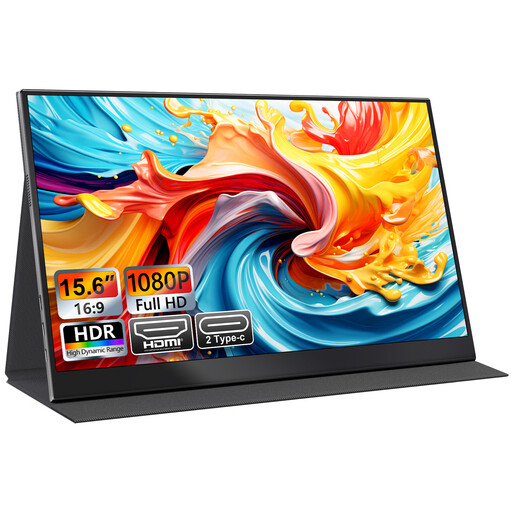
UFYQL M156F04, portable 15.6-inch Full HD monitor
Can work as a portable secondary screen if you want to set up a second workspace.
The product specifications list 1920 × 1080 pixels, IPS, USB-C and HDMI, plus a Smart Cover stand. Full HD has fewer native pixels for viewing several things side by side than QHD or 4K; check that your laptop has the right connections before buying.
Joybuy
 No image available
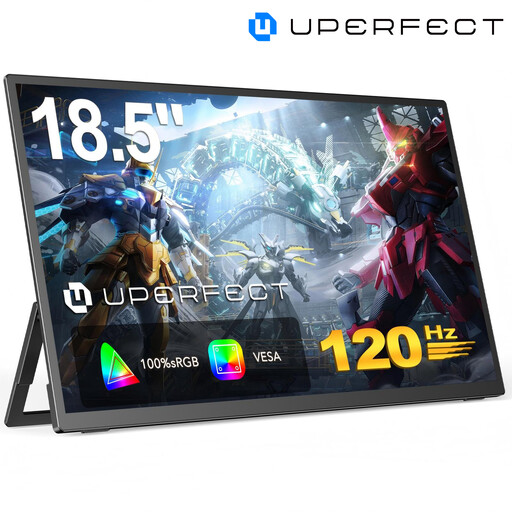
UPERFECT, portable 18.5-inch Full HD monitor, 120 Hz
A portable secondary screen if a compact display could suit your animation work.
The product specifications list 1920 × 1080 pixels, a matt IPS display, 120 Hz, USB-C and Mini-HDMI. According to the product information, the available refresh rate also depends on your device and cable; Full HD offers fewer native pixels for several views than QHD or 4K.
Joybuy
Frequently asked questions
Do I need a 4K monitor for small pixel-art sprites?
No, 4K isn’t a requirement for the sprite file. Aseprite offers different zoom levels for editing; what matters is whether your sprite, preview and timeline remain easy to read with your windows arranged as you prefer.
How should I set up colour for my sprites?
Choose a colour profile that suits your output destination, then select a matching display mode. Aseprite explains the role of colour profiles and describes sRGB as the usual colour space for images on the web; a stated coverage figure alone doesn’t prove the selected mode is accurate.
Can my laptop transmit video and charge over a USB-C cable?
This will only work if your laptop, monitor and cable support the necessary features. Compare your laptop’s video output and power requirements with the specifications for the exact monitor: ASUS lists 65 W for the PA279CV, while LG lists up to 90 W Power Delivery for the 27UP850K-W.
What should I bear in mind if I use it for long periods in a student room?
Adjust the height and tilt to suit your seating position, and compare the dimensions of the stand with the free space on your desk. Follow the instructions for the model you buy when mounting and cleaning it. Germany’s ASR A6 applies to screen work within its scope under employment law; it does not automatically apply to private screen use in a student room.
What are my rights when buying a monitor online in Germany?
For a consumer purchase, you generally have a statutory warranty against the seller for at least two years; this is separate from any voluntary manufacturer’s guarantee. Online purchases usually come with a 14-day right to cancel, which you must be informed about. Energy information for monitors that require an energy label can be checked in the EU EPREL database; an energy class says nothing about colour accuracy.


