Pixel art animators
If you work with individual pixels and lots of frames, you need a workspace where the canvas, timeline and preview remain easy to see. Aseprite lets you adjust the scaling of the sprite view and the user interface separately.


For sprite animation at home, your chosen resolution should make the canvas, timeline and preview easy to see; you don’t need 4K just to view individual sprite pixels. For sRGB workflows, colour mode and colour management matter, while USB-C power delivery, the stand and a higher refresh rate are most important when they suit your laptop, desk or other uses.
If you work with individual pixels and lots of frames, you need a workspace where the canvas, timeline and preview remain easy to see. Aseprite lets you adjust the scaling of the sprite view and the user interface separately.
If you share sprites with other devices or teams, you should match the colour mode, file profile and monitor profile to your workflow. Krita explains why the sRGB working colour space alone doesn’t describe how your monitor actually displays colour.
If you also do office work or connect a laptop, check that the ports and adjustability suit your workspace. A higher refresh rate is most relevant if you also watch content with lots of movement or play games.
| What matters to you | What to check | Who is it important to? |
|---|---|---|
| Canvas and timeline | Consider screen size, native resolution and scaling in your animation software together. | I want to see the canvas, timeline and preview at the same time without pixels or controls becoming too small. Around 31% of consumers put available workspace first. |
| Colour when sharing work | Check the right display mode, monitor profile and colour management for your actual export workflow. | When I prepare sprites for other devices or teams, I want to manage how the colours appear. Around 25% of consumers prioritise consistent colour reproduction when sharing their work. |
| Ergonomics and desk space | Check the monitor and stand dimensions against your desk, and make sure the height and tilt can be adjusted. | During long work sessions, I want to be able to position the monitor to suit my space without it taking over my desk. Around 19% of consumers put a suitable set-up first. |
| Laptop connection | Check that your laptop’s video output, the cable and the monitor’s stated charging power are compatible. | I want to use my laptop with a suitable connection and avoid needing an unexpected extra solution. Around 13% of consumers say connection requirements matter most. |
| Animation previews and gaming | Check the refresh rate specified for the exact model, and don’t confuse it with colour accuracy. | If I also watch content with a higher refresh rate or play games on the same screen, refresh rate matters alongside sprite work. Around 12% of consumers put this use first. |
A higher resolution doesn’t guarantee that the canvas, timeline and controls will be comfortable to read at your chosen display settings. Aseprite lets you scale the sprite view and user interface separately.
Check how your usual canvas size and timeline layout look at the resolution and scaling you plan to use.
A file’s working colour space doesn’t automatically describe how your monitor reproduces colour. Krita explains why the monitor profile matters for the colours you see on screen.
Check the right colour mode and colour management for your export and sharing workflow.
A USB-C port alone doesn’t tell you whether your laptop and connection can transmit a picture or supply the charging power you need. BenQ lists USB-C with DisplayPort Alt Mode and 65 W Power Delivery for the PD2705Q; this doesn’t guarantee compatibility with every laptop.
Before you buy, check the video support, power requirements, cable and stated Power Delivery for both devices.
Depending on the combination of devices, you may need a separate power supply or a different connection.
With sprite editors, toolbars and timelines can stay unchanged on screen for long periods. LG notes that image retention after displaying still images for a long time is a possible OLED risk.
Consider any other uses alongside the long periods when editor panels are visible, and check the care and warranty terms for the specific model.
The DesignVue PD2705Q and PD2732U differ in areas including resolution and stated colour gamuts.
The ProArt PA279CRV is a 27-inch 4K option with selectable colour gamut modes.
The UltraSharp U2724D is a QHD work monitor worth considering if a higher refresh rate is also important to you.
The ColorEdge CS2400S is a more compact 16:10 graphics monitor.
The UltraFine 27UP850K-W is a 27-inch 4K IPS option with USB-C and an adjustable stand.
This selection includes monitors for sprite animation and working from home, from QHD workspaces to widescreen and 4K displays. Check that the scaling, colour mode and connections suit your editor, workspace and laptop.
 No image available
QHD resolution can provide a suitable basis for working with a canvas and timeline; check that your editor interface remains easy to read at your chosen scaling.
Listed in the product title: 2560 × 1440 pixels, IPS panel and 120 Hz overclocked refresh rate.
 No image available
The widescreen format may suit a layout with several editor panels side by side; check that the screen width and curve work with your desk and the way you like to work.
Listed in the product title: 3440 × 1440 pixels, VA panel, 21:9 format, 1500R curve, 200 Hz and height-adjustable stand.
 No image available
The 27-inch QHD specification may suit a workspace with a canvas and timeline; check that your interface is easy to read and consider whether you need the additional gaming features.
Listed in the product title: IPS panel, 275 Hz, 1 ms, 1152 zones, plus 99% sRGB and 99% Adobe RGB (1931). Colour gamut coverage alone doesn’t prove that your files will be displayed accurately.
 No image available
4K offers a different pixel count from QHD; check that your preferred scaling keeps the canvas, timeline and text easy to read on a 27-inch screen.
Listed in the product title: 3840 × 2160 pixels, IPS panel, 120 Hz, USB-C with 90 W Power Delivery and height-adjustable stand. The laptop connection also depends on the features supported by your laptop and cable.
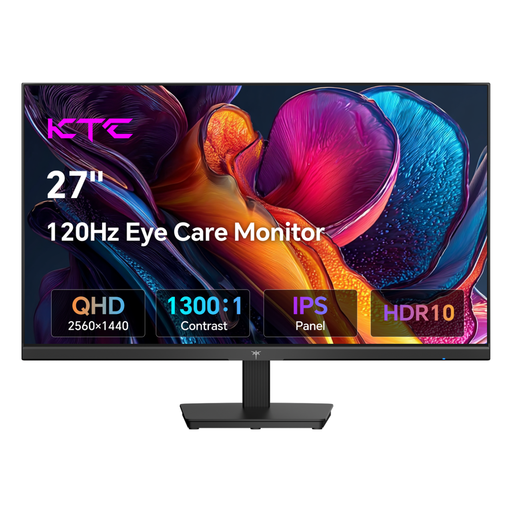 No image available
The 27-inch QHD specification may suit a canvas and timeline; check the resolution and scaling against your software.
Listed in the product title: 2560 × 1440 pixels, IPS panel, 120 Hz and 123% sRGB coverage. Colour gamut coverage doesn’t prove colour accuracy in your own workflow.
No, individual sprite pixels don’t mean you need 4K. Aseprite lets you set the display scaling for sprite pixels and controls separately. Check that the canvas, timeline and text are all easy to read at your chosen resolution.
For an sRGB workflow, match the intended monitor or software mode with the monitor profile. Krita explains that an sRGB working colour space alone doesn’t describe the monitor’s actual colour response.
Only if your laptop and connection support the necessary video output and provide enough power to charge it. For the BenQ PD2705Q, BenQ lists USB-C with DisplayPort Alt Mode and 65 W Power Delivery; this doesn’t guarantee compatibility with every laptop.
To compare power consumption, check the energy label or the listing for the exact model in the EU’s EPREL database, rather than relying on screen size alone. If a new product is faulty, Verbraucherzentrale explains the general two-year statutory warranty against the seller and how it differs from a voluntary guarantee.
No, calling it a home office doesn’t determine that by itself. The German Workplace Ordinance defines a teleworking workstation by an agreement with the employee and equipment provided and installed by the employer. Whether a particular workstation falls under these rules depends on those conditions.