
Lieferung heute & morgen

Qualitätsgarantie

Willkommens-Angebote freischalten: KOSTENLOSE Lieferung | Bis zu 80 % RABATT | Kostenlose 30-Tage-JoyPlus-Testphase
App herunterladen
A new SSD drive is one of the most effective ways to get a significant performance boost from a PC, laptop, or gaming console. Shorter load times, a faster system boot, and a smoother overall experience are the direct benefits. However, the market is overwhelming, filled with technical jargon and marketing promises. As a result, many users invest in unsuitable or overpriced models. This guide will help you navigate the most common traps and make an informed decision.
Before you make a purchase, you should be aware of the common marketing traps that often lead to unnecessary spending.
To find the right internal SSD, focus on three core aspects that are relevant to your needs.
Choosing the correct interface is fundamental and depends on your motherboard's compatibility.
The required storage capacity depends heavily on your usage profile.
The TBW value indicates how many terabytes of data can be written to the SSD over its lifespan before the memory cells potentially become unreliable. A higher TBW value means greater durability. For users who move large amounts of data daily (e.g., video editing), a high TBW rating is an important quality indicator.
Here are some recommendations tailored to specific user groups and their requirements.
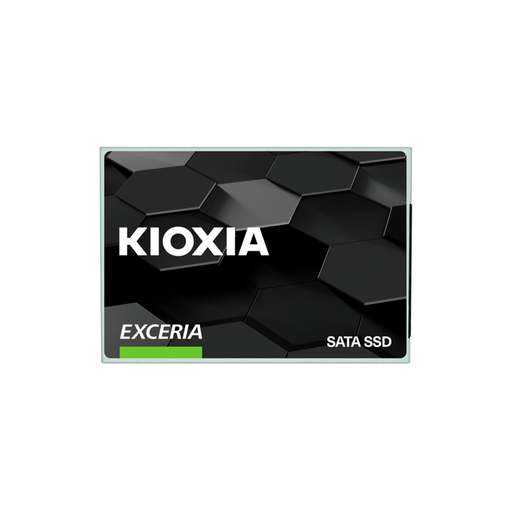
Why This Fits Their Persona: Ideal for users looking to affordably breathe new life into an older laptop or desktop PC with a SATA port. The jump from a mechanical hard drive to this SSD provides an enormous, immediately noticeable performance boost for system and application startups.
This model avoids the trap of paying for unused NVMe speed. It focuses on delivering the maximum performance possible through the widely available SATA interface, offering an optimal price-to-performance ratio for upgrades.
High compatibility thanks to the 2.5-inch form factor and SATA interface. At 960 GB, it offers generous capacity for the operating system, programs, and data.
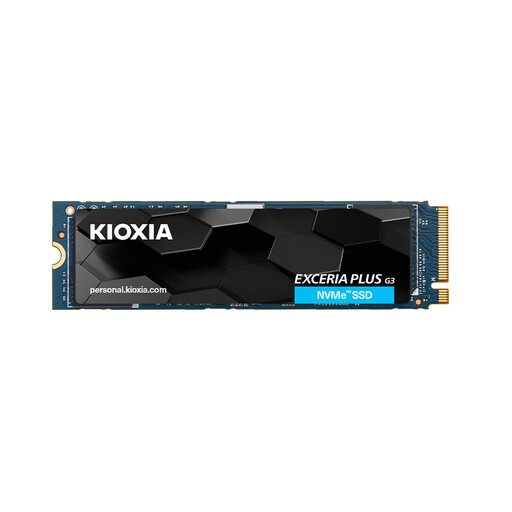
Why This Fits Their Persona: Delivers strong PCIe Gen4 performance that ensures fast in-game load times and high system responsiveness. The 1TB SSD capacity is a great sweet spot between space and price for modern gaming PCs and workstations.
This drive bypasses the "gaming" premium by focusing on verifiable performance metrics. It delivers true PCIe 4.0 speed (up to 5,000 MB/s read) and high endurance (600 TBW) without hiding behind marketing buzzwords.
A balanced ratio of high speed, solid capacity, and above-average durability (TBW). The compact M.2-2280 form factor allows for a simple, cable-free installation.
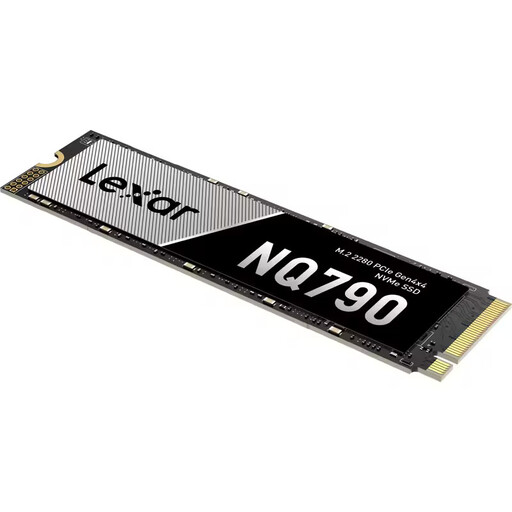
Why This Fits Their Persona: With read speeds of up to 7,000 MB/s, this SSD meets the high requirements for a PS5 SSD expansion (heatsink required) and accelerates demanding workflows like 4K video editing. The 2TB SSD capacity provides massive storage space for large projects and games.
Instead of just advertising a high peak speed, this model offers a combination of high sequential performance, high IOPS values (up to 800K), and a very high endurance rating of 1200 TBW. This addresses the real-world needs of power users who require consistent performance.
Very high PCIe Gen4 speed suitable for the most demanding tasks. The high TBW rating promises a long lifespan even under intensive use.
We've compiled a complete, up-to-date list of products that fully meet these strict selection criteria.
For PCIe 3.0 NVMe SSDs, a heatsink is generally not mandatory but can help stabilize performance during prolonged, intensive loads. For high-performance PCIe 4.0 and especially PCIe 5.0 models, a heatsink is strongly recommended to prevent thermal throttling (a reduction in speed due to overheating). Many modern motherboards already have integrated M.2 heatsinks. For use in a PlayStation 5, a heatsink is mandatory.
The main difference lies in the interface and the resulting speed. SATA SSDs (usually in the 2.5-inch format) are limited to about 550 MB/s and are connected via a cable. NVMe SSDs (in the M.2 format) are plugged directly into the motherboard and communicate via the much faster PCIe interface, enabling speeds of over 7,000 MB/s (with Gen4) and beyond.
This depends on your individual needs. As a rule of thumb: