
Lieferung heute & morgen

Qualitätsgarantie

Willkommens-Angebote freischalten: KOSTENLOSE Lieferung | Bis zu 80 % RABATT | Kostenlose 30-Tage-JoyPlus-Testphase
App herunterladen
A new SSD can fundamentally transform the performance of a PC or laptop. Shorter load times, a faster operating system, and smoother workflows are the most cited benefits. However, the market is filled with technical jargon, marketing promises, and an overwhelming variety of products. If you're not careful, you can quickly invest in the wrong product and pay for performance that your own system can't even use. This guide will help you understand the crucial criteria and make an informed purchasing decision.
Before we dive into the technical details, let's look at three common pitfalls that often lead to disappointment and unnecessary expenses.
To avoid these pitfalls, focus on the following three parameters that are relevant to your specific needs.
Choosing the right interface is the foundation for the compatibility and performance of your new internal SSD.
The required capacity depends entirely on your usage patterns.
The maximum read speed is not always the most important criterion.
Here are some recommendations tailored to specific user profiles and the criteria mentioned above.
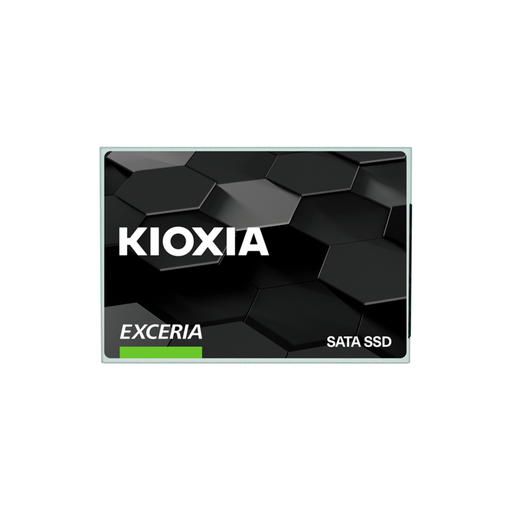
Why it's a good fit: Perfect for a cost-effective upgrade of an older laptop or desktop PC. Delivers a noticeable performance boost for system startup and applications without breaking the bank.
This model avoids the "Speed Illusion" by using the proven and widely compatible SATA interface. You don't pay for NVMe performance that your older system might not support.
High Compatibility: The 2.5-inch form factor and SATA connection fit into almost any PC or laptop from the last 10 years. Good TBW Rating: With 240 TBW, it offers a solid lifespan for everyday use.
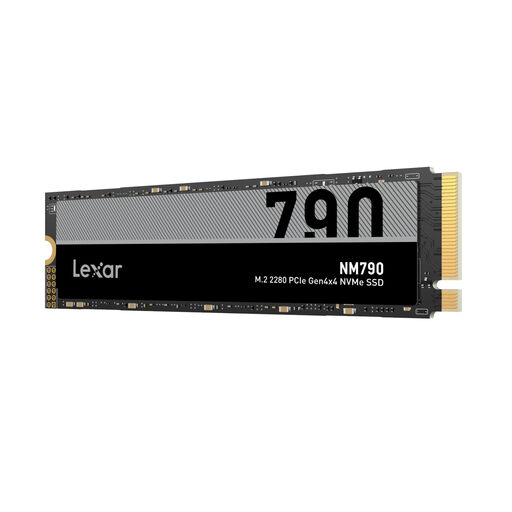
Why it's a good fit: Engineered for fast in-game load times. The high read speed and PCIe Gen4 interface are ideal for modern gaming PCs and meet the requirements for a PS5 storage expansion.
This model addresses the compatibility pitfall. It is explicitly suitable for the PS5 (heatsink recommended) and fits into most modern PC motherboards thanks to the standard M.2 2280 format.
High Speed: With read speeds of up to 7,400 MB/s, loading screens in games are drastically reduced. Large Capacity: 2 TB provides space for dozens of modern AAA games.
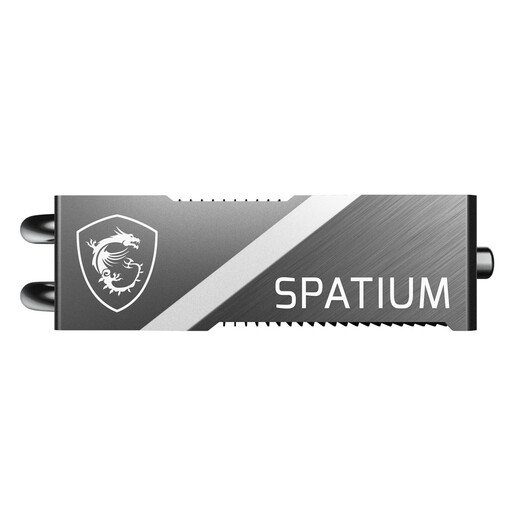
Why it's a good fit: For users who need maximum performance for video editing, 3D rendering, or AI applications. The PCIe 5.0 interface enables extremely fast data transfers and cuts down on waiting times in demanding workflows.
This model addresses the pitfalls of lifespan and cooling. The high TBW rating of 1400 TB ensures longevity for write-intensive tasks. The massive FROZR heatsink prevents performance throttling due to overheating.
Peak Performance: With read speeds of up to 12,400 MB/s, it is one of the fastest drives available. Effective Cooling: The integrated heatsink ensures stable performance even under sustained load.
We have compiled a complete, up-to-date list of products that fully meet these strict selection criteria and safety regulations.
For PCIe 3.0 NVMe SSDs, a heatsink is generally not strictly necessary, but it can improve lifespan and performance during intensive use. For high-performance PCIe 4.0 and especially for all PCIe 5.0 SSDs, a heatsink is highly recommended or even required. These drives generate significant heat under load, which leads to performance throttling (Thermal Throttling) without cooling. Many motherboards already come with M.2 heatsinks, and some SSDs have an integrated cooler.
An internal SSD is installed directly inside a computer's case (desktop or laptop) and usually serves as the primary drive for the operating system and programs. An external SSD is a portable device that connects to the computer via a USB cable. It is excellent for data backups, transporting large files, or expanding storage space without having to open the computer. The performance of external SSDs is limited by the speed of the USB port.