Frequent transfers
If you regularly copy recordings between studio workstations, the transfer speeds you can actually achieve and the connections available matter more than a headline figure on the packaging.


For frequent transfers of large recordings, an external SSD is an obvious choice. For a large archive where copying time matters less, an HDD may be a better fit. The key considerations are how much storage you need, whether the connections and write access work across all studio computers, and having a separate backup. If the recordings aren’t cleared for general use, you should also check the relevant usage and access rights.
If you regularly copy recordings between studio workstations, the transfer speeds you can actually achieve and the connections available matter more than a headline figure on the packaging.
If you keep a lot of concert files and don’t need to transfer them often, having enough storage and a separate backup may matter more than keeping copying times to a minimum.
If files are opened and edited on different studio workstations, check the file system, connection and access arrangements for every computer you plan to use.
A good fit if: You frequently transfer large recordings between workstations and want to keep copying times short.
What to weigh up: Check that your computers and cables support the USB mode you need. Advertised maximum speeds aren’t a guarantee of the speeds you’ll get in the studio.
A good fit if: You mainly want to store a large number of recordings and copying time isn’t a priority.
What to weigh up: Plan for an independent backup. If you use a mix of computers, check that the file system allows write access on every workstation.
| Buying consideration | What to look for | Who it matters most to |
|---|---|---|
| Storage capacity | Work out how much space your existing recordings take up and how much you expect to add; plan for a separate backup. | If I’m keeping lots of concert files, I want enough space for my existing collection and new recordings, rather than focusing only on speed. Around 29% of consumers say available storage is their most important buying consideration. |
| Copying time | Check the USB mode, cable and host computer; treat stated read and write speeds as model-specific maximums. | If I regularly transfer large files, I want to keep waiting times at the workstation down and need a connection that the drive supports. Around 29% of consumers put short copying times first. |
| Access across different computers | Check the operating systems and USB connections on all devices; test read and write access before use. | If I need to edit the same recordings on Mac and Windows computers, I need a file system that allows write access on both. Around 21% of consumers prioritise computer compatibility. |
| Secure access | Check for password protection or encryption, and make sure you can unlock the drive on the computers you plan to use. Encryption is not a substitute for a backup. | If several people use the studio PC, I want to control who can read my recordings. Around 21% of consumers put controlled access at the top of their buying priorities. |
Samsung says the top speeds quoted for the Portable SSD T9 require a USB 3.2 Gen 2x2 host, compatible cables and UASP mode enabled. So you won’t necessarily get the same transfer speeds on every studio computer.
Check the connections on the computers you’ll actually use, and choose your drive accordingly rather than relying on the stated MB/s figure alone.
The German Federal Office for Information Security points out that it’s impossible to predict exactly how long storage media will last. If a drive is damaged or lost, a single copy may become inaccessible.
Keep a separate backup and test that you can open the files you’ve backed up.
A separate backup requires another storage device and regular checks.
Apple explains that macOS can read NTFS without an additional solution, but can’t edit files on it. Formatting a drive also deletes the files stored on it.
Test the file system and write access on every computer you plan to use before handing over important recordings. Make another copy of existing files before reformatting.
Before reformatting, you’ll need another copy of any existing files.
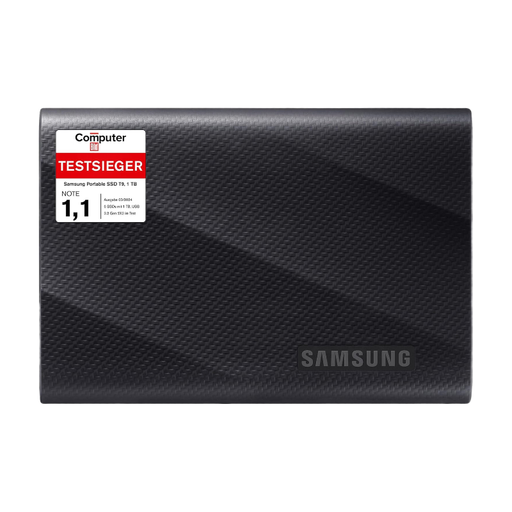
The Portable SSD T9 is an SSD option for frequent transfers. The specifications quoted here refer to the German 1-TB version, MU-PG1T0B/EU.
The XS1000 and XS2000 differ in several ways, including the USB modes they support.
The Expansion Portable is a portable HDD option for storage where copying time isn’t a particular priority.
The My Passport Portable HDD is available in several capacities; the manufacturer’s data sheet lists versions of up to 6 TB.
The X10 Pro 1TB is a portable SSD option for workstations with a compatible USB-C connection.
This selection includes portable SSDs for frequent transfers and HDDs for storing larger collections in a shared studio.
 No image available
Could suit a larger archive if copying time isn’t a priority and the computers can work with the file system.
2 TB; exFAT; USB-C; USB 3.2 Gen 1; 2.5-inch; described as powered via USB in the product details.
 No image available
A possible option for frequent transfers; check that the connections on the computers you use support the stated USB mode.
1 TB; USB 3.2 Gen 2×2; up to 2,060 MB/s read and 1,800 MB/s write according to the product specifications; Windows and macOS are listed as compatible systems.
 No image available
Could be worth considering for repeated file transfers and shared workstations if the connections and password protection meet your needs.
2 TB; USB 3.2 Gen 2; read speeds of up to 1,050 MB/s and write speeds of up to 1,000 MB/s; hardware encryption with password protection. USB-C to USB-C and USB-C to USB-A cables are listed.
 No image available
Could suit frequent transfers if the studio computers support USB 3.2 Gen 2×2 and the right connection.
1 TB; USB 3.2 Gen 2×2; read and write speeds of up to 2,000 MB/s according to the product specifications; USB-C to USB-C and USB-C to USB-A cables are listed. Samsung says the maximum speeds require a compatible host, suitable cables and UASP mode enabled.
 No image available
Could suit a large archive and secure access, provided the file system is compatible with all the studio workstations you plan to use.
5 TB; USB 3.0; NTFS; 256-bit AES hardware encryption and password protection according to the product specifications. macOS can read NTFS without an additional solution, but can’t edit files on it.
Apple lists exFAT as a formatting option for an external drive over 32 GB that will be used with both Mac and Windows. Back up existing files elsewhere before formatting, as the process deletes them. Then test write access on the computers you’ll actually use.
Check that the files you need can be read from the destination drive, and keep a separate backup. Microsoft recommends safely ejecting external hard drives in Windows before disconnecting them to avoid data loss.
Not in every case. Section 77 of the German Copyright Act (UrhG) gives performing artists rights over the recording and reproduction of their performances. Section 53 of the UrhG allows certain private copies only under the conditions set out there, and does not give general permission to distribute them. This does not amount to blanket permission for professional or shared studio use; check the rights for the specific recordings and the way you intend to share them.
No. A manufacturer’s warranty doesn’t replace a data backup; the German Federal Office for Information Security points out that it’s impossible to predict exactly how long a storage device will last. Your Europe also states that consumer purchases in the EU come with a statutory minimum guarantee of two years from receipt of the goods, provided by the seller. This is separate from any additional manufacturer’s warranty.