For straightforward cataloguing using your own fields, a monitor that’s easy to read is enough; you don’t automatically need a photo monitor with a wider colour gamut. If you want to view scans in detail alongside records, compare QHD and 4K based on your window layout, text size and viewing distance. For critical colour assessment, you’ll also need to consider a suitable colour management and output workflow, as well as calibration options. Your collection software determines which catalogue fields are available, not your monitor.
Which monitor is right for you?
Collectors with lots of catalogue fields
If you work with a lot of records, you’ll benefit from a clear layout showing your list, data entry form and image view. OpenNumismat explains how to adapt its collection software for stamps, including renaming or hiding existing fields.
Collectors with detailed scans
If you view stamp images alongside your records, both the image and the controls need to remain easy to see. The specifications published by the manufacturers for the Dell and LG models considered here include both QHD and 4K resolutions.
Collectors with a colour management workflow
If you assess scan colours for a particular output, consider the colour gamut and calibration as part of your entire workflow. BenQ and EIZO list relevant features for the models covered here; manufacturers’ specifications are no substitute for checking your own workflow.
What should you look for when buying?
QHD work monitor
A good fit if: you mainly fill in your own catalogue fields, compare lists and open an image alongside them. A 27-inch QHD model such as the Dell P2725DE is worth considering; test your window layout and text size.
Trade-off: QHD has fewer pixels than 4K for viewing scans in detail, and doesn’t establish suitability for critical colour assessment.
4K work monitor
A good fit if: you need room for catalogue windows and images at the same time, or want to inspect scan details more closely. Options include the LG 27UP850K-W and the Dell P2725QE; check readability with your scaling settings and viewing distance.
Trade-off: More pixels don’t guarantee colour accuracy or compatibility with your catalogue software. LG describes the DCI-P3 figure for the 27UP850K-W as a typical value.
Photo monitor with a wider colour gamut
A good fit if: assessing scan colours is part of a colour-managed or print workflow. Check the calibration options on models such as the BenQ SW272U or EIZO ColorEdge CS2400S.
Trade-off: Colour gamut and calibration figures are based on manufacturers’ specifications. The EIZO CS2400S has 1920 × 1200 pixels rather than 4K; these extra features aren’t necessarily needed for data entry alone.
| Priority |
What to check when buying |
Who is this important to? |
| Space and readability for catalogue fields |
Display the fields you want in your software and test the list, form and image windows using your preferred scaling. |
If I want to use my own fields, my software needs to offer them; the monitor won’t create them. Around 36% of consumers put clear data entry first. |
| Details in stamp scans |
View a typical scan in your planned software at your preferred display size; compare the resolution of the specific model. |
If you want to check fine image details alongside records, remember to check that the controls are easy to read too. Around 29% of consumers prioritise viewing scan details. |
| Colour assessment |
Check the colour space required for your output, calibration options and your complete colour management workflow. |
If I’m assessing scan colours for a specific output, I need more than an advertised colour gamut figure. Around 21% of consumers put accurate, controlled scan colours first. |
| Positioning and computer connections |
Check the monitor’s position in relation to the window, its adjustment options and your computer’s video connection; if using USB-C, check the charging requirements too. |
If you’re setting up a monitor in a particular workspace, consider glare and how it connects to your computer. Around 14% of consumers prioritise positioning and connections. |
Avoid common buying mistakes
-
Choosing a monitor for its own catalogue fields
The collection software determines whether fields are available or can be changed. A suitable screen won’t alter these features.
Before choosing a monitor, test a typical record with the fields you want in the software you plan to use.
Switching software may mean extra work transferring your collection data.
-
Assuming colour gamut coverage means colour accuracy
Colour gamut figures come from the manufacturer; they don’t measure the colour accuracy of the individual unit you buy.
If you’re only cataloguing, check readability first. For colour-critical scans, you should also assess calibration and your output workflow.
Setting up a suitable colour management workflow may take extra time.
-
Assuming USB-C automatically means a one-cable setup
A USB-C port alone doesn’t tell you whether your computer outputs the video signal you need or provides the charging power you want.
Before buying, check your computer’s video output and charging requirements against the monitor’s full specifications.
If the connection isn’t suitable, you may need an additional connection or a separate power supply.
Key brands to consider
Dell
The models considered offer a choice between the 27-inch QHD P2725DE and the 27-inch 4K P2725QE.
- Dell Germany lists 2560 × 1440 pixels for the P2725DE and 3840 × 2160 pixels for the P2725QE; both have adjustable stands.
- Resolution and stand alone don’t establish suitability for critical colour assessment.
LG
According to LG Germany, the LG 27UP850K-W combines a 27-inch 4K display with USB-C and an adjustable stand.
- LG lists 95% DCI-P3 as the typical value for this model.
- The typical colour gamut figure isn’t a measure of the colour accuracy of an individual unit; check compatibility with your laptop separately.
BenQ
The SW272U is a 4K photo monitor for buyers whose workflow calls for additional colour management features.
- According to BenQ Europe, the SW272U offers 99% Adobe RGB, hardware calibration and USB-C with 90 W.
- These manufacturer specifications aren’t an independent assessment of an individual unit; the extra features aren’t essential for data entry alone.
EIZO
According to EIZO Germany, the ColorEdge CS2400S is designed for colour-focused work on a 24-inch display.
- The specification sheet lists 99% Adobe RGB and hardware calibration for the CS2400S.
- The model has 1920 × 1200 pixels rather than 4K; these features apply to the CS2400S and shouldn’t be assumed to apply to all EIZO monitors.
Joybuy products for cataloguing and viewing scans
The models below are QHD and 4K options for working with catalogue windows and scans. Check the specific features of each model to see whether it suits a colour management workflow.
 No image available
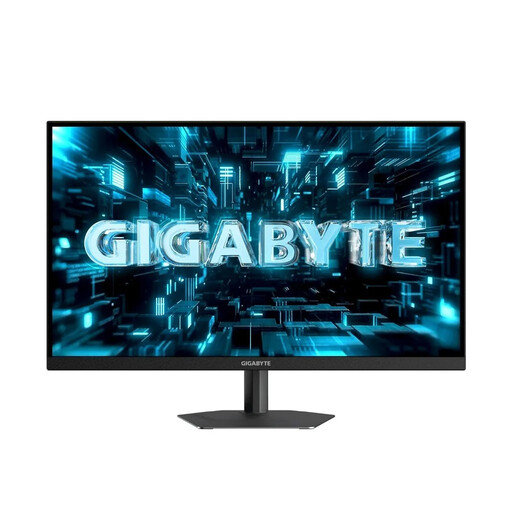
GIGABYTE G27Q26, 27-inch QHD gaming monitor
As a QHD model, it’s worth considering for catalogue windows and an image view open alongside them; check your preferred text size and window layout.
27 inches, 2560 × 1440 pixels, IPS; 260 Hz (OC 275 Hz), 1 ms GTG.
View at Joybuy
 No image available
INNOCN CB27U1, 27-inch 4K UHD monitor
Its 4K resolution makes this model an option for viewing records and scans side by side; check readability with your display scaling.
3840 × 2160 pixels, IPS, 120 Hz; USB-C with 90 W Power Delivery, plus PIP and PBP.
View at Joybuy
 No image available
KTC M27P6, 27-inch 4K Mini LED monitor
As a 27-inch 4K model, it’s an option if you need room for catalogue windows and scans; check first that everything remains easy for you to read.
Dual mode: 4K at 160 Hz or FHD at 320 Hz; Fast IPS, HDR1400 and USB-C with 65 W.
View at Joybuy
 No image available
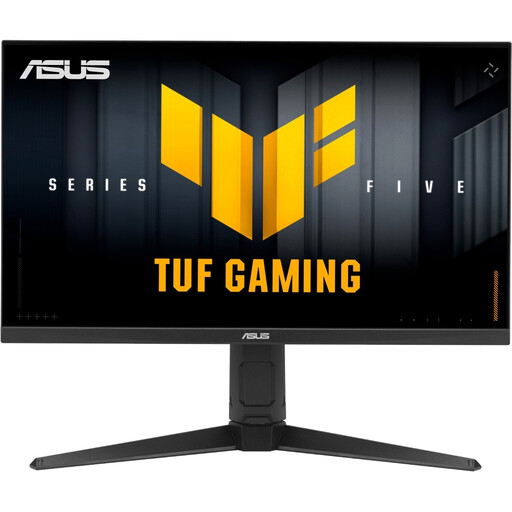
ASUS TUF Gaming VG27AQL5A, 27-inch WQHD monitor
Its WQHD resolution makes it an option for a workspace with catalogue entries and scans; test the window layout and text size in your software.
2560 × 1440 pixels, Fast IPS panel, 210 Hz and 0.3 ms GtG.
View at Joybuy
 No image available
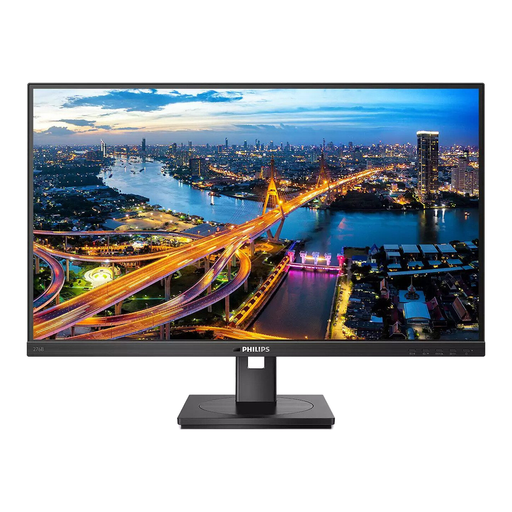
Philips 276B1, 27-inch QHD monitor
A 27-inch QHD model could suit catalogue windows with an image view open alongside them; check readability at your workstation.
2560 × 1440 pixels, IPS, 75 Hz and 350 cd/m²; built-in speakers.
View at Joybuy
Frequently asked questions
Can a monitor create custom fields for my stamps?
No. Custom catalogue fields are a feature of your collection software. OpenNumismat explains how to adapt the software for stamps, including renaming and hiding existing fields. Check that the specific software you use has the fields you want rather than assuming this is a monitor feature.
Where should I position my screen if daylight is causing glare?
The German Social Accident Insurance recommends positioning your screen so that your line of sight is parallel to the window front. Also consider the space available and the monitor’s adjustment options.
Which details help when comparing energy use?
The European Commission explains that the energy label for electronic displays shows efficiency classes from A to G. Compare the energy information for the specific models; actual electricity costs also depend on how long you use them and the price of electricity.
What rights apply in Germany if a monitor is faulty?
The Verbraucherzentrale distinguishes between your statutory warranty rights against the seller and a right to repair against the manufacturer. It lists monitors among the product groups covered by the right to repair, which has applied since 31 July 2026. The rights available in an individual case depend on the relevant conditions.


