Choose a monitor that works with your desk setup both sitting and standing, and select a colour mode to suit the intended output for your visual references. For digital references, an appropriate sRGB workflow may be enough; for print, you’ll need to use a calibrated monitor alongside suitable file, monitor and output profiles. Before you decide, also check the screen size, the space available on your desk and your laptop’s connections.
Which monitor is right for you?
Creatives who switch between sitting and standing
If you regularly switch between sitting and standing, you should be able to position the screen comfortably in both working positions. The German Federal Institute for Occupational Safety and Health recommends adjusting screen position to suit individual eyesight and body measurements.
Creatives working with digital visual references
For digital references, choose a colour mode and monitor profile that suit your intended output. BenQ lists an sRGB mode for the PD2705U, while Adobe explains the role a monitor profile plays in how colours are displayed in Photoshop.
Creatives working with print
If you’re assessing reference colours for a particular print process, you’ll need a consistent workflow across your monitor, file and output. Adobe recommends, among other things, using a calibrated display with an accurate monitor profile, as well as a profile for the printer and paper.
What should you look for when buying?
| What matters |
What to check before buying |
Who is it important to? |
| Position when switching |
Check the adjustment range and mounting type against your desk height, body measurements and available space. |
If I work on the same visual reference sitting and standing, I need the screen to be within reach in both positions. That’s why around 36% of consumers put suitable positioning first. |
| A colour workflow that fits |
Decide on your intended output, then check the colour modes, profiles and calibration you’ll need. |
Whether I’m working digitally or assessing a particular print, I want to judge colours in a way that suits the intended output. Around 29% of consumers prioritise a colour workflow that does just that. |
| Fine image detail |
Compare the native resolution and screen size, and check that scaling is comfortable to read on the computer you use. |
If I want to view fine lines and image details alongside my tools, I look for a level of detail that suits the way I work. Around 21% of consumers put this first. |
| Laptop connectivity |
Check the video output, cable and charging power you need against the specifications for the exact monitor. |
If my laptop is part of my workstation, I want to know in advance whether the monitor and cable support the video connection and power supply I need. Around 14% of consumers prioritise the right laptop connectivity. |
Common buying mistakes
-
Height-adjustable doesn’t automatically mean you can position it just right
The stated adjustment range doesn’t tell you whether the screen will reach the right position at your sitting and standing desk heights.
Measure your fully set-up workstation and check the screen position you can achieve at both working heights.
Depending on your setup, you may need a suitable monitor arm or a different arrangement.
-
A wide colour gamut doesn’t guarantee accurate print reproduction
Colour gamut coverage alone doesn’t describe how colours are translated between your file, screen, printer and paper.
First decide on your intended output, then check whether you can use the required profile and calibration workflow.
A print workflow may also require suitable profiles and calibration.
-
USB-C doesn’t automatically guarantee video and enough charging power
Whether the connection supplies both video and power to your laptop also depends on the laptop, cable and features supported.
Check the video output, cable and charging power you need against the specifications for the exact monitor.
Depending on the connection, you may need a compatible cable or a separate power supply for your laptop.
Brands worth considering
BenQ
The DesignVue PD2705U is a 27-inch 4K option for visual references, with an sRGB mode and an adjustable stand.
- For this model, BenQ lists 99% sRGB, 110 mm of height adjustment and USB-C with DisplayPort Alt Mode, data and 65 W Power Delivery.
- Check that the adjustment range and charging power suit your workstation and laptop.
ASUS
The ProArt PA279CRV combines a 27-inch 4K display with selectable colour modes and an adjustable stand.
- For this model, ASUS lists sRGB and Adobe RGB modes, 99% Adobe RGB coverage, 130 mm of height adjustment and 96 W USB-C Power Delivery.
- Choose a colour gamut to suit your workflow; the specification is no substitute for an accurate monitor profile.
LG
The UltraFine Ergo 32UN880K-B is a larger 4K option with a flexible clamp arm.
- LG lists a 31.5-inch screen, 3840 × 2160 pixels, an arm with multiple adjustment options and USB-C with 60 W power delivery.
- Check beforehand that your desk edge, desktop and available movement space are suitable for the clamp arm.
EIZO
The ColorEdge CG2700X is a 27-inch 4K option for colour-critical workflows that use self-calibration.
- EIZO lists an integrated sensor for self-calibration, as well as colour modes including Adobe RGB and sRGB.
- To assess a particular print, you’ll still need suitable output profiles and printing conditions.
Dell
The UltraSharp U2725QE is a 27-inch 4K hub monitor for when laptop connectivity matters as well as viewing references.
- For this model, Dell lists a height-adjustable stand, an IPS Black panel and power delivery through the hub.
- These specifications don’t prove that its colour workflow will meet the needs of a particular print process.
Joybuy monitors for visual references
This selection includes height-adjustable desktop monitors and portable secondary screens. Compare resolution, format and space requirements with your workstation and the level of detail you want to see.
 Image unavailable
INNOCN 40C1U 40-inch 5K ultrawide monitor
For viewing visual references across a large desktop area; bear in mind the space needed for the 40-inch ultrawide format.
5120 × 2160 pixels, an IPS display and a height-adjustable stand with a stated adjustment range of 120 mm.
The product title also lists 100 Hz and USB-C with 65 W Power Delivery.
View at Joybuy
 Image unavailable
INNOCN CB27U1 27-inch 4K UHD monitor
For digital visual references, if you want to compare a 27-inch display with stated sRGB and Adobe RGB coverage.
3840 × 2160 pixels and an IPS display; this model is listed as having 100% sRGB and 99% Adobe RGB coverage.
The product title also lists 120 Hz, USB-C with 90 W Power Delivery and a height-adjustable stand.
View at Joybuy
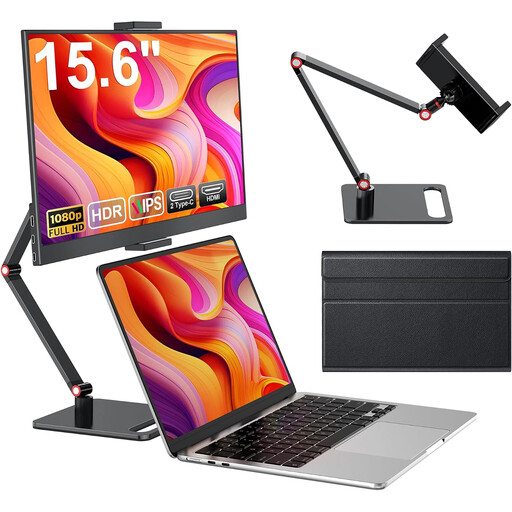 Image unavailable
Portable 15.6-inch laptop monitor, 1080p, IPS
A portable secondary screen for references when a compact format matters more than a large, detailed view.
15.6 inches, 1080p, an IPS panel and 60 Hz; according to the product details, the supplied stand supports both landscape and portrait orientations.
For very fine image details, 15.6 inches and 1080p offer less native detail than larger 4K displays.
View at Joybuy
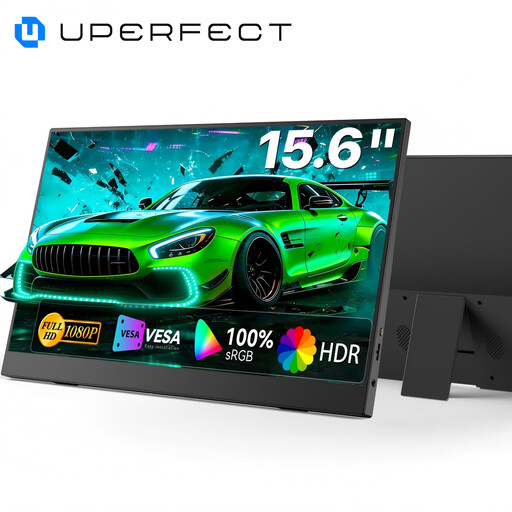 Image unavailable
UPERFECT portable 15.6-inch monitor, 100% sRGB
For digital references on a portable secondary screen, if the stated sRGB coverage suits your workflow.
15.6 inches, Full HD, an IPS panel and stated 100% sRGB coverage; the integrated stand is described as adjustable.
For assessing very fine image details, 15.6 inches and Full HD are limiting compared with a larger 4K display.
View at Joybuy
Frequently asked questions
Is colour gamut coverage enough to assess the colours in a print file?
No. For a particular print, Adobe describes a workflow using a calibrated monitor, an accurate monitor profile and a profile suited to the printer and paper. The colour gamuts you need depend on the file and intended output.
How should I position the screen when switching between sitting and standing?
Adjust the screen to suit your body measurements and eyesight, and check its position at both desk heights. The German Federal Institute for Occupational Safety and Health recommends coordinating your workstation, glasses if needed, and screen position. A particular adjustment range won’t automatically suit everyone.
What should I consider when it comes to electricity costs and faults?
To compare energy use, check the EU energy label and the product specifications for the exact model, rather than relying on screen size alone. If a product is faulty, remember that your statutory rights against the seller are different from a voluntary manufacturer’s guarantee. The Verbraucherzentrale generally states that the statutory warranty period is two years and notes that special rules apply to purchase contracts from 31 July 2026.
Do I need to buy a particular monitor stand for my home standing desk?
The ASR A6 guidance from the German Federal Institute for Occupational Safety and Health is not a general requirement for all private screen use. It applies to computer workstations in workplaces and teleworking workstations within its scope; workplace setups should be assessed separately.


