Who is a Stream Controller for?

Solo reviewers with lots of scenes

If you’re running a review on your own, you’ll need quick access to the gameplay view, commentary view and prepared sources while you’re streaming. What matters is how many actions you need to access directly at the same time, not the total number of actions you can programme.

Reviewers with limited desk space

If you need to fit a controller, keyboard and possibly a microphone into a small space, check the device dimensions and cable routing against your actual setup before choosing.

Reviewers with multiple audio sources

If you adjust commentary, clips or other configured audio sources during a broadcast, check whether dials would suit your workflow and whether the device and software support the actions you need.

What should you look for when buying?

First, make a note of the actions you need to access at the same time during a review. Then compare the buttons, dials, desk space required and OBS integration available.

Buying criterion What to check before buying Who it matters most to
Scenes and sources List the OBS actions you need to access directly at the same time, and check that the specific device and its integration support them. If I need to switch between gameplay, commentary and clips during a review, I want to trigger the key commands without searching for them. Around 33% of consumers say scene and source switching is their main concern.
Desk space Measure the available space, including room for cables and your operating hand, and compare it with the dimensions of the exact model. If a controller, keyboard and microphone all need to fit on a small desk, the device must not crowd out the rest of the setup. Around 27% of consumers put desk space first.
Audio control Think about which audio sources you want to control separately, and check whether you can assign the audio actions you need. If I need to adjust several audio sources during a broadcast, suitable dials matter more than extra scene buttons. Around 20% of consumers say audio control is their main concern.
Software and setup Check the operating system, controller software, OBS version and requirements of the plug-in you need; test your workflow before streaming. If I want to integrate a controller and OBS into my existing workflow, the specific versions need to work together. Around 20% of consumers say setup and compatibility are their main concerns.

Common buying mistakes

  • Comparing only the number of possible macros

    Your workflow depends on which actions you can access directly at the same time. A large number of assignable actions doesn’t, by itself, tell you how many commands are available without switching.

    Decide which commands you need while live first, then compare the number of buttons you can see at once with the space you have available.

  • Assuming dials are the same as extra scene buttons

    Dials can be useful for adjusting levels on the fly, but they don’t replace extra, clearly labelled scene buttons. With the Stream Deck +, you’ll also need to check that it fits your setup.

    Decide separately how many scenes you want to switch to directly and how many audio sources you want to adjust on the fly.

  • Relying on old support information without checking

    Loupedeck ended sales of its own products on 28 March 2025 and discontinued support for the old Marketplace for software 5.8 on 30 March 2026. Loupedeck reversed its announcement of 19 August 2026 that it would end support for Razer devices; however, some older plug-ins still have version restrictions.

    For the specific device, check the current controller software and the version of the plug-in you need.

  • Confusing hardware with permission to use tournament footage

    A controller triggers configured actions, but it doesn’t clear the rights to someone else’s material.

    Check the usage rights for any clips you plan to use, independently of the hardware; commentary alone doesn’t automatically give you permission.

Key brands at a glance

Elgato

Stream Deck models with a range of button and dial layouts, from compact keypads to models with dials.

  • Elgato’s technical specifications list six LCD keys and dimensions of 84 × 60 × 58 mm for the Stream Deck Mini; the Stream Deck Neo has eight LCD keys and two Touch Points. The Stream Deck + combines eight LCD keys with four dials and a touch strip.
  • Elgato’s OBS plug-in has its own software requirements. Check the version requirements for the specific plug-in and the actions you want to use; the number of buttons alone doesn’t prove compatibility.

Razer

The Stream Controller X is a button-focused option for keeping several actions in view and ready to use.

  • Razer lists 15 buttons for the Stream Controller X. This is the manufacturer’s claim, not an independent performance test.
  • On 19 August 2026, Loupedeck said it would continue supporting the devices. According to Loupedeck’s download notes, some older plug-ins still require an earlier software version.

Loupedeck

According to Loupedeck, the Live S combines touch buttons with two dials.

  • Loupedeck’s product specifications list 15 touch buttons and two dials; its OBS guide sets out the OBS and Loupedeck software requirements.
  • Loupedeck ended sales of its own product range on 28 March 2025, but said it would continue providing support. The Marketplace for software version 5.8 has not been supported since 30 March 2026; if you’re buying remaining stock, check the software and plug-in versions you need particularly carefully.

Logitech

The MX Creative Console consists of a separate Keypad and Dialpad, offering a different approach to your setup.

  • Logitech’s setup guide specifies USB-C for the Keypad, and batteries and Bluetooth for the Dialpad. An OBS plug-in is described in the Logitech Marketplace.
  • Consider both parts together with the space available on your desk. The existence of an OBS plug-in doesn’t tell you whether it supports every review action you want to use.

Stream Controllers at Joybuy

This selection includes a button-focused controller for a review using OBS, where you need to access lots of actions directly. Before buying, check which actions you need and whether the controller is compatible with your setup.
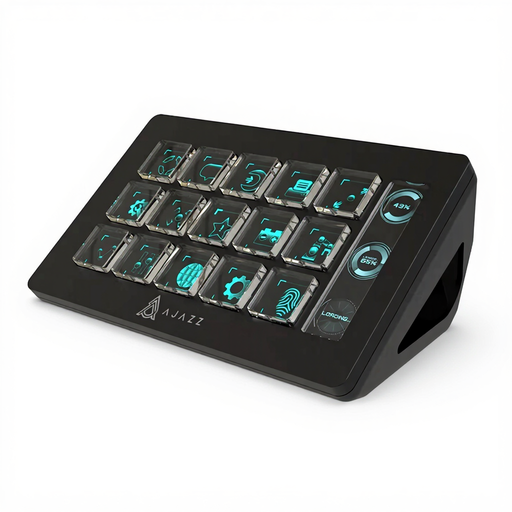
AJAZZ AKP153 Studio Controller with 15 macro buttons, black

AJAZZ AKP153 Studio Controller, 15 Macro Buttons (Black)

For a setup where you want to trigger lots of actions directly using buttons; OBS is listed as a supported application.

15 customisable LCD buttons; PC/Mac and USB are listed in the product description.

Test your assigned actions before using them live.

View at Joybuy

Frequently asked questions

Are six buttons enough for a tournament review?

A six-button setup may work if you need to keep no more than six of your key actions visible and ready to use at once. Count scene, recording and audio actions separately; if you need more direct access, compare devices with additional buttons.

How do I set up and test OBS controls?

First, set up the scenes and sources you need in OBS. Then assign supported actions in the relevant controller software and make a test recording. For external WebSocket control, the OBS Project recommends protecting the connection with a password. Check the requirements for the specific manufacturer’s plug-in separately.

What rights apply to someone else’s tournament footage in a review?

Buying a controller doesn’t give you the right to use someone else’s material. Under Section 51 of the UrhG, quoting published works may be permitted where the extent of the use is justified by the specific purpose of the quotation; this requirement is set out by the Federal Ministry of Justice and the Federal Office of Justice. Making content available to the public is a separate right under Section 19a of the UrhG. Whether a particular use is permitted depends on the material and how you plan to use it.

What happens if an item is faulty or I want to return it after buying online?

As a consumer, you generally have a 14-day right to cancel an online purchase, subject to statutory exceptions. For faulty goods, EU consumer information describes a statutory guarantee of at least two years against the seller from the date you receive the goods; an additional manufacturer’s guarantee does not replace these rights.