If you only need a few recording and scene commands, OBS keyboard shortcuts are often a good place to start. Set them up, then check your picture and sound with a short test recording. If you want to switch between several views and check your microphone status without reaching for the keyboard, a stream controller may be worth considering. Count the actions you need to access at the same time, then choose between more readily accessible buttons and extra dials for supported audio functions. For example, Elgato lists 15 LCD keys on the MK.2, and eight keys plus four dials on the Stream Deck +.
Who is a stream controller for?
Tutorial creators working with multiple views
If you want to control recording, your camera view and prepared scenes while explaining something, assigning OBS actions can bring those controls together. Elgato documents actions for recording and scenes.
Tutorial creators who need to adjust their audio
If you need to control your microphone or other supported audio sources during a demonstration, consider whether you’d prefer dedicated buttons or dials. Elgato describes OBS actions for audio, but the exact functionality depends on your software configuration.
Occasional creators with limited desk space
If you only use a few commands, try OBS keyboard shortcuts first and measure the space you’ll need for the device, cable and hand movements. The OBS Project recommends making a short test recording to check your picture and sound.
What should you consider when choosing one?
OBS keyboard shortcuts, with no extra device
A good fit if: You only need a few recording and scene commands, and your keyboard is easy to reach.
The trade-off: You’ll need to set up the commands and be able to find them easily while recording.
A controller with dedicated buttons
A good fit if: You want a visible, dedicated button for recording, switching views and muting your microphone.
The trade-off: More buttons don’t automatically make your workflow faster. What matters is whether the layouts suit the commands you need.
A controller with buttons and dials
A good fit if: You regularly want to adjust supported audio functions while recording.
The trade-off: A model with dials may have fewer readily accessible buttons. Also check which software is available and which version you need.
| What you need |
What to look for |
Who is this important to? |
| Recording and scenes |
List your recording and stop commands, the scenes you need and the mute function. Then check them against the dedicated buttons and the OBS integration you actually use. |
When I need to switch between recording and different views while explaining something, I want my key commands within easy reach. Around 33% of consumers prioritise access to scenes and recording. |
| Audio while recording |
Check which audio sources you want to control and whether your OBS and controller software support the functions you need. |
When I’m demonstrating something, I want to be able to control my microphone or supported audio functions without losing track of what I’m doing. Around 33% of consumers prioritise audio controls. |
| Space and extra equipment |
Try keyboard shortcuts first. If you’re considering a controller, measure the space needed for its stand, cable and your hand movements too. |
If desk space is limited and I only need a few commands, I want to check whether my keyboard will do the job first. Around 34% of consumers prioritise keeping equipment and space requirements to a minimum. |
Avoid common assumptions
-
Confusing the hardware’s minimum requirements with the requirements of the current software
The requirements listed for older devices may differ from those for the controller software you’re using now.
Check your device, current controller software, plug-in and OBS version together, especially if you have an older computer.
A different software or operating system configuration may mean extra setup steps.
-
Allowing for the case dimensions alone
Elgato’s measurements for the Stream Deck MK.2 specifically exclude the stand.
Also measure the space you’ll need for the stand, cable and your hand movements when using it.
-
Relying on an older support announcement without checking for updates
According to an update dated 19 August 2026, Loupedeck reversed its announcement from May 2026 that support for Razer devices would end. Separately, support for the older Loupedeck Software Marketplace 5.8 ended on 30 March 2026.
Check device support, software version and marketplace status separately, and look for announcements about the model you’re considering.
Key brands to consider
Elgato
Stream Deck models offer different button layouts, while the Stream Deck + adds dials.
- Elgato documents OBS actions for recording, scenes and audio. According to the manufacturer, the Neo has eight LCD keys, the MK.2 has 15, and the Stream Deck + has eight keys and four dials.
- Check the requirements for the current Stream Deck software as well as the hardware specifications.
Streamplify
According to the manufacturer, the Streaming Deck One has 15 customisable LCD keys.
- Streamplify also lists a stand with three adjustable positions, two USB 3.0 ports and OBS support.
- Before buying, check that the commands you need work with your specific software configuration.
Razer
According to Razer, the Stream Controller X is designed for programmable buttons and pre-set workflows.
- Razer lists 15 buttons, as well as OBS profiles and macros.
- According to an update dated 19 August 2026, Loupedeck reversed its announcement that support for the devices would end. Still, check that the software you need is suitable for your workflow.
Loupedeck
According to the manufacturer, the Live S combines touch buttons and dials.
- Loupedeck lists 15 touch buttons, two dials and four additional buttons.
- Direct sales of the product range ended on 28 March 2025, but Loupedeck said it would continue to provide warranty and technical support. The older marketplace for software version 5.8 has not been supported since 30 March 2026.
Joybuy products
Joybuy products with dedicated buttons for programmable recording workflows.
 No image available
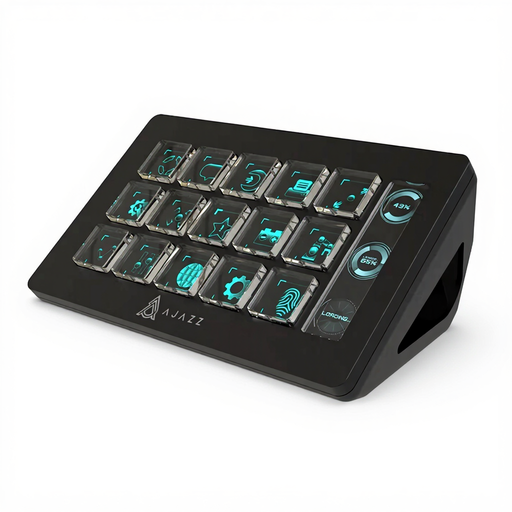
AJAZZ AKP153 Studio Controller, 15 Macro Buttons (Black)
The 15 macro buttons are a good starting point if you want several recording commands within easy reach.
The product specifications list 15 customisable buttons, OBS and PC/Mac compatibility. Check that your controller software, plug-in and OBS version work together, then test your assigned actions before using them.
View at Joybuy
Frequently asked questions
Do I need a stream controller to record a tutorial?
No. OBS offers keyboard shortcuts and recording controls. Set up the few commands you need, then start by checking your picture and sound with a short test recording.
When are dials useful for a tutorial?
Dials may be useful if you regularly want to adjust supported audio functions while recording. Check that your software supports the functions you need, and decide whether you’re happy to have fewer dedicated buttons within easy reach.
What should I check for an OBS plug-in and controller software?
Check the requirements for all the components you’ve installed together. The Elgato Marketplace lists Stream Deck 6.9 or later as a requirement for the OBS plug-in, while Elgato’s integration guide lists OBS Studio 27.0 or later. Then test your assigned recording, scene and, where relevant, audio actions.
How much space should I allow for a controller?
As well as the device itself, allow space for the stand, cable and your hand movements. Elgato’s measurements for the Stream Deck MK.2 specifically exclude the stand, so measure the space you’ll actually need.


