A small LAN switch adds extra ports if your printer can connect to a suitable local network via Ethernet. First, check the connection and sign-in rules in your halls, and make sure the printer and computer will be able to communicate: extra sockets won’t get around a required sign-in or possible network separation. If your printer only uses Wi-Fi, an Ethernet switch won’t solve the problem directly.
Who might need a switch?
Students with a halls LAN connection
If you want to use a LAN printer with the socket in your room, first check whether you’re allowed to connect additional devices and whether they can communicate with one another. Studentenwerk Leipzig describes its studNET as offering a wired connection that requires sign-in; this policy does not automatically apply to other halls.
Students with their own home network
If your router or local network is suitable, a switch can provide extra Ethernet ports for your printer and computer. Brother Germany explains how devices on the same network can access a connected printer.
Students with several LAN devices
If you want to connect other devices by cable as well as your printer, check how many ports will be free once the uplink is connected. TP-Link Germany and NETGEAR list five-port switch models; choose the number of ports to suit your actual needs.
What should you check before buying?
Small unmanaged Gigabit switch
A good fit if: you have a working Ethernet uplink, your printer has a LAN port and there are enough ports for all your devices.
Bear in mind: Plug-and-play won’t replace any sign-in required by your halls or connect separate networks.
Existing home network or printer Wi-Fi
A good fit if: your router already has a spare LAN port, or your printer and computer can use a Wi-Fi network they can both access.
Bear in mind: Wi-Fi setup depends on your printer model; you won’t automatically have your own home network in halls, and setting one up may not be allowed.
Check with your halls provider first
A good fit if: you’re unsure about connection rules, device registration or whether your printer and computer will be able to communicate.
Bear in mind: Asking first could save you from buying the wrong thing, but it isn’t a universal technical solution for every halls network.
| What you’re looking for |
What to check |
Who this matters most to |
| Network compatibility |
Ask your provider about connection rules and device registration. Also check that your printer has an Ethernet port and can be accessed by the device you’ll print from. |
If I want to use my printer with the network socket in halls, I want to know in advance whether sign-in and communication between devices will work. Around 36 % of consumers put this network compatibility first. |
| Number of ports |
Count the uplink to the existing network, your printer and all the other LAN devices you’ll need to use at the same time. |
If I want to connect my printer and other devices by cable at the same time, I need enough spare ports. Around 29 % of consumers say their main consideration is needing extra ports. |
| Size and fan noise |
Check the dimensions, whether the model is fanless, where you can put it and what’s included with the specific version. |
If the device is going in a small room, I want to save space and avoid fan noise. Around 21 % of consumers prioritise a quiet, space-saving setup. |
| Data rate |
Compare the port speeds of the switch, router or room connection, and end devices separately. |
If other suitable LAN devices will transfer data as well as the printer, I look for Gigabit ports to match. Around 14 % of consumers prioritise additional data transfer over a LAN connection. |
Common buying mistakes
-
More LAN ports don’t automatically give you a working private network
A switch can provide extra Ethernet ports, but it won’t handle any sign-in required by your halls provider or automatically connect separate networks.
First, check the usage rules, device registration and whether your printer and computer will be able to communicate.
-
Don’t forget to count the cable to the existing network
The uplink also uses a switch port. On a five-port model, that leaves four ports for end devices.
Count the uplink, printer and all the wired devices you’ll use at the same time before choosing the number of ports.
-
Don’t choose PoE just because you have a network printer
PoE is a separate feature found on certain switch variants, and requires a compatible end device. For example, NETGEAR lists PoE on the GS305P and GS308P variants.
Check the power requirements of your specific printer and only choose PoE if both the device and connection support it.
Relevant brands and models
TP-Link
The TL-SG105 is a compact, unmanaged Gigabit switch with five ports for a suitable wired network.
- TP-Link Germany lists plug-and-play setup and desktop or wall mounting for the TL-SG105.
- Check your halls’ rules separately; extra ports don’t replace registration or permission.
NETGEAR
According to NETGEAR, the GS305 and GS308 offer five and eight Gigabit ports respectively. Choose the right one for the number of devices you’ll connect at the same time.
- NETGEAR’s data sheet describes the listed models as plug-and-play and fanless.
- PoE is available on the GS305P and GS308P variants; it isn’t a standard feature of the GS305 or GS308.
D-Link
D-Link describes the DGS-105GL as an unmanaged switch with five Gigabit ports for a small wired setup.
- D-Link’s international product page lists a metal casing, fanless operation and plug-and-play setup.
- Before buying, check the specific version on offer and what’s included.
MERCUSYS
The MERCUSYS data sheet describes the MS105G, EU hardware version 3.0, as a switch with five Gigabit ports.
- For this documented version, MERCUSYS lists auto-negotiating ports and a power adapter included in the box.
- Don’t assume these details apply to other hardware versions without checking.
Switches for connecting LAN devices
This selection includes switches that add wired Ethernet ports. Before buying, check whether your halls network allows additional devices and lets them communicate with one another.
 No image available
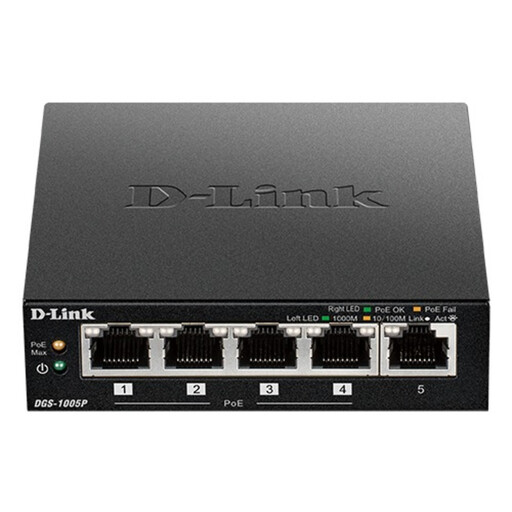
D-Link DGS-1005P/E 5-port Gigabit switch
For a wired setup where you need to connect more devices as well as the uplink, and require PoE+.
Five 10/100/1000 Mbps ports; four PoE+ ports; 60 W PoE budget; fanless metal casing; plug-and-play.
View at Joybuy
 No image available
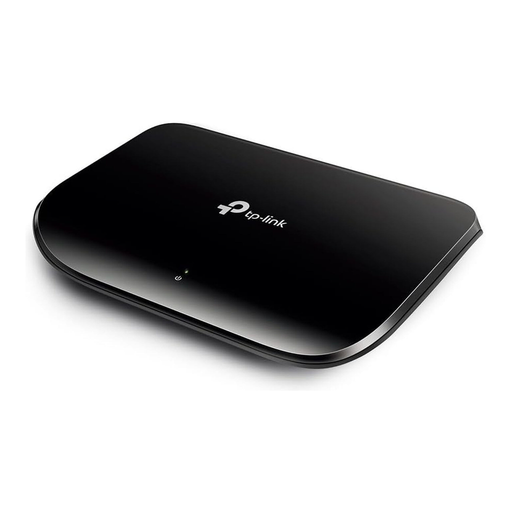
TP-Link TL-SG1005D 5-port Gigabit switch
For a suitable wired network where five ports are enough for the uplink and your end devices.
Five 10/100/1000 Mbps RJ45 ports; auto-negotiation and Auto-MDI/MDIX; plastic casing.
View at Joybuy
 No image available
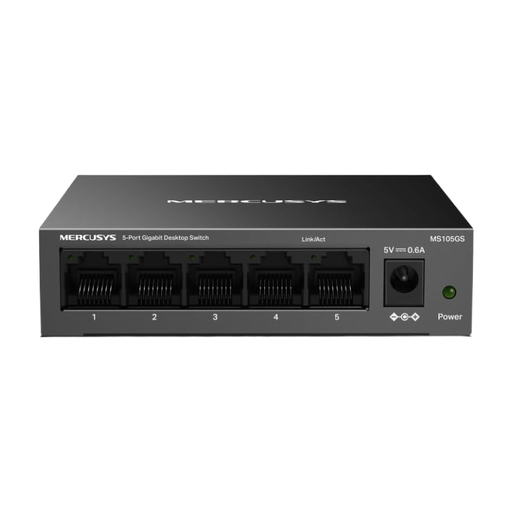
MERCUSYS MS105GS 5-port Gigabit switch
For a compact wired setup where five Gigabit ports meet your connection needs.
Unmanaged; plug-and-play; metal casing; fanless desktop design.
View at Joybuy
 No image available
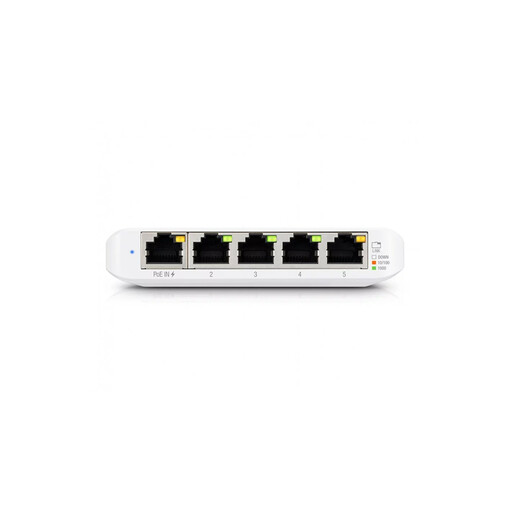
Ubiquiti UniFi Switch Flex Mini USW-FLEX-MINI-EU
For five Gigabit ports if you want a managed switch rather than an unmanaged plug-and-play option.
Managed; powered via USB-C or 802.3af/at PoE. Management features set it apart from an unmanaged switch.
View at Joybuy
 No image available
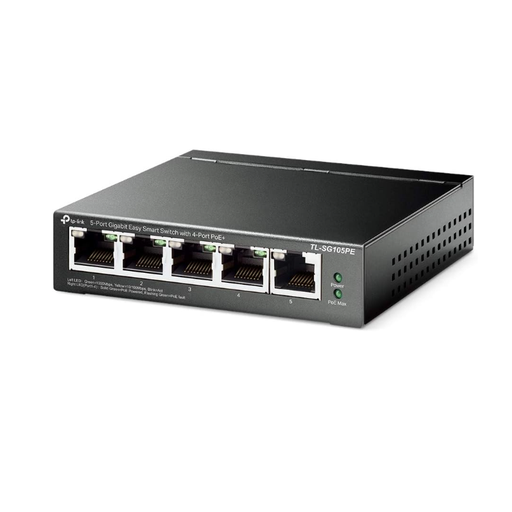
TP-Link TL-SG105PE 5-port Gigabit switch
For five Gigabit ports and PoE+ if the additional Easy Smart features suit your planned setup.
Four PoE+ ports; 65 W; VLAN, QoS and IGMP; fanless metal design. Easy Smart features go beyond those of an unmanaged switch.
View at Joybuy
Frequently asked questions
Can I simply connect the printer to a switch, then plug the switch into the network socket?
This will only work physically if you have the right Ethernet ports; whether you can access the printer afterwards also depends on the rules and sign-in requirements of your specific halls network. Studentenwerk Leipzig describes an authentication process for its studNET, but this doesn’t automatically apply to other halls.
What should I do if my printer only connects over Wi-Fi?
An Ethernet switch won’t connect a printer wirelessly. Set up a Wi-Fi-enabled printer on a network that your devices can access, following the instructions for your model. Brother Germany explains how devices on the same network can access a printer.
Why can’t my laptop find the printer even though the switch is connected?
First, check that the printer is connected and set up correctly, and that both devices can communicate on the network you intend to use. Plugging in a cable doesn’t mean you’ve successfully signed in to your halls network or that separate networks can communicate.
Do I need PoE for the switch or printer?
Not just because you have a network printer. PoE is a separate feature on certain switch variants and only powers compatible devices; check the power requirements of your specific printer.


