If your slides and recording software are running on the same computer, screen recording is often the easiest place to start. A capture card becomes useful when you want to connect an external HDMI source. For a single camera or presentation computer, a single HDMI input may be enough; if you want to connect several sources at once, you’re more likely to need a video mixer. Before you buy, check your camera’s output, your computer’s connections and how your microphone audio will be routed. OBS Project explains how to set up screen and audio sources, while manufacturers provide details of the connections on their devices.
Which solution is right for you?
Presenters using a separate computer for slides
You want to capture the HDMI signal from a second computer and perhaps show the slides on a separate screen at the same time. OBS Project documents screen recording, while capture device specifications explain HDMI inputs and passthrough.
Presenters using an HDMI camera
You want to include footage from a camera you already own in your recording. What matters is the camera’s actual HDMI output and a compatible signal. Elgato recommends checking that your specific camera model provides a clean HDMI output.
Presenters using a camera and separate slides
You want to connect several HDMI sources at once and switch between or combine them during your presentation. Blackmagic Design describes models in the ATEM Mini range with four or eight HDMI sources.
What should you look for when buying?
First, work out where your video and audio will come from, and how many HDMI sources you need to keep connected during your presentation.
Screen recording
Best for: Slides and recording software running on the same computer, with no need for an external HDMI source.
Keep in mind: This won’t capture a camera’s independent HDMI output. Your microphone and any other audio sources will also need to be set up correctly.
Single HDMI-to-USB input
Best for: Connecting an external camera or another HDMI source to your recording software.
Keep in mind: Without HDMI passthrough, there’s no separate HDMI output for a screen. Elgato also specifies that the Cam Link 4K requires an unencrypted HDMI signal.
HDMI capture with passthrough
Best for: Capturing the signal from a separate computer running your slides while also sending it to a separate HDMI screen.
Keep in mind: An HDMI passthrough output isn’t a second HDMI input. Check the capture and passthrough resolutions separately.
Video mixer with multiple inputs
Best for: Connecting a camera and a separate computer for slides at the same time, so you can switch between or combine them during your presentation.
Keep in mind: A video mixer adds extra connections and setup steps. Features such as standalone recording vary by model.
| What you need |
What to check before buying |
Who it matters most to |
| Capture the right video source |
Note which device is running your slides and which additional source has an HDMI output. |
If I only want to show slides from the recording computer, or also connect an external camera, the recording setup needs to suit my needs. Around 36% of consumers put the video source first. |
| Route presentation audio |
Decide whether your voice will come through a USB microphone, HDMI or an analogue input. Check your recording for duplicate audio sources. |
If I want my voice to be recorded clearly, I need to know in advance which input my microphone will use. Around 29% of consumers pay particular attention to presentation audio. |
| Connection to your computer |
Check the USB connection you need, your operating system and the requirements of the specific model. PCIe requires a compatible desktop PC. |
If I want to set up the card on a computer I already own, the connection and device model need to be compatible. Around 21% of consumers place particular importance on connections and setup. |
| Multiple HDMI sources |
Count the sources that need to stay connected at the same time, and distinguish HDMI inputs from an HDMI passthrough output. |
If I want to connect a camera and a computer for slides at the same time, I need enough inputs to switch between them. Around 14% of consumers prioritise using multiple HDMI sources. |
Avoid common buying mistakes
-
Buying a capture card when you only need to record slides from the same computer
OBS offers a screen capture source for your own monitor. You don’t automatically need an additional HDMI capture card for this.
Start by testing your screen and microphone recording. Only buy HDMI hardware if you want to connect an external video source.
An extra device means more setup.
-
Confusing passthrough with a second HDMI input
An HDMI loop-through sends an input signal on to a screen. It doesn’t provide an extra input for connecting a second source.
Count the HDMI inputs and screen outputs you need separately. If you want to switch between several sources, look for a suitable video mixer.
If you later want to switch between several sources, you may need to set up an additional video mixer.
-
Assuming “4K” in the product name tells you what it can record
Specifications may differ for inputs and outputs, recording and passthrough. Elgato lists the technical details separately for each model.
For the specific model, compare the input, recording and passthrough resolutions you need, as well as the requirements of your recording software.
Relevant brands and product ranges
Elgato
Cam Link 4K for a compatible camera HDMI output; Game Capture 4K S for HDMI capture with passthrough.
- Elgato specifies unencrypted HDMI as a requirement for the Cam Link 4K. For the Game Capture 4K S, the manufacturer lists an HDMI input, HDMI output and USB 3.0 Type-C.
- According to Elgato, the Cam Link 4K doesn’t have passthrough. Check the Game Capture 4K S system requirements separately against your recording software and computer.
AVerMedia
Live Gamer MINI GC311 as an external HDMI solution; GC573 as an internal PCIe card for compatible desktop PCs.
- AVerMedia lists an HDMI input, passthrough and a Micro-USB connection for the GC311. For the GC573, the manufacturer lists PCI-Express Gen 2 x4 and HDMI 2.0.
- The GC573 is an internal PCIe card, not a USB solution for a standard laptop.
Magewell
USB Capture HDMI Gen 2 for a single HDMI source; USB Capture HDMI Plus if you also need HDMI loop-through.
- Magewell lists an HDMI input, HDMI loop-through and USB 3.0 for the HDMI Plus.
- Loop-through isn’t a second HDMI input and doesn’t provide an additional video source.
Blackmagic Design
ATEM Mini video mixers for presentations with separate HDMI signals from a camera and a computer for slides.
- Blackmagic Design describes models in the ATEM Mini range with four or eight HDMI sources, as well as a USB output that appears as a webcam in video software.
- Standalone recording and other outputs vary by model, so check the details of each one before buying.
Joybuy products for external video sources
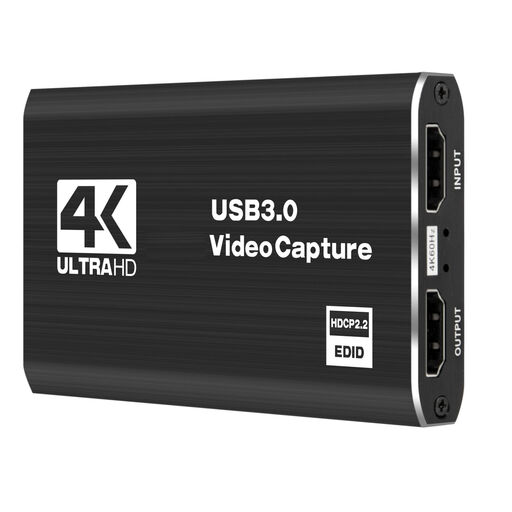
The Joybuy products below are USB capture cards for connecting external video sources to a computer. If you want to connect a camera and a computer for slides at the same time and switch between them, check whether a single capture input will be enough or whether you need a video mixer.
 No image available
Five-port USB 3.0 video capture card
For capturing an external video source on your computer.
USB 3.0; five ports.
View at Joybuy
 No image available
HDMI capture card with USB 3.0
For an external HDMI source when you also want to pass the signal on via HDMI.
HDMI input up to 4K/30 Hz; recording at 1080p/60 Hz; HDMI passthrough.
View at Joybuy
 No image available
4K USB 3.0 video capture card with five ports
For capturing an external video source on your computer.
USB 3.0; five ports.
View at Joybuy
 No image available
VIELLAN HDMI capture card with USB 3.0
For an external HDMI source when you also want to send the signal to a screen.
Recording up to 1080p; 4K HDMI passthrough; described as compatible with Windows, macOS and Linux in the product name.
View at Joybuy
 No image available
VIELLAN HDMI capture card with USB 3.0
For recording HDMI on your computer. Check in advance that the connections suit your planned microphone and headphone setup.
Recording up to 1080p; 4K HDMI passthrough; UVC and UAC; microphone input and headphone output.
View at Joybuy
Frequently asked questions
How do I set up video and audio before my presentation?
In OBS, choose a Video Capture Device source for an external capture device. For slides on the same computer, use a Display Capture source. Add your microphone using the appropriate audio connection, then make a short test recording to check the picture and sound. OBS Project notes that selecting the same audio source twice can cause an echo.
Why does my camera show menus, switch itself off or show no picture?
Check your specific camera model to see whether it can provide a clean HDMI output without menus on screen and operate continuously. Elgato notes that the Cam Link 4K can’t display an HDCP-protected HDMI signal. This limitation shouldn’t be assumed to apply to other devices.
Which connections and requirements should I check before buying?
Check that the HDMI and microphone connections you need are available on the specific model and included in the box. Also check the USB connection, operating system and computer requirements against the manufacturer’s information. An internal PCIe model requires a compatible desktop PC.
Can I simply record or publish someone else’s presentation in Germany?
Not in every case; it depends on the presentation and how you plan to use the recording. Under § 201 StGB, recording another person’s privately spoken words without authorisation may be a criminal offence. § 53 para. 7 UrhG requires the rights holder’s consent to record a public presentation of a protected work. § 22 KunstUrhG covers the distribution or public display of images. The relevant conditions and permissions must be checked for each specific case. The Federal Ministry of Justice and the Federal Office of Justice publish the legislation on “Gesetze im Internet”.


