Illustrating on a tablet you already own
If you’d like to keep using your iPad or Galaxy Tab, check the exact device and stylus versions. Apple Support and Samsung Business list the specific compatible models and series for each.


If you already have a tablet, first check that the stylus works with that exact model and the required operating system version; Apple Support lists specific device combinations. If you have a computer, a small graphics tablet can save space, while a pen display lets you draw directly on the screen but also needs desk space and a suitable connection. If you don’t have a computer, a standalone tablet may be the answer. Whichever device you choose, make sure the drawing app, page format and colour profile meet the requirements of your book project.
If you’d like to keep using your iPad or Galaxy Tab, check the exact device and stylus versions. Apple Support and Samsung Business list the specific compatible models and series for each.
If you have a computer, you can choose between a small graphics tablet without a screen and a connected pen display. Wacom says the One by Wacom Small connects to a Mac or PC via USB; XPPen lists eight customisable shortcut keys on the Artist 12 (2nd Generation).
A standalone tablet is an option if you want to draw without a computer. Also check that the app and working file are suitable for your book project: Procreate describes canvas size, layer count and colour profile as project settings.
First decide whether you want to use a tablet you already own, a computer or a standalone device. Then consider the space available, the stylus controls you need and the requirements of your book file.
| Priority | What to check when buying | Who is this particularly important for? |
|---|---|---|
| Compatibility | Check the exact tablet model, stylus version and required operating system version; for graphics tablets used with a computer, check the connection and drivers too. Apple Support lists specific iPad and Pencil combinations. | If you want to keep using your existing device, the stylus needs to be compatible with that exact model. Around 28% of consumers say compatibility is their top priority. |
| Desk space | Compare the model’s overall dimensions and cable routing with the space you have available, rather than looking only at screen size. Wacom notes that the One 12 needs to be connected to a computer. | At a small desk, the drawing area, computer and cables all need to fit. Around 22% of consumers say space is their top priority. |
| Line control | Check whether the specific stylus and drawing app support pressure, tilt or rotation features. Apple and Samsung describe these features for certain stylus models. | If you want precise control over line weight or shading, the features of the specific stylus matter. Around 22% of consumers say line control is their main priority. |
| Book file | Check the requirements for dimensions, resolution and colour profile, then create a test document in your chosen app. Procreate explains that canvas size and iPad model can affect the number of layers available. | If you’re preparing a book for submission, the app and file need to meet the project requirements. Around 17% of consumers say file suitability is their top priority. |
| Working without a computer | Check that the drawing app you need runs on the standalone tablet and that the right stylus is included with the specific version. Samsung says the Galaxy Tab S10 FE comes with an S Pen; Apple does not list a Pencil as included with the iPad Air M4. | If you want to draw at your desk without a computer, the tablet should support your workflow on its own. Around 11% of consumers say working independently of a computer is their main priority. |
Apple lists different iPad compatibility and operating system requirements for its Pencil models. A stylus that isn’t compatible with your device combination won’t be suitable for your setup.
Check the exact iPad name and Pencil version against Apple Support’s compatibility list.
Screen size doesn’t tell you the device’s overall dimensions. With a graphics tablet without a screen, you’ll also need a computer monitor; with a connected pen display, both the device and its cables need to fit on your desk.
Compare the dimensions of the exact model with your workspace, and allow room for your computer, keyboard and cables.
For the Wacom One configuration described, you select the stylus and cable separately. The single-cable connection also depends on your computer’s port.
Before ordering, check what’s included with the specific model and package, as well as which connections you’ll need.
Depending on the configuration, you may need an extra stylus or a suitable cable.
Stylus features don’t set the page format, colour profile or layer count in your drawing app. Procreate describes these as project settings; according to Procreate, you can’t switch an existing canvas between RGB and CMYK afterwards.
Create a test document to match your book project’s requirements before settling on specific hardware.
An unsuitable document may mean reworking the canvas size, layers or colour profile.
Apple Pencil styluses for compatible iPads; the 11-inch iPad Air M4 is a standalone tablet option for a compact workspace.
The Galaxy Tab S10 FE is a standalone 10.9-inch tablet; Samsung says it comes with an S Pen.
The One by Wacom Small is designed for use with a computer you already own; the Wacom One 12 is a connected pen display.
The Artist 12 (2nd Generation) is a connected pen display with a screen size of 11.9 inches, according to XPPen.
The Kamvas 13 (Gen 3) is a connected 13.3-inch pen display with controls and colour settings.
The Joybuy products below are styluses for existing compatible tablets or touchscreens. For each model, check the listed device compatibility against the exact device you own.
 No image available
For a compatible Android or HarmonyOS device, if you’re looking for a stylus for drawing and taking notes.
The product description lists USB-C charging, double-tap functionality, magnetic attachment and up to 12 hours of use. It also says the stylus isn’t suitable for iPads, Microsoft devices or some Lenovo tablets.
 No image available
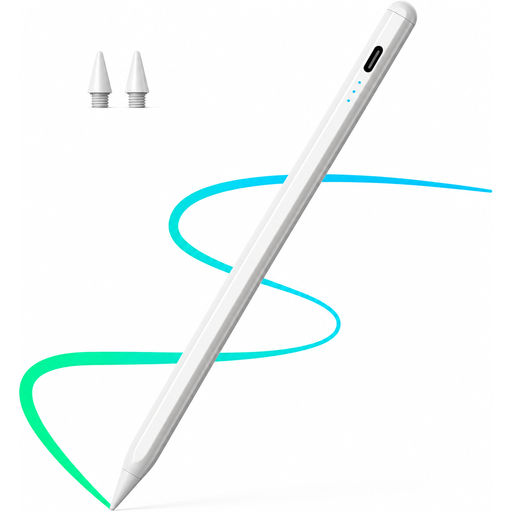
For illustrating on a compatible iPad; check the exact model generation before you buy.
The product description lists tilt recognition and palm rejection. It also says that a 30-minute charge provides up to 10 hours of use.
 No image available
For drawing on an iPad, if the listed tilt recognition and palm rejection suit your device and workflow.
The product name mentions fast charging; the description lists tilt recognition for shading and palm rejection. Check compatibility with your exact iPad model.
 No image available
For sketching and illustrating on one of the supported iPad models; check the exact generation before you buy.
The product description lists tilt recognition, palm rejection, an LED charging indicator and magnetic attachment.
 No image available
For compatible capacitive touchscreens with iOS or Android, if the associated app suits your needs.
The product description lists a built-in battery and pairing through a downloadable app.
No. Apple matches Pencil versions to specific iPad models and also specifies the minimum iPadOS versions required for Pencil Pro and Apple Pencil (USB-C). Before buying, check the exact name of your iPad against Apple Support’s compatibility list.
Not just because it has a USB-C port. Wacom says that the One 12’s single-cable connection depends on your computer’s port. Check the exact computer and display setup, along with the cables you’ll need.
First, get the requirements for your book project and create a suitable test document in the app you plan to use. In Procreate, you can set the dimensions, DPI and colour profile for a new canvas; a larger canvas may reduce the maximum number of layers available. According to Procreate, you can’t switch an existing canvas between RGB and CMYK afterwards.
It depends on the specific configuration. In the Wacom One configurator, you select the stylus and cable separately, so check what’s included with the model and package you’re considering.