For an editable circuit diagram, first check that your CAD software supports the task you want to carry out: a stylus alone won’t turn a freehand line into an electrical connection. If you simply want to draw on the screens you already have, a graphics tablet without a display may be worth considering. For drawing directly beneath the stylus tip, consider a connected pen display or a compatible tablet used as a second screen. What matters most is your software workflow, the available connections and the right computer-and-tablet combination.
Which solution suits you?
CAD circuit diagram users
If you edit components and electrical connections on your computer, first check whether your circuit diagram software supports the stylus workflow you want to use. The KiCad Team describes symbols, electrical connections and graphical elements as distinct parts of the schematic editor.
Those who want to draw directly on screen
If you want the stylus tip to sit directly on the sketch or annotation, consider a connected pen display or a compatible tablet used as an additional screen. Huion and XPPen offer pen displays; check the connections and available desk space beforehand.
Those who want a portable second screen
If you also want to use your tablet away from your desk, check that its second-screen feature is compatible with your computer. Apple describes Sidecar for compatible Macs and iPads; Samsung sets out the requirements and possible PC limitations for supported Galaxy Tab models.
What to look for when buying
Graphics tablet without a display
A good fit if: you work on your existing screens and want to add stylus input.
Things to consider: Your hand moves across the tablet while you look at the monitor; the software and driver need to suit your workflow.
Connected pen display
A good fit if: you want to draw directly on the displayed sketch or annotation, and your computer has a suitable additional video output.
Things to consider: The display needs desk space and a suitable connection for the video signal and, if required, power.
Tablet as a second screen
A good fit if: you want to use your tablet away from your workstation too, and its second-screen feature is compatible with your computer.
Things to consider: Requirements for the model, operating system, account and connection vary between device ecosystems.
The KiCad schematic editor treats symbols, electrical connections, graphics and text as distinct elements (KiCad Team). So start by deciding whether you’re creating an editable CAD circuit diagram or making a sketch or annotation.
| Priority |
What to check before buying |
Who it matters most to |
| Editable CAD circuit diagram |
Try out the workflow for symbols, electrical connections and annotations in your own software. |
If I need to edit electrical symbols and connections in a CAD editor, I check that it supports the workflow I need. Around 36% of consumers put editability of the CAD circuit diagram first. |
| Direct input on a second screen |
Check whether the display extends or mirrors your screen, and whether the video signal and power supply are suitable. |
If I want to guide the stylus tip directly across the visible drawing area, I look for a pen display or a compatible tablet used as a second screen. Around 29% of consumers prioritise direct stylus input on a second screen. |
| Stylus input on existing screens |
Check the active tablet area, driver and stylus behaviour with your own software. |
If I want to keep using my two monitors without setting up another display, a graphics tablet without a screen may be suitable. Around 21% of consumers prioritise stylus input on existing screens. |
| Using a tablet on the go |
Check that the tablet and computer models, software, accounts and the stylus mode you want to use are compatible. |
If I want to use my tablet away from my workstation and also connect it to my computer, I check that the specific combination will work. Around 14% of consumers prioritise using a tablet on the go. |
Common misconceptions before you buy
-
Assuming a freehand sketch is the same as an editable circuit diagram
In a CAD circuit diagram, symbols and electrical connections are separate elements. A freehand line won’t automatically become an electrical connection.
First decide whether you need an editable circuit diagram or a sketch or annotation, then test the exact workflow in your software.
-
Assuming every USB-C port supports video output
For a single-cable connection to the Wacom One DTC141, Wacom specifies Thunderbolt or DisplayPort Alt Mode. For PCs without DisplayPort Alt Mode, the manufacturer lists a separately available Converter Kit.
Check your computer’s ports against the requirements of the specific display, and check the cable and power supply too.
-
Assuming the display itself comes with a stylus
Wacom states that the main device in its configurable Wacom One display range is supplied without a stylus; a bundle may include different accessories.
Check what’s included with the specific version rather than relying on the product range name alone.
-
Expecting the same second-screen feature to work with every tablet and PC
Samsung lists the supported Galaxy Tab models and software requirements; some features may be limited depending on the PC.
Check the tablet model, Windows computer, accounts and S Pen input mode you want to use against the manufacturer’s instructions.
Brands to consider
Wacom
One by Wacom M is a graphics tablet without a display; Wacom One is a separate range of pen displays.
- Wacom specifies a USB connection to a Mac or PC and driver installation for One by Wacom M.
- For a single-cable connection to the Wacom One DTC141, the manufacturer requires Thunderbolt or DisplayPort Alt Mode; the main device in the range is sold without a stylus.
Huion
Kamvas 13 (Gen 3) is a connected pen display that gives you an extra drawing surface for your computer.
- Huion specifies a 13.3-inch display with a resolution of 1.920 × 1.080 pixels and a battery-free stylus for this model.
- Check the connection set-up for your specific computer and model.
XPPen
Artist Pro 16 (Gen 2) is a larger pen display that connects to your computer.
- The manufacturer lists a built-in foldable stand and several connection options.
- Manufacturer claims about stylus precision and response time do not, on their own, demonstrate an advantage for CAD circuit diagrams.
Apple
Sidecar lets you use a compatible iPad as a second display for a Mac.
- Apple says Sidecar can extend or mirror your Mac desktop on an iPad.
- Your Mac and iPad must meet the Sidecar requirements and be signed in to the same Apple Account; this does not mean Windows has an equivalent native feature.
Samsung
Supported Galaxy Tab models can work as an additional display for a Windows computer using Second Screen.
- For the Galaxy Tab S11 Ultra, Samsung describes S Pen input and extended and duplicated display modes.
- The manufacturer’s instructions list account, network and software requirements, and note that features may be limited depending on the PC.
Joybuy products
This selection includes Android tablets described as coming with a stylus for sketching. Before buying, check whether the specific model can be used as a second screen with your computer.
 No image available
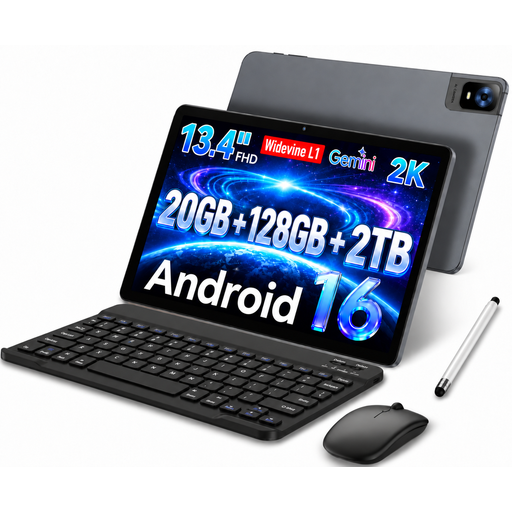
UXD Android 16 tablet, 13.4 inches, 128 GB ROM
Could be suitable for freehand sketches with a stylus; check that the second-screen feature works with your computer before buying.
13.4-inch FHD IPS display with a resolution of 1.920 × 1.200 pixels; 20 GB RAM (8 GB + 12 GB virtual); stylus, keyboard and mouse according to the product title.
Joybuy
 No image available
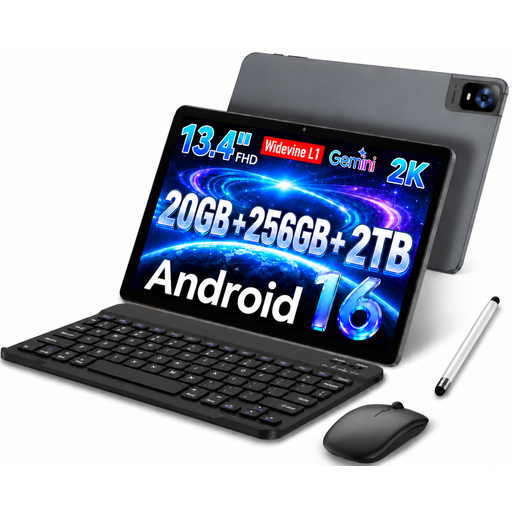
UXD Android 16 tablet, 13.4 inches, 256 GB ROM
Could be suitable for freehand sketches with a stylus; check that the second-screen feature works with your computer before buying.
13.4-inch FHD IPS display with a resolution of 1.920 × 1.200 pixels; 20 GB RAM (8 GB + 12 GB virtual); stylus, keyboard and mouse according to the product title.
Joybuy
 No image available
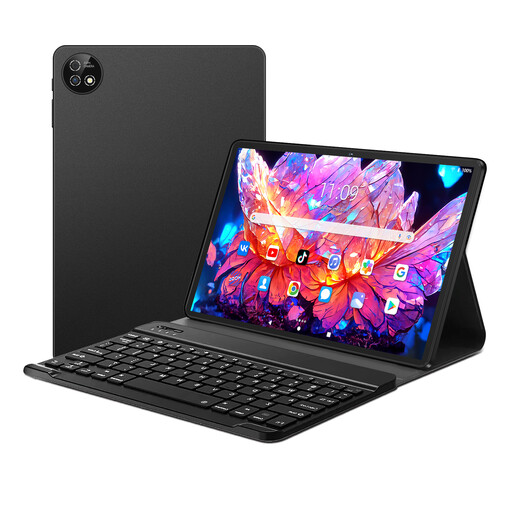
Android 16 tablet, 10.1 inches, 256 GB ROM
Could be suitable for sketching on the go with a touch pen; check separately whether the tablet works as a second screen with your computer.
10.1-inch display; Unisoc T310; 36 GB RAM and 256 GB ROM; touch pen and detachable keyboard according to the product title or description.
Joybuy
Frequently asked questions
Does a stylus device replace the tools in circuit diagram software?
No. A schematic editor such as KiCad treats symbols and electrical connections as separate elements; a freehand line does not automatically become an electrical connection. Check that your specific software supports the task you want to carry out.
Is USB-C enough to connect a pen display as a second screen?
Not necessarily. For a single-cable connection to the Wacom One DTC141, Wacom specifies Thunderbolt or USB-C with DisplayPort Alt Mode. For the model you choose, also check data connectivity and power requirements.
What do I need to use a Galaxy Tab as a second screen?
It depends on the specific tablet and PC. For the Galaxy Tab S11 Ultra, Samsung lists requirements including the same Wi-Fi network and Samsung Account; you can choose between extending and duplicating the display. Check your model’s requirements against the manufacturer’s instructions.
What are my rights if a device is faulty?
Your statutory rights are against the seller and are separate from any voluntary guarantee. The Verbraucherzentrale explains that, subject to the relevant legal conditions, you can initially ask for the fault to be put right through a repair or replacement.
Can I put an old stylus device in household rubbish?
No. The Federal Ministry for the Environment explains that old electrical equipment must be taken to an authorised collection point or a retailer obliged to take it back. Additional conditions apply if you want a retailer to take it back without buying a new product.


