What should you look for when buying?
First, check that the stylus is compatible with your device. Then decide whether you need pressure-sensitive lines, and finally check the setup and what’s included for your shared desk.
| Consideration |
What to check before buying |
Who it matters most to |
| Device compatibility |
Check the full device and stylus names against the compatibility list; check the operating system version if necessary. |
If I want to keep using my existing iPad, Galaxy Tab or Surface, that exact combination must be supported. Device compatibility is the top priority for around 36% of consumers. |
| Lines and shading |
Check pressure sensitivity for the specific stylus and device combination; tilt recognition is not the same as pressure sensitivity. |
If I want to control lines or shading with pen pressure, I need to make sure my device supports a pressure-sensitive stylus. Line control is the top priority for around 29% of consumers. |
| Setup and storage |
Check how the stylus charges and attaches; if you’re using a separate drawing tablet, also consider the connection and desk space required. |
If I want to clear my desk quickly after drawing, a simple setup is important. Having a flexible workspace is the top priority for around 21% of consumers. |
| Accessories and ongoing costs |
Before buying, check whether the cable, charging accessories and any replacement parts you need are included with the model you’ve chosen. |
If I want to know what else I’ll need, I check exactly what’s included and whether replacement nibs are available. Accessories and ongoing costs are the top priority for around 14% of consumers. |
A guide to the brands
The details below apply to the specific product ranges mentioned and don’t replace checking compatibility with your exact device.
Apple
Apple Pencil models are designed for compatible iPads; compatibility varies by Pencil version.
- Apple lists pressure, rotation and magnetic charging features for Pencil Pro.
- Apple says Apple Pencil (USB-C) isn’t pressure-sensitive and pairs and charges via a USB-C cable. Compatibility depends on the iPad model.
Samsung
S Pen offers a device-specific option for Galaxy Tabs.
- Samsung lists pressure and tilt recognition, as well as magnetic attachment, for the S Pen EJ-PX510BWEGEU.
- The listed compatibility is for the Tab S9 FE and Tab S10 FE series and shouldn’t be assumed to cover all Galaxy Tabs.
Microsoft
Surface Slim Pen is designed for pen-enabled Surface devices and a Windows-based drawing setup.
- Microsoft lists pressure sensitivity, with 4,096 pressure points for compatible Surface models.
- Supported features and charging depend on the Surface model or compatible accessories.
Logitech
Crayon is an iPad stylus for sketches and annotations, but it doesn’t offer pressure-sensitive lines.
- For the USB-C version, Logitech lists tilt and palm rejection. The manufacturer also says it can be switched on without Bluetooth pairing.
- Crayon isn’t pressure-sensitive. Check the exact connection type and compatibility with your iPad.
Wacom
Wacom One is a separate graphics tablet for use with a compatible computer.
- Wacom lists several compatible operating systems and configurable components for the product range.
- The graphics tablet isn’t a standalone tablet. Check that the pen, connection and included items are right for the specific set you’re buying; a USB-C cable may not be included.
Joybuy products
The following product options are listed for iPad, Surface or general touchscreen use. Check compatibility with your exact device and what’s included before buying.
 No image available
ZSPEED stylus for iPad with magnetic charging
Could be an option for sketching on a compatible iPad if magnetic attachment and tilt recognition suit your workflow.
The product title lists magnetic charging, tilt sensitivity and palm rejection. It lists the following compatible models: iPad Pro 11-inch (4th, 3rd, 2nd and 1st generation), iPad Pro 12.9-inch (6th, 5th, 4th and 3rd generation), iPad Air (4th and 5th generation) and iPad mini. Check your exact model before buying.
Joybuy
 No image available
Stylus pen for Microsoft Surface, 4096 pressure levels
Could be an option for pressure-sensitive lines on a compatible Surface; check the features against your device model.
The product title lists 4096 pressure levels, tilt support, palm rejection and magnetic attachment. It lists Surface Pro 3 to 11, Surface Go 1 to 4, Surface Laptop 1 to 6, as well as Surface Studio and Surface Book, as compatible devices.
Joybuy
 No image available
iPad stylus with USB-C charging
Could be an option for sketching on a compatible iPad if USB-C charging suits your setup.
The product title lists compatibility with iPad models from 2018 to 2025 and USB-C charging. The description also mentions an LED battery indicator, magnetic attachment, tilt sensitivity and palm rejection. Check that it’s right for your specific iPad.
Joybuy
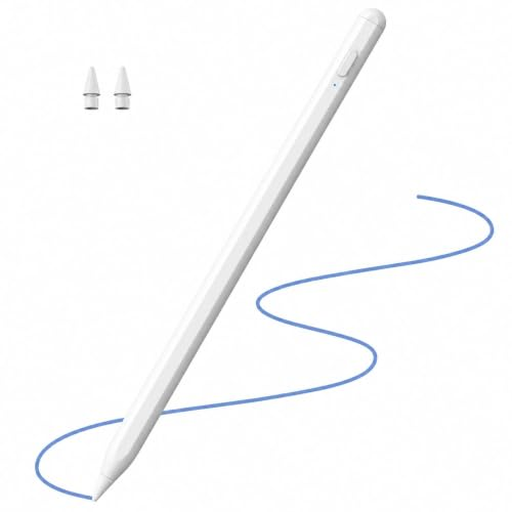 No image available
Stylus for Apple iPad, 2018–2026
Could be an option for sketching on a compatible iPad if tilt support and palm rejection suit the way you work.
The product title lists iPad models from 2018 to 2026, 2X fast charging, palm rejection and tilt support. The description mentions USB charging at 5 V; check compatibility with your exact device before buying.
Joybuy
 No image available
Rechargeable active stylus for iOS and Android
Could be an option for drawing on a compatible iOS or Android touchscreen if you’re looking for a rechargeable stylus.
The product title lists a dual-touch feature and compatibility with iOS and Android touchscreens. Check that your exact device is supported before buying.
Joybuy
Frequently asked questions
Can I use any iPad stylus for pressure-sensitive tattoo lines?
No, not every iPad stylus detects pressure. Apple Pencil (USB-C) and Logitech Crayon aren’t pressure-sensitive, and compatibility also depends on the iPad model. First check your device, then see whether your drawing brush needs pressure input.
Does a magnetically attached stylus charge automatically on the tablet?
Not necessarily. Apple says Pencil Pro charges magnetically on a compatible iPad; Apple Pencil (USB-C) attaches magnetically but pairs and charges using a USB-C cable. How the Surface Slim Pen charges depends on the compatible device or accessory.
What should I consider when setting up and storing my stylus at a shared desk?
Set aside a dedicated place for your stylus, any spare nibs you need and the charging cable, and check what’s included with the model you choose. Logitech says the USB-C version of Crayon can be switched on without Bluetooth pairing; with Wacom One, check the connection and components included in the specific set.
Does a 14-day cancellation period always apply to online purchases in Germany?
For qualifying distance purchases made by consumers, a 14-day cancellation period generally applies from the day the goods are delivered, subject to statutory requirements and exceptions. Your Europe, the European Union’s consumer portal, explains this period. If you’re buying for a tattoo studio as a business, don’t assume that consumer rules apply.


