People who annotate lots of PDFs
If you often write directly on pages of academic papers, check how you can export the edited PDFs and incorporate them back into your workflow.


For reading academic PDFs in a café, your tablet should work well with your stylus, PDF app and preferred export method. If you switch between other apps as well as reading, a versatile tablet could be a good fit, while a digital paper tablet is designed for a document-focused workflow. A smaller screen takes up less room on the table, while a larger display gives you more space for the page and handwritten notes in the margins. Before buying, check whether the stylus is included and whether you can export your specific PDFs after annotating them.
If you often write directly on pages of academic papers, check how you can export the edited PDFs and incorporate them back into your workflow.
If you often work in different places, you’ll need to balance screen space against weight and the room available on the table. Apple lists the 11-inch iPad Air M4 with Wi-Fi at 464 g and the 13-inch model at 616 g.
If you use other apps alongside reading PDFs, make sure the overall app and stylus workflow suits you. Stylus support alone doesn’t tell you whether your particular PDF app can export files the way you want.
First, check the whole process: importing your own PDF, adding handwritten notes and exporting it. Then you can better assess the screen space, how much room the tablet will take up and which stylus is right for you.
| What matters when buying | What to look for | Who is this important for? |
|---|---|---|
| PDF annotation and export | Import your own PDF, write on it and open the exported file on a second device; check for protection and restrictions on annotations. | If you regularly mark up academic papers, your notes need to fit back into your workflow afterwards. Around 33 % of consumers prioritise a PDF workflow. |
| Portability at a café table | Compare the dimensions and weight of the device, plus any case you may need, with your bag and the available table space. | If you often work on the go, your tablet should fit on the table and be easy to carry. Around 27 % of consumers prioritise portability. |
| Screen space for pages and margin notes | Open a typical research PDF in your preferred app and check the zoom, page view and space available for comments. | If you want to see pages and handwritten notes in the margins at the same time, how your typical PDF is displayed matters. Around 20 % of consumers prioritise screen space. |
| Tablet and compatible stylus | Check the exact device model, stylus compatibility and whether the stylus is included. | If you’re planning a complete setup, you’ll want to know whether the right stylus is included or needs to be bought separately. Around 20 % of consumers focus primarily on the combined cost of a tablet and stylus. |
A compatible stylus isn’t automatically included with the tablet. Apple doesn’t list a Pencil as included with the iPad Air M4, whereas Samsung says the Galaxy Tab S11 comes with an S Pen.
Before comparing complete setups, check the exact stylus model, device version and what’s included in the box.
With the iPad Air M4, a compatible Apple Pencil may be an additional purchase.
Kobo says that DRM-protected PDFs and files with annotations disabled can’t be written on.
Try a PDF from your own collection on a compatible device, then check that you can export it and open it on a second device.
A larger screen can take up more room on the table. Apple lists the 13-inch iPad Air M4 as heavier than the 11-inch model.
Compare a typical academic paper page with the available table space and the weight of your complete setup.
The iPad Air M4 is an option for a versatile app and stylus workflow.
The Galaxy Tab S10 FE and Tab S11 are options for an Android workflow, with an S Pen included according to the manufacturer.
The Tab P12 is an example of a larger Android device available in a bundle with a pen.
The Paper Pro is designed for reading, handwriting and working with documents.
Compatible e-readers with the Kobo Stylus 2 are a reading-focused option for unprotected PDFs.
The Joybuy products below include tablets for reading and note-taking on the go. Whether they’re right for your academic PDFs also depends on the app, file protection, stylus compatibility and export options.
 No image available
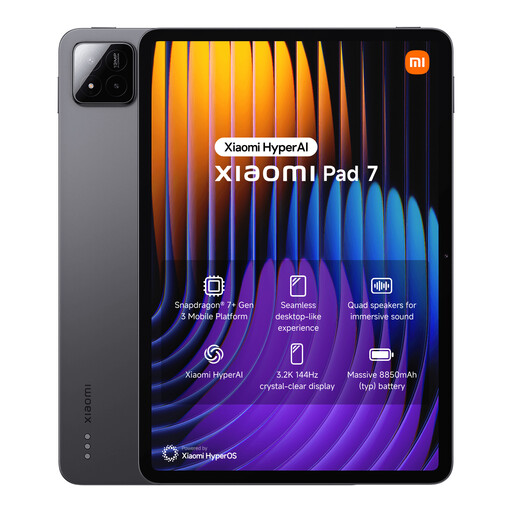
Could suit you if you’d like to use a keyboard as well as read PDFs. For handwritten notes, check stylus compatibility and whether you can export your PDFs.
3.2K display, 144 Hz, Snapdragon 7+ Gen 3 and 8,850 mAh battery.
 No image available
Could be worth considering for a reading and note-taking workflow. First, check whether its PDF features let you annotate and export your specific files.
10.65-inch E Ink display; described in the product name as a note-taking tablet.
 No image available
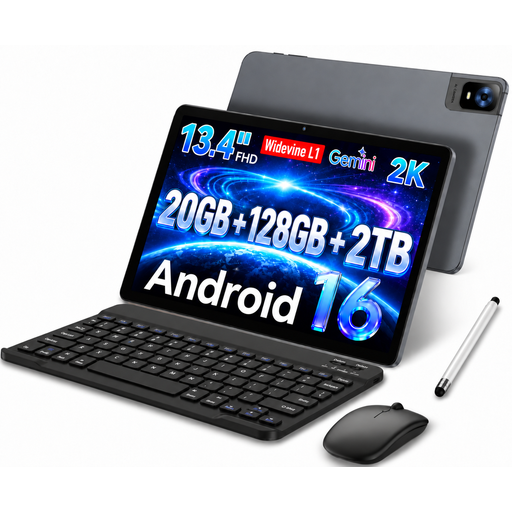
Could suit you if you’re looking for a large display and a bundle with accessories for typing and input. The 13.4-inch screen may take up more room on a small café table.
1,920 × 1,200 IPS display; 20 GB RAM (8 GB + 12 GB virtual), 128 GB storage; includes a keyboard, mouse and stylus.
 No image available
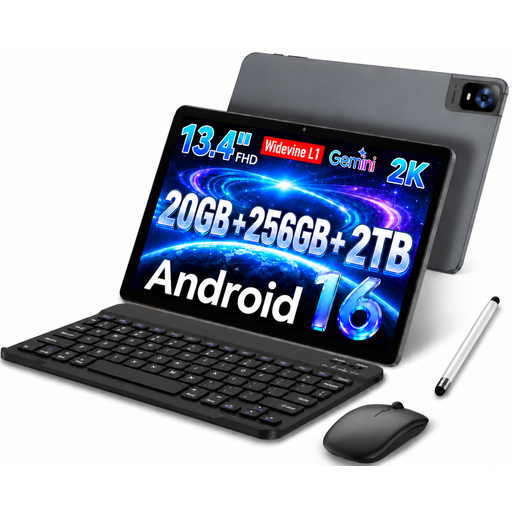
Could suit you if you’re looking for a large display and a bundle with accessories for typing and input. The 13.4-inch screen may take up more room on a small café table.
1,920 × 1,200 IPS display; 20 GB RAM (8 GB + 12 GB virtual), 256 GB storage; includes a keyboard, mouse and stylus.
 No image available
Could be an option if you’re looking for a larger tablet that comes with a stylus. Check the space available at your café table and whether the app you use can export PDFs.
2K display, 256 GB storage, Android 15 and T-Pen with support for 4,096 pressure levels; the product name also mentions a keyboard and protective case.
No. Kobo says unprotected PDFs can be written on, but DRM-protected PDFs and files with annotations disabled aren’t supported. Try a PDF from your own collection on a compatible device.
reMarkable describes importing files via the app, web or USB, and exporting PDFs through the desktop app. According to support, transfers via the web app and USB are limited to 100 MB; for larger files, reMarkable recommends using the companion app.
It depends on the model: Samsung says the Galaxy Tab S11 comes with an S Pen. The iPad Air M4 supports certain Apple Pencils, but a Pencil isn’t listed as included with the tablet. Check the exact version when buying a bundle, too.
The German Federal Office for Information Security recommends avoiding access to confidential data over public Wi-Fi wherever possible. If you need to access it, the BSI recommends using a VPN if possible. Whether additional rules apply to specific research data depends on the project.