If you often update dates and responsibilities in a spreadsheet, first check that your planning app works on the tablet and that a keyboard is compatible with the exact model. A compatible stylus is important for handwritten drafts; a larger display can make it easier to review the schedule together, but takes up more table space. Compare the actual contents of the box, and take care to protect personal club data when working on public Wi-Fi.
Which approach is right for you?
Editing the schedule
If you regularly add dates and responsibilities, first check that the calendar or spreadsheet app you plan to use supports the editing tasks you need. Apple lists a compatible Magic Keyboard Folio for the iPad (A16); Samsung offers a matching keyboard for the Galaxy Tab S10 FE.
Planning by hand
If you first sketch out bookings or mark changes, check that the stylus is compatible and included with the specific model. Samsung says the Galaxy Tab S10 FE comes with an S Pen; HONOR lists the stylus for the Pad 10 as sold separately on its general product page.
Organisers who want to see the full picture
If you review several time slots together at a library table, you could consider a larger screen, while also weighing up the space it needs and any accessories. Lenovo lists the Tab P12 as having a 12.7-inch display; HONOR lists the Pad 10 as having a 12.1-inch display.
What should you look for when buying?
First decide how you’ll edit the schedule: typing longer entries, drafting by hand or reviewing it together at a table. You can then check app features, compatible accessories and what’s included in the specific offer more effectively.
| What you need |
What to check before buying |
Who it matters most to |
| Enter and update the schedule efficiently |
Open a sample template in the app you plan to use, then check editing and export options, as well as keyboard compatibility with the exact tablet model. |
If I regularly update dates and responsibilities in spreadsheets, I need a suitable app and keyboard input. Around 36% of consumers say extensive typing is their main priority. |
| Draft changes by hand |
Check the stylus model, what’s included and the handwriting or annotation features available in the app you plan to use on the device itself. |
If you want to sketch out time slots first or mark changes directly on screen, consider stylus input. Around 29% of consumers say handwritten drafts are their main priority. |
| Review time slots at a table |
Open your actual schedule in the view you need, then try the tablet with its stand on a suitably sized table. |
If I want to review lots of entries together, seeing the actual schedule on screen is what matters to me. Around 21% of consumers say getting an overview of the schedule is their main priority. |
| Overall cost and what’s included |
Compare the tablet, any accessories you need and the box contents for the same model. Don’t confuse your statutory rights if goods are faulty with a voluntary guarantee. |
If you want to find out in advance which accessories you need for a complete set, check what’s included with the specific offer. Around 14% of consumers say the overall cost is their main priority. |
Avoid common misconceptions
-
Assuming stylus support means a stylus is included
Stylus compatibility doesn’t automatically mean one is included with the offer. Samsung says the Galaxy Tab S10 FE comes with an S Pen; HONOR lists the stylus for the Pad 10 as sold separately on its general product page.
Check the exact stylus model and box contents for the version you’ve selected. If you also need a compatible stylus, include it when comparing the cost of a complete set.
-
Assuming any tablet keyboard will fit
The keyboard must be compatible with the exact tablet model. Apple lists the Magic Keyboard Folio for the iPad (A16); Samsung provides a compatibility list for the Book Cover Keyboard with the Galaxy Tab S10 FE.
Compare the full model name, keyboard compatibility and the German keyboard layout you need. Remember to include the cost of any additional model-specific keyboard in the total.
-
Sharing a club schedule over public Wi-Fi without taking care
If a schedule contains personal information, you must consider the legal basis, purpose and confidentiality when handling it. The German Federal Office for Information Security offers advice on using public Wi-Fi.
Agree within your club who can view or edit the schedule, and secure the accounts and data transfer you use before sharing names.
Key brands at a glance
Apple
The iPad (A16) is worth considering if you want to use iPadOS and check for a suitable keyboard for entering longer items.
- Apple lists an 11-inch display for this model, with support for Magic Keyboard Folio and Apple Pencil.
- This information doesn’t confirm that it will work with a specific club app. Check the app’s features, accessory compatibility and what’s included with the offer.
Samsung
The Galaxy Tab S10 FE is one option for planning on Android with stylus input.
- Samsung lists a 10.9-inch display and an S Pen included with the configuration described; a Book Cover Keyboard is compatible with the model.
- Samsung says that a charging adapter isn’t included. Check separately whether the keyboard and charging accessories you need are part of the specific offer.
Lenovo
The Tab P12 is an option if you’re considering a larger display to see the whole schedule.
- Lenovo lists a 12.7-inch display for the Tab P12 and describes a German bundle that includes the tablet, a pen and a Bluetooth keyboard.
- The bundle contents apply to the specific offer described and don’t automatically apply to every Tab P12 model. Also check that your planning app makes good use of the larger screen.
HONOR
The Pad 10 is a 12.1-inch option for reviewing a schedule at a table.
- HONOR lists a 12.1-inch display for the Pad 10.
- HONOR says the stylus is sold separately on its general product page. Check for different retailer bundles and the actual contents of the box.
Xiaomi
The Pad 7 is an 11.2-inch option; one Joybuy offer lists a keyboard.
- Xiaomi lists an 8 GB/128 GB version among its technical specifications.
- The keyboard is listed for the specific Joybuy offer and this doesn’t apply to every Pad 7 package. Check the model and what’s included.
Tablets for keyboard use and planning
Here you’ll find Joybuy tablets for typing, as well as offers with stylus accessories for handwritten drafts. Check the specific model and the stated box contents for each one.
 Image unavailable
UXD A5 10.1-inch tablet with keyboard, mouse and case
The keyboard listed in the offer title is useful for entering longer items in the schedule.
Android 15; 10.1 inches; 24 GB RAM (8 GB + 16 GB virtual); 256 GB ROM; expandable up to 1 TB. The offer title lists a keyboard, mouse and case.
Joybuy
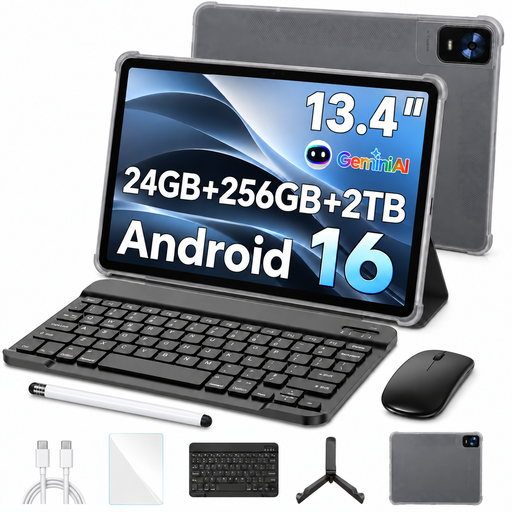 Image unavailable
13.4-inch Android 16 tablet, 256 GB, with keyboard and passive stylus
The keyboard and stylus accessories listed in the title offer two possible ways to work on the schedule.
13.4 inches; 256 GB storage; 24 GB RAM (8 GB + 16 GB virtual); expandable up to 2 TB; FHD+. The offer title lists a keyboard, mouse, passive stylus, case and stand.
Joybuy
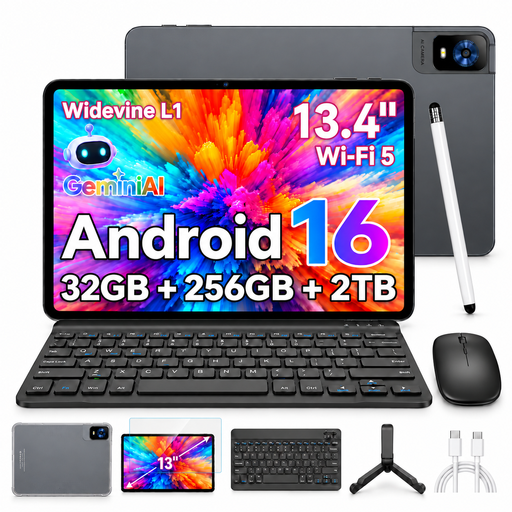 Image unavailable
UXD S1 13.4-inch tablet with 2K display, keyboard and stylus
The keyboard and stylus accessories listed in the offer title may be useful for typing and handwritten drafts.
Android 16; 13.4 inches; 2K display; 32 GB RAM (8 GB + 24 GB); 256 GB ROM; expandable up to 2 TB. The offer title lists a keyboard, mouse, stylus, case and stand.
Joybuy
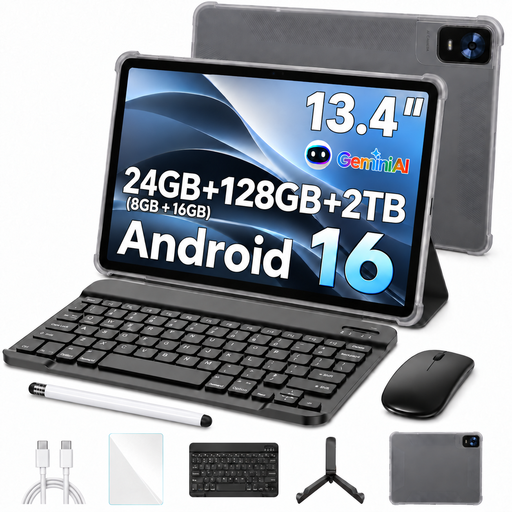 Image unavailable
13.4-inch Android 16 tablet, 128 GB, with keyboard and passive stylus
The input options listed in the offer title are useful for typed updates and handwritten drafts.
13.4 inches; 128 GB; FHD+; 24 GB RAM (8 GB + 16 GB virtual). The offer title lists a keyboard, passive stylus, case and stand.
Joybuy
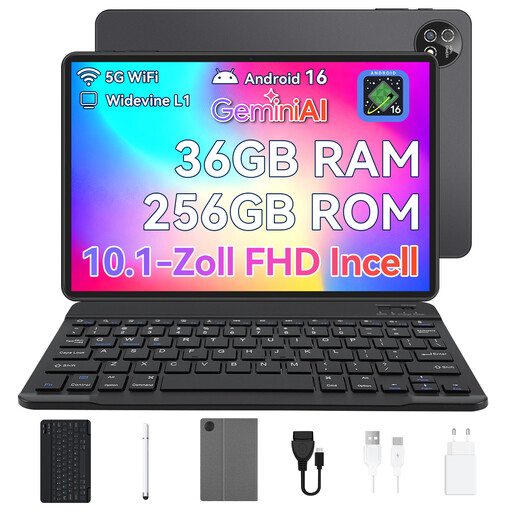 Image unavailable
10.1-inch touchscreen tablet with Android 16, keyboard set and stylus
The keyboard and stylus listed in the title offer two ways to enter information when planning the schedule.
10.1-inch touchscreen; 36 GB RAM (6 GB + 30 GB); 256 GB storage. The offer title lists a keyboard set and stylus.
Joybuy
Frequently asked questions
What should I test with my schedule before buying?
Open a sample file in the calendar or spreadsheet app your club plans to use. Check that you can update dates and share the schedule in the format you need, and that a keyboard or stylus works for the tasks you have in mind. Device specifications don’t confirm compatibility with a specific app.
How can I use the tablet safely on the library’s Wi-Fi?
Follow the German Federal Office for Information Security’s guidance on public Wi-Fi, and secure your device and the accounts you use. Whether you also need a VPN depends on which club services you access; a VPN doesn’t replace appropriate account management and access permissions.
Can I store and share club members’ names in the schedule?
If a schedule identifies individuals, the organisation responsible for processing the information needs an appropriate legal basis under the GDPR. The European Data Protection Board also sets out principles such as purpose limitation, data minimisation and confidentiality. The legal basis and who can receive the information in a particular club depend on the purpose and process involved.
Who is responsible if something is faulty: the retailer or the manufacturer?
Your statutory rights if goods are faulty are against the seller; the Verbraucherzentrale says that for new goods, the period is generally two years from delivery. A voluntary guarantee has its own terms and doesn’t replace these rights.


