What should you look for when buying?
First, work out how you need to view and annotate the contract. Then make sure connectivity, file access and protection meet the demands of your work.
| What to consider |
What to look for when buying |
Who needs to consider this? |
| Reading contract pages |
Check text size, reflections and how easy the tablet is to handle using a typical file at the location where you’ll be working. |
If I want to read pages clearly and hold the device for longer when needed, the balance between screen space and ease of handling is key. Around 25% of consumers prioritise readability. |
| Handwritten annotations |
Check exact stylus compatibility, what’s included and how annotations are exported from your PDF app. |
If you need to mark up clauses by hand and share your notes, check the whole stylus and document workflow. Around 20% of consumers prioritise this. |
| Access without Wi-Fi |
Check whether approved files and the app you need work offline, and whether you need mobile data. |
If I can’t rely on a dependable Wi-Fi connection at an appointment, I need to make sure I can access my contract files in advance. Around 20% of consumers prioritise this. |
| Confidential files |
Check the device lock, available encryption, updates and your organisation’s storage rules. |
Protecting data is essential if you manage contract files or access details on your tablet. Around 20% of consumers fall into this group. |
| Demanding working conditions |
Match the protection rating and operating modes to the conditions you’ll face and the exact device configuration. |
If I need to work in the rain, wearing gloves or in other demanding conditions, I need features designed for protection and usability in those environments. Around 15% of consumers work in these conditions. |
The German Federal Office for Information Security (BSI) recommends measures for mobile devices including a screen lock, up-to-date software and device encryption where available. You should also check your organisation’s rules before storing files locally.
Tablets at Joybuy
This selection includes compact and larger tablets for reviewing contract pages on the go. For each model, check that its apps, file access and stylus support suit your workflow.
 No image available
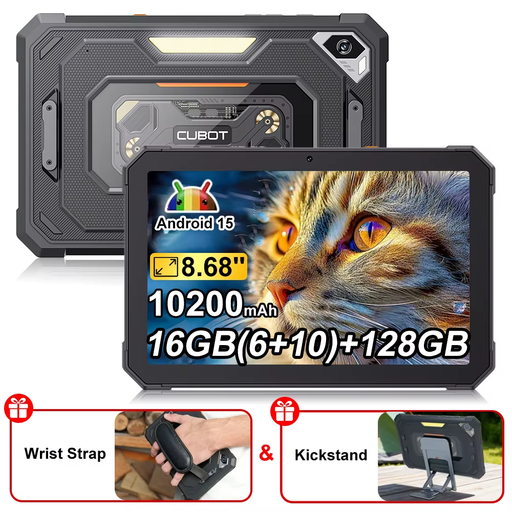
CUBOT Tab KingKong Mini, rugged tablet
The compact design may suit you if you’re looking for a handy tablet to take with you.
Android 15, 8.68 inches, 90 Hz, 16 GB (6 + 10 GB) and 128 GB, according to the product name.
Joybuy
 No image available
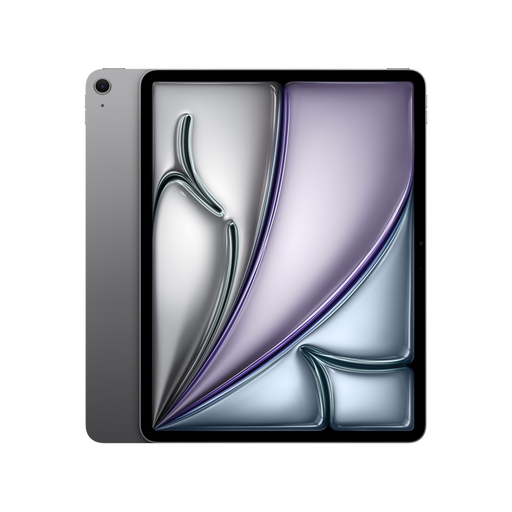
Apple 13-inch iPad Air (M4, 2026), Wi-Fi, 128 GB, Space Grey
The larger screen may suit you if you want to view more of a contract page at once.
13 inches, Wi-Fi and 128 GB, according to the product name. Apple lists support for Apple Pencil Pro and Apple Pencil (USB-C) for the iPad Air M4; check what’s included with the specific version.
Joybuy
 No image available
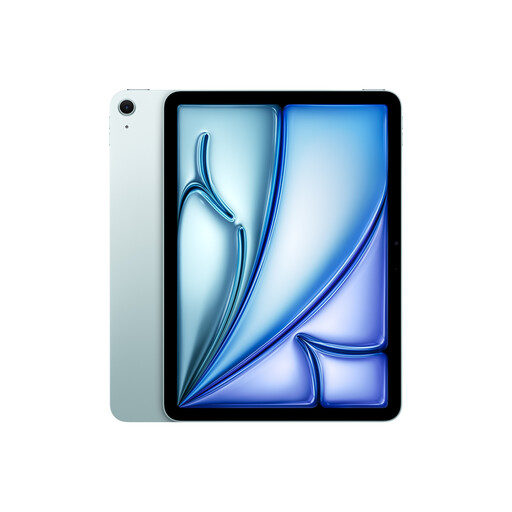
Apple 11-inch iPad Air (M4, 2026), Wi-Fi, 128 GB, Blue
The more compact screen may suit you if you want a tablet that’s easier to handle at appointments.
11 inches, Wi-Fi and 128 GB, according to the product name. Apple lists support for Apple Pencil Pro and Apple Pencil (USB-C) for the iPad Air M4; check what’s included with the specific version.
Joybuy
 No image available
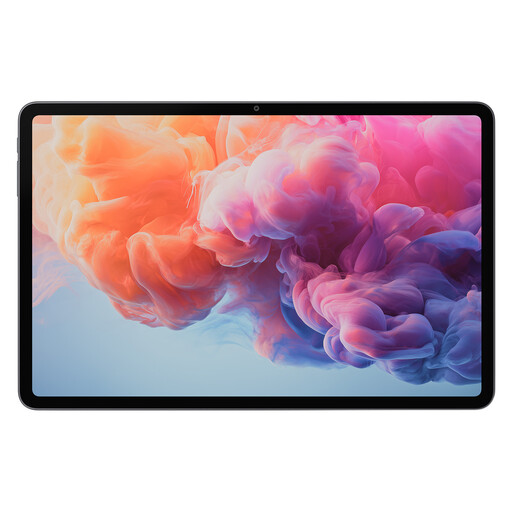
ALLDOCUBE iPlay 70 Pad Pro MTK G100
The larger screen may suit you if you want more space for reviewing documents.
12.1 inches, 8 GB RAM and 128 GB, according to the product name.
Joybuy
 No image available
Teclast ArtPad Pro 2025 tablet
The large screen and the stylus mentioned in the product name may suit you if you want more screen space and the option to add handwritten notes.
13.4 inches, 2K display, T-Pen with 4096 pressure levels, 256 GB, dual-SIM 4G LTE and Android 15, according to the product name.
Joybuy
Frequently asked questions
Do I need a tablet with mobile data for appointments away from the office?
Not necessarily. The key question is whether your approved contract files and the app you need are available offline, or whether you need your own mobile data connection while you’re out. When buying, look for the specific Wi-Fi or mobile data version.
How should I prepare a tablet for confidential contract documents?
Set up a screen lock, keep the operating system and apps up to date, and check whether device encryption is available. The BSI recommends security measures for mobile devices. You should also follow your organisation’s rules on local copies, cloud use and sharing.
Is a signature drawn with a tablet stylus valid for every contract?
No. If electronic form is being used in place of a legally required written form, section 126a of the German Civil Code (BGB) generally requires a qualified electronic signature. For a contract, both parties must sign equivalent documents accordingly. You’ll need to check separately whether electronic form is permitted for the specific contract and which form applies. Section 127 of the BGB sets out a different rule for electronic form agreed between the parties, unless a different intention can be assumed. The applicable provisions are those of the Federal Ministry of Justice and the Federal Office of Justice.
Which accessories should I check before buying?
Check the stylus, keyboard and protective case, as well as whether you need mobile data. Apple does not list a Pencil as included with the iPad Air; Microsoft lists the Slim Pen and Keyboard for the Surface Pro range covered by the research as sold separately. For Lenovo, check the device and bundle against the specific list of included items.
How can I check whether I’ll be able to annotate documents easily while out and about?
Before your appointment, use an approved test file to check how it displays, how annotations work and how to export them from the app you actually use. Check whether you should share an annotated copy or the original.


