Joybuy tablets for checking course feedback on the go
The models below offer a range of screen sizes, along with Wi-Fi and SIM-compatible versions for reading or commenting on course feedback while out and about. Before buying, check that the course portal works with your chosen operating system and find out what connections are available at your destination.
 No image available
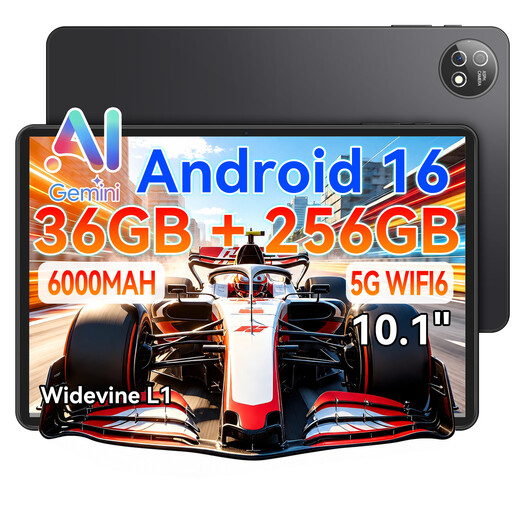
10.1-inch Android tablet with keyboard and Touch Pen
If you want to read feedback and add comments when needed, the product title lists a keyboard and Touch Pen as accessories; try them with your course portal.
The product title also lists Android 16, Wi-Fi 6, 256 GB ROM and expandable storage up to 1 TB.
View at Joybuy
 No image available
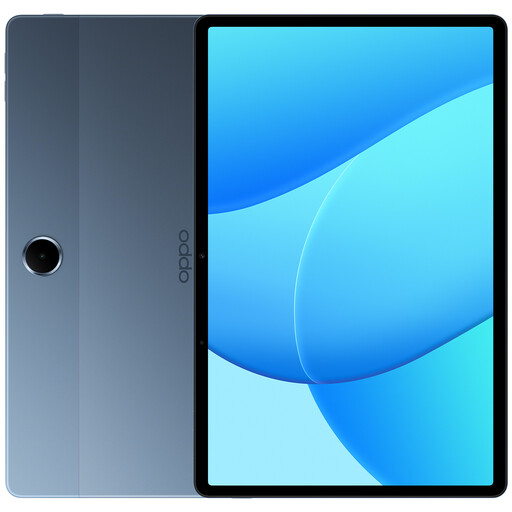
OPPO Pad SE, 128 GB, 4 GB RAM, Wi-Fi, OPD2419 EUN
This Wi-Fi model could suit you if Wi-Fi or a suitable hotspot is available at your destination.
The product title lists an 11-inch display, 128 GB storage, 4 GB RAM and the colour Twilight Blue.
View at Joybuy
 No image available
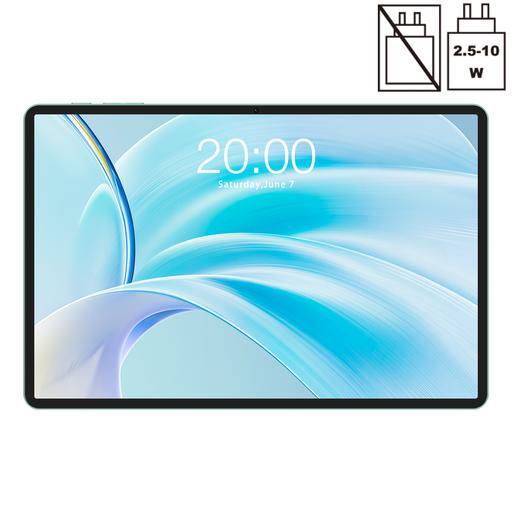
Teclast P50, 11-inch, dual-SIM 4G LTE and Wi-Fi
If you want to access course feedback on the go without Wi-Fi, the product title lists dual-SIM 4G LTE support; you’ll need a suitable plan and signal.
The product title also lists Android 15, 8 GB RAM and 128 GB storage.
View at Joybuy
 No image available
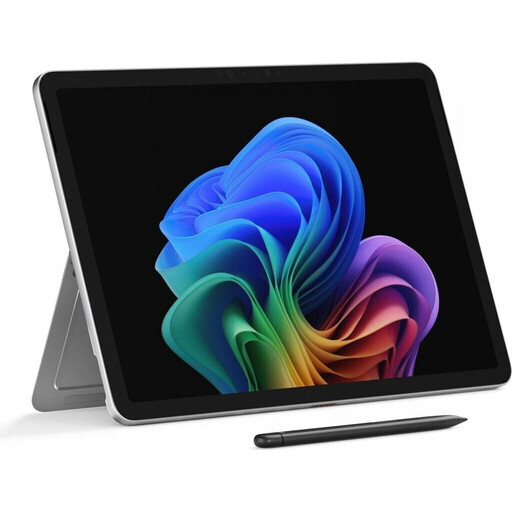
Microsoft Surface Pro 12 Snapdragon Plus, 24 GB, 1 TB, Platinum
If you need a Windows workflow as well as reading feedback, check that the course software is supported on the device you plan to use.
The product title lists Snapdragon Plus, 24 GB and 1 TB.
View at Joybuy
 No image available
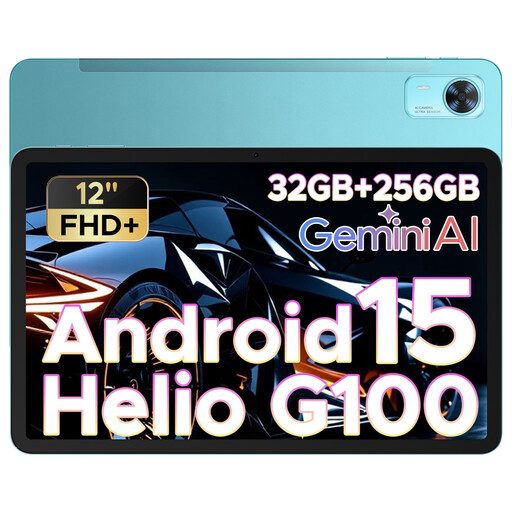
DOOGEE Tab E3+, 12-inch, Android 15, SIM card slot
If you want to read feedback on a larger screen and use a SIM connection, the product title lists a 12-inch display and a SIM card slot. Mobile data requires a suitable plan and signal.
The product title also lists FHD+ and a 90 Hz refresh rate.
View at Joybuy
Frequently asked questions
Can I check course feedback without an internet connection?
Not reliably across every platform and activity. MoodleDocs describes offline features for certain content, but also notes some exceptions; content syncs once you reconnect. Check your specific course platform to see what you can download in advance and when feedback is updated.
What else should I check for a stylus or keyboard?
First, check whether a stylus or keyboard is included with the specific model. Apple lists compatible Apple Pencil models for the iPad (A16), but no Pencil is included in the documented box contents; Samsung says the Galaxy Tab S10 FE includes an S Pen. Microsoft lists the Surface Keyboard and Slim Pen for the Surface Pro 12th Edition as sold separately.
Can I view personal course feedback on a tablet I own?
Check with your organisation before using it. You can’t assume general approval without knowing the specific requirements for the service, device and data processing. The State Commissioner for Data Protection and Freedom of Information of Baden-Württemberg emphasises that schools are responsible for handling personal data lawfully when processing school data.
How should I prepare my tablet for the trip?
Sign in to the course portal you’ll be using, open a typical piece of feedback and test the commenting feature you need, as well as any offline workflow. Set a screen lock; the Federal Office for Information Security recommends one as part of the basic protection for mobile devices.


