For marking up sources
If you read debate sources as PDFs and note down evidence or counterarguments directly on them, look for a reliable annotation and export process, as well as a suitable stylus.


If you mark up sources by hand, first check that the stylus and PDF app suit the way you work. For longer speeches, a keyboard, switching between apps and the available workspace matter more. A more compact tablet is easier to carry between library desks, while a larger display gives you more room for sources and notes. Always compare the specific device configuration and what’s included in the box: manufacturers’ display and accessory specifications show differences, but don’t prove that one option is better overall.
If you read debate sources as PDFs and note down evidence or counterarguments directly on them, look for a reliable annotation and export process, as well as a suitable stylus.
If you write longer arguments and often switch between sources and your text, check the keyboard, the available workspace and the apps you actually use.
If you move between library desks or don’t always have access to a power socket, compare the weight, display size and charging needs of your specific set-up.
First decide whether you’ll mainly annotate sources, write longer texts or carry your tablet around frequently. Then check the accessories and app workflow for the way you’ll be using it.
| Buying priority | What to check before buying | Who will find this especially important? |
|---|---|---|
| Marking up sources | Annotate, save and reopen one of your own PDFs; check stylus compatibility and what’s included in the box. | If I want to record evidence directly in source PDFs, the whole annotation process needs to work. Around 33 % of consumers put marking up sources first. |
| Writing longer texts | Check whether your own writing and source apps support the view you want; check keyboard compatibility and what’s included in the box. | If I’m developing an argument and switching between a source and my text, input and the app workflow are key. Around 27 % of consumers prioritise longer texts and switching between apps. |
| Working on the move | Compare the weight of the specific configuration, including accessories; consider how much charging you’ll need for your session. | If I’m carrying my tablet between library desks, it needs to suit how I travel and charge it. Around 20 % of consumers prioritise a mobile library set-up. |
| Accessories included | For the specific configuration, check whether a stylus, keyboard and, where applicable, power adapter are included and compatible. | If I need a complete set-up for notes or longer texts, every accessory I actually need matters. Around 20 % of consumers prioritise a suitable, complete set-up. |
Compatibility and what’s included in the box are two different things. Samsung lists an S Pen as included with the Galaxy Tab S10 FE; Apple lists compatible Pencil versions for the iPad (A16), but no Pencil among the listed contents.
Before buying, check the exact model, stylus version and package contents separately.
Among the Wi-Fi versions compared, the Galaxy Tab S10 FE has a 10.9-inch display and weighs 497 g, while the FE+ has a 13.1-inch display and weighs 664 g. Adobe also says that Acrobat Mobile doesn’t open multiple PDFs in separate tabs.
Try viewing your sources and notes in the apps you actually use before deciding you need more screen space.
Choosing a suitable tablet doesn’t tell you whether the accessories you need are included. Xiaomi doesn’t list a power adapter among the contents of the Pad 7 box; Microsoft offers a compatible keyboard with Slim Pen for the Surface Pro 12-inch as an accessory bundle.
For the specific configuration, check which items are included and which you actually need for the way you work.
The Galaxy Tab S10 FE is a more compact option for handwritten work with sources, the FE+ offers more screen space, and the S11 Ultra is a considerably larger model.
The iPad (A16) and iPad Air are for readers who use iPad apps and choose a Pencil that’s compatible with their device generation.
The Pad 7 is an 11.2-inch option for reading and writing; check which stylus is suitable separately.
The Yoga Tab Plus is a larger Android option if you need plenty of workspace and a specific pen-and-keyboard configuration.
The Surface Pro 12-inch is a Windows 2-in-1 if a specific Windows application or predominantly keyboard-based input is essential.
The devices below suit different ways of working: reading sources at a library desk, typing longer texts, and choosing between more compact and larger display sizes. Check stylus and keyboard compatibility, as well as what’s included with each configuration.
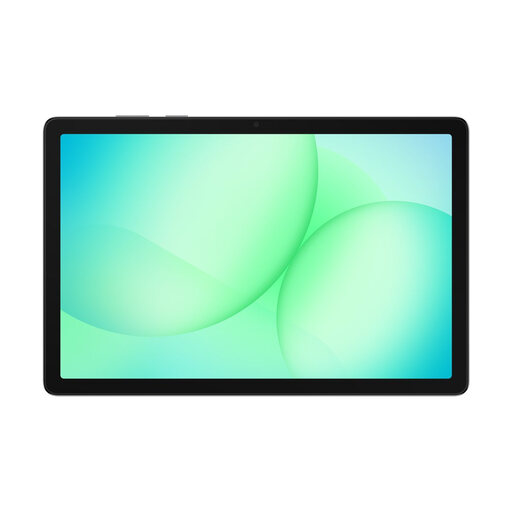 No image available
The 11-inch format is an option for reading sources at a library desk.
Display: 11 inches. RAM: 6 GB. Storage: 128 GB.
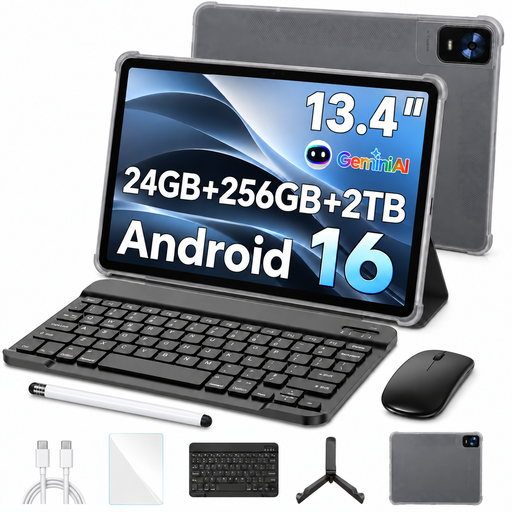 No image available
The input devices listed in the product title may be useful for typing longer texts at a desk. Check the specific configuration and how it works with your apps.
Display: 13.4 inches, FHD+. RAM: 24 GB (8 GB + 16 GB virtual). Storage: 256 GB. Accessories listed: keyboard, mouse, passive stylus and stand case.
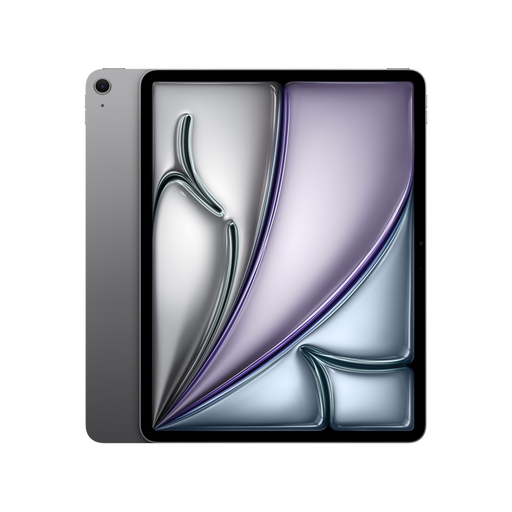 No image available
The 13-inch format gives you a larger display for sources and notes; bear in mind the space available on your library desk.
Display: 13 inches. Storage: 128 GB.
Apple lists support for Apple Pencil Pro and Apple Pencil (USB‑C) for iPad Air models. Check compatibility and what’s included with the specific configuration.
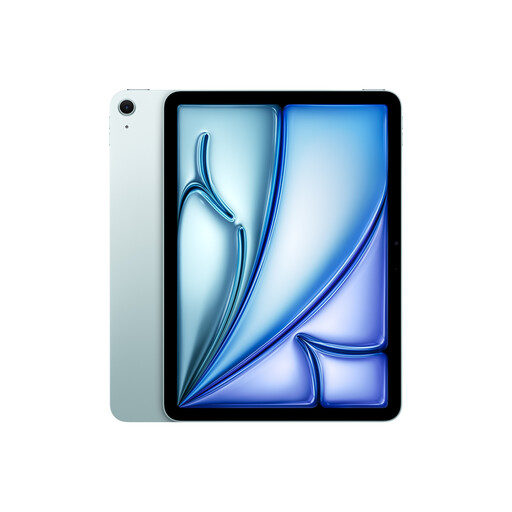 No image available
The 11-inch format is a more compact option for handwritten notes on sources. Check which Pencil is compatible with the specific device generation and whether it’s included.
Display: 11 inches. Storage: 128 GB.
Apple lists support for Apple Pencil Pro and Apple Pencil (USB‑C) for iPad Air models; choose the right one for your specific configuration.
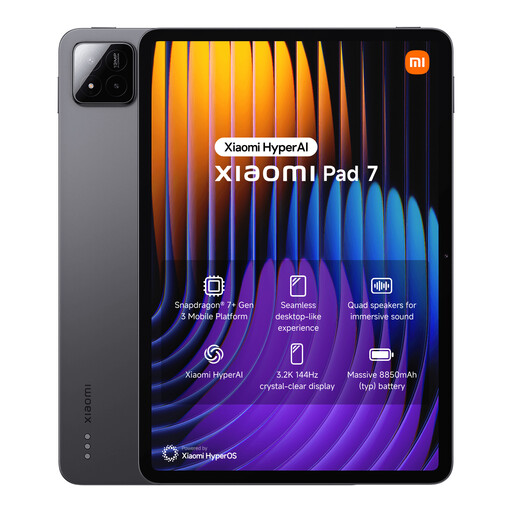 No image available
The keyboard listed in the product title may be useful for typing longer texts. Check whether this specific keyboard configuration suits the way you work.
RAM: 8 GB. Storage: 128 GB. Display: 3.2K, 144 Hz.
Xiaomi lists compatibility with the Focus Pen for the Pad 7; check stylus compatibility and what’s included with your specific configuration.
No. According to Adobe, Acrobat Mobile doesn’t support multiple PDF files in tabs. If you need to view several sources at once, check another app or try the specific multi-window workflow on your device.
Test the file and your annotation process before the meeting. Adobe says that offline changes sync once you reconnect. Adding, changing or deleting comments and annotations during the shared review described requires you to sign in with an Adobe ID.
No, it depends on the model. Samsung lists an S Pen as included with the Galaxy Tab S10 FE, while Apple lists compatible Pencil versions for the iPad (A16) but no Pencil among the listed contents. Check the exact device configuration and package.
Your statutory rights apply against the seller and are separate from a voluntary guarantee, as explained by the Verbraucherzentrale. If there’s a fault, the first step is generally to have it remedied. Many online purchases are also subject to a 14-day right to cancel; the Verbraucherzentrale recommends telling the retailer or other contracting party that you wish to cancel, rather than relying on returning the item alone.
No. The German Environment Agency says that old electrical equipment must be collected separately and can, for example, be taken free of charge to local recycling centres. Retailer take-back options are available subject to the relevant conditions.