A tablet with a pen is a good choice if you want to handwrite notes in different apps. If you mainly read and annotate supported PDFs or EPUBs, an e-paper device may also be suitable. The key things to consider are the writing space available at your seat, choosing the right pen and how you’ll export your edited files afterwards.
Which device is right for you?
Commuters who make lots of notes in the margins
If you want to handwrite comments on passages and use your documents later, check the writing area, pen and export options. Apple Support explains how to mark up PDFs on iPad, while Samsung Germany lists PDF as an export format for Samsung Notes.
Commuters with limited space
A compact device can be easier to handle in a cramped seat, but leaves less room to read and write at the same time. Apple Germany lists the iPad mini at 8.5 inches and 255 g for the Wi-Fi model; reMarkable lists the Paper Pro Move at 7.3 inches and 230 g.
Readers who like to focus on e-books
If you mainly read books or PDFs, supported file formats and any copy-protection restrictions are important factors. According to the manufacturer, reMarkable supports PDF and EPUB, but not DRM-protected e-books.
What should you look for when buying?
Compare the pen and export options as carefully as the screen size. A device is right for your train journey only if you can edit your own files in the way you need.
| What to consider |
What to check |
Who is it important to? |
| Handwriting and export |
Annotate one of your own files with the pen you plan to use, then export it in the format you need. |
If I want to use my margin notes later, the pen, app and export options need to fit my workflow. Around 29% of consumers particularly value handwritten annotation followed by export. |
| Size and weight |
Compare the dimensions and weight of the specific model, and view a typical page of text at a comfortable font size. |
If I need to hold or set the device down in a cramped seat, a manageable size matters, but I don’t want the writing area to feel too small. Around 29% of consumers prioritise a compact size and low device weight. |
| Accessing files on the go |
Transfer the files you need before your journey, then test importing and editing them without an active connection. |
If I don’t want to rely on a connection during my journey, I prepare my files in advance and check that everything works offline. Around 24% of consumers prioritise access to prepared files without ongoing synchronisation. |
| Reading experience and file formats |
For books and PDFs you use regularly, check the format, copy protection and specific annotation features. |
If I mainly want to read and mark up supported texts, reliable access to my own files matters more than extra tablet features. Around 18% of consumers prioritise focused reading of supported texts. |
Avoid common buying mistakes
-
Assuming “PDF-compatible” means “you can write directly on any PDF”
With the Kindle Scribe, writing directly on personal PDFs depends on how they’re imported. According to the device’s stated conditions, PDFs loaded via USB-C can’t be written on directly.
Before buying, import one of your own PDFs using the method you plan to use, annotate it and check that you can export it afterwards.
Some documents may require a different import or sharing process.
-
Overlooking the pen when comparing devices
Samsung Germany says the Galaxy Tab S10 FE comes with an S Pen. Apple lists compatible Pencil models for iPad mini, but a Pencil isn’t included in the tablet package shown.
Check the exact tablet model, the right version of the pen and what’s included with the specific variant.
-
Confusing the different e-paper versions
BOOX distinguishes between the Go 10.3 (Gen II), which has no front light, and the Lumi version, which does.
Check the full model name against the features you’re looking for.
-
Assuming EPUB support means every e-book will work
reMarkable supports PDF and EPUB, but according to the manufacturer, it doesn’t support DRM-protected e-books.
Check the format and copy protection on the books you use regularly before choosing a device.
A look at the leading brands
Apple
The iPad mini (A20 Pro) is a compact iPad option for PDFs and note-taking in supported apps.
- Apple Germany lists the Wi-Fi model at 8.5 inches and 255 g; Apple Support explains how to mark up PDFs.
- The smaller screen leaves less room for notes in the margins. The Pencil isn’t included in the tablet package shown, so check compatibility and accessories.
Samsung
The Galaxy Tab S10 FE combines a larger document view with an S Pen, which Samsung says is included.
- Samsung Germany lists a 10.9-inch display; Samsung Notes can export notes as PDFs.
- The larger screen needs more space at your seat. Test the export process with one of your own files.
reMarkable
The Paper Pro Move is a compact e-paper option for supported PDFs and EPUBs.
- reMarkable lists a 7.3-inch screen, a weight of 230 g, a reading light and PDF annotation. Files synchronise with connected devices over Wi-Fi.
- According to the manufacturer, DRM-protected e-books aren’t supported. Check that your files will work with the device.
BOOX
The Go 10.3 (Gen II) Lumi is a larger e-paper option, with PDF and EPUB annotation and access to Android apps listed as supported by the manufacturer.
- BOOX lists a front light and an included pen for the Lumi version.
- The version without a front light is also called Go 10.3 (Gen II). App access alone doesn’t guarantee that a particular protected book file will work.
Kindle
The Kindle Scribe is particularly relevant if your reading list includes Kindle content and personal documents imported in a compatible way.
- Depending on how they’re imported, personal PDFs may be suitable for note-taking.
- Writing directly on PDFs depends on how they’re imported. Test importing, annotating and exporting one of your own files.
Joybuy products for note-taking and reading
The following Joybuy products are described in their titles as tablets with a pen or note-taking features. Before you travel, check that the pen works with your app and file formats.
 No image available
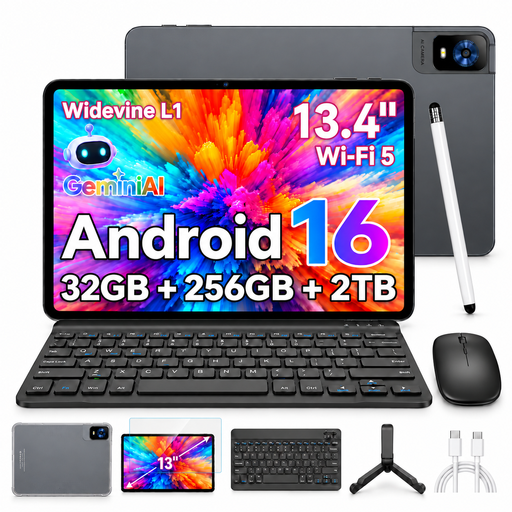
UXD S1, 13.4-inch tablet
The product title mentions a stylus and keyboard. Check that the pen works with your reading and PDF apps.
13.4-inch display with 2K resolution; 32 GB (8 GB + 24 GB) RAM and 256 GB ROM; expandable up to 2 TB according to the title. The title lists a keyboard, mouse, stylus, case and stand.
View at Joybuy
 No image available
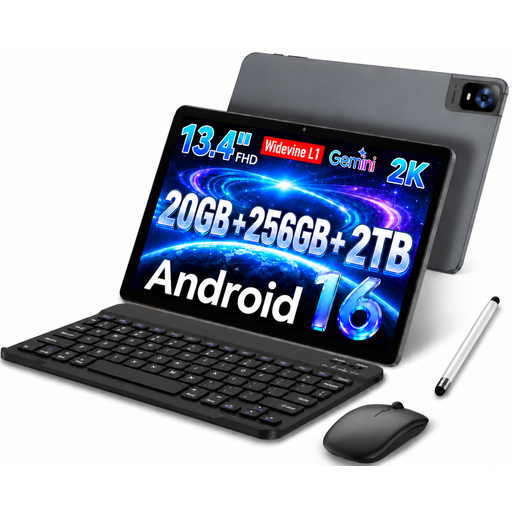
UXD 13.4-inch tablet, 256 GB
The product title mentions a stylus and use for reading. Check that it’s compatible with your documents and apps.
Android 16; 13.4-inch FHD IPS display with 1920 × 1200 pixels; 20 GB (8 GB + 12 GB virtual) RAM and 256 GB ROM. The title lists a keyboard, mouse and stylus.
View at Joybuy
 No image available
Teclast ArtPad Pro 2025, 12.7 inches
The title mentions a T-Pen with 4096 levels of pressure sensitivity. Check that it works with the app and files you want to use.
2K display; 20 GB (8 GB + 12 GB virtual) RAM and 256 GB storage; Android 15. The title also mentions dual-SIM 4G LTE and a 10,000 mAh battery.
View at Joybuy
 No image available
iFLYTEK AINOTE 2, 10.65 inches
The product title describes an E Ink note-taking device. Check whether you can import your reading files and annotate them as you’d like.
10.65-inch E Ink display. The title lists speech-to-text and handwriting-to-text features. Before buying, check that the languages and functions you need are supported.
View at Joybuy
 No image available
TECLAST ArtPad Pro, 12.7 inches, 256 GB
The product title mentions a T-Pen and stylus. Check which pen works with the app you want to use and the documents you work with.
2K display; T-Pen supports 4096 levels of pressure sensitivity; 20 GB (8 GB + 12 GB virtual) RAM and 256 GB storage. The title also lists a protective case and an English Bluetooth keyboard.
View at Joybuy
Frequently asked questions
Can I handwrite on any PDF or e-book on any device?
No. File format, copy protection and import method can all limit annotation. reMarkable supports PDF and EPUB, but not DRM-protected e-books. With the Kindle Scribe, writing directly on personal PDFs also depends on how they’re imported. Try one of your own files and check that you can export it afterwards.
How can I prepare files for a journey without a reliable connection?
Transfer the files you need in advance, then test editing them without an active connection. reMarkable describes importing files via the app and USB, among other methods; connected devices synchronise over Wi-Fi. Check the import process separately for other devices.
Does a tablet always come with a pen?
No. Samsung Germany says the Galaxy Tab S10 FE comes with an S Pen; Apple lists compatible Pencil models for iPad mini, but a Pencil isn’t included in the tablet package shown. Check what’s included with the specific version and make sure you have the right pen.
Can I remove copy protection from a protected book file so I can annotate it?
The possibility of making a private copy doesn’t automatically mean you’re allowed to bypass copy protection. Section 95a of the German Copyright Act (UrhG) protects effective technical measures under the conditions set out there; Section 53 of the UrhG sets out the conditions for private copying. Use a lawful way to access and annotate the file that’s supported by your device.
Who should I contact about a faulty tablet bought from a business seller in Germany?
The seller is responsible for your statutory rights. According to information from the European Union, you’re entitled to a minimum two-year legal guarantee from the date you receive the goods. This is separate from any voluntary manufacturer’s warranty.


