On-the-go record readers
You want to look at certificates and family trees in a café without carrying an unnecessarily bulky device.


A compact Wi-Fi tablet is a good choice for reading records and family trees and adding a few details while you’re at a café. A larger screen can make it easier to compare documents, but takes up more room. Mobile connectivity is most useful if you regularly research online while out and about and don’t have reliable Wi-Fi or a suitable hotspot. Before buying, check that your genealogy app has the features you need and find out exactly what accessories are included.
You want to look at certificates and family trees in a café without carrying an unnecessarily bulky device.
You’re regularly looking up and adding sources while you’re at the café. Check which features your app needs and what kind of internet connection is available.
You compare scans with notes or enter lots of details, so screen space and suitable input options are especially important to you.
First, check whether your research requires an internet connection. Then choose a screen size, input method and device that suit the way you work and travel.
| What you need | What to check before buying | Who should consider it? |
|---|---|---|
| Research online | Compare the Wi-Fi or mobile connectivity options with available hotspots and the internet features of the app you use. | Connectivity matters most if you regularly look up sources in a café and don’t want to rely on having reliable Wi-Fi. It’s the top priority for around 33% of consumers. |
| View scans clearly | Compare the screen format and device dimensions, and test a typical PDF or image of your own in the view you want to use. | If you want to read certificates or scans and compare them side by side, screen space is especially important. It’s likely to be the deciding factor for around 27% of consumers. |
| Edit your family tree | Check that the specific app supports the tasks you need to do, and find out whether a suitable stylus is included or needs to be bought separately. | If you regularly add details, sources or notes, input options are a key factor in your choice. Around 20% of consumers put this at the top of their list. |
| Take your tablet with you | Consider the weight with any case or keyboard you need, and whether the battery will last through your usual research session away from a plug socket. | If you regularly take your device to a café or work there for a long time without being able to charge it, portability and battery life are priorities. They’re the most important considerations for around 20% of consumers. |
Installing a genealogy app won’t give a Wi-Fi tablet its own mobile connection. FamilySearch notes that some app features require an internet connection.
Check whether Wi-Fi is enough at the places where you research, whether you can use your phone as a hotspot or whether you need a mobile connectivity model.
You may need to buy a compatible stylus or keyboard separately for handwritten notes or longer entries.
The iPad (A16) and iPad Air (M4) are available with 11-inch screens, while the iPad Air (M4) also comes in a 13-inch size. The right option for you depends on how much screen space you need and how much room you have in your bag.
The Galaxy Tab S10 FE is an Android option with a 10.9-inch display, and Samsung describes it as coming with an S Pen.
The Idea Tab Pro is a large-screen Android option for anyone who wants more viewing space at a café table.
The Redmi Pad 2 Pro is another Android option with a larger display for viewing documents.
This selection includes Wi-Fi and mobile connectivity tablets for reading documents, adding notes and researching while you’re out and about. The right connection and input options depend on your app and café workspace.
 No image available
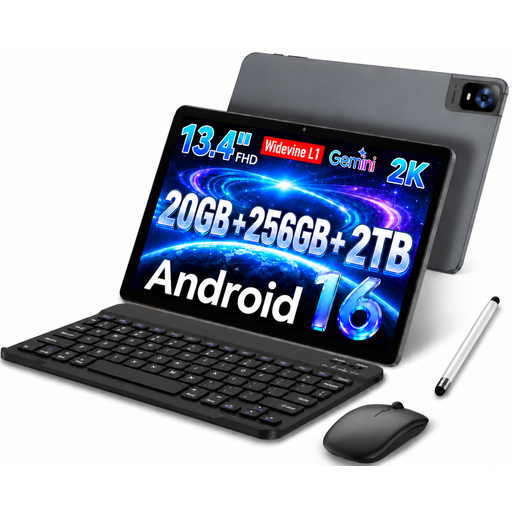
The large screen and listed input devices could suit a workspace where you view documents and add details.
The product title lists an FHD IPS display with 1920 × 1200 pixels, Wi-Fi, a keyboard, mouse and stylus. Check which input devices you actually want to use and whether they’re suitable for your app.
 No image available
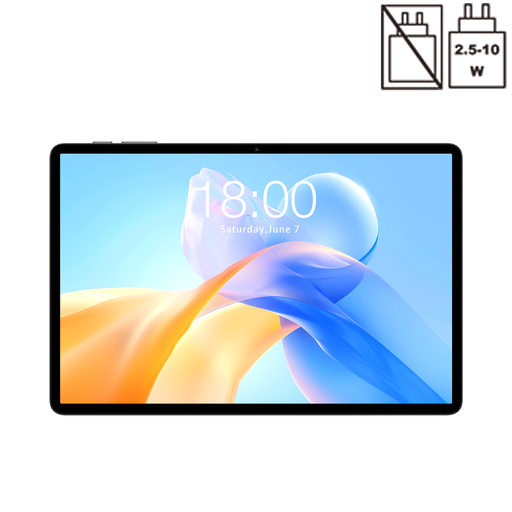
The 11-inch size is worth considering if you’re looking for a Wi-Fi tablet for research and reading at a café table.
The title lists a 90 Hz IPS display, Wi-Fi and an 8000 mAh battery. Try viewing your own documents on a screen of the size you’re considering.
 No image available
The listed dual-SIM 4G feature is useful if you want to research online while you’re out and about, rather than relying solely on café Wi-Fi.
The title lists a 120 Hz display, Android 16, dual-SIM 4G and Wi-Fi. Check the mobile connectivity model and network compatibility for the way you plan to use it.
 No image available
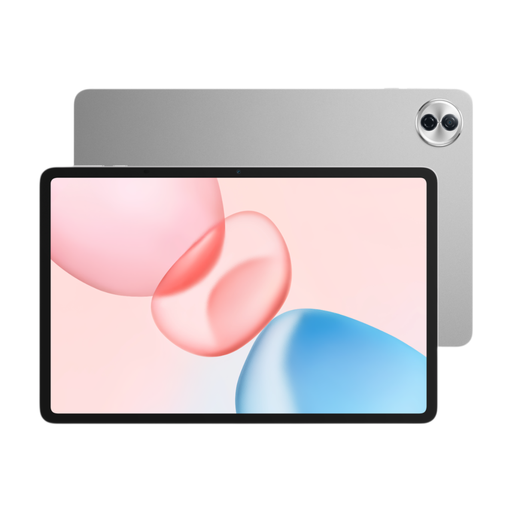
The larger Wi-Fi model could suit research that involves viewing documents and family trees at a table.
The product title lists a 12.1-inch screen and Wi-Fi; the product description gives a resolution of 2560 × 1600 pixels. Resolution alone doesn’t tell you how clearly your own scans will appear.
 No image available
The large display, mobile connectivity and stylus could be useful if you want to view sources and add details while you’re out and about.
The title lists a 12.7-inch 2K display, dual-SIM 4G LTE and a T-Pen with 4096 pressure levels. Check that the stylus works with the way you plan to use the tablet.
To some extent: FamilySearch describes a previously downloaded six-generation family tree that can be viewed offline. Some other app features require an internet connection. Save the content you need in advance and test your specific workflow without a connection.
The German Federal Office for Information Security recommends avoiding access to confidential data over other people’s Wi-Fi networks wherever possible. If you can’t avoid it, it recommends using a VPN. This is security advice, not a blanket legal ban on using Wi-Fi.
Not in every case. FamilySearch lists features such as searching for sources and attaching records in its Family Tree mobile app, but also notes that some features are only available on the website. Check in advance that the app supports the tasks you need to do in the café.