Start by considering the files and apps you actually need to create a complete lesson plan. For longer pieces of writing, a tablet with a compatible keyboard may be enough, while a desktop app you must use could require a Windows device that you’ve checked in advance. Then test your PDF and offline workflows, and check whether a stylus and keyboard are included with the version you’ve chosen. If you’ll be handling pupils’ personal data, you’ll also need to confirm which storage and syncing methods your school allows.
Which tablet is right for you?
Teachers who need specific school software
If you need to finish lesson plans in particular apps or templates, check the whole process, from opening a file to saving it. Microsoft says that most Windows apps are supported on Windows on ARM, but you should still test the specific school software and any peripherals you need on the device you’re considering.
Teachers who write longer lesson plans
For lesson plans and worksheets, having the right keyboard matters just as much as finding a practical spot for your tablet and accessories at the library table. Microsoft lists the keyboard for the 1st Edition Surface Pro 12-inch as sold separately.
Teachers who work with PDFs
If you read sources and annotate PDFs by hand, check that the stylus is compatible with the exact model and that your app can export edited files. Samsung says the Galaxy Tab S10 FE comes with an S Pen, while Apple lists compatible Pencil models for the iPad Air M4.
What should you consider when choosing?
First, check that your apps and files support your entire workflow on the device. Then decide how important a keyboard, stylus, screen size and the ability to work without the library’s Wi-Fi are to you.
| Buying priority |
What to check before buying |
Who is this most important for? |
| Apps and file formats |
Open a typical file in the app you need, edit and save it, then check that you can access it again. If you’re using Windows on ARM, test any required peripherals too. |
If you have to use a specific school app or template, make sure the whole process works with it. Around 33% of consumers put app and file compatibility first. |
| Writing longer pieces |
Check keyboard compatibility and what’s included, as well as how much desk space it takes up. |
If you write lesson plans or worksheets for long stretches, a suitable keyboard is essential. Around 27% of consumers prioritise writing longer pieces. |
| Annotating PDFs by hand |
Annotate and export one of your own PDFs, and check that the stylus is compatible and included with the exact version you’re considering. |
If you add handwritten notes to sources and teaching materials, you’ll need a compatible stylus and a reliable way to export your work. Around 20% of consumers prioritise PDF annotation. |
| Working on the move and offline |
Carry the device with its case and accessories, then check whether you can open and edit files and use the app without Wi-Fi, before syncing everything later. |
If you want the flexibility to work anywhere in the library, even without reliable Wi-Fi, it’s important to test your offline workflow. Around 20% of consumers prioritise portability and offline working. |
What to watch out for when buying and using a tablet
-
Comparing tablets without considering the complete writing set-up
Stylus support doesn’t necessarily mean a stylus is included. Apple lists compatible Pencil models for the iPad Air M4, but doesn’t list a Pencil as part of the stated in-box contents. Microsoft lists the keyboard and Slim Pen for the 1st Edition Surface Pro 12-inch as sold separately.
Check that the specific version is compatible with your workflow and includes what you need, including a keyboard if required.
-
Assuming Windows on ARM is compatible with every programme
Microsoft says that most Windows apps are supported on ARM devices. This doesn’t mean that every piece of school software, driver or peripheral will work.
Test the app you have to use and, if necessary, your printer and other peripherals on the exact device you’re considering.
-
Using cloud syncing for school data without checking first
In 2025, North Rhine-Westphalia’s data protection authority raised concerns about unrestricted iCloud use on school iPads. Setting up a device without iCloud may call for extra measures to prevent data loss; this does not amount to a general approval or ban for all schools.
If you handle pupils’ personal data, check with your school which devices and storage and backup methods are permitted.
A guide to suitable brands
Apple
The iPad Air range runs iPadOS and may suit writing, reading and PDF workflows, as long as the apps you need work with it.
- Apple says the iPad Air M4 supports Apple Pencil Pro and Apple Pencil (USB-C). The 11-inch Wi-Fi model weighs 464 g without accessories, according to Apple.
- A Pencil is not listed among the stated in-box contents. In 2025, North Rhine-Westphalia’s data protection authority raised concerns about unrestricted iCloud use in schools; the specific set-up at your school should be checked separately.
Samsung
The Galaxy Tab S10 FE is an Android option for reading and handwritten work, provided the apps you need work on the model you choose.
- Samsung says the Galaxy Tab S10 FE comes with an S Pen and has a 10.9-inch display.
- The FE and FE+ differ in several ways, including screen size. The information about the S Pen does not confirm that a particular school app will work.
Microsoft
The 1st Edition Surface Pro 12-inch is a Windows 2-in-1 for workflows where the software you need works on the specific device.
- Microsoft describes a detachable keyboard and support for the Slim Pen.
- Microsoft lists the keyboard and Slim Pen as sold separately. If you’re considering this Snapdragon-based Windows on ARM device, check each app and peripheral you need individually.
Lenovo
The Idea Tab Pro is a large-screen Android option if you need more room to read teaching materials.
- Lenovo lists a 12.7-inch display and a Tab Pen Plus included in the box.
- It supports a detachable keyboard, but check which accessories are included with the configuration you choose.
Xiaomi
The Pad 7 is an Android option for viewing documents, with stylus and keyboard compatibility to check separately.
- Xiaomi lists a 3200 × 2136-pixel resolution for the Pad 7 and confirms that it is compatible with the Xiaomi Focus Pen.
- The display resolution and workstation mode do not confirm compatibility with the specific school software you use. Also check which accessories are included in the package you choose.
Joybuy tablets for lesson planning
The Joybuy models featured here are Android and iPadOS tablets with information on keyboard or stylus use. Before choosing one, check that the specific app, stylus you need and accessories package suit your workflow.
 No image available
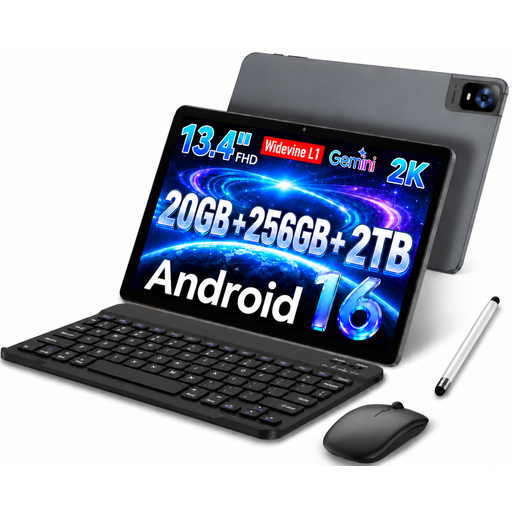
UXD Android tablet, 13.4-inch, 256 GB
Worth considering if you’re looking for an Android tablet with a listed keyboard, mouse and stylus bundle.
13.4-inch IPS display with 1920 × 1200 pixels; Android 16; 256 GB ROM. The stated 20 GB RAM comprises 8 GB physical RAM and 12 GB virtual RAM.
View at Joybuy
 No image available
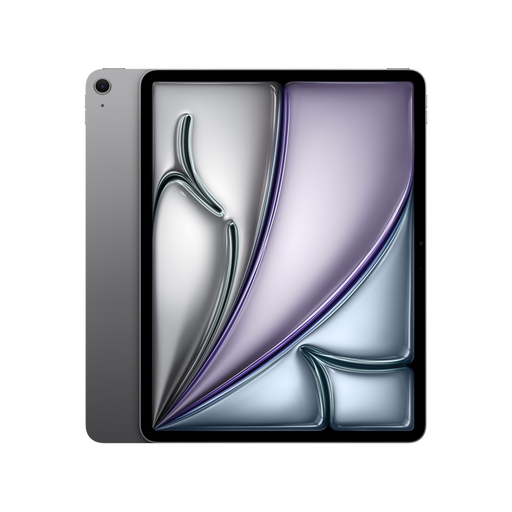
Apple 13-inch iPad Air (M4, 2026), Wi-Fi, 128 GB, Space Grey
This could be a good fit if the apps you need work on iPadOS and you’d like a larger screen for reading.
13-inch display, M4 and 128 GB storage. Apple says it supports Apple Pencil Pro and Apple Pencil (USB-C); a Pencil or keyboard is not listed among the stated in-box contents.
View at Joybuy
 No image available
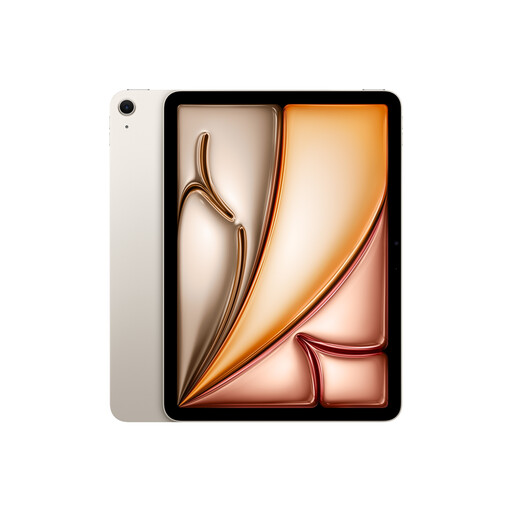
Apple 11-inch iPad Air (M4, 2026), Wi-Fi, 256 GB, Starlight
This could suit you if you’re looking for a more compact iPadOS model for writing and PDF annotation, and your apps work with it.
11-inch display, M4 and 256 GB storage. Apple lists the 11-inch Wi-Fi model at 464 g without accessories and says it supports Apple Pencil Pro and Apple Pencil (USB-C). A Pencil is not listed among the stated in-box contents.
View at Joybuy
 No image available
TECLAST ArtPad Pro, 13.4-inch, 256 GB
Could be worth considering for handwritten notes and a larger screen; check that your PDF app has the editing and export features you need.
Android 15, Helio G99 and 256 GB storage. The title lists 20 GB RAM (8 GB + 12 GB virtual); the description says a T-Pen with 4096 pressure levels is included.
View at Joybuy
 No image available
TECLAST ArtPad Pro, 12.7-inch, 256 GB, with keyboard
This could suit you if you want to prepare longer pieces of writing with a keyboard and add handwritten notes with a stylus.
Android 15, 12.7-inch display and 256 GB storage. The title lists a Bluetooth keyboard with an English layout, a stylus and a protective case; the description says the T-Pen has 4096 pressure levels.
View at Joybuy
Frequently asked questions
Does my tablet need to run Windows for lesson planning?
No. What matters is whether you can fully edit your specific template and use your school app on the operating system you choose. If you need a Windows programme, test it on the exact device; if you’re considering a Snapdragon-based Surface, check any required peripherals and drivers too.
How can I prepare my tablet for working without the library’s Wi-Fi?
Before you go, save a test file using a storage method that’s permitted for you. Then disconnect from the internet and check that you can open and edit the file and app, and sync everything again later. The Verbraucherzentrale recommends taking extra care when using public Wi-Fi networks; this does not confirm that the specific school app you use works offline.
Are the stylus and keyboard included with the tablet?
It depends on the model and the specific version. Samsung says the Galaxy Tab S10 FE comes with an S Pen; Apple does not list a Pencil among the stated in-box contents for the iPad Air M4. Microsoft lists the keyboard and Slim Pen for the 1st Edition Surface Pro 12-inch as sold separately.
Can I handle pupils’ personal data on my own tablet?
Before handling pupils’ personal data on a personal device, check with your school which devices, access methods and storage options are permitted. In 2025, North Rhine-Westphalia’s data protection authority warned in particular about unrestricted iCloud use on school iPads; this is not a Germany-wide ruling on every personal tablet.
What should I know if something goes wrong after buying?
For a consumer purchase in Germany, the seller’s statutory liability for defects is separate from a voluntary guarantee. The Verbraucherzentrale explains the difference; also check which terms apply to accessories and to a purchase made for work rather than personal use.


