Teachers who commute and have little room to work
If you carry your device around often and want to keep working on materials even when your connection changes, a compact design and files that are available offline are key.


For preparing lessons on the train, start by choosing a tablet that works with the school apps you need and suits your main task: longer texts call for a suitable keyboard, PDF annotations need a compatible stylus, and a compact device is handy when space is tight. Make sure your files are available offline, as Deutsche Bahn says Wi-Fi is available on selected local and regional services only. If you’ll be handling personal pupil data, check your school’s requirements.
If you carry your device around often and want to keep working on materials even when your connection changes, a compact design and files that are available offline are key.
For longer texts or presentations, you’ll need a suitable keyboard and school software that runs on your chosen operating system.
If you annotate PDFs or sketches with a stylus, check compatibility before you buy and confirm whether the stylus is included.
First, check whether your school apps can open files offline. This is especially important because Deutsche Bahn says Wi-Fi is available on selected local and regional services only. Then consider typing, stylus use and data protection.
| Priority | What to look for | Who is this important to? |
|---|---|---|
| Keep working offline | Check that the apps you need have an offline mode, that files can be stored locally and that they can be synced later. | If I need to keep working when my connection changes, I want to be able to open teaching materials locally and sync them later. Around 28 % of consumers prioritise materials that can be used offline. |
| Write longer texts | Check that the keyboard is suitable and that the device will fit on a small train table. | If I’m writing longer worksheets or lesson plans, a suitable keyboard is important on a small table. Around 22 % of consumers prioritise writing longer texts. |
| Annotate PDFs by hand | Check stylus compatibility, what’s included and whether the PDF app you use is suitable. | For handwritten PDF comments, I want to use a compatible stylus and know in advance whether it comes with the device. Around 22 % of consumers mainly plan to use a stylus. |
| Protect pupil data | Check with your school which devices, storage locations and data transfers are approved for personal data. | If I handle personal pupil data, I need to check in advance whether my school has approved the device and how the data is handled. Around 17 % of consumers mainly prioritise data protection. |
| Plan your complete setup | Check what’s included with the specific version and make sure it has the storage and connectivity options you need. | If I’m planning a tablet, the accessories I need and a possible mobile data option together, I want to know exactly what’s included. Around 11 % of consumers want to plan their complete setup in advance. |
Wi-Fi availability varies by train and route. Even an additional connection won’t replace an offline workflow you’ve tested.
Save a test lesson offline before your journey, then check that it syncs successfully afterwards.
Compatibility and what’s included are two different things. Lenovo explicitly states that the Folio Keyboard for the Idea Tab Plus is sold separately.
Check the full list of what’s included and the accessory compatibility for the exact device version.
A Joybuy listing names the Galaxy Tab S10 FE in its title but gives the model number SM-X210NDBAEUB. Another describes a device as the FE+ but lists it as 10.9 inches; Samsung gives the FE+ screen size as 13.1 inches.
If details don’t match, don’t rely on the title or image alone to identify the product. Check the full model code against the technical specifications.
The iPad Air range is worth considering if the school apps you need run on iPadOS.
The Galaxy Tab S10 FE range suits Android workflows that use a stylus; the FE and FE+ differ in size and weight.
The Idea Tab Plus is an Android option for teaching materials and stylus input, provided the apps you need are compatible.
The Surface Pro for Business is a Windows option if an app you need can’t be replaced by a suitable tablet app.
These Joybuy products range from a compact iPadOS model to Android and Windows tablets with options for typing or using a stylus. Before you buy, check that your school apps work with the operating system and model in question.
 No image available
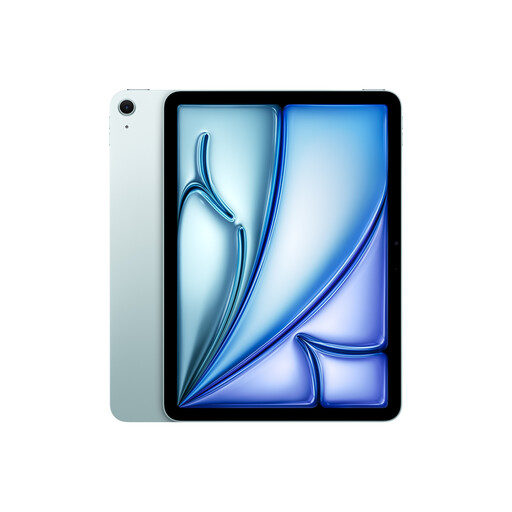
The 11-inch design is a compact iPadOS option for a tight seat space; check that your school apps run on iPadOS.
This version is listed with Wi-Fi and 128 GB. Apple gives the 11-inch iPad Air M4 with Wi-Fi a weight of 464 g and says it supports Apple Pencil Pro and Apple Pencil (USB-C); that doesn’t mean a stylus is automatically included.
 No image available
If longer texts are your priority, the product title lists a keyboard; check that the set suits your workflow and fits on a train table.
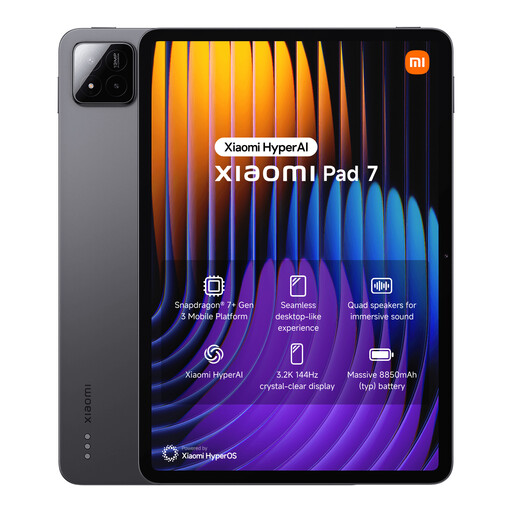
The product title lists 8 GB RAM, 128 GB ROM, a 3.2K display and a Snapdragon 7+ Gen 3.
 No image available
If your work requires a Windows application, check that it’s compatible with this exact Surface Pro configuration before you buy.
The product name lists Snapdragon Plus, 24 GB RAM and 1 TB. The 12-inch display takes up more space at your seat than a compact 11-inch tablet.
 No image available
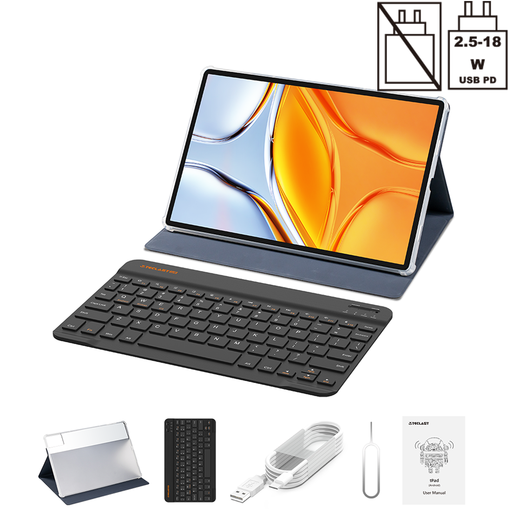
The stylus and keyboard options listed in the title may be useful for handwritten notes and typing; check that your apps work with Android 15.
The product title lists 256 GB of storage and a T-Pen; the protective case and English Bluetooth keyboard are listed as included. The 12.7-inch display takes up more room on the train than a compact 11-inch tablet.
 No image available
If longer texts matter to you, the product title lists a Folio case with keyboard. The 14-inch display takes up considerably more room on the train than a compact tablet.
The product title lists 128 GB of storage, Dual-SIM 4G and Android 15. Check that the apps you need run on this configuration.
Don’t rely on it for files you need: Deutsche Bahn describes WIFIonICE as available on ICE trains and increasingly on IC trains, while Wi-Fi on local and regional services is available on selected routes only. Download the materials you need and are authorised to use before travelling, and test your app’s offline mode.
Set up the school apps you need, check that a test file is available locally, and try out the stylus or keyboard on your specific device. For WIFIonICE, Deutsche Bahn says to select this Wi-Fi network and accept the terms of use on the sign-in page.
For radio equipment covered by the rules and placed on the EU market, the Bundesnetzagentur lists requirements including correct CE marking, clear product and manufacturer details, a declaration of conformity and any required German-language instructions for use. A retailer’s listing alone doesn’t confirm these details for a specific item.
No. For a consumer purchase from a business seller in the EU, you’re generally entitled to at least a two-year statutory warranty from the seller for covered faults. Any additional manufacturer’s guarantee is separate. Before buying, check who you’re entering into a contract with and whether the school or you will be making the purchase.