If you already have a suitable computer and desk space is limited, a compact, screen-free pen tablet is an obvious choice. XPPen lists the Deco mini7 V2 as measuring 260,2 × 162,2 mm externally, while Wacom positions the Intuos Small for use with a Mac or PC. If you want to write directly beneath the pen tip, make sure you have room for a pen display and allow for the computer connection and the cable you’ll need. If you don’t want an additional computer, consider a standalone tablet, where pen compatibility and the type of stroke control you want are key.
Which solution is right for you?
Lettering with limited desk space
You already have a computer and want a small drawing surface that fits alongside your keyboard and card. XPPen lists the Deco mini7 V2 as measuring 260,2 × 162,2 mm externally; Wacom positions the Intuos Small for use with a Mac or PC.
Lettering directly on screen
You want to see the pen tip on the display as you shape each letter, and have room to set up an additional device. Huion lists the Kamvas 13 as measuring 366,5 × 217,4 mm. Check the cable and device requirements for the relevant USB-C connection options.
Lettering without a fixed computer setup
You want to create card designs on a standalone device, wherever you happen to be. Apple lists two compatible Apple Pencil models for the iPad (A16); the stroke control you want and the accessories you’ll need vary by pen.
What to look for when buying
Compact screen-free pen tablet
A good fit if: you have a suitable computer and are happy to look at its screen rather than directly at your hand.
Consider: Hand-eye coordination takes time to get used to, and the overall dimensions aren’t the same as the active area.
Pen display connected to a computer
A good fit if: you want to draw letters directly on the display and have room on your desk for the computer, display and connections.
Consider: The display doesn’t replace a computer; cable and connection requirements depend on the model and connection method.
Standalone tablet with a pen
A good fit if: you want to create designs without setting up an additional computer or often move between workspaces.
Consider: Check pen compatibility and stroke control; the iPad (A16) supports different Apple Pencil models.
| Buying consideration |
What to look for |
Who it matters most to |
| Desk space and drawing area |
Compare the overall dimensions and active area separately with the space available for your hand and cable. For the Deco mini7 V2, XPPen lists external dimensions of 260,2 × 162,2 mm and an active area of 177,8 × 111,1 mm. |
If there’s hardly any room left beside my card and hand, I want to know whether the whole device, cable included, will fit on the desk. Around 33 % of consumers give desk space their highest priority. |
| Control over letter shapes |
Check the pen specifications for the exact model. Apple doesn’t list the Pencil (USB-C) for the iPad (A16) as pressure-sensitive; according to Apple, the 1st generation Pencil is pressure- and tilt-sensitive. |
If I want to vary the thickness of my strokes, the right kind of stroke control matters more to me than a particular type of device. Around 27 % of consumers prioritise control over letter shapes. |
| Working without a computer |
Check whether the device can be used on its own and which compatible pen you’ll need. Apple lists the iPad and a USB-C charging cable in the box with the iPad (A16), but not an Apple Pencil. |
If I want to create designs in different places without an additional computer, I need a standalone device and a compatible pen. Around 20 % of consumers prioritise being independent of a computer. |
| Connections and accessories |
Check your computer’s ports, image and data transfer, and what’s included against the guide for the exact model. For USB-C on the Kamvas 13, Huion requires at least USB 3.1 Gen 1 and DP 1.2 on the connected device; the cable is optional. XPPen lists a separately available USB-C cable for the Artist 12 (2nd Gen). |
If I want to know what else I’ll need for my planned setup before buying, I check the connections and accessories together. Around 20 % of consumers prioritise compatibility and the necessary accessories. |
Common buying pitfalls
-
Comparing only the drawing area with your desk
The active area is smaller than the device itself. With a pen display, you’ll also need space for the cable and your hand.
Measure the available desk space, including room for the cable, and compare it with the external dimensions of the exact device model.
-
Assuming any USB-C port will work with a pen display
A USB-C port alone doesn’t confirm that your computer supports the required image and data transfer. The documented USB-C connection for the Kamvas 13 has specific requirements; according to the guide, the USB-C cable for the Artist 12 (2nd Gen) is sold separately.
Before planning a one-cable setup, check your computer, cable, power supply and what’s included against the guide for the exact model.
Depending on the device and connection method, you may need additional accessories, such as a separately available cable or power supply.
-
Assuming a compatible pen is automatically pressure-sensitive
Apple lists several compatible Pencil models for the iPad (A16), which differ in pressure sensitivity.
Choose your pen based on the stroke control you want, and check that it’s compatible with your exact iPad generation.
Remember to budget for the compatible Pencil separately. To pair and charge the 1st generation Pencil with the iPad (A16), you’ll also need the adapter specified by Apple.
Key brands at a glance
Wacom
Wacom positions the Intuos Small as a pen tablet for use with a Mac or PC, without a built-in drawing display.
- It’s a good option if you already have a computer and don’t need to draw directly on a display.
- The Intuos Small isn’t a standalone device, and its built-in display won’t show your pen movements directly beneath the tip.
XPPen
XPPen offers the compact, screen-free Deco mini7 V2 pen tablet and the Artist 12 (2nd Gen) as a separate display option.
- For the Deco mini7 V2, XPPen lists both the external dimensions and active area, making it easier to check whether it will fit your available space.
- According to the guide, the USB-C cable for the Artist 12 (2nd Gen) is sold separately, so products from the same brand don’t necessarily come with the same accessories.
Huion
The Kamvas 13 is a display option for lettering directly on screen when connected to a suitable computer.
- Huion’s manual lists the external dimensions and active display area of the Kamvas 13.
- The optional USB-C-to-USB-C connection has specific requirements for the connected device. According to the manual, the cable and any power adapter you may need aren’t included.
Apple
The iPad (A16) is a standalone tablet option; choosing the right Apple Pencil is part of the buying decision.
- Apple lists the Pencil (USB-C) and the 1st generation Pencil as compatible options for the iPad (A16).
- According to Apple’s comparison table, the Pencil (USB-C) isn’t pressure-sensitive. The 1st generation Pencil requires the adapter specified by Apple to pair and charge with the iPad (A16).
Joybuy products for lettering without an additional computer
Standalone tablets with pens for lettering without setting up an additional computer. Before buying, check that the pen and device support the stroke control you want.
 No image available
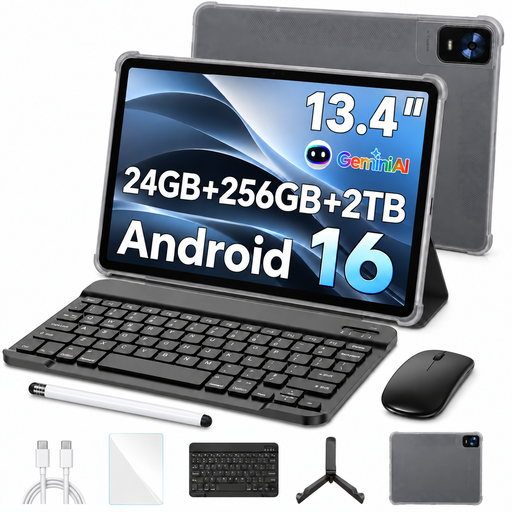
13.4-inch Android 16 tablet with passive pen, 256 GB
The product name says the tablet comes with a passive pen; check whether its input capabilities meet your lettering needs.
- 13.4-inch FHD+ display
- 24 GB RAM (8+16 GB virtual)
- 256 GB storage
- Keyboard, mouse, stand case and passive pen listed in the product name
View at Joybuy
 No image available
Teclast ArtPad Pro 2025, 12.7-inch, 256 GB
The product name says a T-Pen is included; check that its stated pen functionality suits the strokes you want to create.
- 12.7-inch 2K display
- T-Pen with 4096 pressure sensitivity levels, according to the product name
- Android 15
- 256 GB storage
View at Joybuy
Frequently asked questions
Can I use a pen display such as the Kamvas 13 on its own for lettering?
No. The Kamvas 13 is designed to be connected to a computer or a compatible Android device, as described in the documentation; it isn’t a standalone alternative to an iPad. If you want to use the USB-C connection, check the data and display functions specified by Huion, along with the power requirements.
What should I check before setting up a small pen tablet?
First, check your computer’s operating system and connection against the guide for the exact model. XPPen recommends installing the driver for the Deco mini7 V2; when using it with Android, the guide also explains how to adjust the mapping to match the screen format.
Which Apple Pencil should I choose for the iPad (A16) if I want my strokes to respond to pressure?
Apple lists the Pencil (USB-C) and the 1st generation Pencil as compatible with the iPad (A16). According to Apple’s comparison table, the USB-C version isn’t pressure-sensitive; Apple describes the 1st generation model as pressure-sensitive and specifies a USB-C-to-Apple-Pencil Adapter for pairing and charging it with the iPad (A16).
Who is responsible if there’s a fault: the seller or a voluntary warranty provider?
For a consumer purchase from a business seller, your statutory rights are separate from any voluntary warranty. EU consumer information specifies a minimum of two years from receipt of the goods, during which the seller must initially offer a repair or replacement free of charge; a voluntary warranty doesn’t replace these rights.
Can I return a drawing tablet bought online in Germany without giving a reason?
For online consumer purchases, you generally have a 14-day right to cancel, although exceptions may apply. This right is separate from any claims you may have if the product is faulty. Check the business seller’s cancellation information before placing your order.


