What should you look for when buying?
The Onleihe help pages distinguish between adjustable-flow EPUB and PDFs with a fixed page layout. So first check the file format and how you’ll borrow the book, then compare screen size, ease of use and the learning features you need.
| What to consider |
What to check before buying |
Who is it most important for? |
| Borrowing and app access |
Check your library, the title, borrowing method, app store and operating system. |
If I want to borrow a particular book through my library, I need to be able to access it on my device. Around 36% of consumers put borrowing compatibility first. |
| EPUB and PDF |
View a typical page from your book in the reading app you plan to use. |
If I want to read full exercise pages, tables or illustrations, a suitable view matters more than keeping the device as small as possible. Around 29% of consumers prioritise how easy PDF pages are to read. |
| Looking things up and taking notes |
Check that search, highlighting and the notes you want to make work with the specific title; check the stylus and bundle too. |
If I want to look up words or make notes while learning a language, the book and app need to support the right features. Around 21% of consumers put learning tools first. |
| Ease of use |
Hold the device with its case in your usual reading position and consider which screen size you want. |
If I often take my tablet with me or hold it for long periods, a compact size matters. Around 14% of consumers prioritise portability. |
Tablets for reading and learning
This selection includes Android tablets with a range of screen sizes for reading language-learning material. For each device, also check that it supports your library’s borrowing method and the reading app you want to use.
 No image available
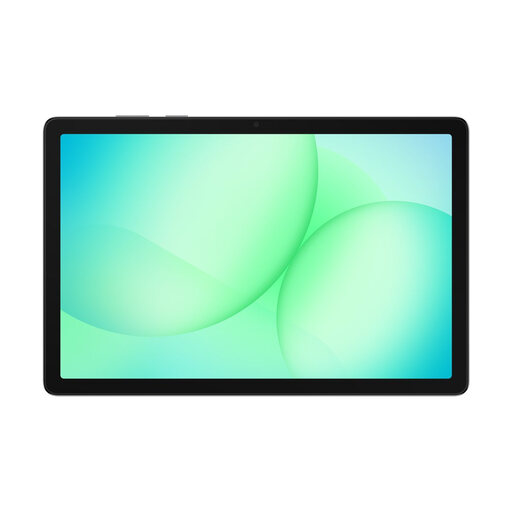
Samsung Galaxy Tab A11+ X230, 11-inch, Wi-Fi, 6 GB RAM, 128 GB, Grey
The 11-inch screen is a good option if you want more room to read than a compact tablet can offer.
The product details list a resolution of 1920 × 1200 pixels. Check that the operating system and your library’s borrowing method are compatible.
View at Joybuy
 No image available
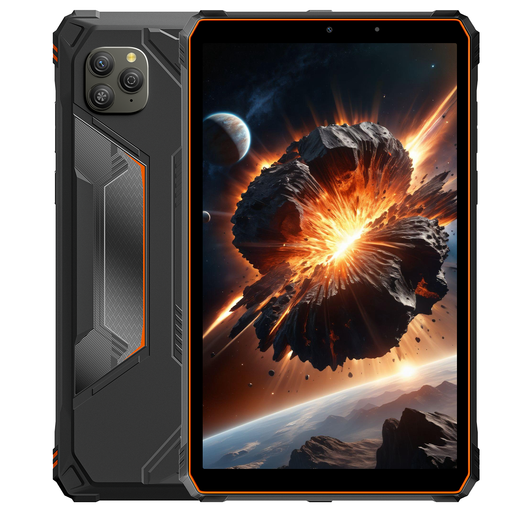
Blackview Active 5, 8.68-inch, 128 GB, Orange
The compact screen could suit you if you’re looking for a more portable device for reading mostly continuous text.
The product details list Android 15 and 128 GB of internal storage. Check the requirements for your library app on the specific device.
View at Joybuy
 No image available
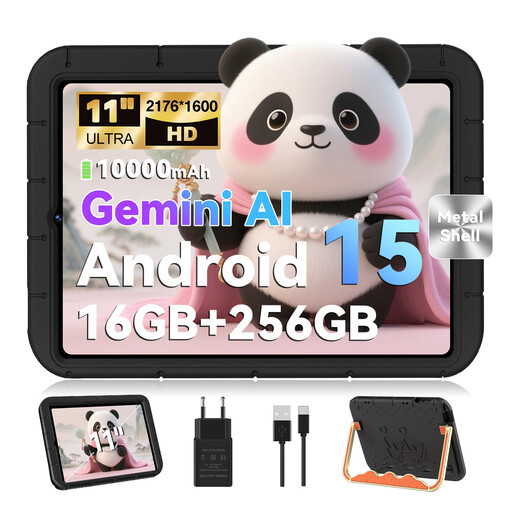
GOODTEL G11, 11-inch, Android 15, 256 GB
The 11-inch screen is a larger tablet option if you’d like more room to read.
The product details list a resolution of 2176 × 1600 pixels and access to the Google Play Store. Still, check that your library app and chosen title work on the device.
View at Joybuy
 No image available
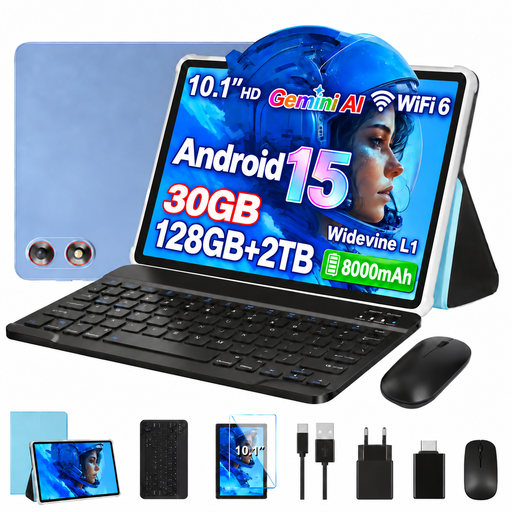
GOODTEL G10, 10.1-inch, Android 15, 128 GB, Blue
The 10.1-inch screen sits between the smaller and larger tablets in this selection.
The product details list a resolution of 1280 × 800 pixels. Before buying, check that your library’s borrowing method is available on the device.
View at Joybuy
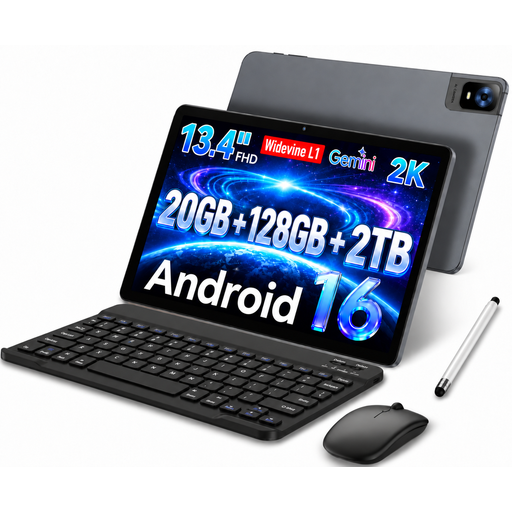 No image available
UXD tablet, 13.4-inch, Android 16, 128 GB
The 13.4-inch screen gives you more room to read if you prefer a large-format tablet.
The product details list a resolution of 1920 × 1200 pixels. Check that the larger size suits your usual reading position and that your library app is supported.
View at Joybuy
Frequently asked questions
Can I install the Onleihe 3 app on any tablet?
No, it depends on the operating system and the available way to access the app. The Onleihe help pages list Android devices with Google Play and iPad devices with the Apple App Store as compatible with the app; check the requirements for your library. For Fire tablets, the Onleihe help pages describe accessing the web version of Onleihe in the Silk browser as a possible option.
What do I need to borrow a book through my library?
To get started with the Onleihe 3 service described here, you’ll need a valid library card and its associated password. Then select your library in the app and check whether it offers the title you want in the right format.
Is EPUB or PDF better for a language-learning book?
It depends on your book’s layout: EPUB text can adapt to the screen size, while PDF pages keep their line and page breaks fixed. If your book contains lots of exercises or illustrations, view a typical PDF page on the screen you plan to use.
Can I highlight or add handwritten notes to any borrowed book?
No, these features aren’t guaranteed for every book and borrowing method. The Onleihe help pages describe reading and note-taking features in certain apps. Test the feature you want with the specific title and check whether you’ll need a compatible stylus.
Does a supported tablet stylus automatically come in the box?
No, stylus support alone doesn’t tell you whether one is included. Apple lists Pencil support for the iPad (A16), but no Pencil in the package described here; Lenovo describes the Tab Pen as optional. So check the exact model and bundle version.


