Choose a tablet to suit your existing photo workflow. The key things to consider are how the original files get onto the device, how you’ll find them again and where you’ll keep a separate backup. Apple explains how to import from compatible devices and search albums on an iPad. With Android tablets, expandable storage or a larger screen may be useful, provided they work with the archive app you need and its file management features.
Who uses a tablet for a photo archive?
People importing photos at a library workstation
You’re transferring existing photos from a camera, card or drive and need to work out how to import them and where to store working copies. Apple Support explains how to import from compatible devices into the Photos app.
People organising image collections systematically
You want to be able to find photos again later using a clear structure, so you’re checking albums, search and whether your archive app is up to the job. The Verbraucherzentrale recommends organising photos so they’re easy to find later.
People responsible for valuable originals
You want to avoid putting your image collection at risk through device failure, accidental deletion or inappropriate sharing. The Federal Office for Information Security describes backups as protection against data loss.
What should you look for when buying?
When choosing a tablet for a library photo archive, start with the tasks you’ll actually be doing: importing files, finding them again, viewing them and keeping a separate backup.
| Requirement |
What to check before buying |
Who it matters most to |
| Importing and working files |
Check card readers or adapters, file formats and how much storage a representative part of your archive will need. Apple Support explains how to import from compatible devices into the Photos app. |
If I want to transfer and view existing photos at a library workstation, the process needs to suit my collection. Around 33% of consumers put importing and local working files first. |
| Finding and organising photos |
Try out albums, search and the metadata you need using sample files. Apple Support and Adobe explain the album and folder features in their photo apps. |
I want to find images later using a straightforward filing system, rather than maintaining a complicated structure for every collection. Around 27% of consumers prioritise being able to find their photos again. |
| Viewing images on screen |
Try viewing typical images at your workstation. Samsung lists a 10.9-inch screen for the Galaxy Tab S10 FE; Lenovo lists a 12.7-inch screen for the Idea Tab Pro. |
At a fixed library workstation, I want to compare images directly on the device and see them clearly. Around 20% of consumers prioritise viewing images. |
| Backup and access |
Decide where the originals will be kept and how you’ll check a separate backup. The Federal Office for Information Security describes backups as protection against data loss. If you use the cloud, also check which folders are selected in the app. |
When dealing with valuable originals, I want to avoid putting the collection at risk through a device problem or inappropriate sharing. Around 20% of consumers put preserving originals and controlling access first. |
Common mistakes when buying a tablet for a photo archive
-
Confusing extra storage with a backup
More space for working files won’t automatically protect originals from loss or accidental deletion.
Before importing, decide where the originals will be kept and check that you have a separate backup.
-
Assuming every photo app backs up all folders
Google says you can choose which device folders to back up in Google Photos on Android. So importing files into another folder doesn’t automatically mean they’ll be backed up too.
Test the settings with sample images from the exact folders used in your archive workflow.
-
Choosing based on screen size alone
A larger screen doesn’t guarantee the right import method or the search, metadata or archiving features you need.
Test the whole process with typical files: import them, organise them, find them again and back them up.
Brands to consider
Apple
An option to consider if you want to try an iPad workflow using Apple’s Photos app.
- Apple Support explains how to import from compatible devices and search within albums.
- These features don’t guarantee compatibility with every institutional archive app or file format.
Samsung
An Android option if expandable local storage and a mid-sized screen could suit your workflow.
- Samsung lists microSD support up to 2 TB and a 10.9-inch screen for the Galaxy Tab S10 FE.
- The storage specification doesn’t guarantee compatibility with an archive app or backup functionality for the memory card.
Xiaomi
The REDMI Pad 2 is another Android option to consider if you want to check whether an expandable local working copy could suit your needs.
- Xiaomi lists versions with 128 or 256 GB of internal storage, expandable by up to 2 TB.
- The memory card is sold separately. Check that your photo app supports your preferred storage location and file type.
Lenovo
The Idea Tab Pro may be worth considering for viewing images at a fixed workstation if a larger screen is important.
- Lenovo lists a 12.7-inch screen and 256 GB of storage for the ZAE40020SE version.
- These specifications don’t guarantee particular features for tagging or institutional archiving systems.
Joybuy products for photo archiving and viewing
This selection includes Android tablets for local working files and models with larger screens for viewing images at a fixed library workstation. Before buying, check that your photo app supports the file types and storage locations you use.
 No image available
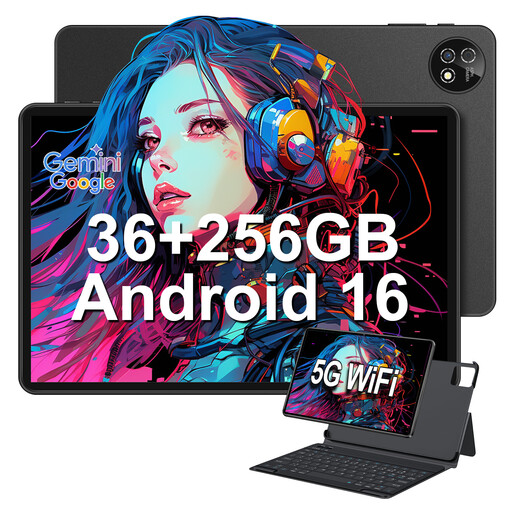
Android tablet, 10.1 inches, 256 GB, expandable by up to 1 TB with a TF card
For storing local working files at a library workstation, provided your photo app supports your preferred storage location and file format.
Listed in the title: Android 16, 10.1-inch touchscreen, 36 GB LPDDR4 RAM and 256 GB storage, expandable to 1 TB with a TF card. A keyboard and protective case are also listed.
Joybuy
 No image available
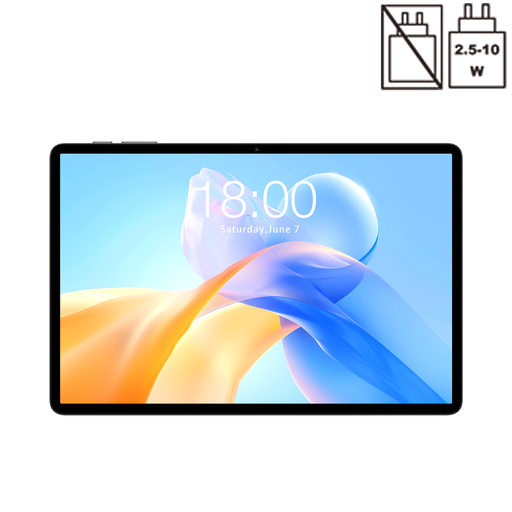
TECLAST P50T, 11 inches, 128 GB, expandable by up to 1 TB with a TF card
Worth considering for viewing images at a library workstation and storing local working files; your archive app needs to support the memory card you want to use.
Listed in the title: Android 16, 11-inch screen, 128 GB storage and TF card expansion up to 1 TB. The RAM specification is 16 GB (3 GB + 13 GB virtual).
Joybuy
 No image available
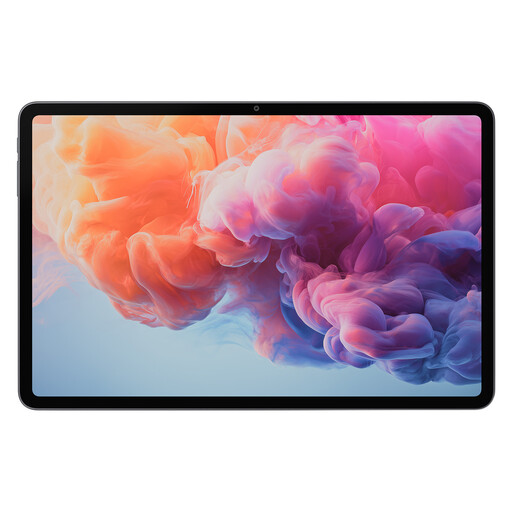
ALLDOCUBE iPlay 70 Pad Pro, 12.1 inches, 128 GB
The screen size may be useful for viewing images at a fixed workstation; check that the archive app you need works with your files.
Listed in the title: 12.1-inch screen, MTK G100 and 8 GB RAM plus 128 GB storage.
Joybuy
 No image available
TECLAST T65, 13.4 inches, 128 GB
A larger screen may be useful for viewing images at a fixed library workstation; check separately that the archive app is suitable.
Listed in the title: 13.4-inch screen, Android 16 and 128 GB storage. A folio case is also listed.
Joybuy
 No image available
Teclast ArtPad Pro 2025, 13.4 inches, 2K, 256 GB
The screen size and resolution may be worth considering when choosing a tablet for viewing images at a desk; check how representative images actually look on screen.
Listed in the title: 13.4-inch 2K screen, 256 GB storage and Android 15. A T-Pen is included, according to the title.
Joybuy
Frequently asked questions
Can I view photos directly from a memory card on an iPad?
Yes. Apple Support explains how to import from an SD card into the Photos app using a suitable card reader. Check the connection and the files you’re using first; this doesn’t guarantee support for every card format or archive app.
Is a microSD card enough to back up my photo archive?
No. Make sure you have a separate, verifiable backup of the original files. The Federal Office for Information Security describes backups as protection against issues including damage, theft and accidental deletion. Extra storage on the device you work on isn’t a substitute for this.
Can a library simply upload identifiable people to a cloud photo app?
Not in every case. If the library processes personal data, the organisation responsible must identify a relevant legal basis under Art. 6(1) GDPR for the specific purpose and check the requirements that apply to the service. The Federal Commissioner for Data Protection and Freedom of Information notes that consent is one possible legal basis, but not the only one.
Do EU repairability rules apply to newly marketed tablets?
The European Commission lists ecodesign and energy labelling requirements for covered slate tablets placed on the EU market from 20 June 2025. Whether a device is covered depends on the product type and when it was placed on the market; this doesn’t mean that every used or older device has the same labelling status.


