Choose a tablet that suits the way you work. For handwritten PDF comments, a compatible stylus and a reliable export process are essential; for typed edits, the document app and, if needed, a keyboard matter too. A larger or matte display can make a difference when reading longer pages, but takes up more space. A paper tablet designed around documents offers less freedom to use other apps.
Who is a tablet for editing reports suitable for?
Handwritten proofreaders
You want to mark up sections directly in a PDF and share the annotated version. Check not only stylus compatibility, but also what’s included and how files can be exported. Apple Support explains how to annotate PDFs on iPad, while Samsung describes similar features in Notes.
Thorough readers
You review longer pages or illustrations and weigh up screen space, reflections and how much room the tablet takes up on your desk. The specific display format matters more than any general claim about readability. Lenovo lists a matte 12.7-inch display for the Tab P12 with Matte Display, ZAD50005SE; reMarkable specifies a monochrome, glare-free 10.3-inch display for the Paper Pure.
Working across devices
You retrieve a draft from another device and want to send the annotated version back to it afterwards. Check that you can import and export the file in the required format using your chosen app. Samsung describes PDF export from Notes; reMarkable documents PDF transfers through its apps and via USB.
What should you look for when choosing one?
First decide whether you’ll mainly be adding handwritten comments or typing edits. Then check the display, file transfer options and any accessories you’ll need.
| What you need |
What to check before buying |
Who is this most important for? |
| Adding handwritten comments to PDFs |
Stylus compatibility and what’s included; annotation and export options in your chosen app. |
If I want to make corrections directly on the report and share it, the stylus, app and export options all need to work together. Around 31% of consumers put handwritten PDF comments first. |
| Reading longer pages comfortably |
Display size and finish; space needed on a desk and when carrying it around. |
When reading long pages or looking at illustrations, I want to weigh up screen space against the room available in the library and in my bag. Around 25% of consumers prioritise screen space. |
| Sharing files |
Test importing and exporting with a sample file; check the required output format. |
If my draft is on another device, I need a reliable way to send back the annotated version. Around 19% of consumers put file sharing first. |
| Keeping overall costs in check |
Factor in any stylus and accessories you need; check whether the additional features you want require a subscription. |
If my workflow requires a stylus or an additional service, I want to factor that in before making a choice. Around 13% of consumers prioritise overall costs. |
| Working quietly with a focus on documents |
Check that the available apps and colour display suit the way you work. |
If I mainly want to read and take handwritten notes, a device designed more specifically for documents needs to suit my other tasks too. Around 12% of consumers prioritise focused work. |
Which buying mistakes should you avoid?
-
“Stylus-compatible” doesn’t automatically mean “stylus included”
Apple lists the Pencil (USB-C) as compatible with the iPad (A16), but does not include a Pencil in the stated tablet contents.
Compare the model number, compatible stylus and listed contents for the specific version on offer.
If you need specific additional Connect features, factor in the ongoing subscription commitment.
Which brands are worth considering for this workflow?
Apple
The iPad (A16) could be an option for annotating PDFs with a compatible Pencil and other iPad apps.
- Apple Support explains how to annotate PDFs and lists Pencil compatibility for the iPad (A16).
- The Pencil is not included in the stated contents for the iPad (A16). The 1st-generation Pencil needs an adapter for pairing and charging.
Samsung
The Galaxy Tab S10 FE series combines stylus input with Samsung Notes.
- Samsung lists an S Pen in the box and explains how to annotate and export PDFs in Notes.
- Check the contents of the specific offer and whether the export gives you the format the recipient needs.
Lenovo
The Tab P12 with Matte Display, ZAD50005SE, is a version to consider for longer report pages and handwritten notes.
- Lenovo lists a matte 12.7-inch display and a pen in the bundle for this version.
- The display and bundle contents apply to ZAD50005SE and may differ from other P12 versions.
reMarkable
The Paper Pure is designed for reading and writing with a focus on documents; the Paper Pro is a separate option with a colour display.
- reMarkable lists a monochrome 10.3-inch display for the Paper Pure and explains how to transfer PDFs.
- Check whether the available transfer methods suit your workflow or whether you need additional Connect features. Manufacturer claims about concentration are not independent evidence of effectiveness.
Joybuy products for editing reports
The Joybuy models below include tablets for editing reports, with options that come with a keyboard and stylus as well as versions with larger displays.
 No image available
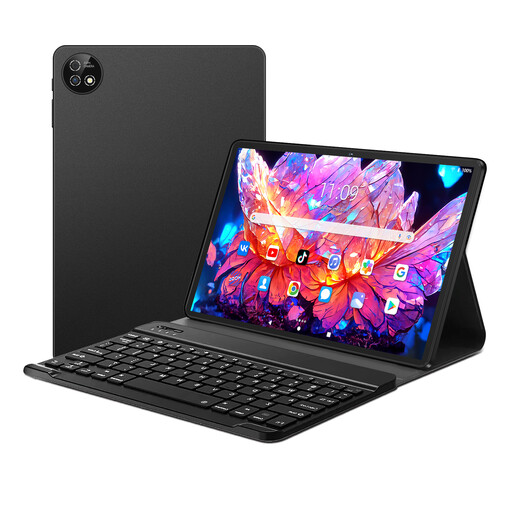
10.1-inch tablet with keyboard and stylus, Android 16
The listed keyboard and stylus combination gives you options for both typing and handwriting.
Listed in the product title: 10.1-inch display, Android 16, 256 GB ROM, 6000 mAh battery, Bluetooth 5.0 and GPS.
Before editing, check that the stylus works with your PDF app and test the export.
View at Joybuy
 No image available
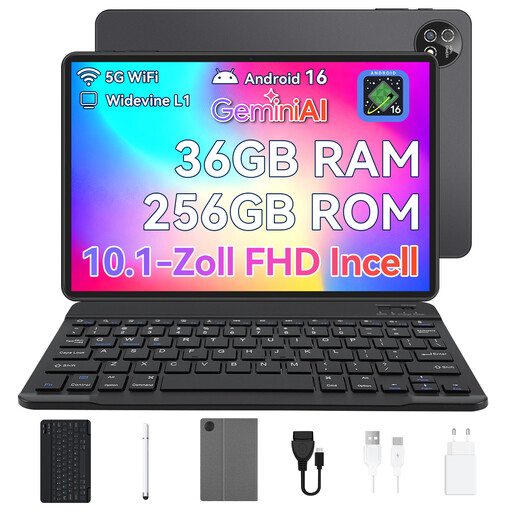
10.1-inch touchscreen tablet with keyboard and stylus, Android 16
The detachable keyboard and stylus listed in the title suit a workflow that includes both typing and handwriting.
Listed in the product title: 10.1-inch touchscreen, Android 16, 256 GB storage and octa-core processor.
Check that your document app exports annotations in the format you need.
View at Joybuy
 No image available
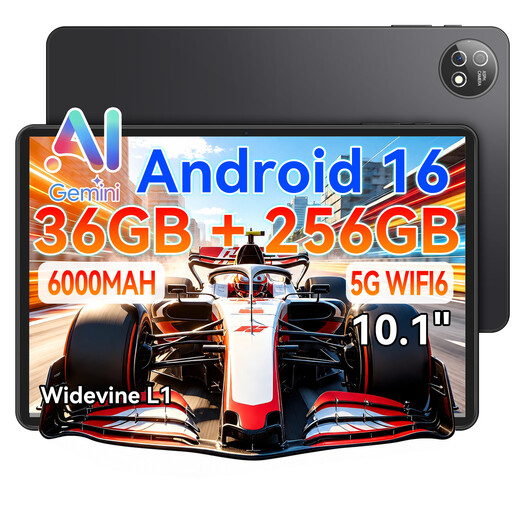
10.1-inch tablet with quad-core Unisoc T310, keyboard and stylus
The keyboard and stylus listed in the title give you options for both typing and handwriting.
Listed in the product title: Android 16, 36 GB RAM, 256 GB ROM, storage expansion up to 1 TB and Wi-Fi 6.
Check that the stylus is compatible with your chosen PDF app and that you can export the edited file.
View at Joybuy
 No image available
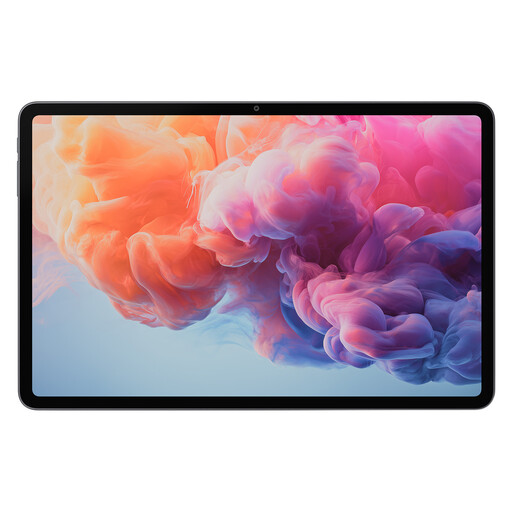
ALLDOCUBE iPlay 70 Pad Pro, 12.1 inches
The listed display size may be worth considering for longer report pages; check that it will fit on your library desk.
Listed in the product title: MTK G100, 8 GB RAM + 128 GB storage and 10,000 mAh battery.
If you want to add handwritten comments, check in advance that a compatible stylus and a suitable PDF app will work with your workflow.
View at Joybuy
 No image available
Teclast ArtPad Pro 2025, 13.4 inches, with T-Pen
The larger display and T-Pen listed in the title are features you can weigh up for longer pages and handwritten notes.
Listed in the product title: 13.4-inch 2K display, 4096 pressure sensitivity levels, Helio G99, 256 GB storage, dual-SIM 4G LTE and Android 15.
Check that the T-Pen works with your PDF app and that you can export the annotated file as needed.
View at Joybuy
Frequently asked questions
Can I add handwritten annotations to a PDF report on a tablet?
Yes, as long as the specific tablet, stylus and app work together. Apple explains how to annotate PDFs on iPad, while Samsung describes stylus and annotation features in Notes. Try it on a copy first to see how the app exports the annotated file.
How can I transfer my notes from the library to another device?
Before editing the full report, test exporting a short file in the format you need. Samsung Notes lists PDF as an export format; reMarkable explains how to transfer PDFs through its companion app and via USB. A connection is required to sync between reMarkable devices.
What rights apply when buying a tablet online from a business seller?
For a qualifying distance purchase, you generally have a 14-day right to cancel; exceptions and the relevant terms and conditions apply. Under EU consumer law, faulty goods are covered by at least a two-year statutory guarantee from the date you receive them, which you can claim against the seller. This is separate from any additional guarantee offered.
Where should I take an old tablet in Germany?
A tablet is waste electrical equipment and should be taken to an authorised collection point, not put in general waste. The German Federal Ministry for the Environment lists municipal collection points among the options; retailers have their own terms for taking back old devices.


