Cover illustrators
If you draw artwork or lettering with varied strokes, consider the stylus, tablet and app together. Apple, Samsung and STAEDTLER specify different input features and compatibility requirements depending on the model.


Start by checking your exact tablet model and the stylus technology it supports. For pressure-sensitive brush strokes, the stylus, tablet and app must all support the same input; simpler input may be enough for sketches and layout tweaks. At a shared desk, charging and storage matter too. And if you’re printing the cover, check the requirements of the specific provider you plan to use.
If you draw artwork or lettering with varied strokes, consider the stylus, tablet and app together. Apple, Samsung and STAEDTLER specify different input features and compatibility requirements depending on the model.
If you move between people or workstations, pairing, charging and keeping the stylus close to hand are especially important. Apple, Wacom and STAEDTLER describe different processes and requirements.
If you’re sketching and refining a cover, you’ll also need to plan how it will be edited and printed. The print requirements of your chosen provider determine which dimensions and file formats are suitable for the final output.
First check that the stylus is compatible with your tablet. Then consider the level of stroke control you need and how it will be used at a shared workstation. If you plan to print the cover, the intended output process also needs to inform your choice.
| What matters | What to check before buying | Who it matters most to |
|---|---|---|
| Compatibility | Check the tablet model and generation, and where applicable the operating system, digitiser or input protocol. | If I’m looking for a stylus for my existing tablet, I check the exact model name and supported stylus technology. Around 36% of consumers put compatibility first. |
| Stroke control | Check pressure and tilt separately, and make sure the app you use supports the input you need. | If I’m drawing cover artwork with varied brush strokes, I check the input supported by the stylus, tablet and app. Around 29% of consumers prioritise control over their drawn strokes. |
| Ready to use | Consider how the stylus is charged and paired, and make sure there’s a dedicated place to keep it at a shared desk. | At a shared workspace, I want to hand the stylus to the next person without having to search for a cable or somewhere to put it. Around 21% of consumers prioritise having their stylus ready to use at work. |
| File and output | Check the app’s export options, how the file can be edited further and your chosen provider’s print template. | If the cover will be edited further or printed later, I check the file format and output requirements in advance. Around 14% of consumers prioritise further editing and output for their cover. |
Manufacturers sometimes list compatibility for specific models or input technologies. STAEDTLER requires an EMR digitiser for the Noris digital; with Wacom, the protocol must match your Windows device.
Check the full tablet model name and stylus version against the relevant manufacturer’s compatibility list. Also check any operating system or protocol requirements.
Apple says the Pencil (USB-C) pairs and charges by cable; its magnetic attachment is for storage. So if you move between workstations, you may still need to consider where the cable will be.
Check the manufacturer’s instructions for the exact stylus version to see how it pairs and charges.
Logitech describes the Crayon as supporting tilt-based strokes, but its Crayon guide says it isn’t pressure-sensitive. That can make a difference if you use pressure-controlled brushes.
Check separately which input is required for the stylus, tablet and specific tool in your app.
Print providers may have different requirements for dimensions, bleed, file formats and crop marks. If your export doesn’t match, you may need to do extra layout work.
Decide how you plan to produce the cover, then check your chosen provider’s template before you start designing.
Apple lists the Pencil Pro for certain iPads, and the Pencil (USB-C) for tasks including sketching and taking notes on compatible devices.
The S Pen for the Galaxy Tab S9 FE and Tab S10 FE is an option for the FE tablets listed.
STAEDTLER says the Noris digital classic is designed for displays with an EMR digitiser.
Wacom describes the Bamboo Ink Plus as compatible with tested Windows devices that support the relevant Active ES or MPP protocol.
The Surface Slim Pen is an option for explicitly supported Surface devices.
Logitech lists the Crayon (USB-C) for sketching and annotating on compatible iPads.
The Joybuy products below cover a range of uses, including drawing on the listed iPad models, styluses for Surface devices and pens for capacitive touchscreens. Before choosing, check compatibility with your specific tablet and make sure it supports the input you need for your app.
 No image available
For sketching and shading on the listed iPad models; tilt sensitivity and palm rejection are specified.
Listed models include iPad Pro 11-inch (1st to 4th generation), iPad Pro 12.9-inch (3rd to 6th generation), iPad Air 4/5 and iPad mini. Magnetic pairing and charging are described.
 No image available
For drawing on compatible Surface devices when pressure and tilt input are required.
Features listed include 4,096 pressure levels, tilt, palm rejection and magnetic attachment. According to the product details, the stylus isn’t compatible with Surface Laptop Go 1/2/3 or Surface Laptop SE.
 No image available
For sketching and shading on the listed iPad models, provided the app you use supports the input you need.
The product details list iPad models from 2018 to 2025, USB-C charging, tilt sensitivity and palm rejection. Magnetic attachment for storage is described for compatible iPads.
 No image available
For sketching on capacitive touchscreens, once you’ve checked compatibility with your specific device.
Features listed include a POM nib, USB-C charging and replacement nibs. Magnetic attachment is listed for storage with compatible iPads only; it isn’t for charging.
 No image available
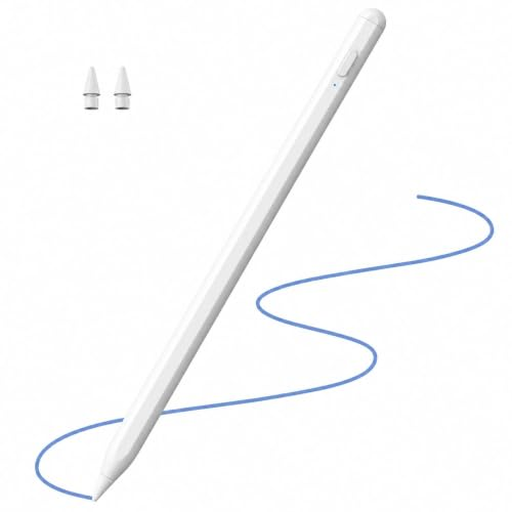
For sketching and shading on the listed iPad models when tilt input and palm rejection are required.
The product details list 2X fast charging, tilt recognition and palm rejection.
No. Check the exact device generation and stylus version. Depending on the model, the operating system, digitiser or input protocol may also be important.
Apple says it pairs and charges using a USB-C cable; on this model, magnetic attachment is for storage. After switching devices, check whether you need to pair the stylus again.
STAEDTLER lists replaceable nibs and spare nibs in the box for the Noris digital classic; check what’s included with the specific stylus you’re buying. The Verbraucherzentrale distinguishes the statutory consumer rights you have against the seller from a voluntary guarantee.
Your Europe explains that, in general, for ordinary online purchases from traders, you have 14 days from delivery to cancel. Exceptions and possible return costs apply. The Umweltbundesamt advises that waste electrical equipment must not be put in household rubbish.
It depends on the print service and packaging. CD-Kleinserie lists dimensions, bleed and file format as requirements; cdherstellung24 does not allow crop marks. So check the template provided by the supplier you actually plan to use.