First, check the exact model of your tablet: Apple Pencil, other iPad styluses and EMR pens are not interchangeable. For lettering with strokes that vary according to pressure, you’ll need a compatible pen and a suitable brush in your app; tilt input may be enough for outlines. If you plan to print your greeting card, it’s best to set the finished size and print specifications before you start drawing.
Which stylus is right for you?
Lettering on a tablet you already own
If you mainly want to avoid buying the wrong stylus, check your iPad model and generation, or whether your tablet supports EMR. Apple Support Germany and manufacturers’ information about EMR pens list the requirements for specific devices.
Fans of expressive brush strokes
If you want to vary your upstrokes and downstrokes, check pressure and tilt input separately, and make sure your app’s lettering brush uses the relevant input. Apple, Samsung and Logitech describe different input methods for their respective pens.
Greeting cards to print
If you’re designing your card digitally and want to print it at a specific size, set the dimensions and print specifications before you start lettering. The Procreate Help Centre recommends choosing the physical dimensions and resolution before you begin.
What should you look for when buying?
When lettering a greeting card, the order matters: first check compatibility, then decide how you want your strokes to look, and, if you plan to print, set the output size.
| What to consider |
What to look for |
Who is it important to? |
| Tablet compatibility |
Exact model and generation; for EMR pens, check that the specific display is compatible. |
If I already have a tablet, I want to know whether the pen works with my exact model. Around 36% of consumers put device compatibility first. |
| Stroke control |
Check pressure and tilt input separately, and consider how the selected app brush responds. |
If I want clearly varied thin and thick lettering, I need to choose the right input for my brush. Around 29% of consumers prioritise control over their lettering strokes. |
| Printed output |
Set the physical card size and resolution in advance; if using a print shop, also ask about the colour profile and file format. |
If I want to get my card printed, I need to know the finished size and output specifications before I start lettering. Around 21% of consumers put print output first. |
| Getting started and maintenance |
Consider how the specific model pairs and charges, and whether suitable replacement nibs are available. |
For short lettering sessions, I want to get started without unnecessary interruptions and know how charging or pairing works. Around 14% of consumers put immediate readiness to use first. |
Common misconceptions
-
“Suitable for tablets” doesn’t automatically mean it will work with my device
Apple lists the supported iPad models for each Pencil version. An EMR pen also requires a compatible display.
Note down your exact tablet model and check it against the details for the specific pen version before comparing extra features.
-
Tilt and pressure sensitivity are the same thing
Tilt and pressing harder are two different inputs. Logitech describes the Crayon as tilt-sensitive, but not pressure-sensitive.
Decide whether you want to control stroke width by tilting, applying pressure or adjusting the brush manually, then check that the pen and app support your preferred method.
-
You can easily set the print format after drawing
The Procreate Help Centre notes that changing the DPI later can affect the physical print size.
Set the card size and resolution before you start lettering. If a print shop will be producing the card, check the colour profile and file format too.
Making changes later may mean editing the document or exporting it again.
-
Charging and replacement nibs don’t matter if you only use the pen occasionally
The models reviewed differ in how they’re powered and how their nibs are replaced: the Apple Pencil (USB-C) charges by cable, while the manufacturer says the STAEDTLER Noris digital classic needs no charging or pairing and has a replaceable nib.
Compare the routine for the specific model with your lettering sessions, and check whether you’ll need suitable replacement nibs.
Key brands to consider
Apple
Apple Pencil models are worth considering if you have a compatible iPad.
- Apple says the Pencil Pro offers barrel roll for calligraphy tools, as well as magnetic pairing and charging.
- Pencil generations differ in compatibility and charging method. The Pro’s barrel roll feature also requires a compatible tool.
Samsung
The S Pen EJ-PX510BWEGEU is relevant to the Galaxy Tab S9 FE and Tab S10 FE series listed by Samsung.
- Samsung describes pressure and tilt input for these specified devices.
- This compatibility information doesn’t apply to every Galaxy Tab or lettering app; check both for your intended use.
Logitech
The Crayon (USB-C) is an iPad option for writing and drawing without Bluetooth pairing.
- Logitech describes tilt input and USB-C charging.
- According to Logitech, the Crayon isn’t pressure-sensitive. It’s therefore not suitable if you want to control stroke thickness by applying pressure.
STAEDTLER
The Noris digital classic 180 22-1 is a pencil-shaped pen for compatible EMR displays.
- STAEDTLER lists a replaceable 0.7-mm nib, 4,096 pressure levels and operation without charging or pairing.
- The pressure levels are a specification of the pen, not a guarantee of how every lettering app will respond. The tablet must support EMR.
LAMY
The AL-star EMR is a pen-style option for devices with compatible EMR technology.
- LAMY says the pen can be used without a battery or charging.
- EMR doesn’t mean it will work with every touchscreen. Check whether your specific device supports this input technology.
Joybuy picks for tablet lettering
This selection includes styluses for specific iPad, Android and EMR devices. Check that your exact tablet is compatible and that the available stroke control suits your lettering style.
 No image available
Stylus for iPad (2018–2026), USB-C fast charging
For sketching and outlining on a compatible iPad; check compatibility with your exact model before buying. The product name specifies USB-C fast charging; according to the product details, the stylus isn’t pressure-sensitive.
Joybuy
 No image available
Stylus for touchscreens, Android-compatible
If you use a Samsung, Huawei or Xiaomi device, check support for your exact model. According to the product details, the stylus isn’t suitable for iPad, Microsoft devices or some Lenovo tablets.
Joybuy
 No image available
ZSPEED Wireless Charging Stylus Pen for iPad, White
For lettering sketches on a compatible iPad; check the model list against your device. The product name lists tilt input, palm rejection and magnetic charging; the latter requires a compatible iPad.
Joybuy
 No image available
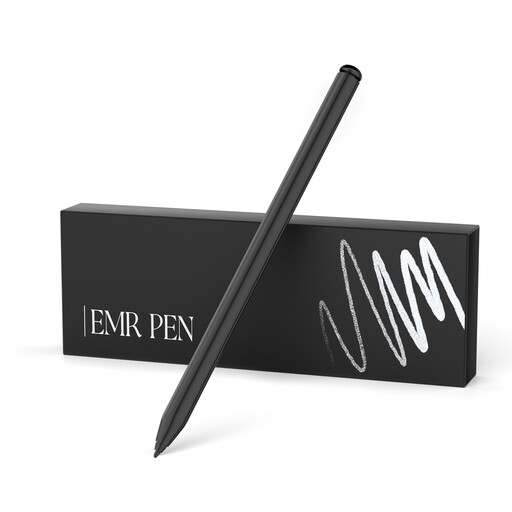
EMR pen for reMarkable 1/2 and Kindle Scribe, with eraser
For pressure-sensitive sketching on the specifically named devices: reMarkable 1/2 and Kindle Scribe. The product name lists 4,096 pressure levels and an eraser; according to the product details, the pen isn’t suitable for reMarkable PAPER PRO or other devices.
Joybuy
 No image available
Active stylus for iOS and Android touchscreens, dual touch
For writing and drawing on a compatible iOS or Android touchscreen; check compatibility with your specific device before buying. The product name specifies a rechargeable version.
Joybuy
Frequently asked questions
Is tilt recognition enough for thick and thin lettering strokes?
It may be enough for lines that vary with tilt. If you specifically want stroke thickness to change with the pressure you apply, check the pressure input supported by the specific pen and how the app’s brush responds; Logitech describes the Crayon as not pressure-sensitive.
How do I prepare a digitally lettered card for printing?
Set the physical card size and resolution before you start drawing. If a print shop will be producing the card, also ask about the colour profile and file format; the Procreate Help Centre notes that changing the DPI later can affect the physical print size.
Do I need to pair or charge an EMR pen?
The manufacturer says the STAEDTLER Noris digital classic doesn’t need pairing or charging. This applies when it’s used with a compatible EMR display; check that your device supports it before buying.
What rights do I have when buying a stylus online in Germany?
When you buy from a trader at a distance, you generally have a 14-day right to cancel from the day you receive the goods, although exceptions may apply. The European Union’s consumer information also states that faulty goods are covered by a legal guarantee of at least two years from receipt. This is separate from any voluntary manufacturer’s warranty.


