What should you look for when buying?
First, check that the stylus works with your tablet and decide whether you need a handwritten sketch or an editable circuit diagram. Then you can weigh up features such as palm rejection and charging more effectively.
| What matters |
What to check before buying |
Who is this important to? |
| Compatibility |
Check the exact tablet model and, where relevant, operating system version against the stylus compatibility list. |
If I’m looking for a stylus for a tablet I already own, that exact combination needs to work. Around 36% of consumers put device compatibility first. |
| Fits your workflow |
Decide whether you need an image or PDF, a diagram with shapes, or an electronically editable circuit diagram; check the software platform. |
If I need to edit my design later in the software I use, the right workflow matters more to me than simply being able to draw. Around 29% of consumers prioritise being able to edit the finished work. |
| Lines and palm rejection |
Check the nib and palm rejection; in the app you plan to use, also look at its grid and line tools. |
If I’m drawing small symbols or labels with my hand resting on the screen, I need controllable input. Around 21% of consumers focus above all on precise sketching. |
| Charging and accessories |
Check how the exact stylus model charges, what’s included and whether replacement nibs are available. |
If I want to avoid extra charging or accessory steps, convenience in everyday use matters. Around 14% of consumers put charging and accessories first. |
Joybuy styluses for sketching on selected devices
The styluses below are described for sketching on the specified Android and HarmonyOS touchscreens, iPads, reMarkable or Kindle Scribe devices, and Surface models. Check compatibility with your exact device before buying; a stylus isn’t a substitute for software that lets you edit circuit diagrams.
 Image unavailable
Stylus for Android and HarmonyOS touchscreens
An option for simple sketches and notes on a compatible touchscreen; check your exact tablet model before buying.
The product description lists Samsung, Huawei and Xiaomi devices as compatible. According to the product information, the stylus isn’t designed for iPad, Microsoft devices or some Lenovo tablets.
View at Joybuy
 Image unavailable
ZSPEED Wireless Charging Stylus Pen for iPad, White
For sketching on the supported iPad models; check compatibility with your exact model.
The product information lists palm and tilt detection, as well as magnetic attachment and charging. According to the product information, magnetic charging isn’t supported by all the iPads listed as compatible.
View at Joybuy
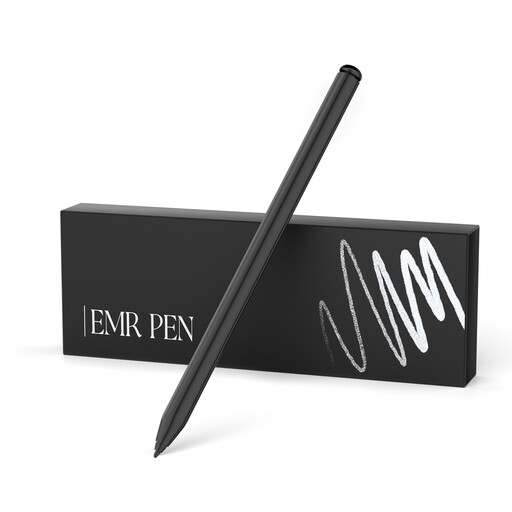 Image unavailable
EMR stylus for reMarkable 1/2 and Kindle Scribe
For sketching on the devices listed, provided your exact model is supported; according to the product information, it isn’t suitable for reMarkable PAPER PRO.
The product description lists 4,096 pressure levels, palm rejection and magnetic attachment. The stylus is listed as an EMR model.
View at Joybuy
 Image unavailable
Stylus for Microsoft Surface, 4,096 pressure levels
For sketching on the Surface models listed in the product description; check the full model name against your device before buying.
The description lists Surface Pro 3–11 and Pro X, Surface Go 1–4, Surface Laptop 1–6, as well as Surface Studio and Book 1–3. According to the product information, it isn’t suitable for Surface Laptop Go 1–3 or Surface Laptop SE.
View at Joybuy
 Image unavailable
iPad stylus with USB-C, tilt detection and palm rejection
For sketching on selected iPad models; check that your exact model is listed before buying.
The product description lists USB-C charging, tilt detection, palm rejection and magnetic attachment. According to the product information, the magnetic attachment is for storage and doesn’t support wireless charging.
View at Joybuy
Frequently asked questions about tablet styluses for circuit diagrams
How do I get started with a circuit diagram on a tablet?
First decide whether you want to sketch by hand, arrange shapes and connections in a diagram, or create an electronically editable circuit diagram. draw.io describes touch controls and connected shapes; KiCad documents features such as electrical rule checks and netlists on its desktop platforms.
Do I need to pair or charge my tablet stylus?
It depends on the model: according to STAEDTLER, the Noris digital classic needs neither pairing nor charging; Apple says the Apple Pencil USB-C pairs and charges via a USB-C cable. Check that you have a compatible charging option for the Surface Slim Pen.
What can I check if strokes keep breaking up or my hand draws on the screen?
First, check that your exact tablet model is supported, then look at the settings in the app you’re using. STAEDTLER notes that palm rejection can depend on the app; if your stylus needs charging, you should also check its charge level.
What rights do I have when buying online in Germany?
For a typical online purchase from a business seller, you generally have a 14-day right to cancel, starting from delivery; exceptions apply, and you must notify the seller that you wish to cancel. The EU’s Your Europe consumer information also describes a minimum two-year legal guarantee from receipt of the goods in the event of a fault. These statutory rights are against the seller and are separate from any voluntary manufacturer’s guarantee.
Who pays for return postage?
If you cancel an order, you may have to pay the return postage if the seller told you about this before you bought the item and hasn’t agreed to cover it. For faulty goods, Your Europe says the seller must pay the return costs.


