Already have a tablet?
If you’re buying a stylus separately, first check that it’s compatible with your exact tablet model. Apple, Samsung and Microsoft each list the styluses that work with specific devices or model ranges.


Choose a tablet stylus based first on your exact tablet model, then on how you plan to use it. For hand-drawn circuit diagrams, you’ll need a compatible stylus and tablet, plus a suitable drawing app. If you need an editable EDA file, the software and the computer it runs on are what matter. Also check what’s included, how the stylus charges and whether replacement tips are available.
If you’re buying a stylus separately, first check that it’s compatible with your exact tablet model. Apple, Samsung and Microsoft each list the styluses that work with specific devices or model ranges.
For hand-drawn components, connections and annotations, you’ll need a stylus that works with your tablet and a suitable drawing or note-taking app. For example, Logitech describes the Crayon as suitable for writing, annotating and sketching diagrams on compatible iPads.
If you need to edit a circuit diagram in an EDA application, check the software and computer requirements first. KiCad lists Windows, macOS and Linux as supported platforms.
First, work out what you need to submit. Then check that your exact tablet model, stylus and planned drawing or software workflow are all compatible.
| What matters when buying | What to check | Who should pay particular attention? |
|---|---|---|
| Compatibility | Check the exact tablet model and stylus name against the manufacturer’s compatibility list. | If I’m looking for a stylus for a tablet I already own, I want to know first whether it works with that exact model; around 28 % of consumers are likely to put compatibility first. |
| Line control and labelling | Check whether the stylus offers the tilt, pressure or palm rejection features you need, and what drawing tools the app provides. Samsung, Logitech and Apple describe the features available on specific stylus models. | When sketching, I want to be able to distinguish wires from labels clearly; around 22 % of consumers are likely to prioritise precise lines and legible notes. |
| Sketch or EDA file | Check the required submission format and whether you’ll need to edit it. KiCad lists Windows, macOS and Linux as supported platforms; diagrams.net also describes features for circuit diagrams. | If I need to submit an EDA file that can be edited later, I’ll check the software and computer requirements first; around 22 % of consumers are likely to prioritise this workflow. |
| What’s included and accessories | When buying a new tablet, check what’s included and whether the stylus needs a separate charger or other accessories. Samsung lists an S Pen as included with the Galaxy Tab S10 FE and FE+. | If I want to avoid unnecessary extra purchases, I’ll check what’s already included and what I’ll need for charging; around 17 % of consumers are likely to prioritise these costs. |
| Charging and replacement tips | Check storage and the actual charging method separately. Apple says the Pencil (USB-C) charges by cable, Microsoft describes charging options for the Slim Pen that depend on the device or accessory, and Logitech offers replacement tips for the Crayon. | With a small desk, I’ll look for a convenient place to charge the stylus and check that replacement tips are available; around 11 % of consumers are likely to prioritise charging, storage and maintenance. |
Apple, Samsung and Microsoft list compatibility for specific devices or model ranges. A stylus with a similar-sounding name isn’t enough to confirm that it will work with your tablet.
First identify your exact tablet model, then check the relevant stylus version against the manufacturer’s compatibility list.
A diagram drawn on screen and a circuit diagram that can be edited in EDA software are two different things. KiCad lists Windows, macOS and Linux as supported platforms.
Before choosing a stylus, check which file format and editing workflow your task requires.
On the Apple Pencil (USB-C), the magnet is for storage; Apple says it pairs and charges using a USB-C cable. Charging the Surface Slim Pen also depends on the device or compatible accessories.
Check how the specific stylus attaches, pairs and charges, one feature at a time.
Samsung lists an S Pen as included with the Galaxy Tab S10 FE and FE+. If you’re buying one of these exact tablet models, you may not need an extra stylus.
Check what’s included with the specific tablet version before ordering.
Apple Pencil models are designed for selected iPads. The range includes USB-C, Pro and older generations.
According to Samsung, the S Pen EJ-PX510BWEGEU is designed for selected Galaxy Tab S9 FE and S10 FE models.
The Surface Slim Pen is an option for Surface devices that support pen input.
The Crayon is a separate range of iPad styluses for writing, annotating and sketching diagrams.
Lenovo offers different stylus options: the Precision Pen 3 for compatible tablets and the USI Pen 2 for compatible ChromeOS devices.
These Joybuy options include styluses for iPads and selected Android and HarmonyOS tablets. Before buying, check your exact device model against the compatibility details provided.
 No image available
For sketching and note-taking on a compatible iPad; the product description lists tilt sensitivity and palm rejection.
USB-C charging and magnetic storage, but no wireless charging. The product description says the stylus isn’t pressure-sensitive; line variation is achieved by tilting it.
 No image available
For drawing and note-taking on a compatible Android or HarmonyOS device.
1.5 mm tip and USB-C charging; attaches magnetically to compatible tablets. According to the product description, it isn’t designed for iPad, Microsoft or some Lenovo tablets.
 No image available
For sketching on one of the iPads specifically listed; the product description includes tilt sensitivity and palm rejection.
Magnetic charging. Listed compatibility includes iPad Pro 11" (4th, 3rd, 2nd and 1st generation), iPad Pro 12.9" (6th, 5th, 4th and 3rd generation), iPad Air 4/5 and iPad mini.
 No image available
For sketching and note-taking on a compatible iPad; the product description lists tilt sensitivity and palm rejection.
The product description states that it offers up to 10 hours of use after a 30-minute charge.
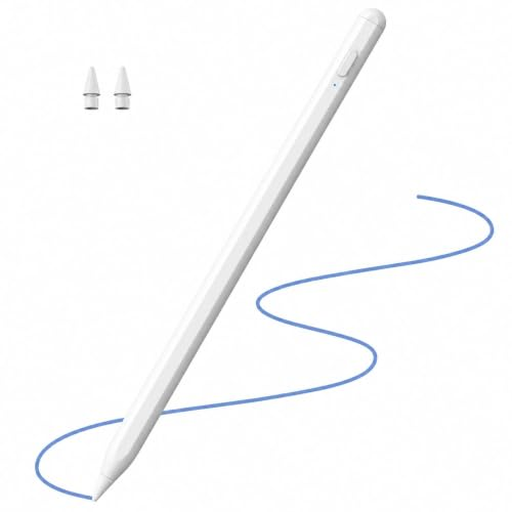 No image available
For sketching and writing on a compatible iPad; the product description lists tilt support and palm rejection.
The product description recommends using a suitable 5 V USB adapter for charging.
A stylus on its own can’t create a KiCad file. KiCad lists Windows, macOS and Linux as supported platforms for its schematic and PCB software. If you need a drawing rather than an EDA project, diagrams.net also describes features for circuit diagrams. Check what your course requires.
First, check your iPad model and iPadOS version against Apple’s compatibility list. Apple says the USB-C Pencil pairs and charges by connecting it to a compatible iPad with a USB-C cable; on this model, the magnet is for storage.
Check what’s included and how the specific version charges: Samsung lists an S Pen with the Galaxy Tab S10 FE and FE+, Microsoft describes charging options for the Slim Pen that depend on the device or accessory, and Logitech offers replacement tips for the Crayon. A voluntary manufacturer’s warranty is not the same as your statutory rights against the seller.
For a typical online purchase from a trader, you generally have 14 days from delivery to cancel. The European Union’s Your Europe website lists exceptions and specific rules on return costs. Under EU consumer information, faulty goods are covered by a legal guarantee of at least two years from receipt; check the seller’s status and the terms of your specific purchase.
No, if the stylus is an electrical device. The German Environment Agency advises that waste electrical equipment must not go in household rubbish and should be collected separately.