What should you look for?
First check compatibility with your tablet and app, then how easy the screen is to see in your workspace, and finally which drawing features and accessories you really need.
| What matters to you |
What to check before buying |
Who should pay particular attention? |
| Compatibility with your tablet and app |
Check the exact tablet model number, operating system requirements, stylus version or protocol, and app features. Apple Support, Samsung and Wacom each list requirements that depend on the device. |
If I’m combining photos and drawings on my specific tablet, I first check that the stylus and app work together. Around 36 % of consumers prioritise device and app compatibility when choosing a stylus. |
| Screen visibility by a bright window |
Assess your current display in the place where you plan to work. If buying a new device, check the exact anti-reflective or nano-texture finish: Apple offers nano-texture glass on certain 1 TB or 2 TB iPad Pro configurations; Samsung describes anti-reflective technology on the Galaxy Tab S11 Ultra. |
If reflections make it harder to position image elements, I first want to know whether my screen is suitable for my chosen workspace. Around 21 % of consumers prioritise being able to see their collage clearly. |
| Control over outlines and painted elements |
Check whether pressure, tilt and, where relevant, rotation affect the brush you want to use in your app. Procreate describes pressure- and tilt-sensitive brushes, along with extra features for Apple Pencil Pro; Samsung lists pressure and tilt sensitivity for certain S Pen versions. |
If I’m drawing outlines, shadows or textures myself, I want my app to respond to the stylus movements I use. Around 29 % of consumers put control over drawn elements first. |
| Set-up, what’s included and ongoing costs |
Check what comes with the tablet, how the specific stylus charges and whether you’ll need charging accessories. Samsung says the Galaxy Tab S11 and S11 Ultra already include an S Pen; Microsoft notes that a separate charger may be needed for certain Surface configurations. |
If I want to avoid buying extra accessories where possible, I first check what I already have and how the stylus charges. Around 14 % of consumers prioritise ease of use and potential extra purchases. |
Joybuy products for drawing and collages
This Joybuy selection features styluses for drawing and sketching on Android and iPad touchscreens. Check compatibility with your exact tablet; a stylus won’t reduce screen reflections.
 No image available
Stylus for Android touchscreens
Designed for drawing and taking notes on Android touchscreens; compatibility with every tablet isn’t guaranteed.
The title lists Samsung, Huawei and Xiaomi devices. Check your tablet’s exact model number before buying.
View at Joybuy
 No image available
Stylus for iPad, 2018–2025
Designed for drawing and illustration on the iPad models listed in the title; check your exact model number before buying.
The title mentions USB-C fast charging.
View at Joybuy
 No image available
Universal touchscreen stylus
Designed for drawing and sketching on touchscreens; check whether it supports your specific tablet.
The title lists Android and iOS devices, fast charging, an LED indicator and a magnetic attachment. According to the product details, the magnetic attachment is for storing the stylus on compatible iPads, not for charging.
View at Joybuy
 No image available
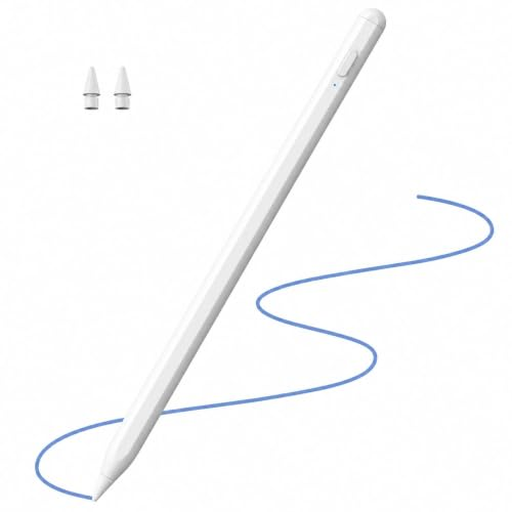
Stylus for iPad, 2018–2026
Designed for drawing and writing on the iPad models listed in the title; check your exact model number before buying.
The title mentions tilt support, palm rejection and 2X fast charging.
View at Joybuy
 No image available
Active stylus for iOS and Android touchscreens
The title lists drawing and writing on iOS and Android touchscreens as intended uses; check compatibility with your specific device.
The title lists dual touch and a rechargeable design as features.
View at Joybuy
Frequently asked questions
Will a new stylus stop reflections by the window?
No. A stylus won’t change your display’s surface. First assess the screen where you plan to work. If you’re buying a new device, anti-reflective and nano-texture features are relevant only to the specific model variant listed.
How do I start a collage with photos and several layers in Procreate?
In Procreate, you can add photos or files to an existing canvas and edit image elements on separate layers. If you add a PSD as an image this way, it will be flattened, according to the Procreate Handbook. To keep the PSD layers, you need to import it into the Gallery as described there.
Do I need to charge or pair the stylus?
It depends on the model: Apple Pencil (USB-C) pairs and charges with a USB-C cable, while Apple Pencil Pro pairs and charges magnetically with a compatible iPad. STAEDTLER describes the Noris digital classic as an EMR stylus that needs no battery or pairing; it does require a compatible display.
What are my rights when buying online in Germany?
According to consumer information from the European Union, most online purchases of goods come with a 14-day right to cancel, starting from delivery; exceptions and possible return costs apply. If goods are faulty, you have a statutory guarantee of at least two years against the seller. This is separate from any additional manufacturer’s warranty.


